Workbook
Interact with your data in a simple, intuitive way — powered by Ask Sage's GenAI.
Table of Contents
What is Workbook?
Workbook is a product that allows users to interact with their data in a simple and intuitive way. It is designed to help users explore their data leveraging the power of Ask Sage's GenAI.

The Workbook landing experience — explore and analyze your data with Ask Sage's GenAI.
Create a Workbook
Creating a new workbook is simple! Click on the + New Workbook button located at the top right corner of your screen, or in the center if it's your first time using the workbook.
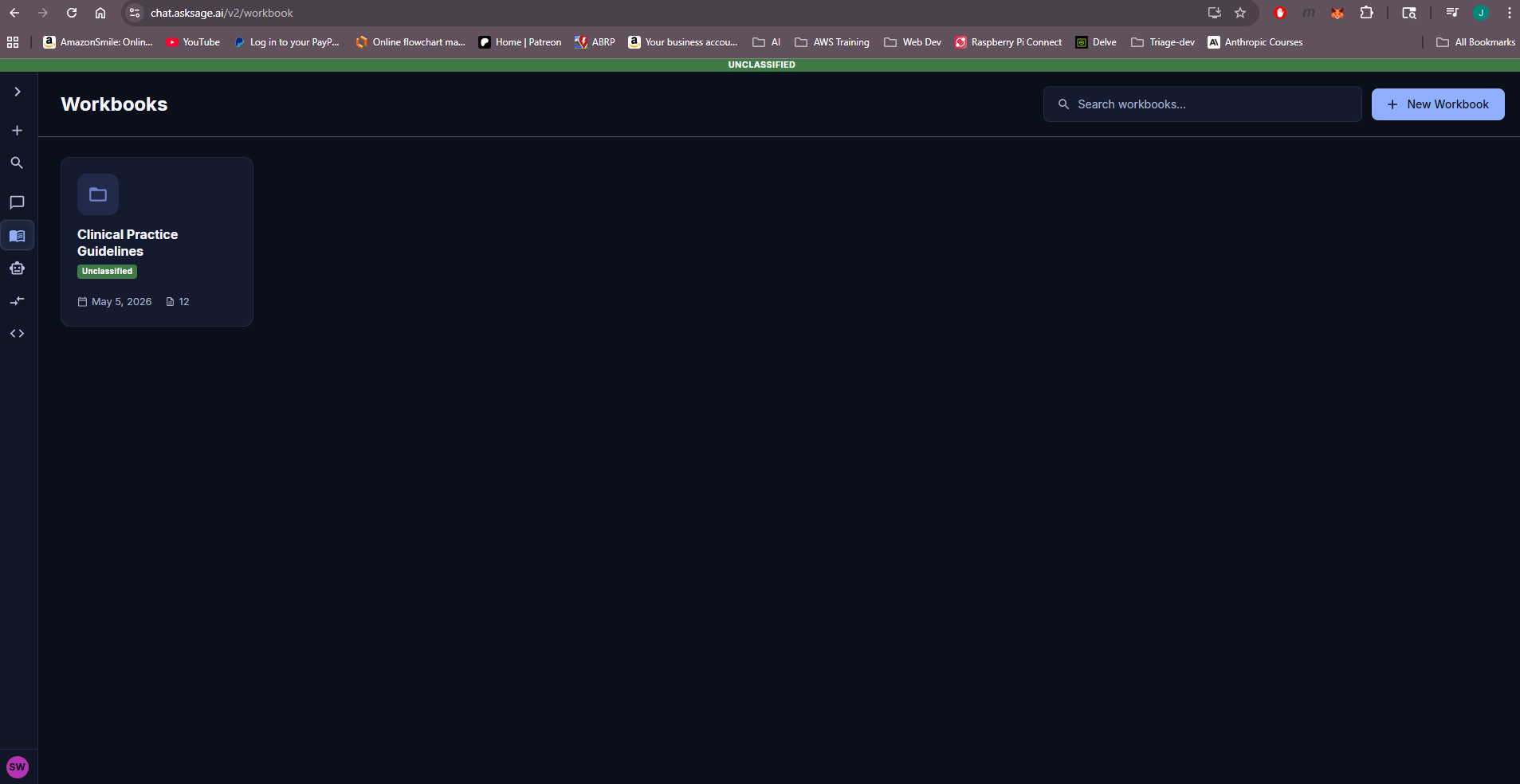
The + New Workbook button at the top right of the Workbook screen.
The New Workbook dialog opens. Enter a title, choose a classification (Unclassified is selected by default), and click Create Workbook.
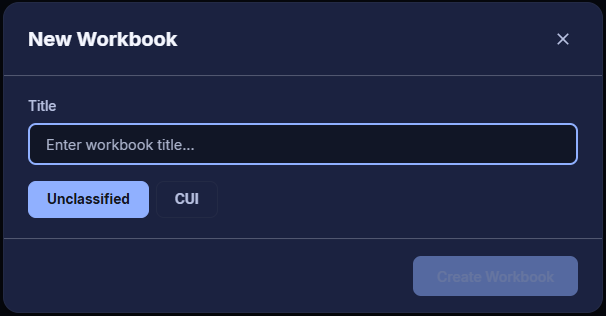
The New Workbook dialog — enter a title, pick a classification, then click Create Workbook.
After naming your workbook, select it from the list of available workbooks. When you open a workbook, the right sidebar opens automatically so you can upload data — whether or not the workbook already contains documents.
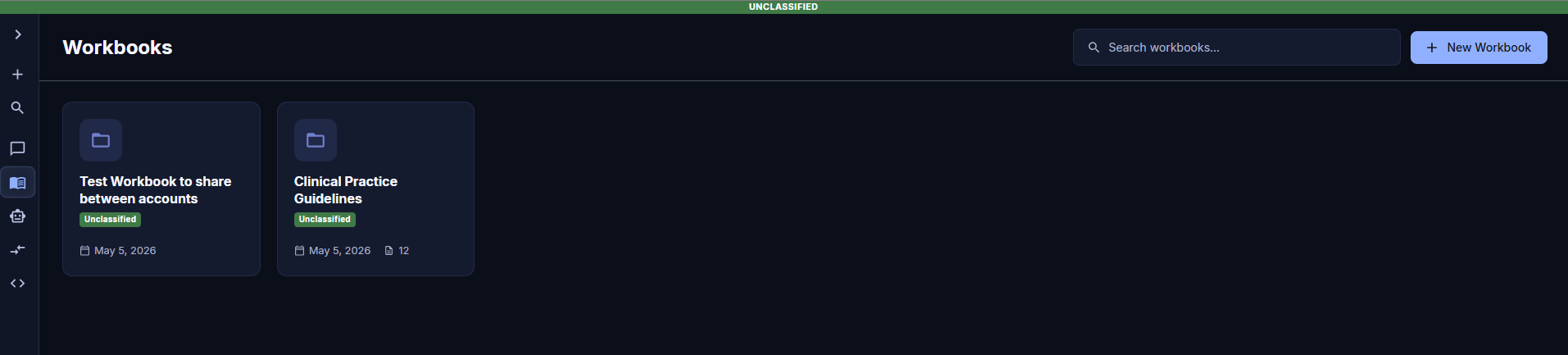
The list of available workbooks — click any workbook to open it.
Uploading Data
When you're ready to upload data, keep in mind that this process will consume Training Tokens and Inference Tokens from your account. The number of tokens used will vary based on the size of the files you upload. Inference Tokens will be used to create each file's summary. To start, we recommend uploading smaller files and gradually increasing their size as you become more familiar with Workbook.
The Workbook Content panel on the right has two upload buttons at the bottom:
While each file or URL is processing, its row in the Sources tab shows an Ingesting… status. The list updates automatically when ingestion completes — there is no Submit or Close to click.
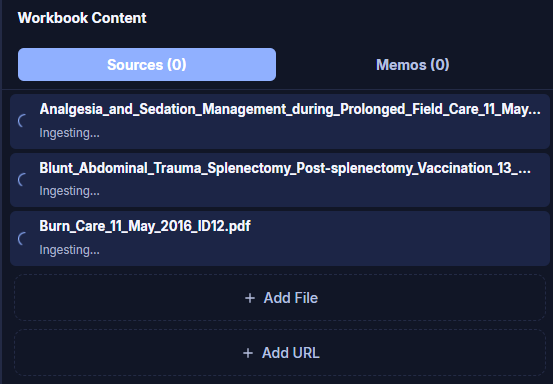
The Workbook Content panel during ingestion — each source shows an Ingesting… status until processing completes.
Workbook Interface Overview
Now that your workbook is set up and your data is ingested, you can start interacting with your data sources!
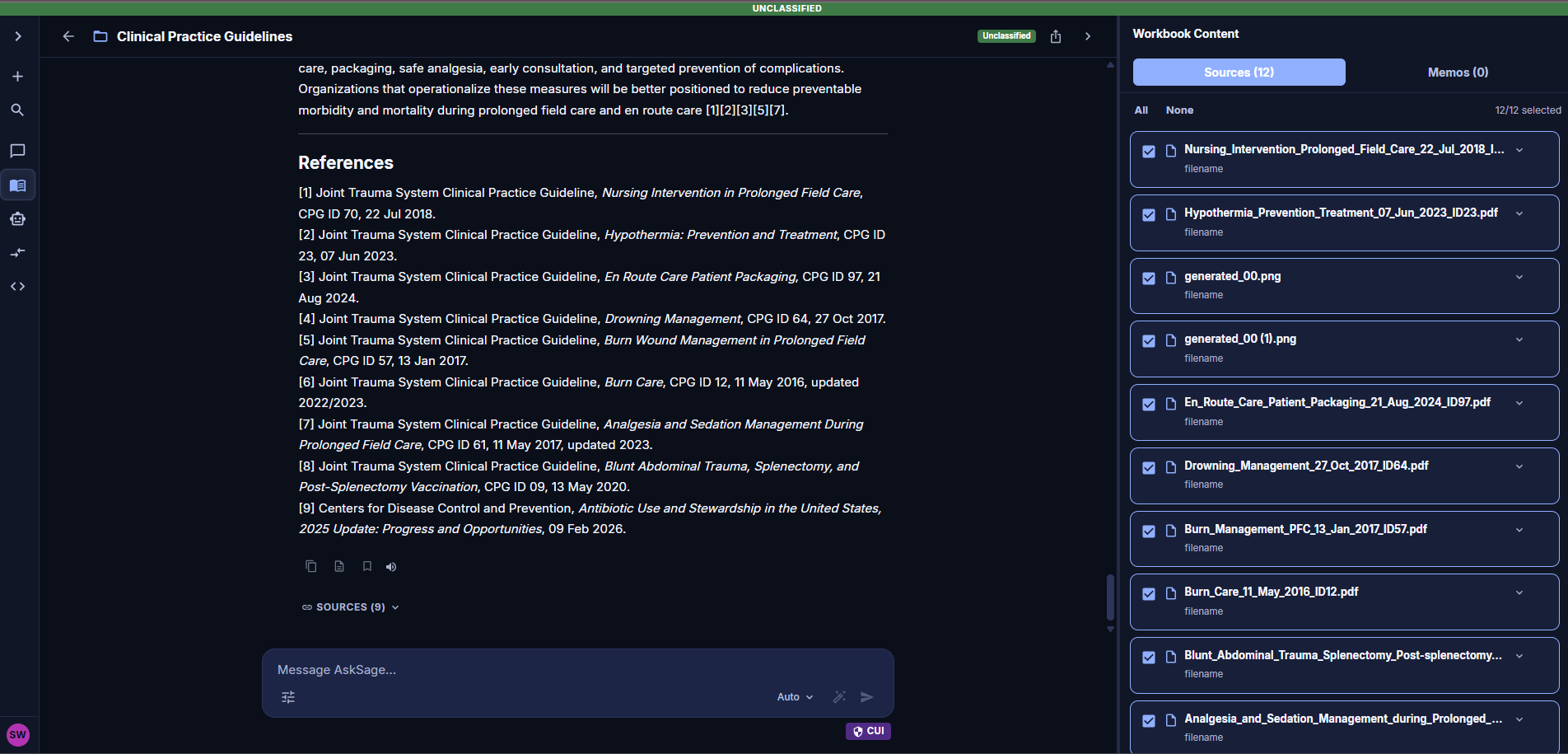
The Workbook interface — the Prompt & Inference area on the left, the Workbook Content panel on the right with Sources and Memos tabs.
Data Sources
The Sources tab in the Workbook Content panel (right side of the screen) lists every file and URL you have ingested. Click any source to expand it and view its content inline.
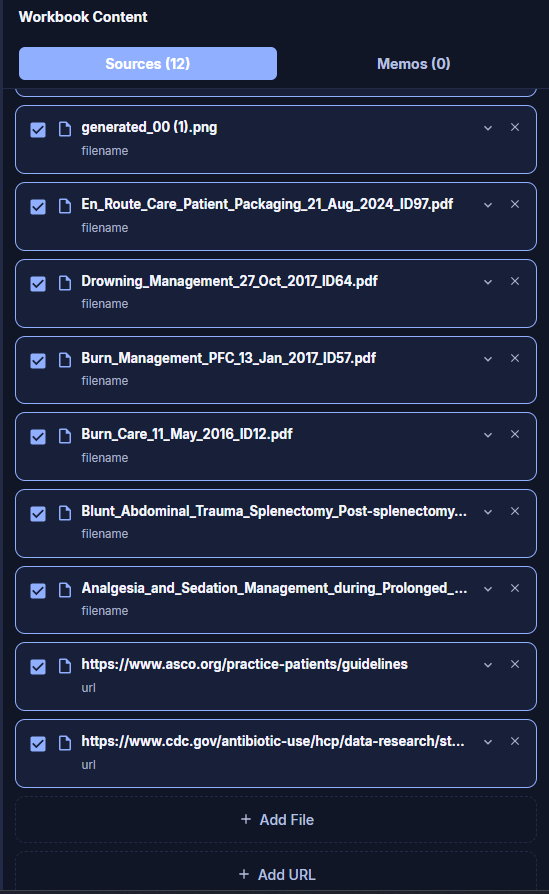
The Sources tab listing every file and URL ingested into the current workbook.
- Click the chevron (▾) on a source row to expand it and view its content.
- Use the checkbox on the left to select a source. Selected sources are the ones Quick Actions and prompts will operate on.
- The × button on the right removes the source from the workbook.
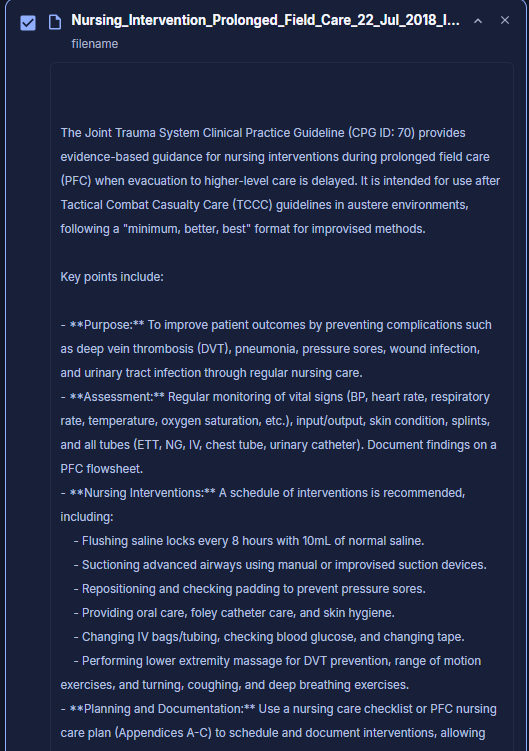
Viewing the contents and details of an ingested data source.
Prompt & Inference Window
The composer at the bottom of the inference area is where you type a prompt and send it to the model. From left to right, the composer shows:
- Tools icon (sliders) — opens the tools panel with model, persona, dataset, web search, and Quick Actions.
- Model picker — defaults to
Auto; click to choose a specific model. - Prompt enhancer (✨) — rewrites your prompt for better results.
- Send (▸) — submits the prompt.
The CUI / Unclassified badge appears at the bottom right, reflecting the workbook's classification.

The composer — tools icon, model picker, prompt enhancer, and send.
Quick Actions
Quick Actions are pre-built prompts that run against the data sources you have checked in the Sources tab. To open them:
- Check one or more sources in the Sources tab on the right.
- Click the tools icon (sliders) on the left of the composer.
- Choose Quick Actions → Pre-canned prompts.
- Pick an action (BLUF, Insights, Table of Contents, Executive Briefing, Quiz, etc.). The result streams into the inference area.
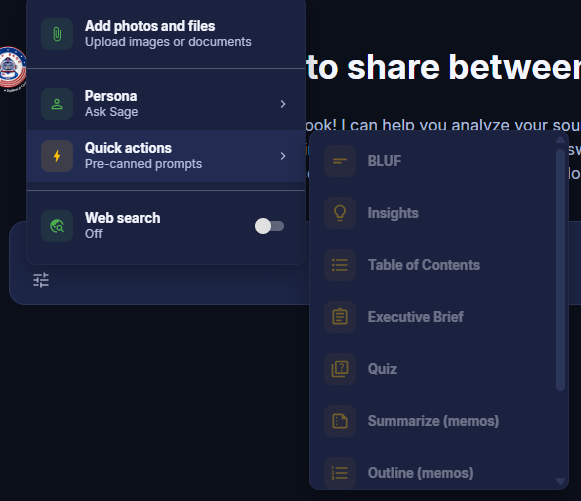
Tools → Quick Actions (Pre-canned prompts) — pick an analysis to run against the selected sources.
After the result is generated, click Save as Memo on the inference output to add it to the Memos tab in the Workbook Content panel.
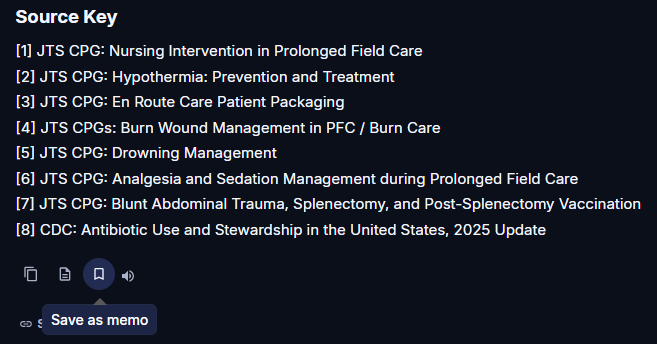
A Quick Action result rendered in the Prompt & Inference Window, with the Sources tab on the right.
Memos
The Memos tab in the Workbook Content panel (right side of the screen) shows every inference result you have saved from this workbook. To save a result, click Save as Memo on any inference output in the Prompt & Inference area — it will appear in the Memos tab.
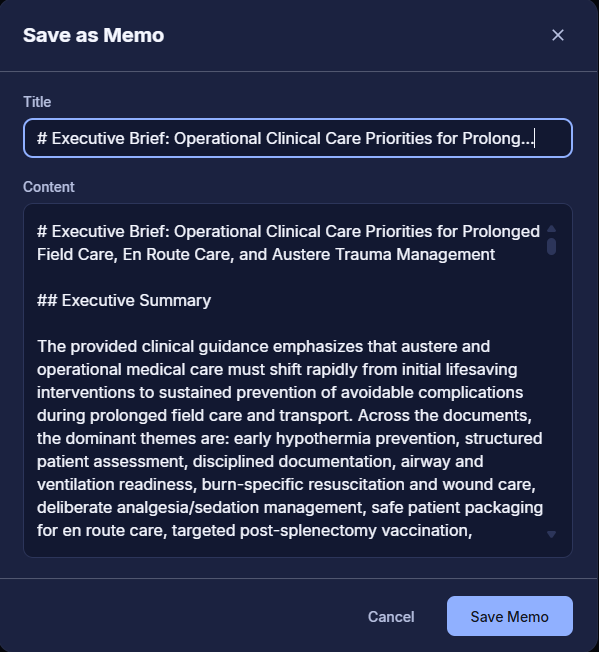
The Memos tab in the Workbook Content panel — every saved inference result lives here.
Click any memo in the list to expand it and view its contents inline.
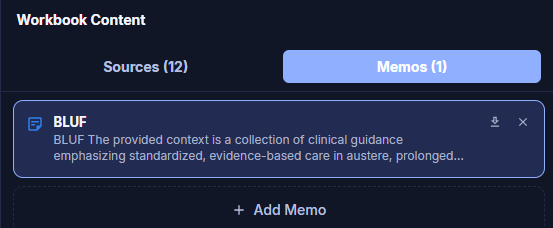
A saved memo — an Executive Brief produced by a Quick Action, kept in the workbook for later reference.
Share Workbook
To share the workbook, open the Share Workbook dialog from the workbook's share icon.
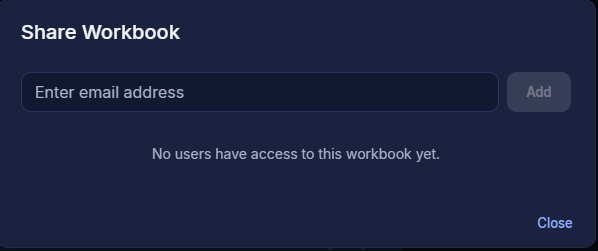
The Share Workbook dialog — invite collaborators by email.
Enter the email address of the person you want to share with and click Add. They will be granted access to the workbook and appear in the access list. Click Close to dismiss the dialog.
Workbook, you can upload, analyze, and share insights from your data — all powered by Ask Sage's GenAI.