Platform Guide

Getting Started with Ask Sage

Master the Ask Sage Chat interface and unlock the full potential of AI-powered interactions
Ask Sage User Interface Overview
Your Journey Begins: This guide will walk you through the Ask Sage Chat User Interface, helping you understand each component and feature. Mastering these fundamentals is crucial to generating optimal results for your use cases.
Table of Contents
  1. User Interface (UI)
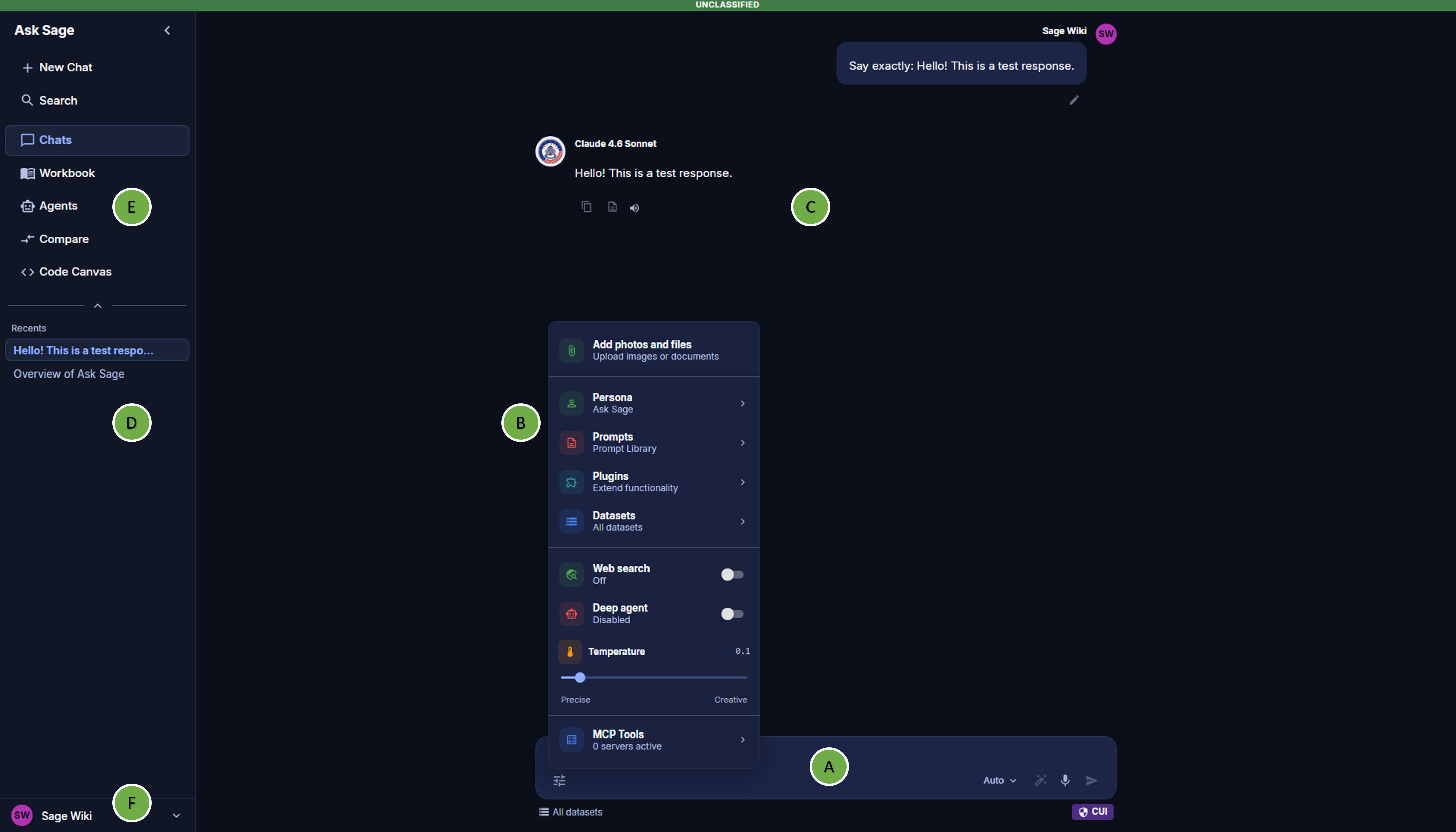
    1. Prompt Window - A
    2. Tools Menu - B
    3. Inference Window - C
    4. Chat History - D
    5. Sidebar Menu - E
    6. Sidebar Menu - F
  2. Summary

User Interface (UI)

Ask Sage Platform Overview

The Ask Sage platform is designed to be user-friendly for organizations and their users to interact with GenAI models. The UI is divided into five main sections: Prompt Settings, Prompt Window, Inference Window, Chat History, and Side Bar Menu.


Prompt Window - A

Prompt Window

Ask Sage Prompt Window Interface

This is where users can enter a prompt, which is like a question, query or set of instructions/commands they want the model to follow in order to generate a response. The prompt window includes several interactive features to enhance user experience:

Attachment Button

Upload files such as images and documents. Enables text generation based on the content without storing in the dataset.

Tools Menu

Access comprehensive prompt configuration options and settings.

Model Selection

Select from a variety of models available on the platform for different functionalities.
Enhance Prompt

Refines and optimizes inputs to improve clarity, context, and specificity for better responses.

Microphone Button

Generate text using voice input, making prompt creation easier without typing.

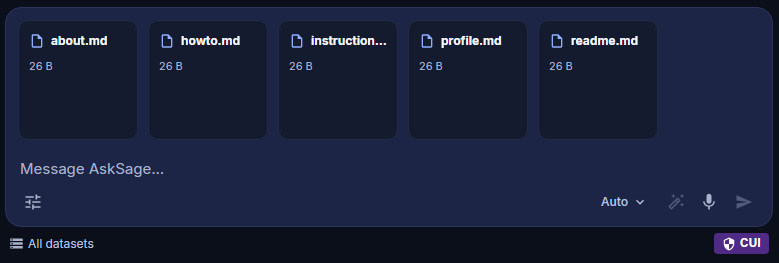
Multiple File Support: The platform supports uploading 5 files simultaneously. Please note that you are still subject to the context window limitations of the model in use.
Multiple File Attachment Interface

Tools Menu - B

Prompt Tools & Configuration

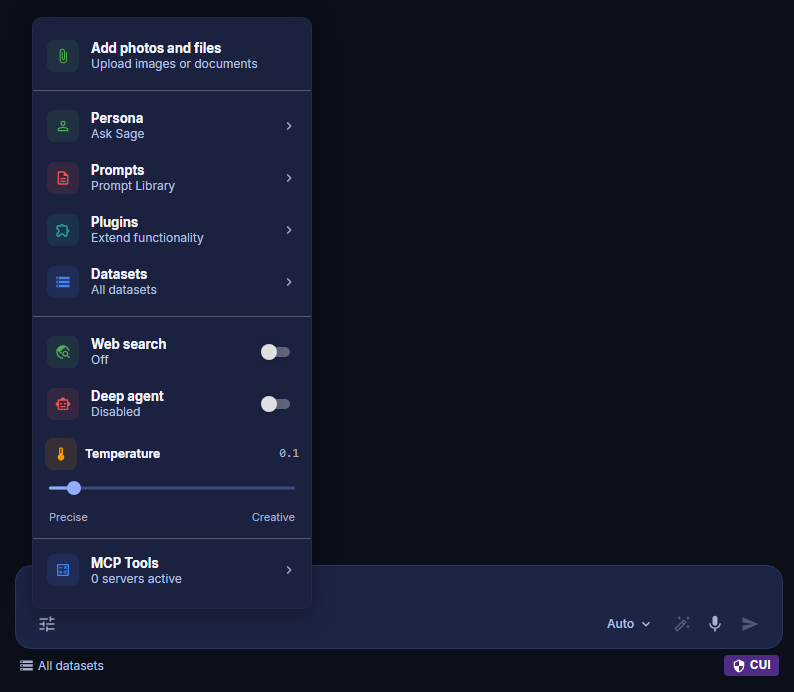
Ask Sage Hyperparameters Configuration

Here users can set the various features for a prompt. This includes Adding photos and files, Persona, Prompts, Plugins, Datasets, Web search, Deep agent, Temperature, and MCP tools they want to reference or activate for the prompt.

Learn More: In the following Prompt Features section, we will explain each of these features in detail.

Inference Window - C

Inference Window

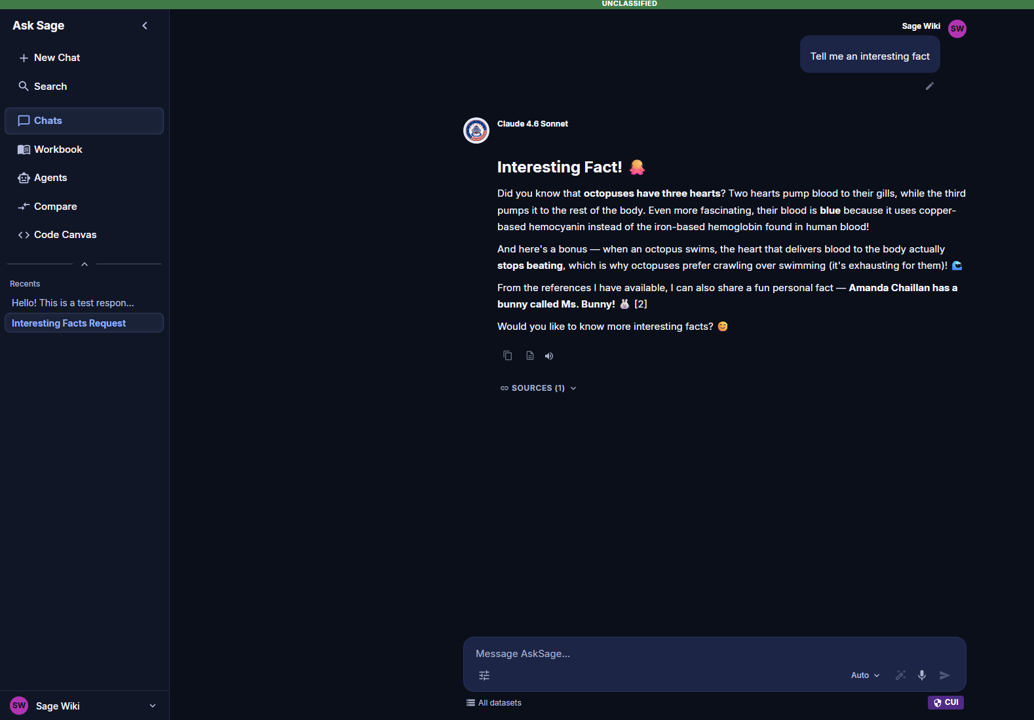
Ask Sage Inference Window

This section displays the text generated by the model. After each response, users will see additional questions or follow-up prompts to continue the conversation.

Quick Access: You can access 'Copy', 'Save as DOCX', and 'Read aloud' located below the response generated.
Prompt Response Quick Options

Chat History - D

Chat History Management

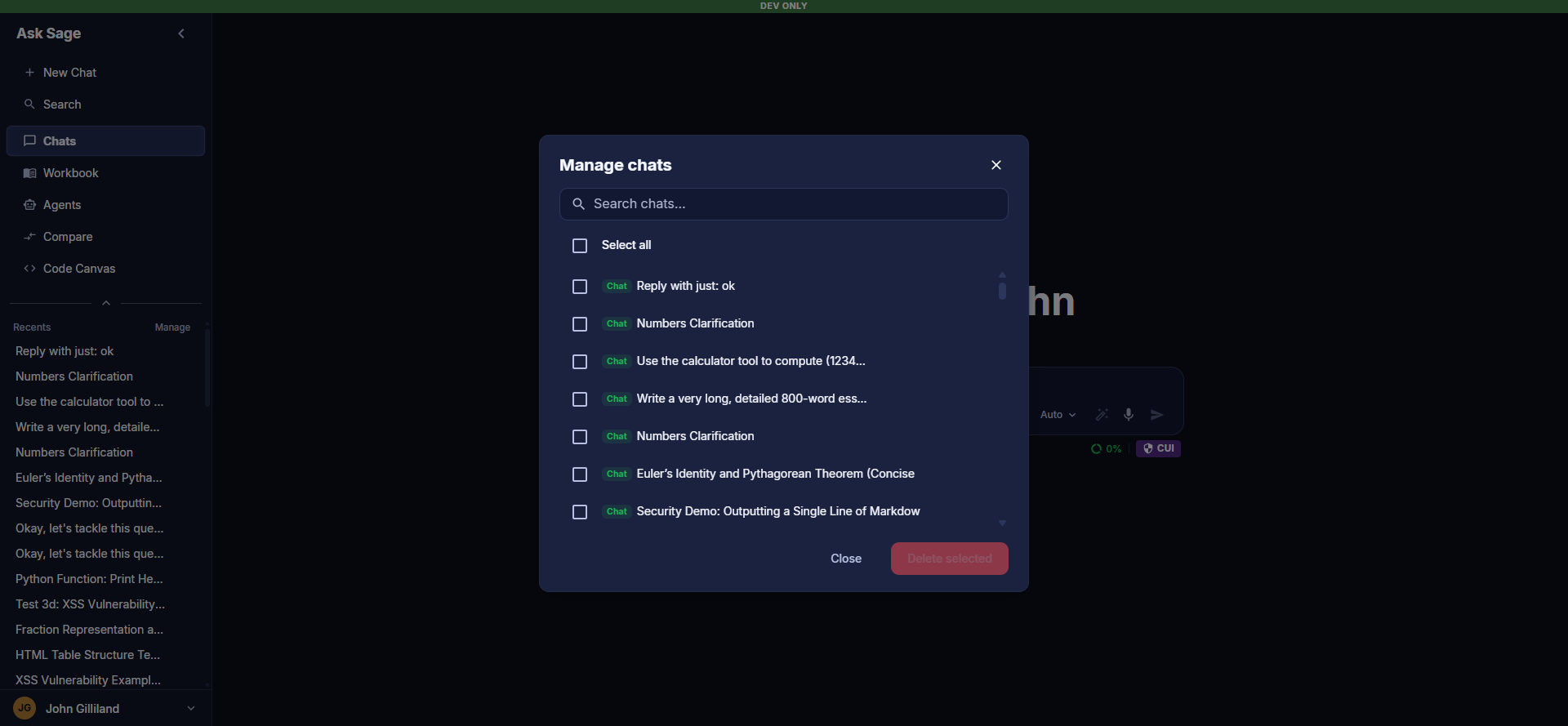
When users engage with models in Ask Sage Chat, their interactions occur within a chat session. All chat sessions in the UI are saved and can be accessed by users at a later time. Please note that the names of chat histories are automatically generated based on the initial prompt entered.
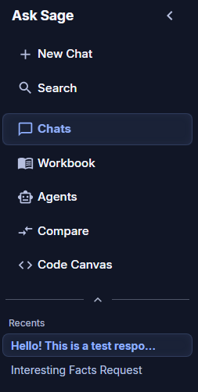
Chat History Sidebar
Chat Search: With the Chat Search Feature users can search based on chat titles to quickly find specific conversations. The search functionality operates on the context from the last 5 chats which are loaded in memory, allowing for fast and efficient retrieval of recent discussions.

Users can copy an entire chat history, rename a chat session, share it with members from the same organization, and delete it if they no longer need it within the User Interface. These options are available via the three dots next to the chat session name.

Privacy Notice: The chat history can only be accessed by the user who created it. However, users can share their chat history with other members of the same organization. Users are not allowed to share their chat history with users from other organizations.
Best Practice: Always initiate a new chat session when changing topics or contexts. Continuing a session with a different subject can hinder the model's ability to generate accurate results. Additionally, if you encounter issues with the model, starting a new chat session may help resolve them, as prior chat history could influence the model's responses.

Sidebar Menu - Platform Features

Sidebar Menu Section E

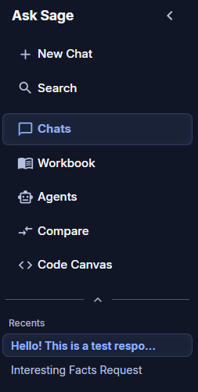
In the sidebar menu, users can use the options to navigate the platform and access additional products paid subscriptions will have access to:

  • Chats - The main user interface for interacting with Ask Sage Chat
  • Workbook - Engage with GenAI models in a more intuitive manner
  • Agents - Create an Agent and a multi-step workflow
  • Compare - Evaluate and compare the outputs of different models
  • Code Canvas - Chat with an LLM to write code
  • Integrations - Connect Ask Sage to your IDE, terminal, and other platforms
Continuous Innovation: We are constantly updating the platform and adding new products, so stay tuned for more exciting features and tools to come!

Sidebar Menu - Account & Support

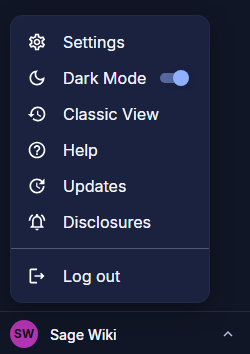
Sidebar Menu Section F

The bottom of the sidebar provides access to support and your account:

Learn More: See the Account Settings section for a full walkthrough of each option.
  • Settings - Configure your account preferences and platform settings
  • Dark Mode - Toggle between dark and light interface themes
  • Classic View - Switch to the classic Ask Sage interface
  • Help - Access documentation, tutorials, and support resources
  • Updates - View the latest platform updates and release notes
  • Disclosures - Review important notices and compliance disclosures
  • Log out - Sign out of your Ask Sage account
Learn More: In the following Account Settings section, we will explain each of these features in detail.

Summary


Back to top

Copyright © 2026 Ask Sage Inc. All Rights Reserved. Ask Sage is a BigBear.ai company.