GitHub MCP
Manage repositories, issues, and pull requests directly from Ask Sage.
Table of Contents
Prerequisites
- Account type: Enterprise account with a minimum of 10M monthly tokens, or a dedicated Ask Sage tenant/instance.
- Activation: Contact your administrator to request hosted MCP access through Ask Sage support at support@asksage.ai.
After we work with you or your administrator to enable the integration, you'll receive confirmation and users can follow the setup steps below.
Connecting Your GitHub Account
The first step is to connect your GitHub account to your Ask Sage profile.
- Navigate to Account Settings: Click your user profile icon (typically in the bottom-left corner) and select Account.
- Initiate GitHub Sign-In: Scroll to the bottom of the Account settings panel to find the sign-in options. Click Sign in with GitHub.
- Authorize: A GitHub authorization window opens. Sign in with your GitHub credentials and click the green Authorize Ask Sage GitHub MCP button to grant the necessary permissions.
- Verify the connection: After authorizing, the Ask Sage page refreshes automatically. Return to Account settings — the button will now read Logout from GitHub, confirming you're connected.
Activating and Using the GitHub Tool
Once your account is connected, enable the tool in the chat interface to start using it.
- Access the Tools menu: In the main chat window, click the settings icon (often shown as sliders) above the text input field to open the configuration panel.
- Enable the GitHub tool: Under the Tools section, find GitHub and click its toggle. The switch turns blue when active.
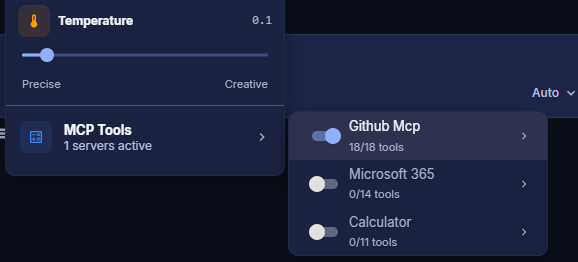
Tool Configuration
- Select a compatible model: Use a model that supports tool integration (MCP). Filter for these by selecting the MCP tag on the model selection screen. Models like GPT-Auto are designed to use these tools automatically.
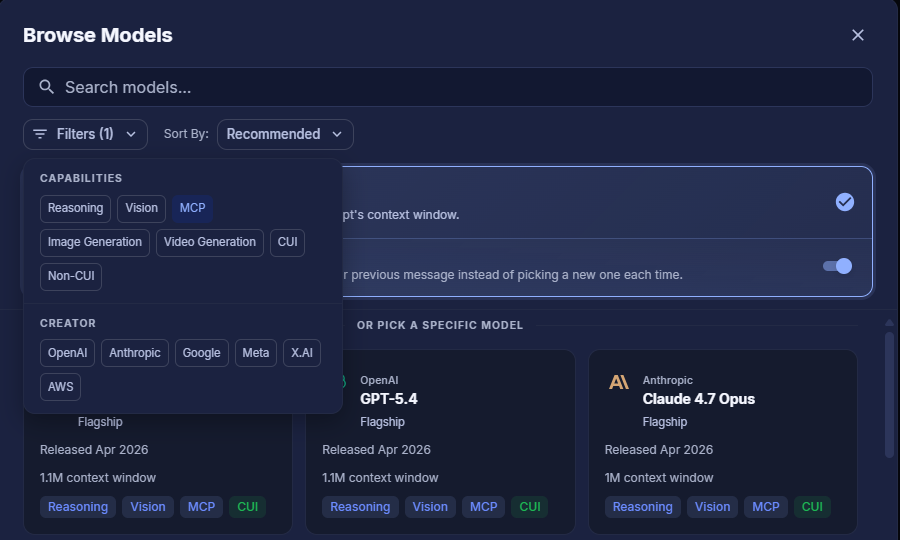
Model Selection with MCP Filter
Making a Request
You can now ask questions or give commands related to your GitHub data.
- Make a request: Type a natural-language command into the chat. For example:
- "List my repositories."
- "Create an issue in the 'frontend' repo titled 'Fix login button bug'."
- "Summarize the latest pull request in the 'backend' project."
- Approve tool usage: For security, Ask Sage prompts you before accessing your data. A Tool Call Approval card appears showing the specific action. Review and click Approve.
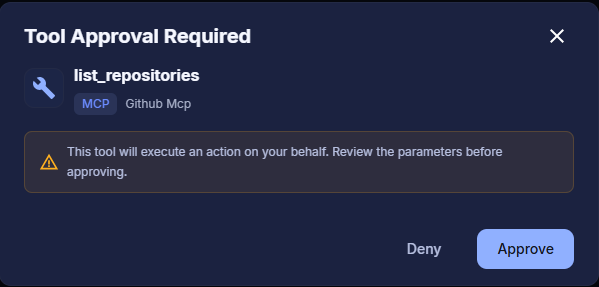
Tool Call Approval
Once approved, Ask Sage executes the task and returns the requested information or confirms the action completed.
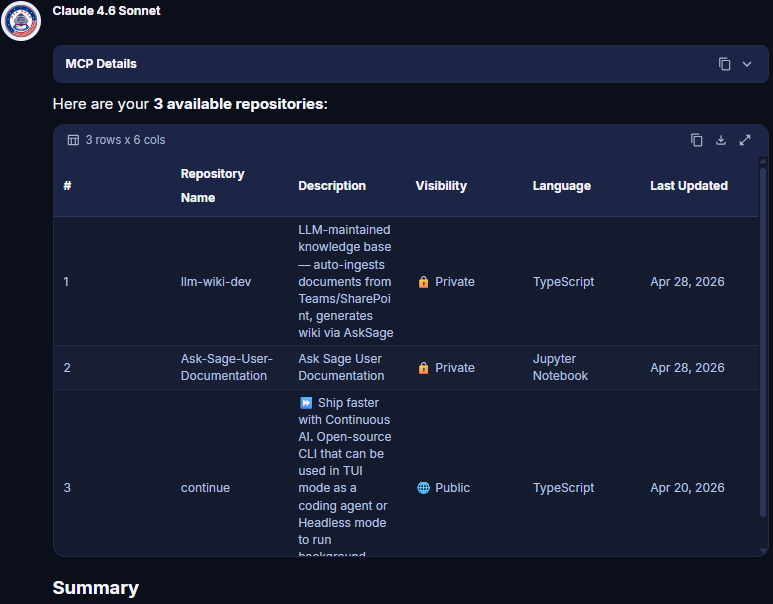
Tool Execution Result
Available Functions
The GitHub tool exposes 19 functions across repositories & files, branches, issues, and pull requests, grouped below. Optional arguments are shown in italics.
Repositories & files
| Function | Arguments | Description |
|---|---|---|
get_user_info | none | Retrieve the authenticated user's GitHub profile. |
list_repositories | (repo_type, sort) | List repositories accessible to the user (all/owner/member, sortable). |
get_repository | repo | Get detailed repository metadata. |
list_repository_contents | repo (ref, recursive) | Retrieve the file tree (recursive by default) using the Git Tree API. |
get_file_content | repo, path (ref) | Download file content with automatic base64 decoding and binary detection. |
create_file | repo, path, message, content (branch) | Create a new file with content and a commit message. |
update_file | repo, path, message, content, branch (sha) | Update an existing file (auto-retrieves SHA if not provided). |
delete_file | repo, path, message (sha, branch) | Delete a file with a commit message. |
Branches
| Function | Arguments | Description |
|---|---|---|
create_branch | repo, branch_name (source_branch, source_sha) | Create a branch from another branch or a specific commit SHA. |
list_branches | repo | List all branches with protection status. |
Issues
| Function | Arguments | Description |
|---|---|---|
create_issue | repo, title (body, labels, assignees) | Create an issue with title, body, labels, and assignees. |
list_issues | repo (state, per_page) | List issues filtered by state (excludes pull requests). |
Pull requests
| Function | Arguments | Description |
|---|---|---|
create_pull_request | repo, title, head, base (body, draft, maintainer_can_modify) | Create a PR with head/base branches, draft support, and cross-repo format. |
list_pull_requests | repo (state, head, base, sort, direction, per_page) | List PRs with filtering, sorting, and pagination. |
get_pull_request | repo, pull_number (include_comments, include_commits) | Get detailed PR info with optional comments, reviews, and commit history. |
update_pull_request | repo, pull_number (title, body, state, base) | Modify a PR's title, body, state, or base branch. |
merge_pull_request | repo, pull_number (commit_title, commit_message, merge_method, sha) | Merge a PR via merge/squash/rebase with optional SHA verification. |
get_pull_request_diff | repo, pull_number (format) | Retrieve a PR's diff or patch content. |
list_pull_request_files | repo, pull_number (per_page) | List all changed files in a PR with diff patches. |