Change
Switch tiers, update your payment method, or change your billing email.
Table of Contents
Two Places You’ll Work
Most subscription changes live in two different places. It's easy to get lost going between them, so here's the map:
- Inside the Ask Sage platform (
chat.asksage.ai) — check your token balance and open the path to the Stripe portal. - Inside the Stripe customer portal — change your plan, update your payment method, change your billing email, and download invoices. The portal opens in a new tab and looks different from Ask Sage.
Finding the Manage Subscription Button
Sign in to chat.asksage.ai. Click your name at the bottom-left of the sidebar to open the user menu, choose Settings, then click the Usage & Billing tab inside the Settings dialog. This view summarizes your current plan, token meters, and remaining balance.
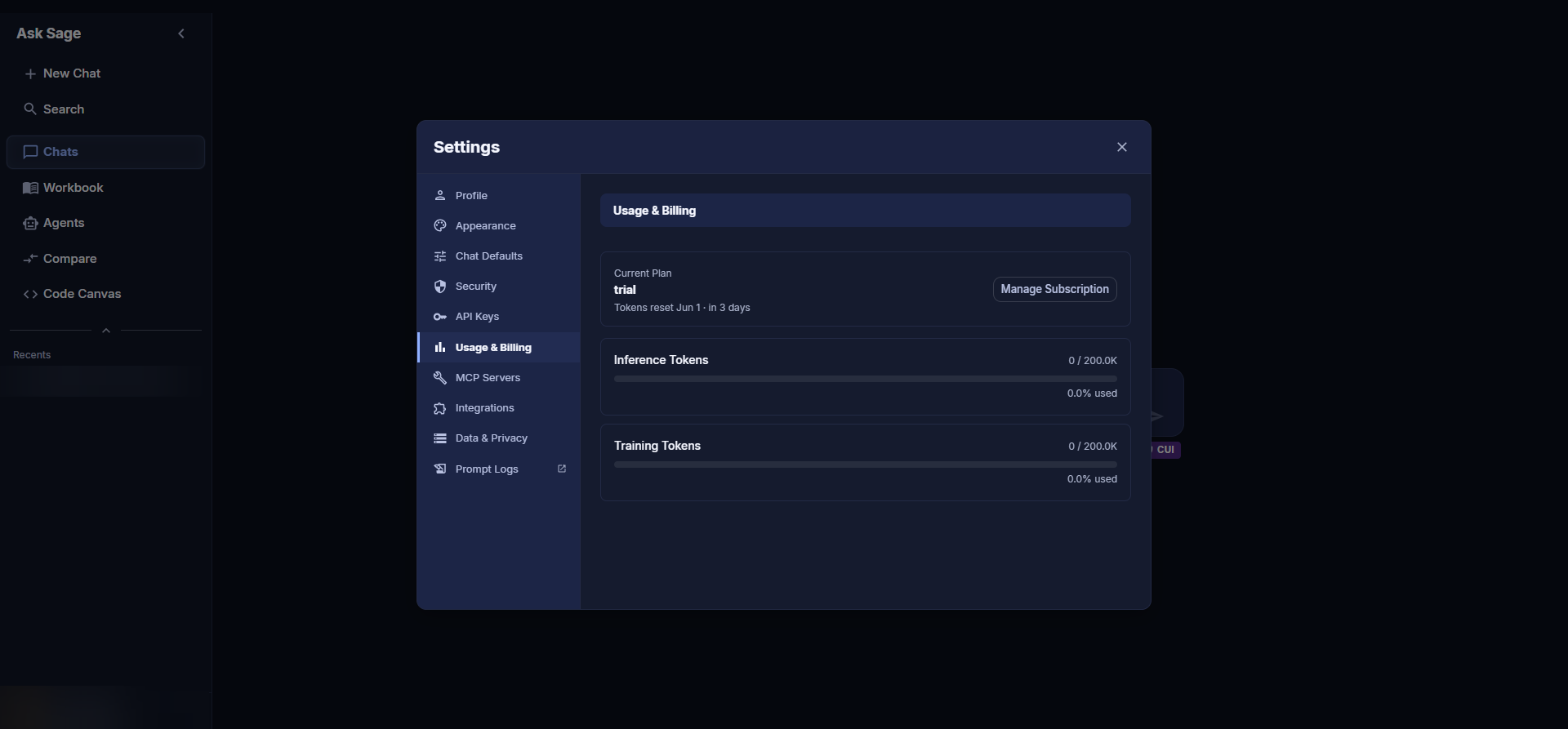
Usage & Billing — your plan, token meters, and the Manage Subscription button.
Press the Manage Subscription button. A new tab opens to a plan-picker page that shows your current plan and the other available tiers. This is not yet the Stripe customer portal.
Scroll to the bottom of that page and press Manage Subscription again. That second click opens the Stripe customer portal in the same tab, where plan changes, payment method updates, billing email changes, and cancellation all happen.
Change Your Plan or Tier
In the Stripe customer portal, find your current subscription and click Update subscription. Switch between Monthly and Yearly at the top if you want to change billing frequency, then click Select on the new tier and press Continue. Stripe will prorate the charge or credit for the rest of your billing period.
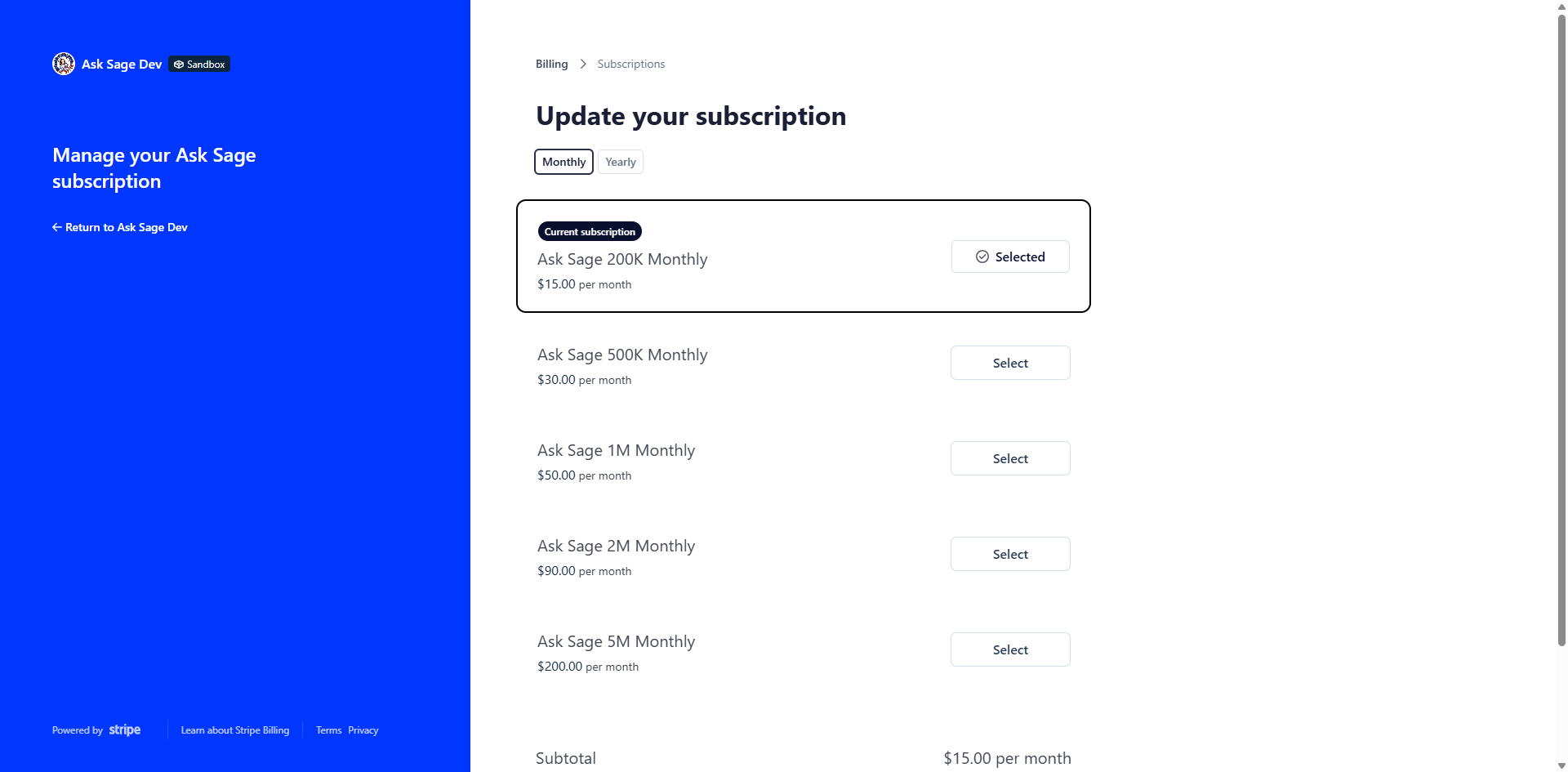
Stripe customer portal — Update subscription page. Current tier is marked Selected; press Select on a different tier and then Continue.
Change Your Payment Method
In the Stripe customer portal, the Payment method section on the main page lists your card on file. From there you can:
- Add a new card — click Add payment method, enter the card details, and confirm.
- Set as default — open the More options menu on a card. The default card is used for the next renewal.
- Remove a card that's no longer in use — also in the More options menu.
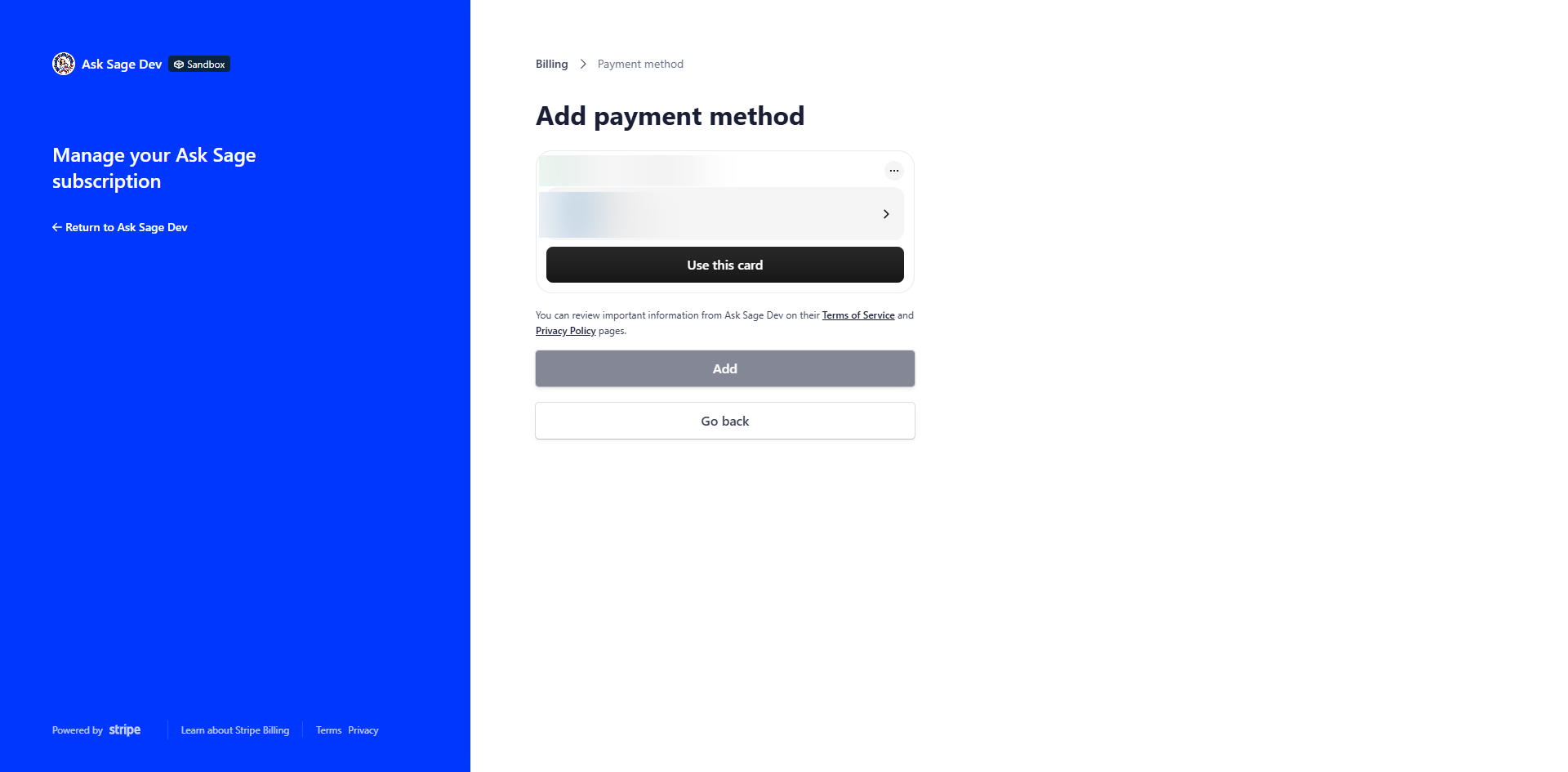
Stripe customer portal — Add payment method form.
Need More Tokens?
If you've used your monthly allowance and need more tokens before the next reset, upgrade to a higher tier using the Change Your Plan or Tier steps above. Stripe prorates the charge so you only pay the difference for the rest of the current billing cycle, and the larger allowance is available immediately.
Change Your Billing Email
Your billing email is where Stripe sends invoices and receipts. It can be different from the email you sign in to Ask Sage with.
In the Stripe customer portal, find the Billing information section on the main page and click Update information. Edit the email (and billing address if needed) and save.
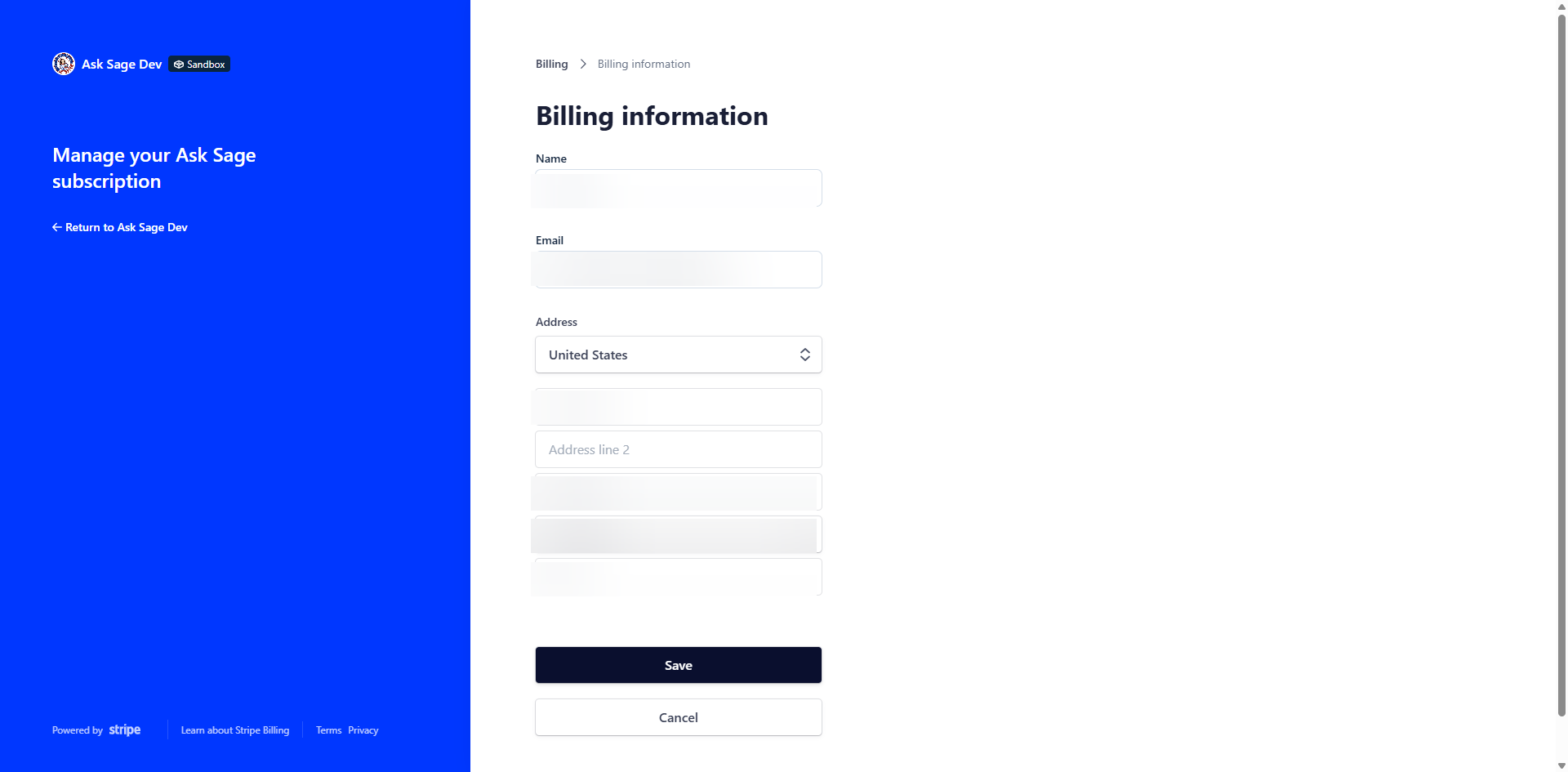
Stripe customer portal — Update billing details. Change the email here to redirect invoices and receipts.