Box MCP
Browse, search, and read your Box.com files, folders, and metadata directly from Ask Sage.
Table of Contents
Prerequisites
- Account type: Enterprise account with a minimum of 10M monthly tokens, or a dedicated Ask Sage tenant/instance.
- Tenant setup: The Box integration must be enabled and set up by your tenant superadmin before it becomes available to users. Hosted MCP must also be enabled for your tenant.
- Activation: Contact your administrator to request hosted MCP access through Ask Sage support at support@asksage.ai.
- Box account: Each user connects their own Box account via OAuth (see below). The Box tools only appear in chat once your account is connected — disconnected users see no Box tools.
After we work with you or your administrator to enable the integration, you'll receive confirmation and users can follow the setup steps below.
Connecting Your Box Account
The first step is to connect your Box.com account to your Ask Sage profile.
- Open Settings → Integrations: Open Settings, then select the Integrations tab. You'll see the available integrations, including Box.
- Connect Box: Click Connect next to Box — "Connect Box to search and use files from your Box workspace in chat."
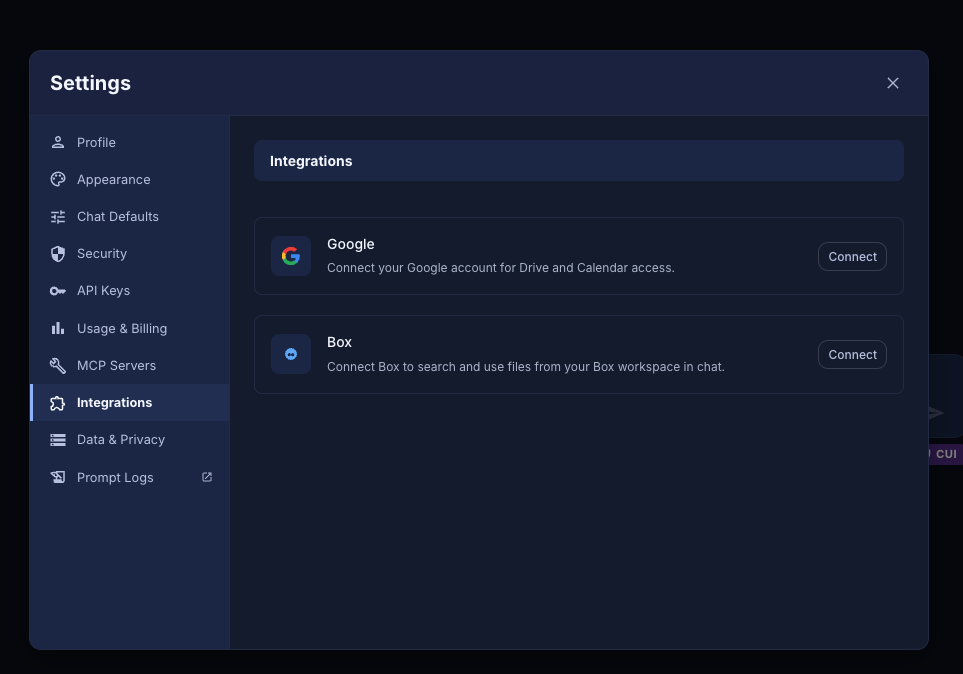
Settings → Integrations
- Log in and authorize: A Box window opens. Enter your Box email and password and click Authorize, or use Use Single Sign On (SSO). This grants Ask Sage access to Box on your behalf.
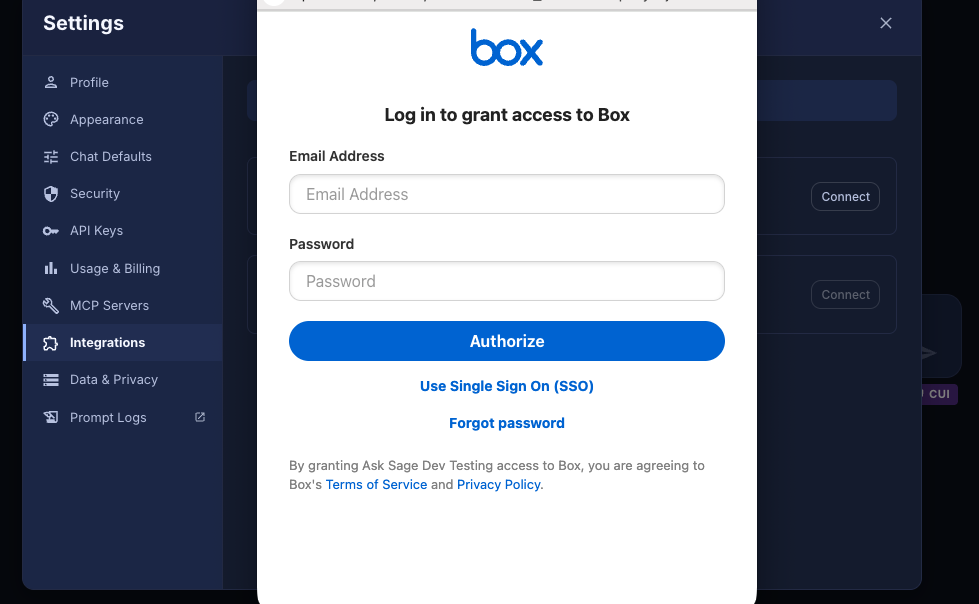
Authorizing Box access
- Verify the connection: After authorizing, you're returned to Ask Sage. The Box integration now shows as connected.
Activating and Using the Box Tool
Once your account is connected, enable the tool in the chat interface to start using it.
- Open the Tools menu: In the main chat window, click the settings icon (shown as sliders) above the text input field to open the configuration panel, then open MCP Tools.
- Enable Box MCP: Find Box Mcp in the list and click its toggle. The switch turns blue when active, and the entry shows 20/20 tools enabled.
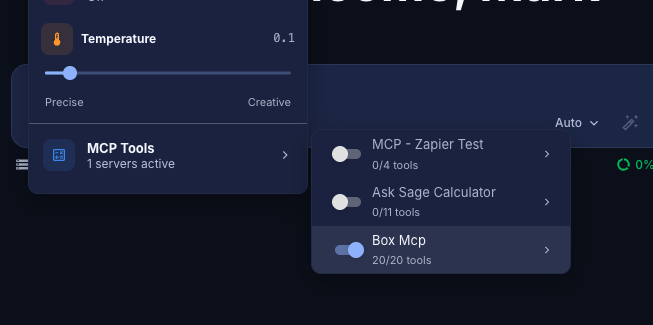
Enabling Box MCP (20/20 tools)
- Select a compatible model: Use a model that supports tool integration (MCP). Filter for these by selecting the MCP tag on the model selection screen. Models like GPT-Auto are designed to use these tools automatically.
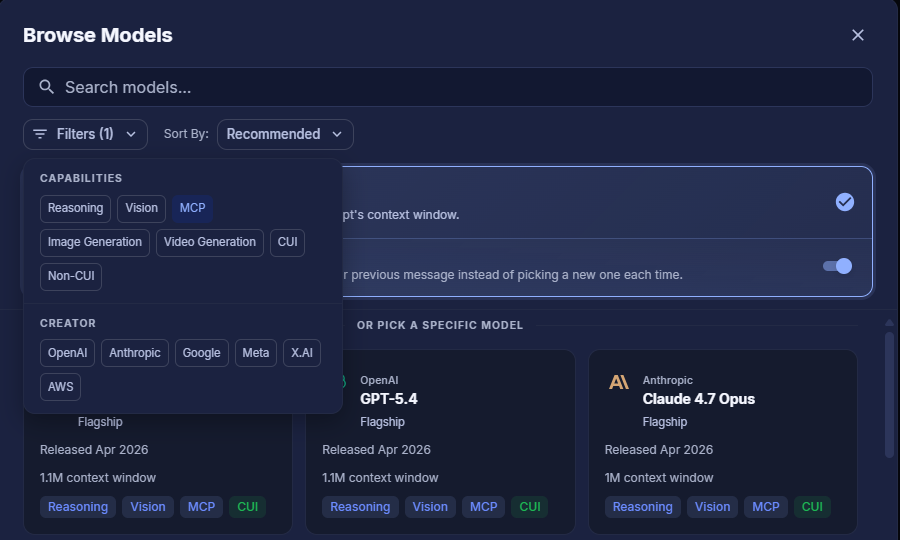
Model Selection with MCP Filter
Making a Request
You can now ask questions or give commands related to your Box content.
- Make a request: Type a natural-language command into the chat. Because the integration is read-only, requests are about finding and reading content. For example:
- "List the files in my 'Contracts' folder in Box."
- "Search Box for the Q3 budget spreadsheet."
- "Summarize the document 'Vendor Agreement.pdf' from Box."
- "Show me the version history of this file."
- "List the comments on 'Proposal.docx'."
- Approve tool usage: For security, Ask Sage prompts you before accessing your data. A Tool Approval Required card appears showing the exact tool (e.g.
search_content) and its parameters. Review them and click Approve (or Deny).
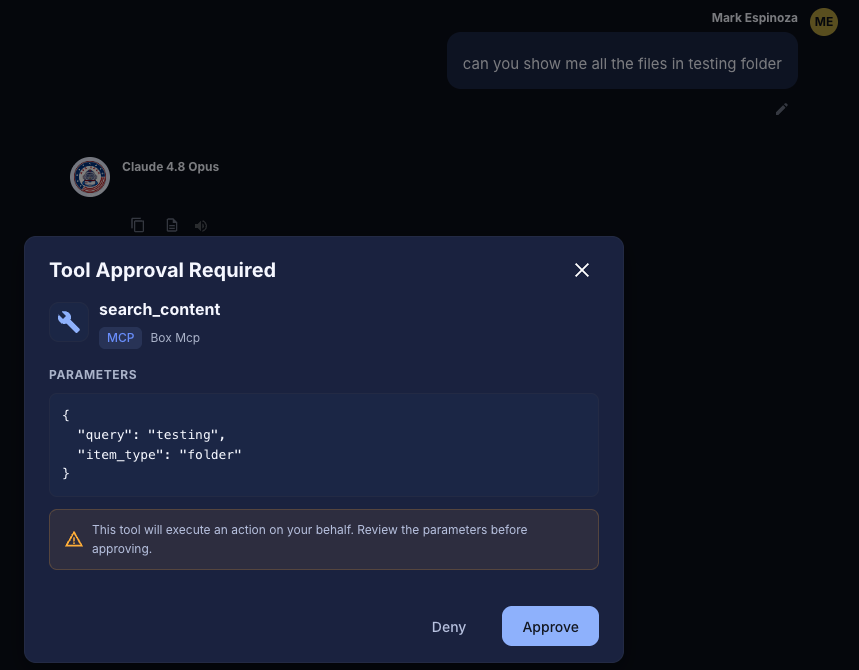
Tool Approval Required
Once approved, Ask Sage executes the request through Box and returns the result — for example, a list of the files found in the requested folder.
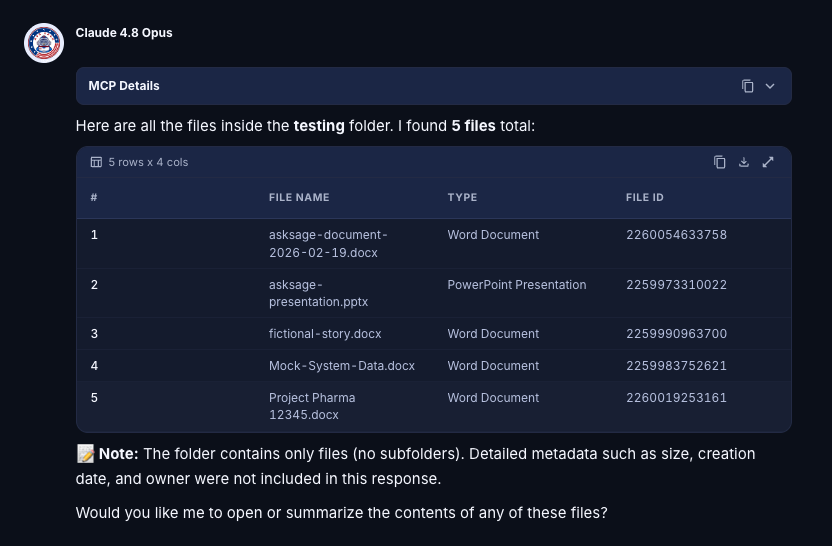
Results returned from Box
Available Functions
The Box tool exposes 20 read-only functions. All of them retrieve information from Box — none of them modify, create, or delete content. They are grouped below by area.
Files & folders
| Function | Arguments | Description |
|---|---|---|
list_folder_items | folder_id (optional: limit, offset, recursive) | List the files and subfolders contained in a Box folder. |
get_file | file_id | Retrieve metadata for a specific file. |
get_folder | folder_id | Retrieve metadata for a specific folder. |
get_file_content | file_id | Read the content of a specific file. |
get_file_versions | file_id | List the version history of a file. |
get_file_version_content | file_id, version_id | Read the content of a specific file version. |
get_file_thumbnail | file_id | Retrieve a preview thumbnail image (PNG/JPG) for a file. |
Search & discovery
| Function | Arguments | Description |
|---|---|---|
search_content | query | Search across your Box account for files and folders by name or content. |
get_current_user_info | none | Retrieve information about the connected Box user. |
get_recent_items | none | List items you have recently accessed in Box. |
get_collections | none | List your Box collections (e.g. Favorites). |
list_collection_items | collection_id | List the items contained in a Box collection. |
Shared links
| Function | Arguments | Description |
|---|---|---|
resolve_shared_link | shared_link_url | Resolve a Box shared link URL to the file or folder it points to. |
get_shared_link_info | item_type, item_id | Retrieve the shared-link metadata for a file or folder. |
Metadata
| Function | Arguments | Description |
|---|---|---|
list_metadata_templates | none | Discover the enterprise and global metadata templates available. |
get_file_metadata | file_id | Retrieve the metadata instances attached to a file. |
get_folder_metadata | folder_id | Retrieve the metadata instances attached to a folder. |
metadata_query | from_ ({scope}.{templateKey}) | Search Box content using a structured (SQL-like) metadata query. |
Collaboration
| Function | Arguments | Description |
|---|---|---|
get_comments_on_file | file_id | List the comments on a file. |
get_web_link | web_link_id | Retrieve a Box web link (bookmark) record. |