Microsoft 365 MCP
Connect and manage your Microsoft 365 data — calendar, mail, OneDrive, SharePoint — directly from Ask Sage.
Table of Contents
Prerequisites
- Account type: Enterprise account with a minimum of 10M monthly tokens, or a dedicated Ask Sage tenant/instance.
- Activation: Contact your administrator to request hosted MCP access through Ask Sage support at support@asksage.ai.
After we work with you or your administrator to enable the integration, you'll receive confirmation and users can follow the setup steps below.
Connecting Your Microsoft Account
- Navigate to Account Settings: Click your user profile icon (typically in the bottom-left corner) and select Account.
- Initiate Microsoft Sign-In: Scroll to the bottom of the Account settings panel to find the sign-in options. Click Sign in with Microsoft.
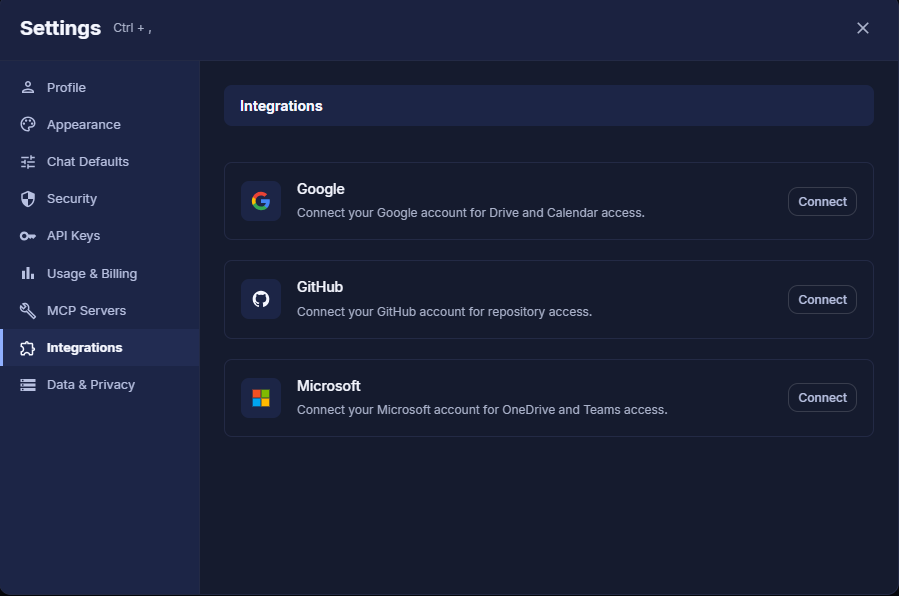
Sign in with Microsoft button
- Authenticate: A Microsoft login window will open. Sign in with your Microsoft 365 credentials.
- Verify the connection: The Ask Sage page refreshes automatically. Return to Account settings — the button will now read Logout from Microsoft, confirming you're connected.
Activating and Using the Microsoft 365 Tool
Once your account is connected, enable the tool in the chat interface to start using it.
- Access the Tools menu: In the main chat window, click the settings icon (often shown as sliders) above the text input field to open the configuration panel.
- Enable the Microsoft 365 tool: Under the Tools section, find Microsoft 365 and click its toggle. The switch turns blue when active.
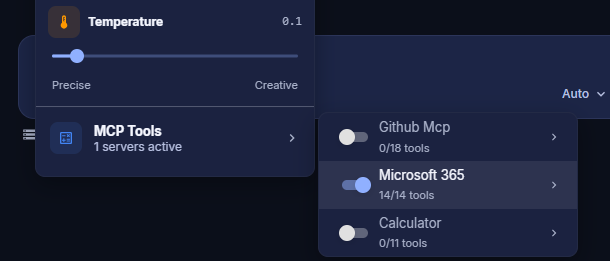
Tool Configuration
- Select a compatible model: Use a model that supports tool integration (MCP). Filter for these by selecting the MCP tag on the model selection screen. Models like GPT-Auto are designed to use these tools automatically.
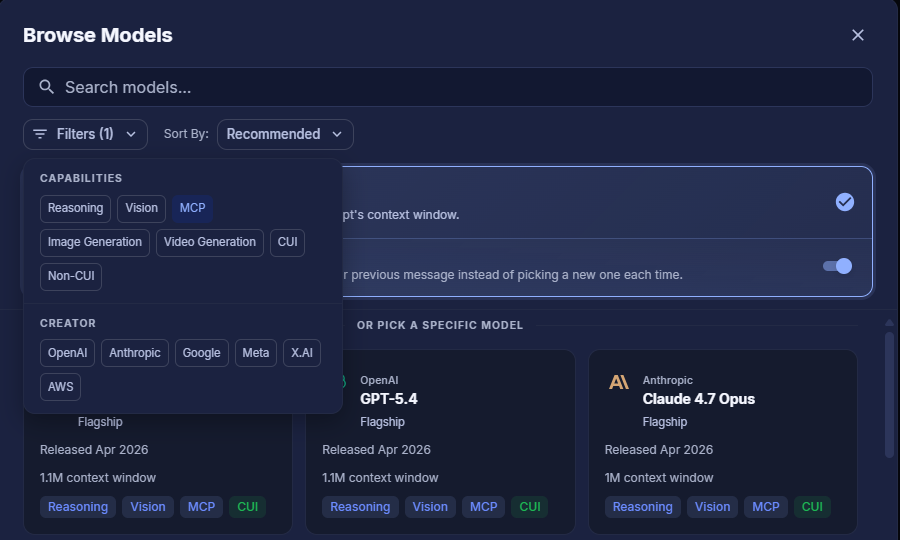
Model Selection with MCP Filter
Making a Request
You can now ask questions or give commands related to your Microsoft 365 data.
- Make a request: Type a natural-language command into the chat. For example:
- "What is on my calendar for tomorrow?"
- "Find the sales report from last quarter in my OneDrive."
- "Send an email to 'jane.doe@example.com' with the subject 'Project Update'."
- Approve tool usage: For security, Ask Sage prompts you before accessing your data. A Tool Call Approval card appears showing the specific action. Review and click Approve.
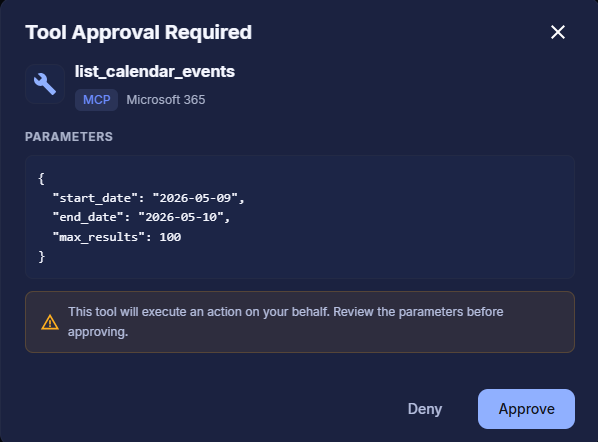
Tool Call Approval
Once approved, Ask Sage executes the task and returns the requested information or confirms the action completed.
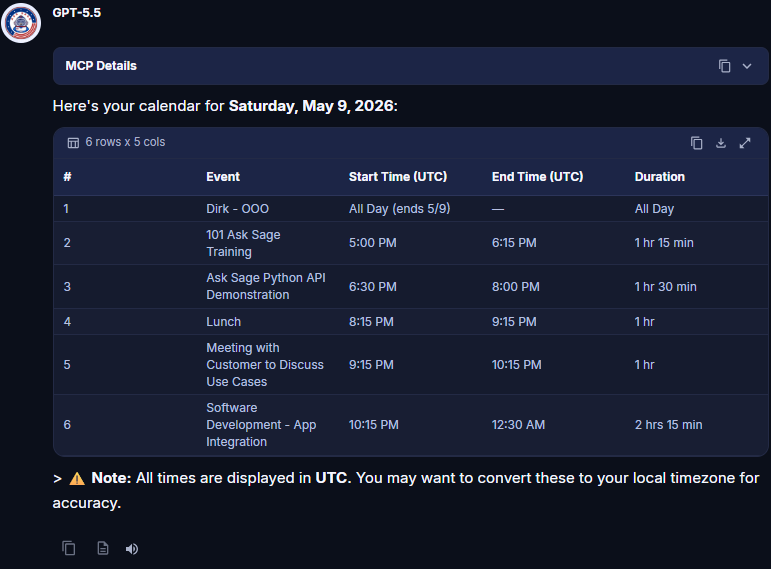
Tool Execution Result
Available Functions
The Microsoft 365 tool exposes 14 functions across Calendar, Email, and Files (OneDrive / SharePoint), grouped below. Optional arguments are shown in italics.
Calendar
| Function | Arguments | Description |
|---|---|---|
list_calendar_events | start_date, end_date (max_results, target_user_email) | List events from a calendar within a date range. |
create_calendar_event | subject, start_time, end_time (attendees, location, body, is_online_meeting) | Create an event with attendees, location, and optional online meeting. |
update_calendar_event | event_id (subject, start_time, end_time, attendees, location, body) | Update an existing event's properties. |
delete_calendar_event | event_id (send_cancellation) | Delete an event; sends cancellation first for meetings with attendees. |
cancel_calendar_event | event_id (comment) | Cancel a meeting and send cancellation notices to attendees. |
search_calendar_events | query (date_from, date_to, max_results) | Search events via the Microsoft Search API (KQL). |
get_calendar_availability | start_time, end_time (interval_minutes) | Get free/busy schedule with a configurable interval. |
| Function | Arguments | Description |
|---|---|---|
search_emails | query (from_address, date_from, date_to, has_attachments, importance, max_results) | Search emails via the Microsoft Search API (KQL). |
list_emails | (folder, max_results, unread_only) | List emails from a mail folder, with an unread-only filter. |
send_email | to_recipients, subject, body (cc_recipients, bcc_recipients, importance) | Send an email with TO/CC/BCC recipients and importance level. |
Files (OneDrive / SharePoint)
| Function | Arguments | Description |
|---|---|---|
list_items | (path, site_id, drive_id, folder_id, max_results) | List files and folders by path, folder ID, or root across OneDrive and SharePoint. |
search_files | query (file_types, location, max_results) | Search files across OneDrive and SharePoint (KQL). |
ms_get_file_content | item_id (site_id, drive_id, encoding) | Download file content (text decoded, binary returned as base64). |
get_item_metadata | item_id (site_id, drive_id) | Get detailed metadata including sharing info and SharePoint IDs. |