Users and Settings
Manage appliance roles, application settings, and sign-in
Table of Contents
About this guide
Appliance Manager accounts control appliance operations. Ask Sage workspace accounts control access to chat, datasets, and enterprise features. Manage each in its appropriate console.
Appliance Manager roles
| Capability | Viewer | Operator | Admin |
|---|---|---|---|
| View general health, model status, and events | Yes | Yes | Yes |
| Change own Manager password | Yes | Yes | Yes |
| Start or stop Ask Sage services | — | Yes | Yes |
| Load, unload, add, or configure models; change inference mode | — | Yes | Yes |
| Manage provider credentials, updates, network, and compliance changes | — | — | Yes |
| Shut down hardware or approve cluster administration actions | — | — | Yes |
| View and manage Manager users and application settings | — | — | Yes |
Assign the lowest role that covers each person’s duties. The Viewer role provides operational visibility; use it only for people permitted to see the information available in the console.
Manage Manager accounts
- Sign in as an admin and open Users.
- Create an account using the username, initial password, and role required by the form.
- Deliver initial credentials through your organization’s approved channel.
- Have the person sign in and change their password using the account controls.
- Update the role or disable/remove the account when responsibilities change.
Keep another authorized administration and recovery path available before changing your own account or removing an administrator. Privileged actions are recorded with the acting identity in Manager audit output.
If access is denied, confirm that you are in the correct console and have the required role. A workspace enterprise administrator is not automatically an Appliance Manager administrator. Use the management account and role assigned for your deployment.
Manage workspace users
Use the workspace’s Enterprise User Management controls for application accounts and permissions. Account invitations, email delivery, registration, and identity integration depend on the services configured for your Edge environment.
Where self-registration is enabled, users can create their own account from the Edge workspace’s sign-in page. If that option is unavailable, follow your organization’s provisioning process. Use the initial credential card only for the account it was supplied for, and change the initial password when prompted.
Confirm the user can reach the Edge workspace and is signing in to the correct deployment. An account created for a cloud instance does not automatically exist on a separate Edge installation.
Change application settings
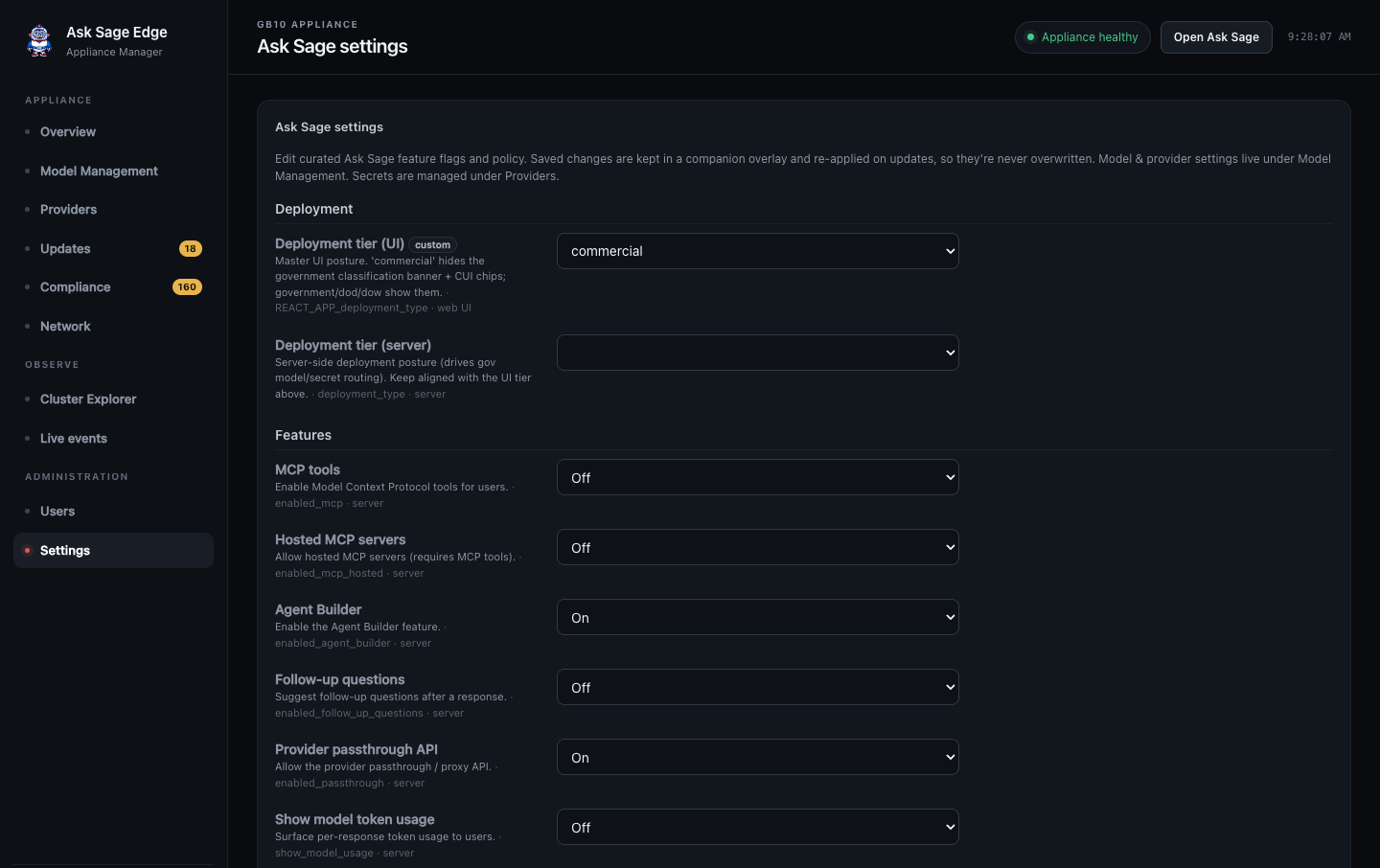
Admins can open Settings to review the application options exposed by the installed release. These include deployment behavior, enabled features, authentication, document limits, and branding.
- Record the current value and the intended change.
- Read the field’s description and confirm that the required services are installed.
- Save the change and allow affected services to restart.
- Test the feature from the workspace, including a representative user’s permissions.
The Manager saves supported application overrides separately from the shipped defaults and reapplies them during updates. Keep a recovery record of important configuration; update persistence is not a backup. Manage model-provider secrets through Providers, rather than placing them in general settings fields.
Configure single sign-on
Where your release exposes SSO settings, work with your identity administrator to supply the client information, authorization/token/user-information endpoints, scopes, and any required mappings. Register the redirect address supplied for your deployment with the identity provider.
Enable SSO and verify a complete sign-in from another browser session before enabling Force SSO, which hides password login. Keep the approved recovery access method available. Test account mapping and permissions, not just the appearance of the sign-in button.
For an isolated site, the identity provider and its dependencies must remain reachable inside that environment. SSO for the workspace does not automatically replace the Appliance Manager’s own sign-in.