Model Compare
You have 50+ models available. Compare helps you pick the right one for the work in front of you
Table of Contents
What is Model Compare?
The Model Compare feature evaluates two AI models against the same prompt under identical conditions — same persona, same dataset, same temperature, same web search setting — so the only variable is the model itself. It's the fastest way to answer questions like "which of these handles my workload better?" or "can I drop down to a cheaper tier without losing quality?"
Compare is best suited for decisions like:
- Picking a default model for a new workflow you're about to build
- Evaluating cost trade-offs — does the flagship model justify being 5–20× more expensive than the standard tier for your task?
- Validating CUI-authorized alternatives — does the CUI model produce output comparable to a flagship Non-CUI option for the same prompt?
- A/B-testing reasoning approaches — when a prompt is complex, does the Reasoning-tagged model actually do better than a faster standard model?
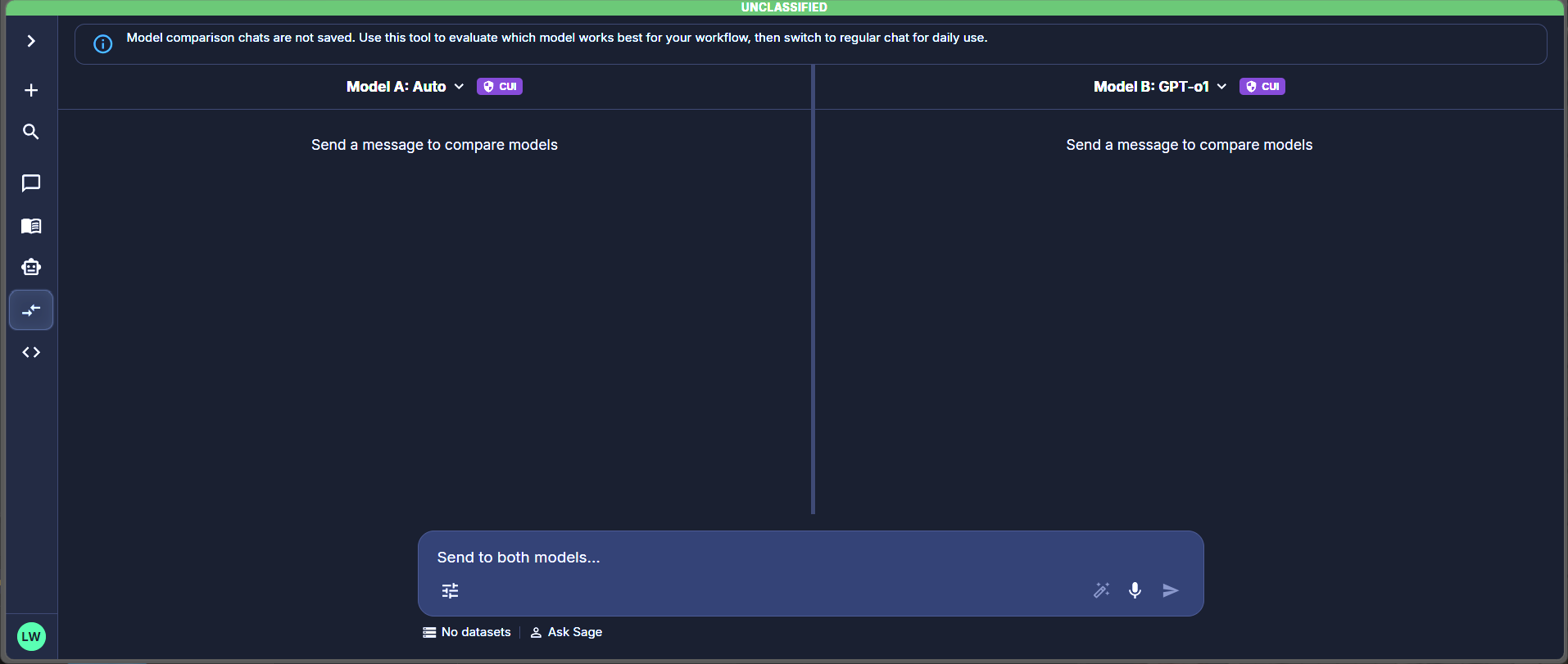
The Compare workspace — two model panes share one composer, with a persistent banner reminding you that comparison chats are not saved.
Compare in the left rail. The Compare workspace opens with two empty model panes and a shared composer at the bottom. You could open two chats and send the same prompt to each. Compare exists because that approach has three problems:
- Parameters drift. Two chats mean two sets of settings. If your persona, temperature, or dataset differs even slightly, you're no longer comparing models — you're comparing configurations. Compare guarantees identical parameters.
- Sequential reading is biased. Reading one response, then another, primes you to favor whichever you read second. Side-by-side parallel streaming reduces that bias.
- Context switching kills focus. Toggling between two chat windows takes attention away from the actual outputs. One workspace means you focus on the difference, not the operation.
How to Use Model Compare
Select Models
Click either model selector ("Model A: …" or "Model B: …") at the top of each pane. The dropdown opens with three groupings:
- Auto at the top — picks the best model for your prompt at runtime. Available on both panes; selecting Auto on one side and a specific model on the other lets you evaluate whether Auto-route's choice matches your manual pick.
- Provider sections — OpenAI, Anthropic, Google, etc. Each model shows a tier label (
Flagship,Standard,Lightweight,Economy,Creative,Heavy Thinking). - See All Models — a link at the bottom of the dropdown opens the full Browse Models surface with capability filters (Reasoning, Vision, MCP, CUI/Non-CUI, etc.) and provider filters.
Each pane carries its own classification badge (CUI / Unclassified) next to the model name, reflecting the classification authorization of the selected model.
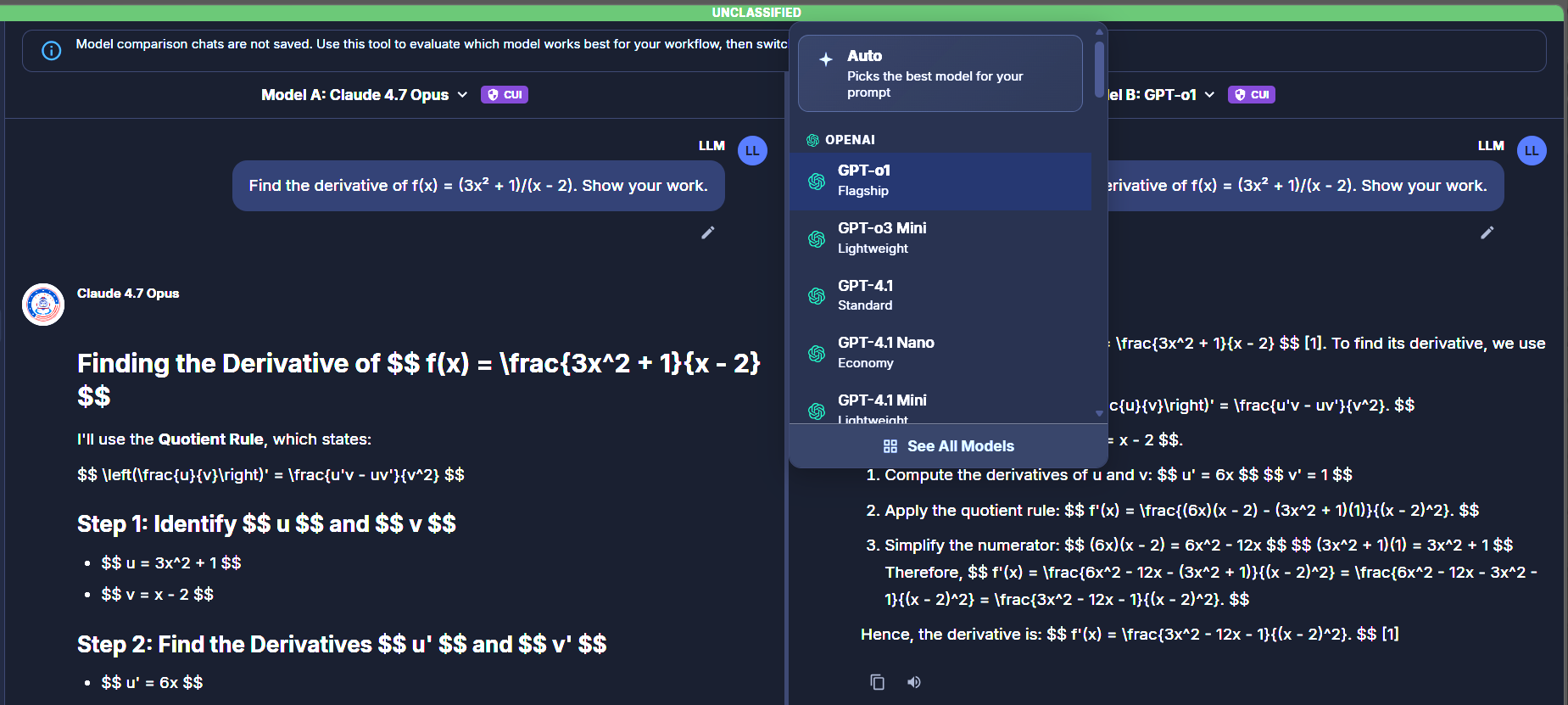
Model picker — Auto, provider sections, and See All Models link
Select Parameters
Click the sliders icon at the bottom-left of the composer to open the parameter panel. Whatever you configure here applies to both models equally — that's the point. The same persona, dataset, and temperature feeds both panes, so any difference in output is attributable to the model itself.
Available parameters in Compare:
- Add photos and files — attach images or documents to your next message.
- Persona — the system prompt and conversational style. Defaults to Ask Sage.
- Datasets — RAG (Retrieval-Augmented Generation) corpora that ground responses in your content. Defaults to None selected.
- Web search — toggle. When on, both models can invoke web search during their response.
- Temperature — slider from
Precise(low; deterministic) toCreative(high; variable). Defaults to0.1.
The footer below the composer shows two status indicators: the active persona name and the current dataset state — useful for confirming what's applied without reopening the panel.
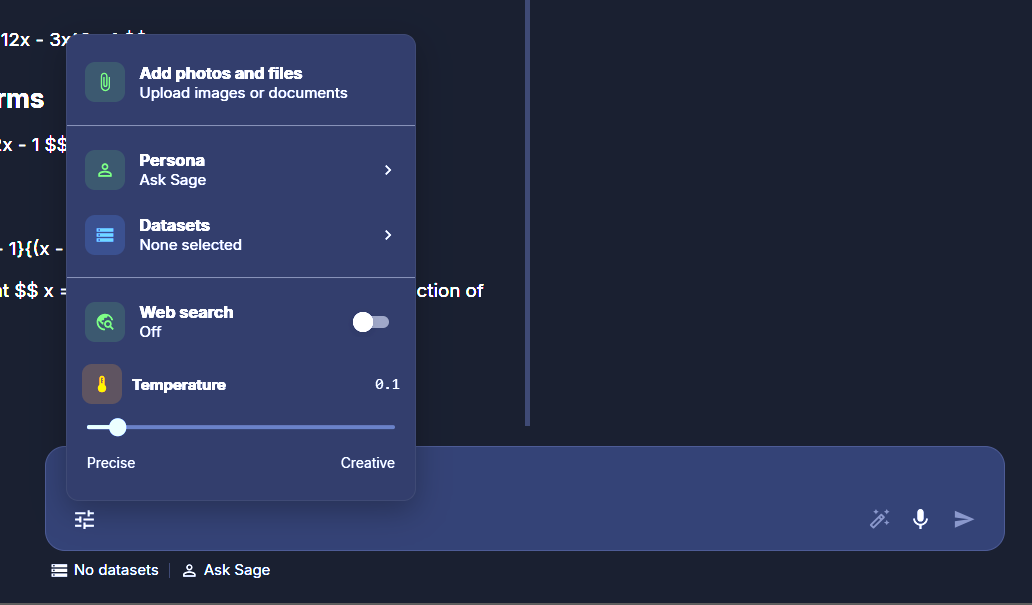
Composer panel — five parameters applied to both models
Submit & Compare
The composer at the bottom of the Compare view has the placeholder "Send to both models…". Type your prompt and hit send (or Enter). The same prompt is dispatched to both models simultaneously; responses stream into their respective panes in parallel.
Use prompts representative of your real workload, not synthetic test queries. Models behave differently under representative load than they do on canned examples.
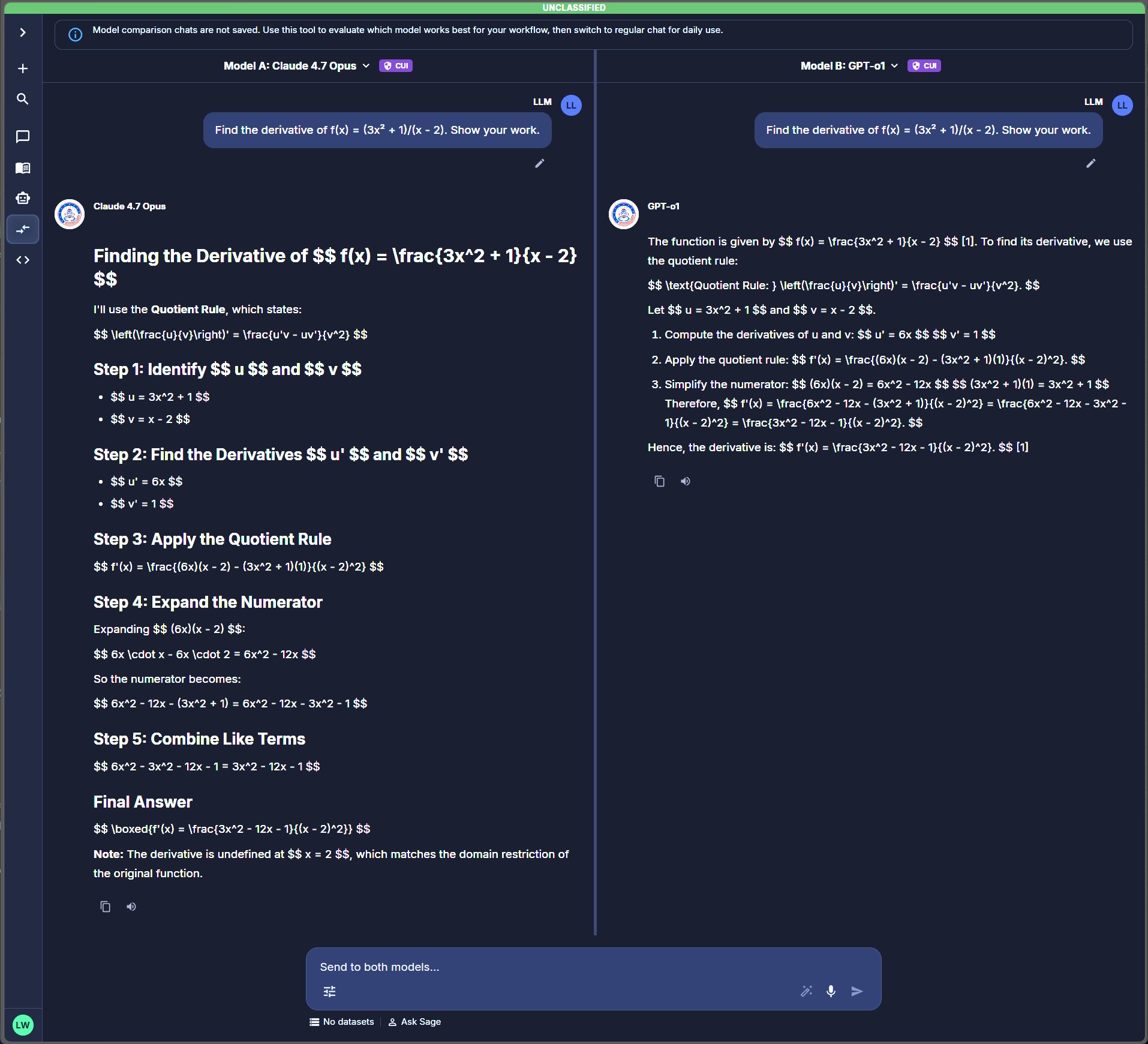
Populated comparison — both panes streaming responses to the same prompt
How to Design a Useful Comparison
Most users run a few comparisons, get fuzzy results, and abandon the feature. The problem usually isn't the models — it's the comparison design. A few principles that produce decisions you can act on:
Use representative prompts, not synthetic tests
"Write me a haiku about networking" tells you nothing about which model to pick for production work. Pick a prompt that's actually representative of what you'll be doing — a real document to summarize, a real question to answer, a real piece of code to review. The whole point of comparing is to learn which model handles your workload.
Decide what "better" means before you start
Without a criterion, you'll just pick whichever response "feels right" — which is usually whichever you read first or whichever's shorter. Decide up front: are you optimizing for accuracy? Speed? Conciseness? Format compliance? Tone? Pick one or two criteria and judge against those, not vibes.
Hold parameters constant
If you change persona, temperature, or attach a different dataset partway through, you're no longer comparing models — you're comparing configurations. Set the parameters once at the start, then only change models or prompts.
Test multi-turn behavior when relevant
If your real workload is multi-turn — a long drafting session, an iterative analysis — single-prompt comparisons miss most of what matters. Pick one candidate after a first comparison, then run a second comparison pitting it against another challenger, again multi-turn. Compare doesn't save chats but you can keep notes alongside.
Run the same comparison more than once
Models are non-deterministic. The same prompt can produce different responses across runs. If two models are close on a single comparison, run it 2–3 times with slight variations before deciding — you may see the "winner" flip.
Cost vs. quality is a real axis
The flagship model might be 20% better but 10× more expensive than the standard tier. For high-volume use cases, that math matters. Compare doesn't show per-token pricing — check the Browse Models surface or your usage dashboard separately, then weigh cost against the quality delta you observed.
Worked Examples
1. Picking a default for batch document analysis
You're building a workflow that summarizes a queue of incoming documents — hundreds per day. Compare a flagship model (say a top reasoning model) against a standard-tier model from the same provider. Run a representative document through both. If the standard tier produces a summary that's 90% as good at 1/10 the cost, that's an easy decision for batch work. If the flagship catches nuance the standard misses on important documents, the cost may be justified.
2. Validating a CUI-authorized alternative
You normally use a flagship Non-CUI model for a complex analysis task, but the workload needs to move into CUI scope. Use Compare to send the same representative prompt to the flagship Non-CUI model in one pane and a CUI-authorized model in the other. If the CUI model performs comparably, you have a clean migration path. If not, you know to either adjust your prompt strategy or escalate the model-availability question to your admin.
3. A/B'ing a reasoning model against a faster standard model
You have a complex multi-step prompt — a research synthesis, a hard architectural question, a piece of code with subtle bugs. Compare a Reasoning-tagged model against a faster standard model. The Reasoning model takes longer but may produce a noticeably better answer. Decide whether the latency hit is worth it for your use case, or whether the standard model's faster response is good enough.
Limits & Gotchas
- Both panes share parameters. If you change Persona to test how it affects the output, you've changed it for both models — that's no longer a model comparison, it's a persona comparison done twice.
- Streaming order isn't a quality signal. Faster doesn't mean better. One model just happened to start producing tokens first or had less to say.
- Compare uses double the tokens. Each send dispatches to two models, so token consumption is roughly 2× a regular chat. Don't burn your monthly allotment exhaustively comparing.
- Single-prompt comparisons are noisy. Models are non-deterministic. Run a comparison 2–3 times with slight prompt variations before declaring a winner.
- Compare doesn't show pricing. The picker doesn't surface per-token cost. Check Browse Models or Usage & Billing separately when cost matters to your decision.
- Two panes only. No three-way comparisons. Run a tournament: A vs. B, then winner vs. C, etc.
- No saved chats. Take notes, screenshots, or copy responses out as you go. Refreshing or navigating away wipes the comparison.
- Auto-route choices may vary. Picking Auto on one or both panes means the model selected can shift between sends. That's useful for testing Auto's judgment, less useful when you want a stable head-to-head.
After You’ve Decided
Once a comparison gives you a clear winner:
- Note the configuration — model name, persona, datasets, temperature, web search state. You'll need this to reproduce the behavior in a regular chat.
- Open a regular chat from the left rail and apply the same configuration in the composer panel.
- Add the parameters Compare doesn't have — Plugins, MCP Tools, Deep Agent, Prompt Library entries — if your workflow needs them. These weren't part of the comparison, so introduce them deliberately and watch for any behavior change.
- If behavior diverges from what Compare showed, that's signal. Usually it's because one of the just-added parameters (Plugins, MCP, Deep Agent) is doing more work than you expected. Disable them one at a time to isolate which change matters.
For workflows that will run unattended (Workflow Builder, scheduled automations), pin the model explicitly rather than using Auto-route — you want predictable behavior, and Compare is what told you which specific model to pin.
What’s Available in Compare
Compare is a focused subset of the full chat experience.
| Control | Available |
|---|---|
| Per-pane model selection (incl. Auto) | ✓ |
| Persona | ✓ (applied to both models) |
| Datasets | ✓ (applied to both models) |
| Web search | ✓ (applied to both models) |
| Temperature | ✓ (applied to both models) |
| File / image upload | ✓ |
| Voice input | ✓ (mic icon on composer) |
| Prompt enhancer | ✓ (sparkle icon on composer) |
Compare deliberately omits several features from the regular chat composer. The idea is to evaluate the model itself, not the stack on top of it.
| Feature | Where to use it |
|---|---|
| Plugins | Regular Chats |
| MCP Tools (per-chat) | Regular Chats |
| Deep Agent | Regular Chats |
| Prompt Library | Regular Chats |
| Saved conversation history | Regular Chats |
If you need any of these, evaluate the candidate model in Compare first, then start a regular chat with the chosen model and configure the broader stack there.
FAQ
Can I save a comparison?
No, by design. Compare is for evaluating, not working. Take screenshots or copy responses out if you need a record. Once you've decided on a model, switch to a regular chat — those are saved.
Can I compare three or more models?
No, two panes only. Run a tournament: compare A vs. B, then the winner vs. C, then that winner vs. D, etc. It takes longer but works.
Can I use a Workbook with Compare?
No. Workbooks have their own bound chat thread; Compare has its own (non-saved) thread. If your evaluation needs grounding in a specific document set, attach a Dataset in the composer panel and that applies to both panes.
Why doesn't Compare have Plugins, MCP, or Deep Agent?
Because the goal is to evaluate the model in isolation. Adding tools and external systems means any difference in output could be the tool, the model, or the interaction between them — useless for picking a model. Once you've picked, configure the broader stack in a regular chat.
Does Compare cost more than a regular chat?
Yes — about 2× per send, since both models consume tokens for every prompt. Use Compare deliberately for decisions, not as a default chat surface.
Can I share a comparison with a teammate?
Not directly. Take screenshots, copy responses, or describe the result in a regular chat or document that can be shared.
Are Compare results deterministic?
No. Models are non-deterministic — the same prompt produces different responses across runs. If a comparison is close, run it 2–3 times before deciding.
Why does the model picker show different models on different days?
The model catalog updates as new models are added or restricted by your organization's admin. If a model you tested before isn't appearing, check Browse Models or ask your admin about the current catalog.
Can I export a comparison as a report?
Not as a built-in feature. Take screenshots and assemble your own report, or describe the comparison results in a regular chat that gets saved to your history.