AI-Powered Authoring
AI Assist
Generate, refine, and explain workflows with natural language
Table of Contents
What Is AI Assist?
AI Assist is a side-panel chat surface inside the Agent Builder editor. It can generate new workflows from a natural-language description, add or modify nodes on the current canvas, and explain what an existing workflow does — all without manually dragging nodes from the palette.
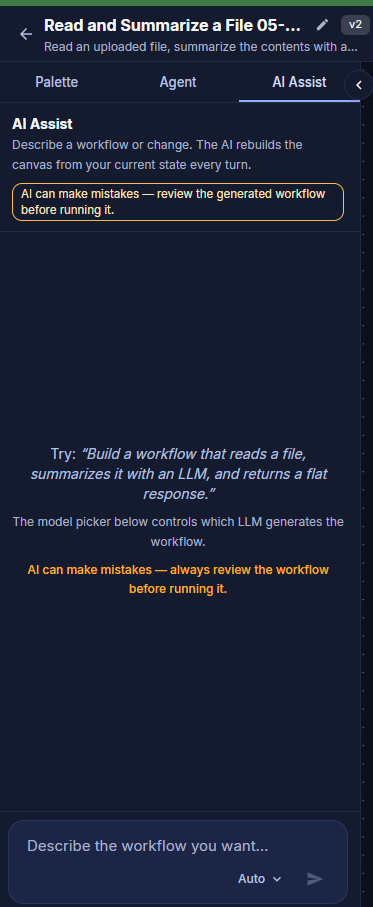
AI Assist tab in the editor side panel
Opening AI Assist
AI Assist lives in the editor's left-hand side panel alongside the node Palette and the Agent settings.
- Open any agent in the editor (from the dashboard, click New Agent or open an existing one).
- In the left side panel, click the AI Assist tab.
- Type a prompt at the bottom of the panel and submit.
Side-panel tabs: The editor's side panel exposes three tabs — Palette (drag nodes onto the canvas), Agent (persona settings: name, system prompt, model, temperature, variables), and AI Assist (this feature).
What You Can Ask For
Working Effectively with AI Assist
- Be specific about inputs and outputs. "Take an uploaded CSV and return a summary email" is much easier to act on than "make a CSV agent".
- Name the nodes you want. If you already know the node type (LLM, Loop, Decision Tree, Train File, etc.), reference it by name.
- Iterate. Start with a rough generation, then ask follow-ups like "replace the Decision Tree with an If/Else on
confidence > 0.8". - Review every change. AI Assist edits the canvas directly. Inspect the node graph and parameters before saving or running.
Always verify: AI Assist is a productivity accelerator, not a substitute for review. Confirm node configurations (especially file variables, model selection, and prompts) before running an agent in production.