Code Canvas
An AI-paired code editor with chat, syntax highlighting, quick actions, and live preview for HTML and SVG
Table of Contents
What is Code Canvas?
Code Canvas is a dedicated workspace that pairs a chat with a live code editor. Generate code with the assistant, edit it directly in the editor, run quick actions like Find bugs or Refactor for readability, and preview HTML or SVG output in real time. It's built for developers who want to iterate on code in a tight loop with an LLM, without losing the context of what's being built.
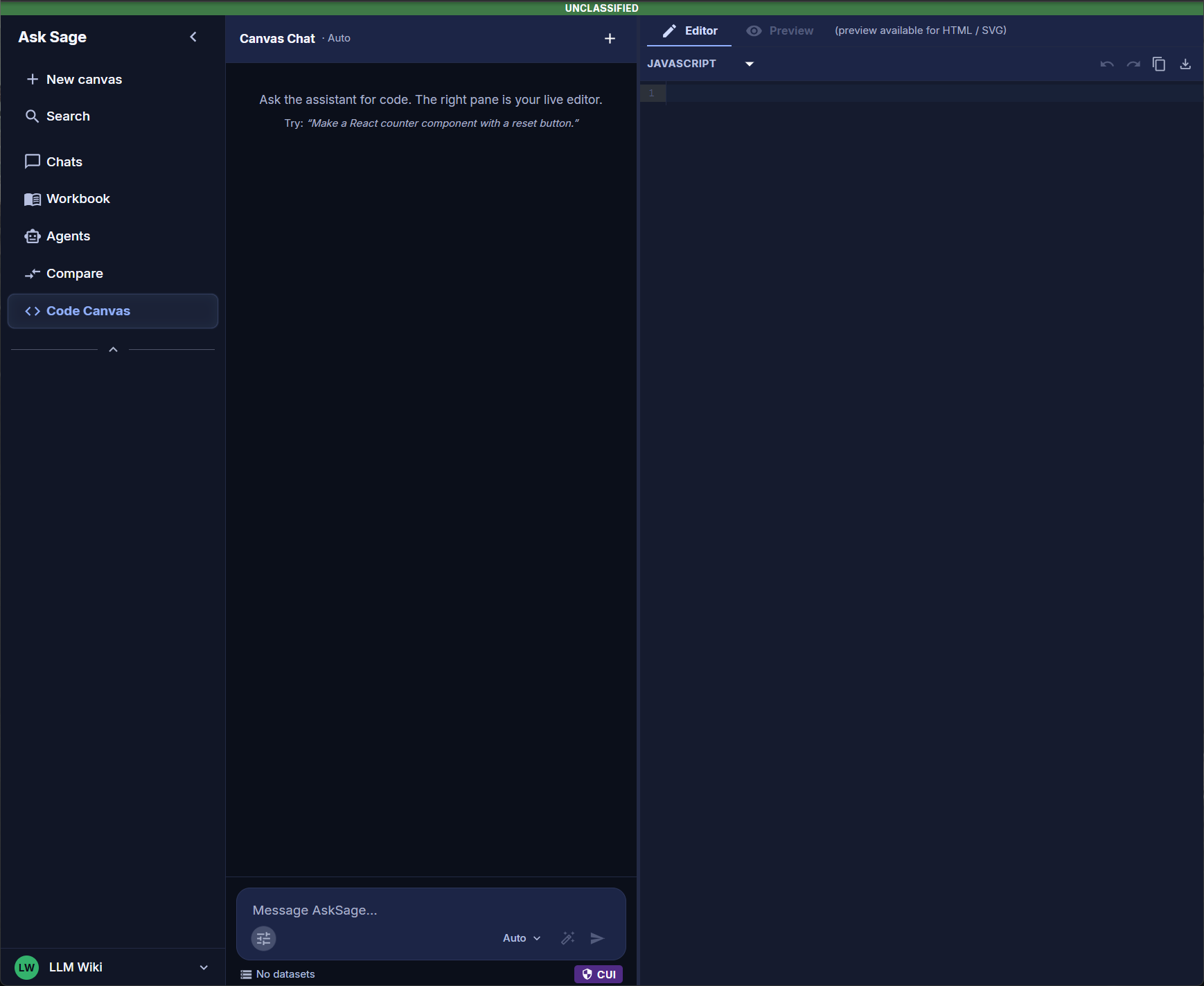
Code Canvas — chat on the left, live editor on the right, with a single workspace for paired AI iteration.
Code Canvas in the left rail. The workspace opens with an empty Canvas Chat on the left and an empty editor on the right. You can paste code into a regular Chat and ask for help. Code Canvas exists because that flow has limits:
- Code lives in messages, not in an editor. In a chat, every iteration produces a new copy of the code in a new message. You scroll back and forth comparing versions. In Canvas, the code is a single live document — edit it, regenerate it, undo/redo it.
- No syntax highlighting in chat messages. The editor in Canvas has language-aware syntax highlighting and line numbers. You can read what you're working on.
- No live preview in chat. Canvas previews HTML and SVG output instantly in a side tab — no copy-pasting into a separate viewer to see what your component actually looks like.
- Pre-canned actions are one click away. Find bugs, Add error handling, Refactor for readability, and others can be invoked directly on the code in the editor — no re-typing the same prompt every time.
Code Canvas is for the focused, iterative work of building code. Regular Chat is for talking about code.
The Workspace
Code Canvas is a two-pane split:
- Canvas Chat (left) — a chat thread dedicated to this canvas. Header shows
Canvas Chat · [model]. The+button starts a new canvas (clears the editor and chat). Composer at the bottom with model picker, prompt enhancer, voice input, and send. - Editor (right) — a live code editor with syntax highlighting and line numbers. Tab bar at the top: Editor (active by default) and Preview (active when the code is HTML or SVG). Language picker dropdown to the left of the toolbar. Toolbar (top-right): undo, redo, copy, download.
- Footer — below the composer, two indicators: dataset state and CUI (Controlled Unclassified Information)/classification badge.
When you start typing in the chat, the assistant generates code into the editor. When you edit code in the editor manually, the chat picks up your changes the next time you ask for something. The two panes stay in sync.
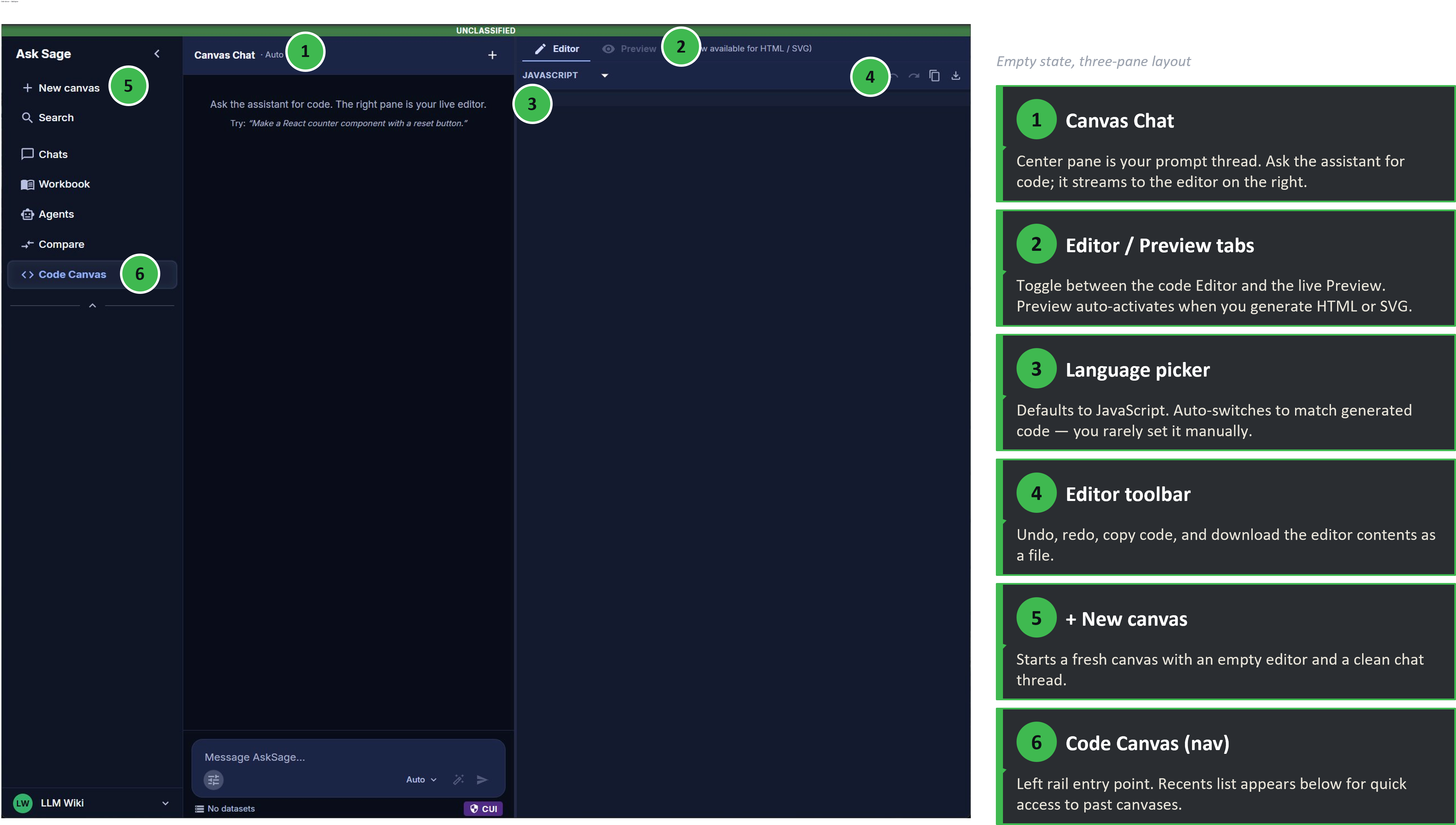
The Code Canvas split — Canvas Chat on the left, Editor with Editor/Preview tabs on the right.
How to Use Code Canvas
Start with a Prompt or Paste Code
Two entry points work for any new canvas:
- Generate from a prompt. Type what you want in the chat — for example, "Make a React counter component with a reset button." The assistant writes code into the editor and explains what it did in the chat.
- Paste existing code. Click into the editor, paste your code, then ask the chat to do something with it: "Find bugs in this," "Convert to TypeScript," or "Refactor for readability."
Both flows feed the same workspace. You can mix them — generate a starter component, then paste in additional code to extend it.
Iterate
Three ways to make changes after the first version:
- Talk to the chat. Ask follow-up questions or request changes in plain English: "Add a step counter," "Use Tailwind instead of inline styles." The assistant updates the code in the editor.
- Run a Quick Action. Open the composer panel (sliders icon) → Quick actions for one-click operations like Find bugs or Refactor. See the Quick Actions section for the full list.
- Edit the code directly. Click into the editor and type. The editor has syntax highlighting and line numbers. Use undo/redo in the toolbar to step backward and forward through your edits.
Preview, Copy, or Download
Once the code is where you want it:
- Preview (HTML or SVG only) — click the Preview tab at the top of the editor pane to render the output. The Preview tab is greyed out for other languages.
- Copy — toolbar copy icon copies the entire editor contents to your clipboard.
- Download — toolbar download icon saves the editor contents to your computer as a file with the appropriate extension.
Code in the editor does not execute (with the narrow exception of HTML and SVG rendering in the Preview tab). To actually run logic, copy or download the code into your IDE or runtime.
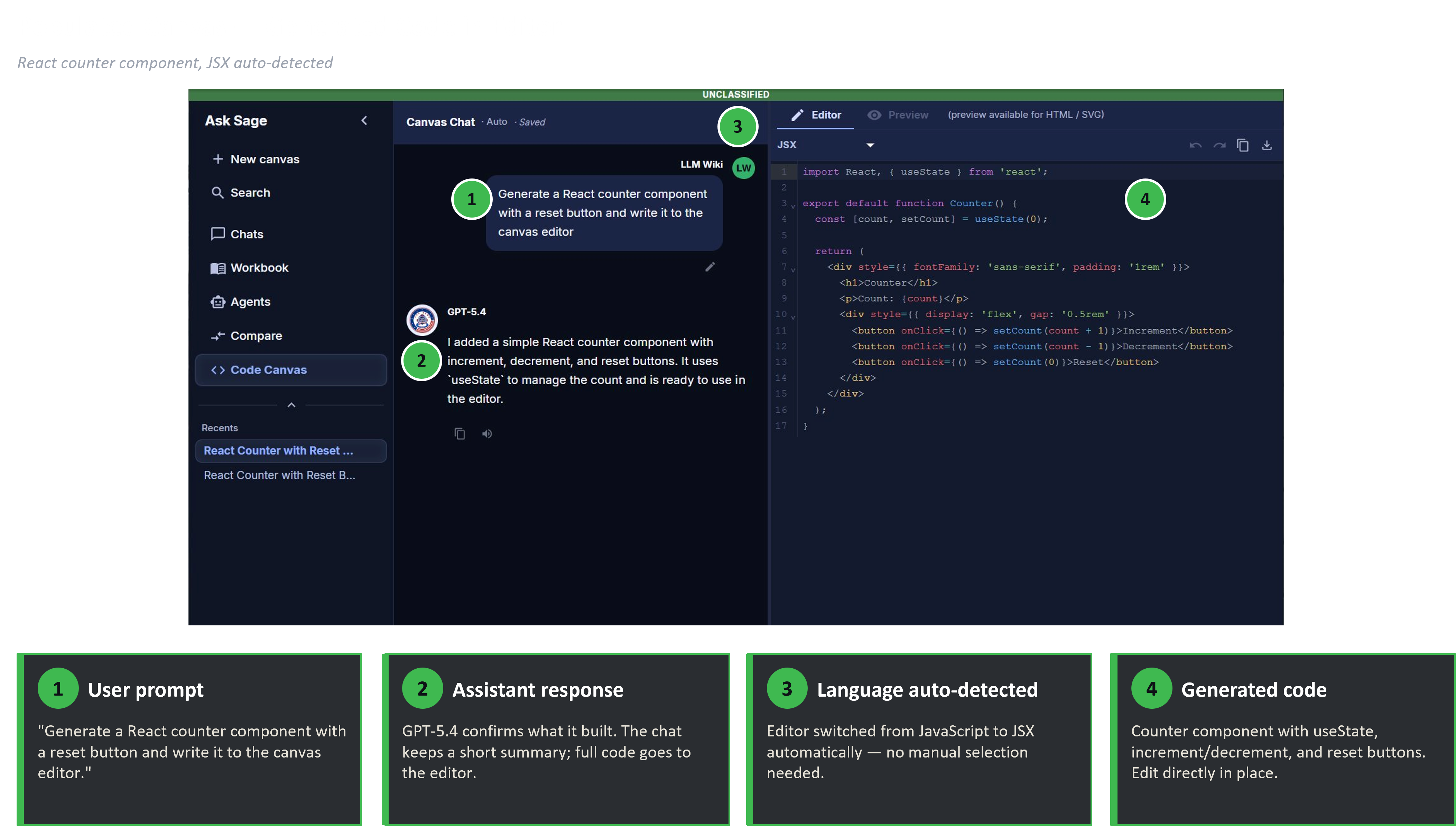
A populated canvas — chat thread on the left, generated code in the editor on the right.
Quick Actions
Quick Actions are pre-canned prompts that operate on the current code in the editor. Open the composer panel (sliders icon at the bottom-left of the chat composer) → Quick actions to access them.
| Action | When to use it |
|---|---|
| Add comments | The code works but isn't documented. Adds inline comments and docstrings without changing logic. |
| Make it shorter | The code is verbose. Condenses without changing behavior — useful for trimming AI-generated boilerplate. |
| Convert to TypeScript | You have JavaScript and want types. Converts in place; remember to switch the language picker to TypeScript afterward. |
| Find bugs | The code looks right but isn't behaving. The assistant reviews for logic errors, edge cases, and likely bugs. Output goes to the chat, not the editor. |
| Add error handling | The happy path works; you want graceful failure. Wraps risky operations in try/catch (or equivalent) and adds validation. |
| Refactor for readability | The code works but is hard to follow. Renames variables, breaks up long functions, simplifies conditionals. |
Quick Actions are greyed out when the editor is empty — they need code to operate on. Once you've generated or pasted code, they activate.
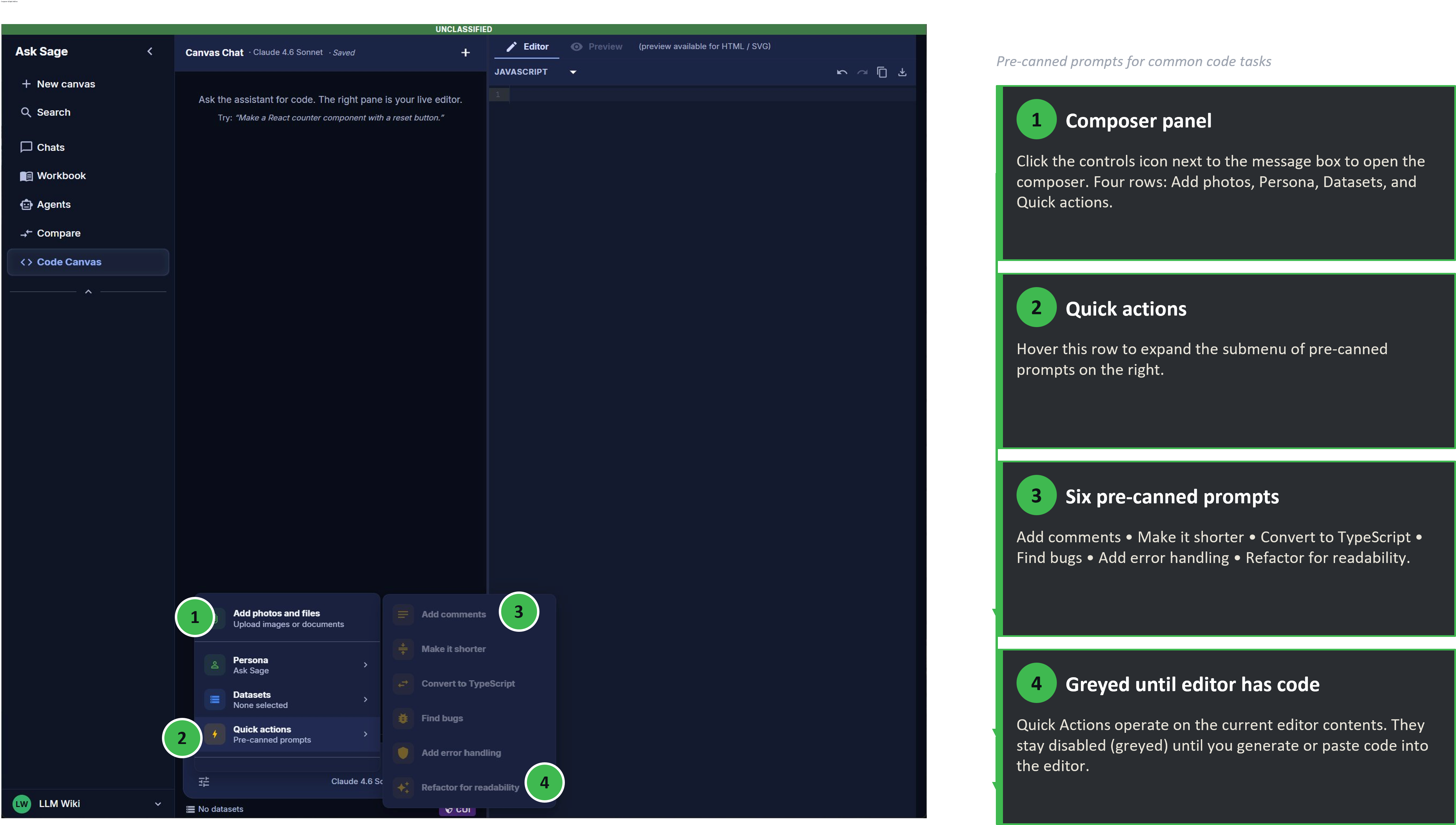
Quick Actions menu — six pre-canned prompts that operate on the current editor contents.
The Editor
The right pane is a real code editor, not just a code-display block.
Language picker
Dropdown in the top-left of the editor pane. Sets syntax highlighting for the editor and the language used by the Convert to TypeScript Quick Action's target. Currently supported with full syntax highlighting:
- JavaScript, TypeScript, JSX, TSX
- Python
- HTML, CSS, SCSS
- JSON, YAML
- Markdown
- (more available — open the dropdown for the full list)
Languages outside this list may still display in the editor but won't be highlighted.
The picker also auto-detects when the assistant writes new content to the editor. If you ask for SVG, the picker switches to SVG. If you paste Python, it switches to Python. You can override the detection manually if needed, but the default behavior gets it right most of the time.
Toolbar
Top-right of the editor pane:
- Undo — step backward through edits (both your manual edits and assistant-generated changes).
- Redo — step forward through previously undone edits.
- Copy — copy the entire editor contents to your clipboard.
- Download — save the editor contents to a file with the appropriate extension for the selected language.
Manual editing
Click into the editor and type. The editor supports standard text-editing keystrokes (cut, copy, paste, line manipulation). Edits made manually are seen by the chat the next time you ask for something.
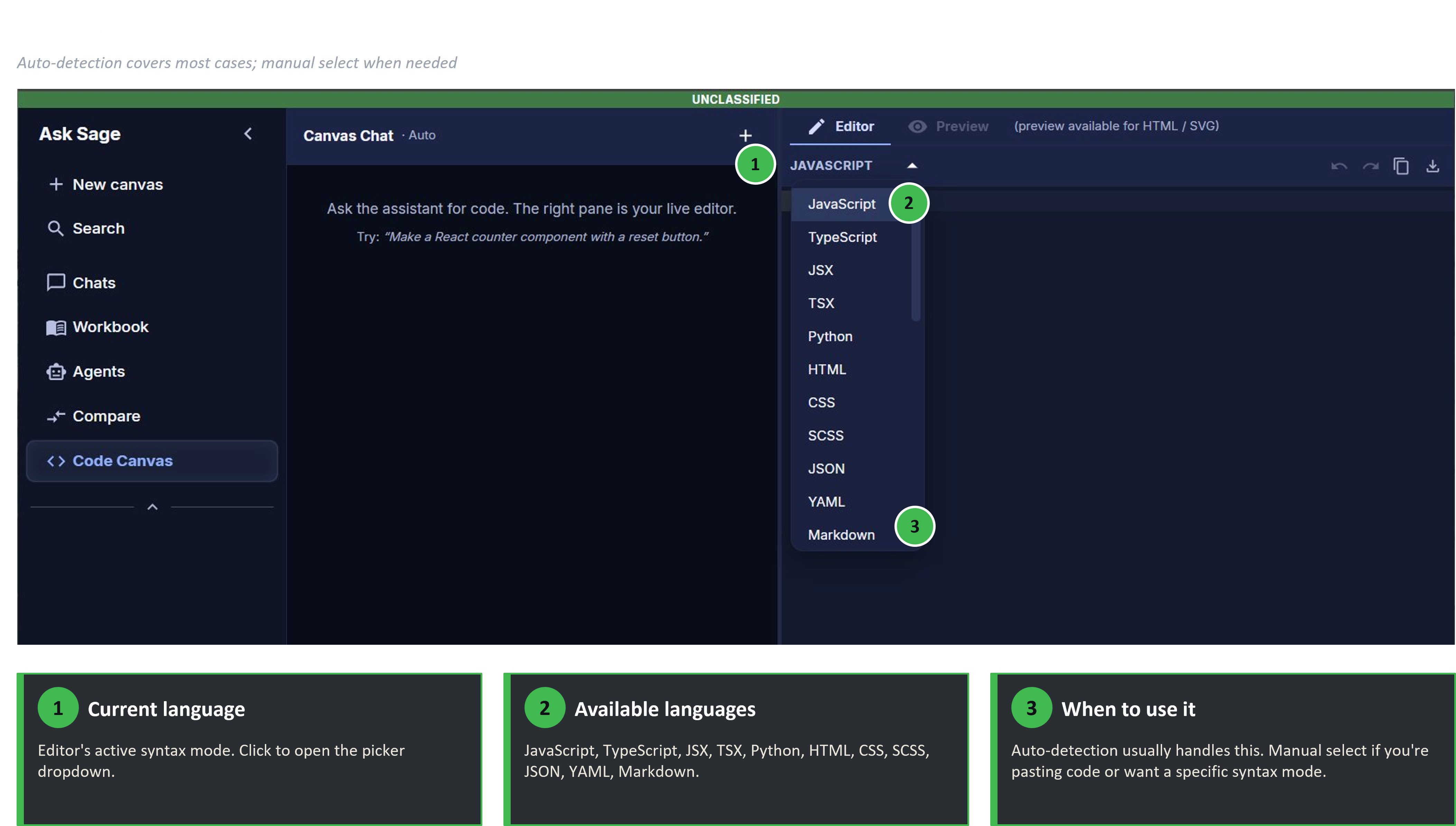
The language picker — sets syntax highlighting for the editor.
Live Preview
When the editor contains HTML or SVG, the Preview tab activates at the top of the editor pane. Click it to render the output side-by-side with where the editor was.
The Preview tab activates automatically when previewable content lands in the editor — you don't have to flip the language picker or toggle a setting. If the assistant writes SVG, Preview lights up. If you paste in HTML, Preview lights up. If you switch to Python or JSON, Preview greys out again.
What previews
- HTML — renders the page as a browser would, including embedded CSS and inline JavaScript.
- SVG — renders the vector graphic.
What does NOT preview
- JavaScript, TypeScript, JSX/TSX (logic doesn't execute)
- Python (no runtime)
- CSS, SCSS (need an HTML host to render against)
- JSON, YAML, Markdown (data formats and text)
For non-previewable code, the Preview tab is greyed out with the note "(preview available for HTML / SVG)" in the header.
Use Preview to: verify a UI component renders correctly, check an SVG icon's appearance, validate that styling matches expectation. Don't use it to: test runtime behavior, verify logic, or simulate API calls — none of those happen in Preview.
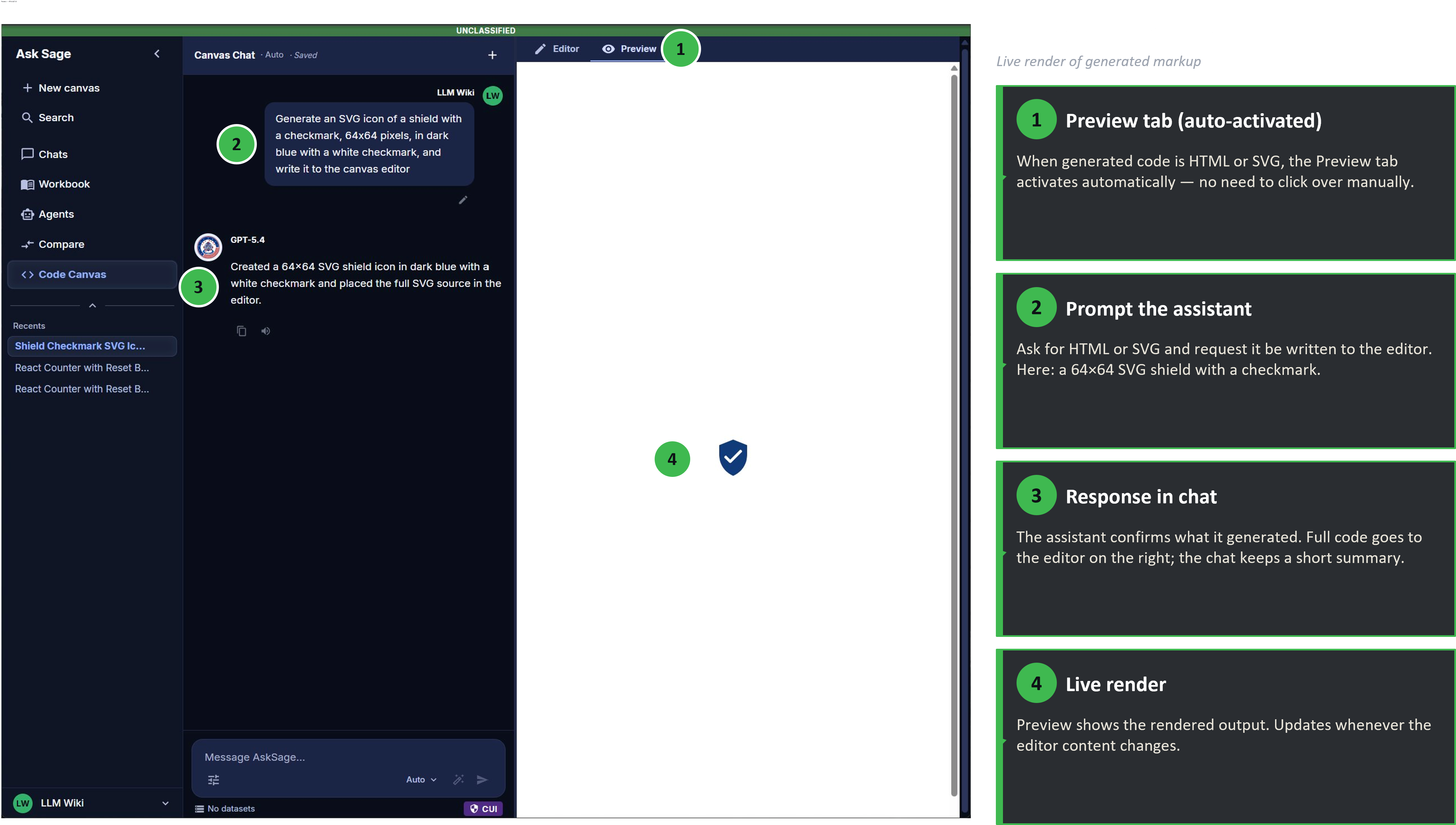
The Preview tab — HTML and SVG render in place; other languages stay in the editor.
What’s Available in Code Canvas
Code Canvas has its own focused composer panel, distinct from regular Chats and Compare.
| Control | Available |
|---|---|
| Code editor with syntax highlighting | ✓ |
| Language picker (JavaScript, TypeScript, Python, HTML, CSS, JSON, YAML, Markdown, more) | ✓ |
| Live Preview (HTML and SVG only) | ✓ |
| Quick Actions (6 pre-canned prompts) | ✓ |
| Persona | ✓ (defaults to Ask Sage) |
| Datasets | ✓ |
| File / image upload | ✓ |
| Voice input | ✓ (mic icon on composer) |
| Prompt enhancer | ✓ (sparkle icon on composer) |
| Undo / Redo | ✓ (toolbar) |
| Copy / Download | ✓ (toolbar) |
| Model selection per canvas (incl. Auto) | ✓ |
The composer panel is intentionally narrow. Several controls available in regular Chats are not present here.
| Feature | Where to use it |
|---|---|
| Web search | Regular Chats |
| Temperature slider | Regular Chats |
| Plugins | Regular Chats |
| MCP Tools (per-chat) | Regular Chats |
| Deep Agent | Regular Chats |
| Prompt Library | Regular Chats |
| Code execution / runtime | An IDE or runtime environment after Copy/Download |
| Version control | An external system (Git) — Canvas only has session-scoped Undo/Redo |
If you need a runtime environment, version history, or extended tools, build the code in Canvas, then take it to your IDE.
Limits & Gotchas
- Code does not execute (mostly). Preview renders HTML/SVG, but no JavaScript runs as logic in the preview, no Python interpreter is attached, no API calls go out. Canvas is a code authoring tool, not a sandbox.
- Undo/redo is session-scoped. Closing the canvas, refreshing the page, or starting a new canvas wipes the history. Canvas is not version control — use Git for that.
- The language picker is for the editor's syntax highlighter. Switching it doesn't translate the code; it just changes how the code is displayed. To actually convert between languages, use the Convert to TypeScript Quick Action or ask the chat directly.
- Quick Actions need code to operate on. They're greyed out with an empty editor. Generate or paste something first.
- "Find bugs" output goes to the chat, not the editor. The assistant explains what it found in the chat panel; the editor stays unchanged. You then decide whether to apply the fixes.
- Copy ≠ Download. Copy puts the code in your clipboard for pasting elsewhere. Download saves it as a file with the appropriate extension for the selected language. Use Copy for quick paste into an IDE; use Download when you want a file you can commit to Git.
- Preview reflects the current editor state, not the chat conversation. If you've manually edited the code since the last assistant response, Preview shows your edits, not the assistant's version.
- One canvas at a time. Starting a new canvas (the
+button or "New canvas" in the left rail) clears the current chat and editor. There's no tab system for multiple parallel canvases — open a new browser tab if you need to work on two things in parallel.
After You’ve Got Working Code
Canvas is a starting point, not a deployment target. Once your code is where you want it:
- Verify with Preview if applicable. For HTML/SVG, click the Preview tab and confirm the output renders as expected.
- Get the code out of Canvas. Either Copy (for paste-into-IDE workflows) or Download (for file-based workflows where you'll save and commit).
- Run it in a real environment. An IDE, a sandbox, your local dev machine — anywhere with the actual runtime. Canvas is a code authoring tool, not a runtime.
- Commit to version control. Canvas's session-scoped undo/redo is not version history. Get your code into Git (or your team's equivalent) before you close the canvas.
- If you need to come back and iterate later — start a new canvas with your code pasted in, or use a regular Chat to discuss it without the editor overhead.
FAQ
Can I save a canvas?
Not as a persistent canvas, no — Code Canvas is a working surface, not a saved document. To preserve your work, Copy or Download the code from the editor before closing the canvas.
What languages support syntax highlighting?
JavaScript, TypeScript, JSX, TSX, Python, HTML, CSS, SCSS, JSON, YAML, Markdown, and more. Open the language picker in the editor's top-left to see the full list. Languages outside the list may still display but won't be highlighted.
Why doesn't my JavaScript run in the Preview tab?
Preview renders HTML and SVG markup as a browser would render the page. Inline <script> blocks in HTML may execute as part of that rendering, but standalone JavaScript files don't have a runtime to execute against. To actually run JS, copy or download the code into your IDE or a Node runtime.
Can I open multiple canvases at once?
Not within a single Code Canvas surface — starting a new canvas clears the current one. To work on multiple in parallel, open Code Canvas in multiple browser tabs.
What's the difference between Copy and Download?
Copy puts the editor's contents on your clipboard. Download saves them as a file (e.g. .js, .py, .html) with an extension matching the selected language.
Why are Quick Actions greyed out?
Quick Actions operate on code in the editor. If the editor is empty, they have nothing to act on. Generate or paste some code first.
Does Code Canvas have version history?
Only the session-scoped Undo/Redo in the toolbar. There's no commit history or branching — for real version control, use Git or your team's system after Downloading the code.
Can I use a Persona or Dataset with Code Canvas?
Yes. Open the composer panel (sliders icon) and configure Persona or Datasets. They apply to the chat the same way they would in a regular conversation.
Does Canvas use more tokens than a regular chat?
Roughly the same as a regular chat — one model call per send. The chat-and-editor split doesn't double-cost the way Compare does.