Updates and Rollback
Install releases, apply patches, and recover with available rollback snapshots
Table of Contents
About this guide
Use an admin account in the Appliance Manager to manage updates. Plan a maintenance window: applying a release restarts services, and host OS updates can reboot the appliance.
Know which update you are applying
| Update | Where in Updates | What changes |
|---|---|---|
| Appliance release | Appliance release | The versioned software bundle, including application and Manager components supplied with that release. |
| Component image patches | Component images (advanced) | Platform and model-serving engine image patches between releases. |
| Host OS packages | Host operating system section | Operating-system packages; the operation can include a reboot. |
| Model files | Model Management | A separate import or download operation, outside the release update. |
The Auto-update component images checkbox applies to the component patch lane. It is not an automatic-install switch for versioned appliance releases or host OS updates. Set this preference according to your maintenance policy.
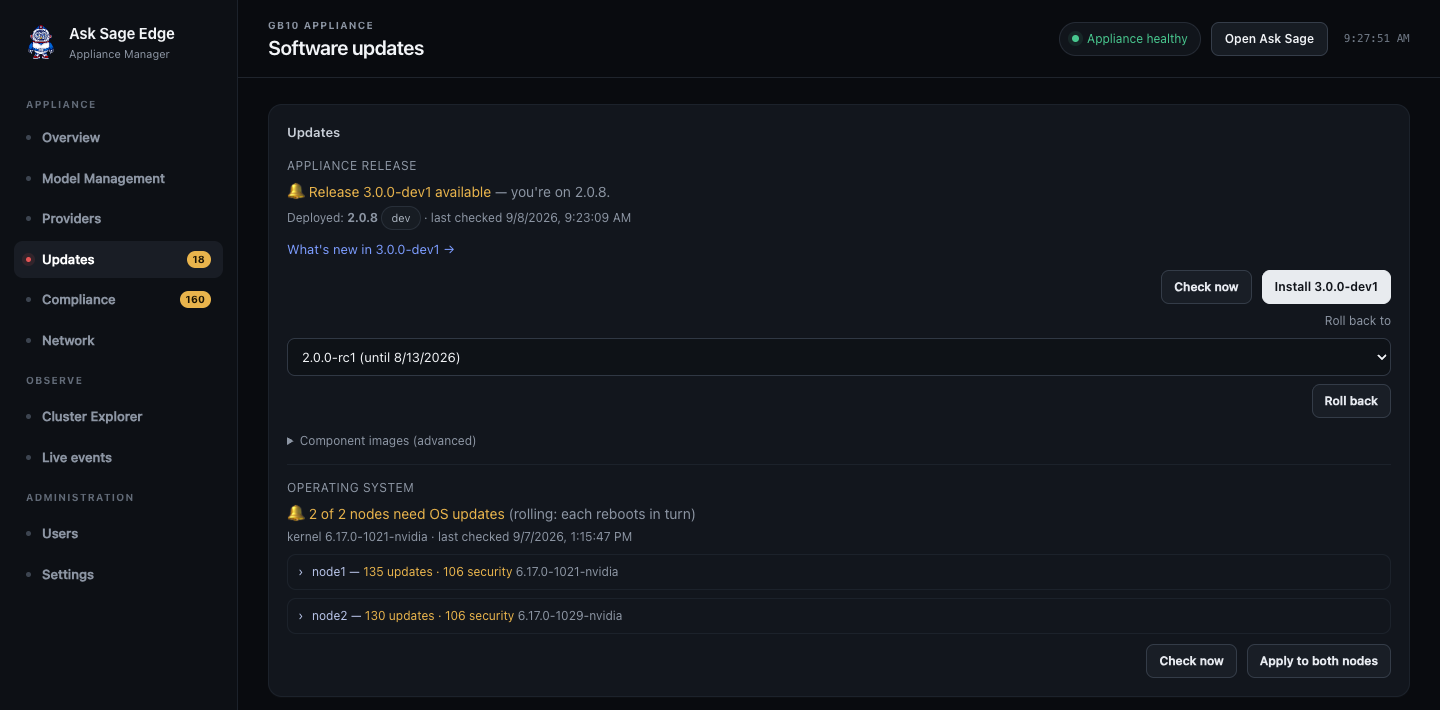
Before updating
- Notify users and allow active work to finish.
- Confirm all expected nodes and core services are healthy.
- Record the current version, loaded models, and any existing faults.
- Review release notes and platform compatibility, including any data migration or recovery instructions.
- Confirm the agreed backups and protected recovery material are available. See Recovery planning.
- Confirm power, free storage, and the network or staged media needed for the operation.
The version displayed by the Manager describes the installed release. A platform suffix after + identifies the build target; versions containing -dev or -rc are prereleases. Use the release channel approved for your deployment.
Install a connected release
- Open Updates and select Check now in the appliance-release section.
- Review the offered version and What’s new notes where available.
- Select Install release (or Install followed by the offered version) and read the confirmation.
- Confirm and follow the progress output. Keep the browser open and do not power off or reboot during installation.
- The Manager may disconnect briefly when it updates itself. Wait for it to return, then refresh the page. Force a full browser reload if old content remains.
- Complete the verification steps below.
Install a release offline
Obtain the approved update media for your platform. The deployment administrator must mount and stage the release using the instructions supplied with that media. Simply attaching an arbitrary drive does not guarantee the Manager will detect an update.
Once the staged version is offered under Updates, review it and select Install release. The matching local release bundle is used for the installation. If the expected version is absent, verify the media and staging with your deployment team rather than switching to an internet download.
Retain the approved media according to your site’s policy. It may be needed for recovery, but it is not a backup of your current data.
Apply OS updates
Use the separate OS section to check pending packages, review the operation, and apply it. The Manager coordinates patching, any required reboot, and service recovery for your deployment.
Read the confirmation to see which nodes are affected and whether they update together or sequentially. A single-node update or a coordinated reboot can cause a full service interruption. A rolling operation still reduces capacity and can interrupt a model that spans nodes; do not assume it guarantees uninterrupted chat.
Air-gapped OS updates require the appropriate staged packages and deployment procedure. Application-release media alone does not imply that all OS patches are included.
Verify completion
- Confirm the expected installed version after a release update.
- Confirm core services and all expected nodes are healthy.
- Check Model Management and load the intended model if it is not running.
- Sign in to the workspace and send a real chat request.
- Test a small document upload and retrieval request; test voice or other critical tools if used.
- Verify custom settings, provider access, and the selected inference mode.
Application updates are designed to preserve data, provider credentials, model weights, and custom model definitions. This behavior does not replace a backup or the release-specific migration instructions.
Roll back a release
Where a previous release snapshot exists, Updates shows Roll back to and Roll back.
- Record the failure and the installed version.
- Review the release’s rollback and data-migration notes. For a major-version or schema change, coordinate recovery with support before reverting.
- Select an available prior release and choose Roll back.
- Confirm the interruption and wait for completion without removing power.
- Repeat the verification steps above.
A release rollback restores software from an available prior bundle. It does not restore deleted conversations or datasets, reverse every database migration, or roll back host OS packages. If no rollback target appears, use the deployment’s recovery procedure and contact support.