Conversation Context
Understand the context window, read the Conversation Context panel, and know why long chats start to "forget"
Table of Contents
What Is a Context Window?
A context window is the total amount of content a model can hold in view at once, measured in tokens. Tokens can represent not just text but also images, audio, tool calls, and system instructions — anything the model processes. Think of the context window as the model's working memory for a single conversation: everything the model needs to answer your question has to fit inside it, and anything that falls outside it is no longer accessible to the model unless it's stored elsewhere and pulled back in.
Because models are stateless between turns, they don't remember your earlier messages on their own. A conversation appears to have memory only because the client resends the entire history — the system prompt, all prior turns, and your new message — with every turn. That's why long conversations grow slower and more expensive, and why they eventually hit the window's limit.
The Conversation Context Panel
Ask Sage Chat shows a token badge in the bottom-right corner of the chat window. Click it to open the Conversation Context panel, which breaks down exactly how much of the model's context window your current conversation is consuming.
What the badge opens depends on the model you've selected. Chat models show Conversation Context, described below. Image and video generation models show a simpler Prompt Size panel instead, because they have no conversation to track.
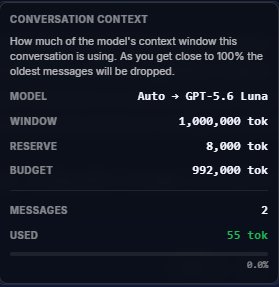
The panel's own summary says it plainly: "How much of the model's context window this conversation is using. As you get close to 100% the oldest messages will be dropped."
Reading the Panel
| Field | Example | What it means |
|---|---|---|
| MODEL | Auto → GPT-5.6 Luna | The model the window belongs to. When you're on Auto, the arrow shows which model your request actually resolved to. Every number below follows that model, so they change if Auto routes elsewhere or you switch models mid-chat. |
| WINDOW | 1,000,000 tok | The resolved model's total context window — the hard ceiling on everything it can hold in view at once. |
| RESERVE | 8,000 tok | A fixed safety margin, held back on every model. USED is an estimate rather than an exact count, and the reserve is the cushion that absorbs the error — see A note on the numbers below. |
| BUDGET | 992,000 tok | WINDOW − RESERVE. This is what's actually available to your conversation, and it's the number the percentage is measured against. |
| MESSAGES | 2 | How many messages are currently being carried in context. Your prompt and the model's reply each count as one, so a single completed exchange shows 2. Text still sitting unsent in the prompt box isn't a message yet and doesn't count here. |
| USED | 55 tok | An estimate of how many tokens the conversation is consuming, calculated in your browser rather than by the model. Read it as an approximate gauge — see A note on the numbers below. |
| DRAFT | +2,000 tok | What the message you're currently typing will add. It appears only when there's unsent text in the prompt box, and it's already folded into USED — so you can see a long prompt's cost before you commit to sending it. |
| Percentage bar | 0.0% | USED as a share of BUDGET — not of WINDOW. As this approaches 100%, the oldest messages start dropping out. |
WINDOW and BUDGET instantly, and the same conversation will show a much smaller percentage. With Auto, the Allow switching toggle controls whether Auto can re-route between turns — see Model Selection. A Note on the Numbers
There is no single, universal definition of a token. Every model family splits text into tokens slightly differently, so the same sentence genuinely costs a different number of tokens depending on which model is reading it.
Ask Sage has to know how big your conversation is before it sends anything, and it can't run every model's tokenizer in your browser to find out. So it uses one deliberately conservative approximation for all models. The figure you see is a working estimate of the conversation's size, not an exact accounting of everything in the request.
That's what RESERVE is for. It's a fixed 8,000-token margin, held back on every model, that covers the gap between the estimate and reality. Together they let Ask Sage manage the conversation on its own terms:
- Estimate high — Assume the conversation is bigger than it probably is.
- Hold back a reserve — Stop at
BUDGETrather than at the model's true ceiling. - Trim before sending — When the conversation would exceed
BUDGET, Ask Sage drops the oldest messages itself, on the way out.
The point of the margin is to keep that trimming decision on the Ask Sage side, where it's predictable. If the estimate ran low and an oversized request reached the model, the drop would happen further downstream and with less control over what gets cut.
Image and Video Models: the Prompt Size Panel
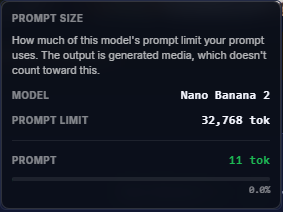
Select an image or video generation model and the same badge opens a different panel: Prompt Size. Media models don't hold a conversation — each request stands alone — so there's no history to track and nothing to drop. What's limited is the length of the prompt itself.
| Field | Example | What it means |
|---|---|---|
| MODEL | Nano Banana 2 | The media model your prompt will be sent to. |
| PROMPT LIMIT | 32,768 tok | The longest prompt this model accepts. This varies enormously between media models — Nano Banana 2 allows 32,768 tokens, while FLUX 2 Pro allows 1,024. Check the panel rather than assuming, especially when switching models. |
| PROMPT | 11 tok | How much of that limit your current prompt uses, updating live as you type. |
| Percentage bar | 0.0% | PROMPT as a share of PROMPT LIMIT. There's no reserve to subtract here. |
Context Window vs. Ask Sage Tokens
This is the single most common point of confusion on the platform. They are unrelated limits that happen to both be measured in tokens.
What Fills the Window
It isn't just your messages. All of the following compete for the same space:
- Your prompt — The question or instructions you type.
- Chat history — Every prior turn in this conversation, yours and the model's, re-sent on each send.
- Attachments — Files you attach to a prompt (up to 5 at a time). A handful of large PDFs can fill a small window on its own.
- Dataset chunks — When a Dataset is attached, the retrieved passages are inserted into the prompt.
- Persona & prompt templates — The instructions behind your selected Persona or template, sent with every turn. A long, detailed Persona takes up real room in the window.
- Plugins & MCP tools — Enabled tool definitions occupy space before you ever call one, and each tool result adds more.
- The model's response — Once written, it becomes part of the history carried into the next turn.
What Happens When It Fills Up
As USED approaches BUDGET, Ask Sage starts dropping the oldest messages from what it sends, to make room for new ones. Nothing is deleted from your saved chat history — you can still scroll up and read the whole thing — but the dropped messages are no longer going to the model, so it can no longer see them.
This is the explanation behind the most common complaint about long chats:
- The model contradicts an instruction you gave it 40 messages ago.
- It asks for information you already provided.
- It loses track of a document you attached early in the conversation.
- Answers get vaguer or drift off-topic the longer the chat runs.
None of these mean the model is malfunctioning. They mean the earliest part of the conversation has aged out of the window. Checking the Conversation Context panel will usually confirm it — a high percentage is the tell.
Managing Your Context Window
- Start a new chat when the topic changes — The single most effective habit. A fresh chat starts at 0% and isn't carrying irrelevant history that both costs tokens and subtly influences answers.
- Switch to a larger-window model — Every model card in Browse Models lists its context window size. Open the model picker and click See All Models to compare.
- Use Datasets instead of re-attaching files — Ingest a reference document once, then query it. Only the relevant chunks enter the window rather than the whole file, every time.
- Turn off Plugins and MCP tools you aren't using — Their definitions consume window space on every send whether or not you call them.
- Check the panel before a long task — If you're about to attach a large document to an already-long chat, open the panel first. Starting fresh is cheaper than discovering mid-task that half your setup got dropped.
Summary
The context window is the model's working memory for a single conversation, and the Conversation Context panel in the bottom-right corner of the chat window shows how much of it you're using. WINDOW is the model's ceiling, RESERVE is a fixed safety margin that absorbs the imprecision in Ask Sage's token estimate, and BUDGET is what's left for your conversation. When usage nears 100%, the oldest messages are dropped — which is why long chats start to "forget."
Most importantly: this is not your Ask Sage token balance. The context window is a per-conversation capacity that resets with every new chat; your tokens are a monthly plan allowance tracked in Settings.