Enterprise Account
Manage users, tokens, and account settings in one centralized platform
In this section, we will cover the Enterprise Account feature of the Ask Sage platform. The Enterprise Account feature is designed to cater to the needs of organizations and businesses that require a more comprehensive and scalable solution deploying and managing GenAI. By providing a centralized platform for managing multiple users, the Enterprise Account feature allows organizations to manage their tokens and users effectively, ensuring a seamless experience for all users.
Ask Sage Platform
Ask Sage delivers a solution that is tailored to the needs of organizations and businesses, providing a scalable and comprehensive solution for deploying and managing GenAI.
Table of Contents
Obtaining an Enterprise Account
Follow these steps to get an Enterprise Account on the Ask Sage platform. Doing so will expedite the process of getting an Enterprise Account and ensure that your organization can have a seamless experience with the Ask Sage platform.
- Minimum of 2 Users: An
Enterprise Accountis only available for organizations and businesses that have a minimum of 2 users. Otherwise, an individual subscription is recommended instead. - All Users Need to Register An Account: All users who will be part of the
Enterprise Accountneed to register an account on the Ask Sage platform and agree to the terms and conditions. This is a mandatory requirement for all users who will be part of theEnterprise Account. - Email Ask Sage Sales Team: Once all users have registered an account on the Ask Sage platform, organizations need to email the Ask Sage sales team at sales@asksage.ai and request an
Enterprise Account. In the email provide the following information:- Organization Name: The name of your organization (e.g., ABC Corp)
- Billing Address: The billing address of your organization
- Emails of All Users: The email addresses of all users who will be part of the
Enterprise Account - Emails of Admin Users: The email addresses of the users who will be the admin of the
Enterprise Account- Minimum of 1 admin user required - and there is no maximum limit on the number of admin users
- Token Request: Visit: Pricing & Sales for resources on purchasing tokens. If you require additional tokens, please mention the number of tokens you require (in quantities of 2M). - Minimum of 200K tokens required, per user.
- Additional Information: Any additional information that you would like to provide to the Ask Sage sales team.
- Payment: Once the Ask Sage sales team has received your email, they will get in touch with you to discuss the payment terms and conditions. Once the payment has been made, your
Enterprise Accountwill be activated.
Viewing the Admin Panel
After successfully obtaining an Enterprise Account on the Ask Sage platform, administrators will be able to access the Admin Panel on the Ask Sage platform.
Any user who has been designated as an admin user for the Enterprise Account will be required to setup multi-factor authentication (MFA) for their account. This is a mandatory requirement for all admin users who will be managing the Enterprise Account.
Admin Panel. To access the Admin Panel, follow these steps:
Login to the Ask Sage Platform
Go to the Ask Sage platform and login to your account. Navigate to the Admin Panel by clicking your account icon in the bottom of the left sidebar. If you are the administrator of the account you will see Admin Panel within the window that displays.
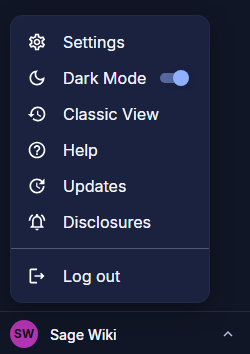
Ask Sage Settings Navigation
Admin Panel. Access the Admin Panel
Once you have selected the Admin Panel option, you will be redirected to the Administrator Dashboard where you can manage your Enterprise Account.
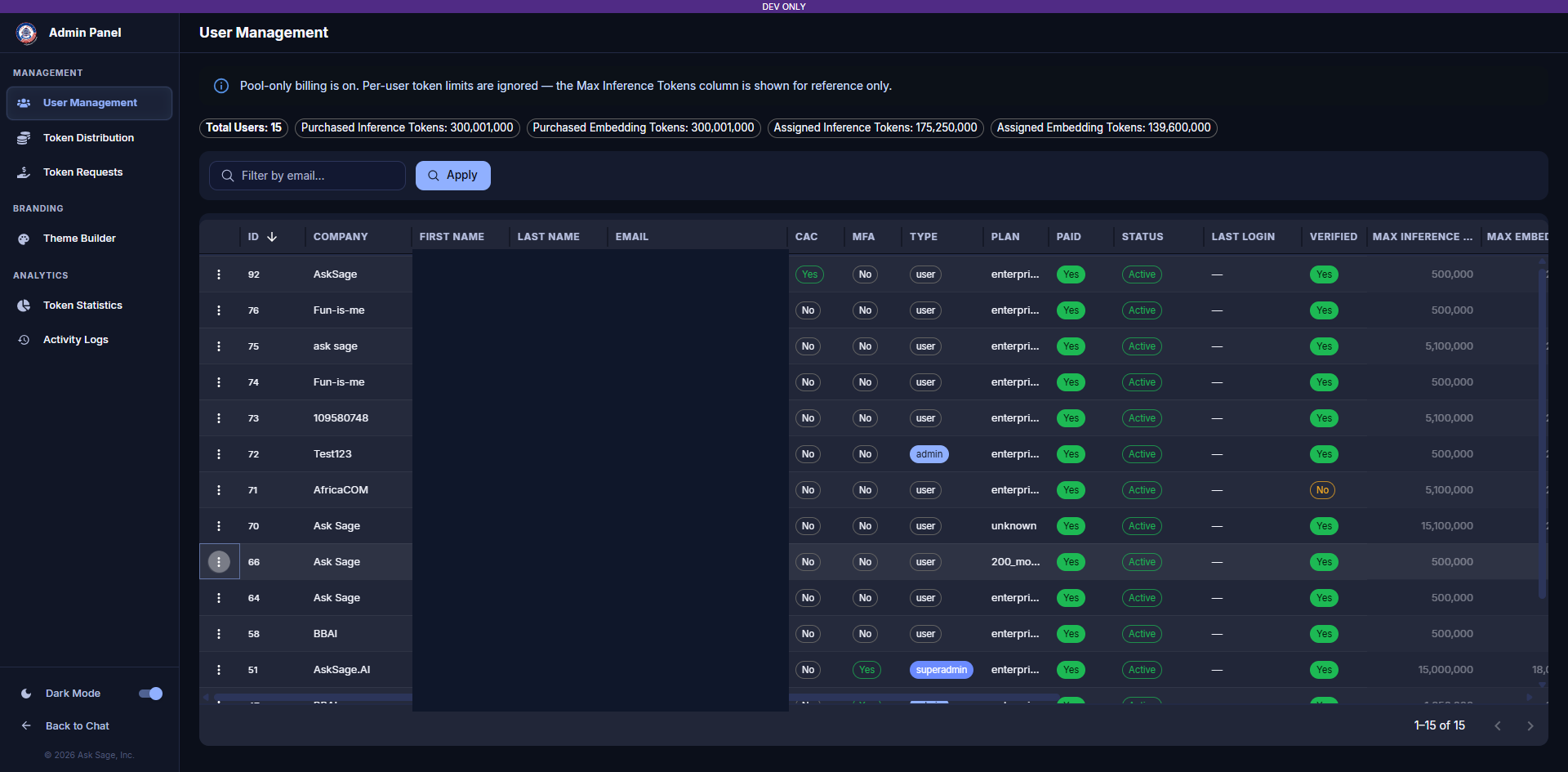
Ask Sage Enterprise Admin Panel
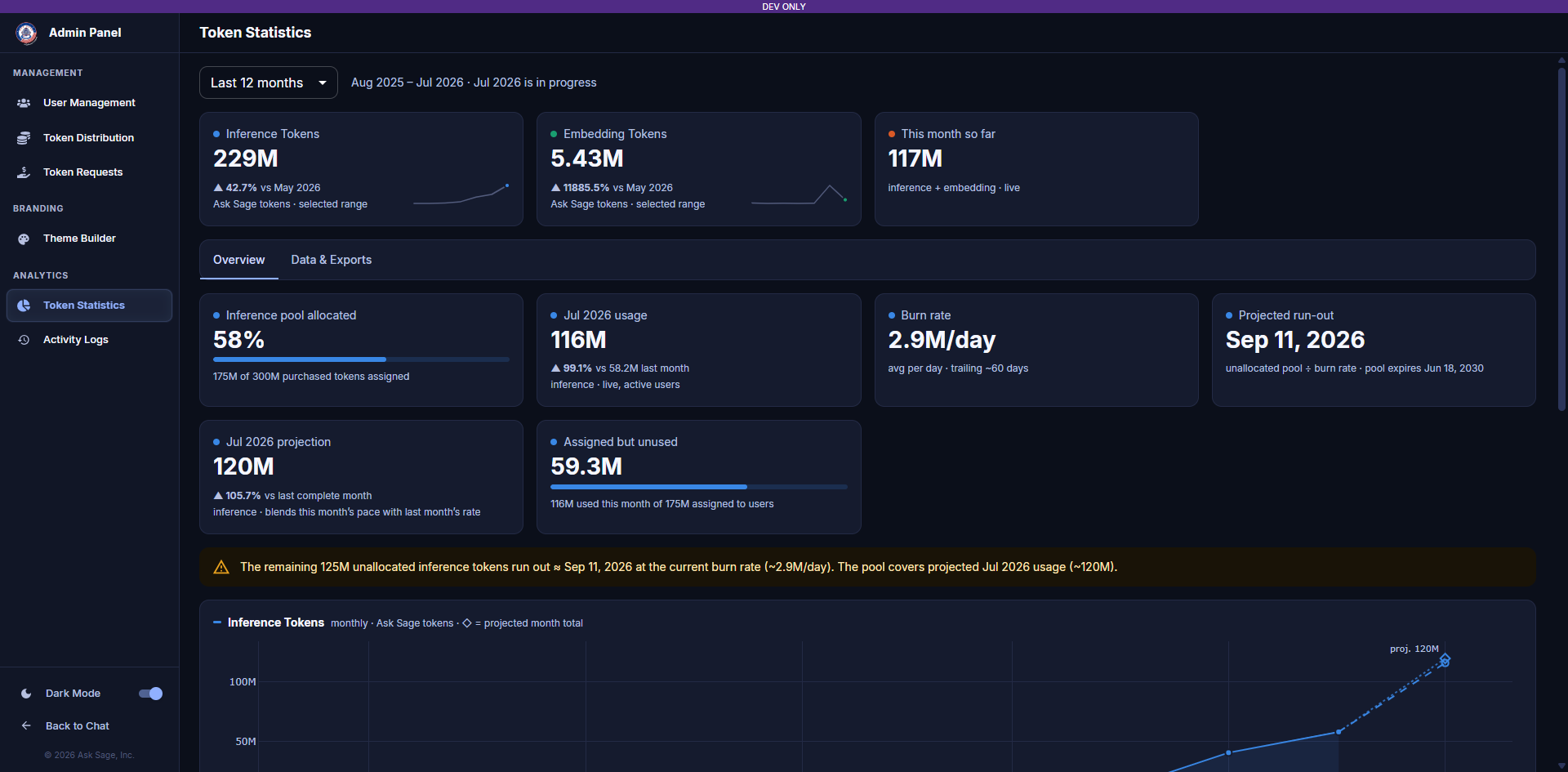
Admin Panel Layout
The Admin Panel is divided into two sections:
Management
- User Management — View users, update paid/banned status, manage tokens
- Token Distribution — Configure token allocation policies
- Token Requests — Review pending token requests
Analytics
- Token Statistics — Token usage dashboards and CSV exports
- Activity Logs — User interaction history and audit trail
Responsive Behavior
On smaller screens (below 1200px), the sidebar collapses into a slide-out drawer:
- A hamburger menu icon () appears in the top-left of the content header
- Tap the icon to open the sidebar as an overlay drawer
- Selecting a page automatically closes the drawer
We will cover the following topics related to managing Organizations, Users, Models, and Tokens in the `Admin Panel` in the subsequent sections.