Appliance Manager
Check health, navigate the Manager, and control appliance services
Table of Contents
About this guide
The Ask Sage Edge Appliance Manager is the operator’s control panel for health, model placement, updates, and administration across platforms. Use the address and named Manager account supplied by your administrator. Direct management access commonly uses port 11100; the hostname and HTTPS configuration depend on your installation.
Screenshots throughout these guides were captured on a GB10 appliance running 2.0.8+gb10 on September 8, 2026. It serves as an example of the shared Manager experience across platforms. Hardware labels and readings in the images describe that appliance; use your own deployment’s node inventory and capacity.
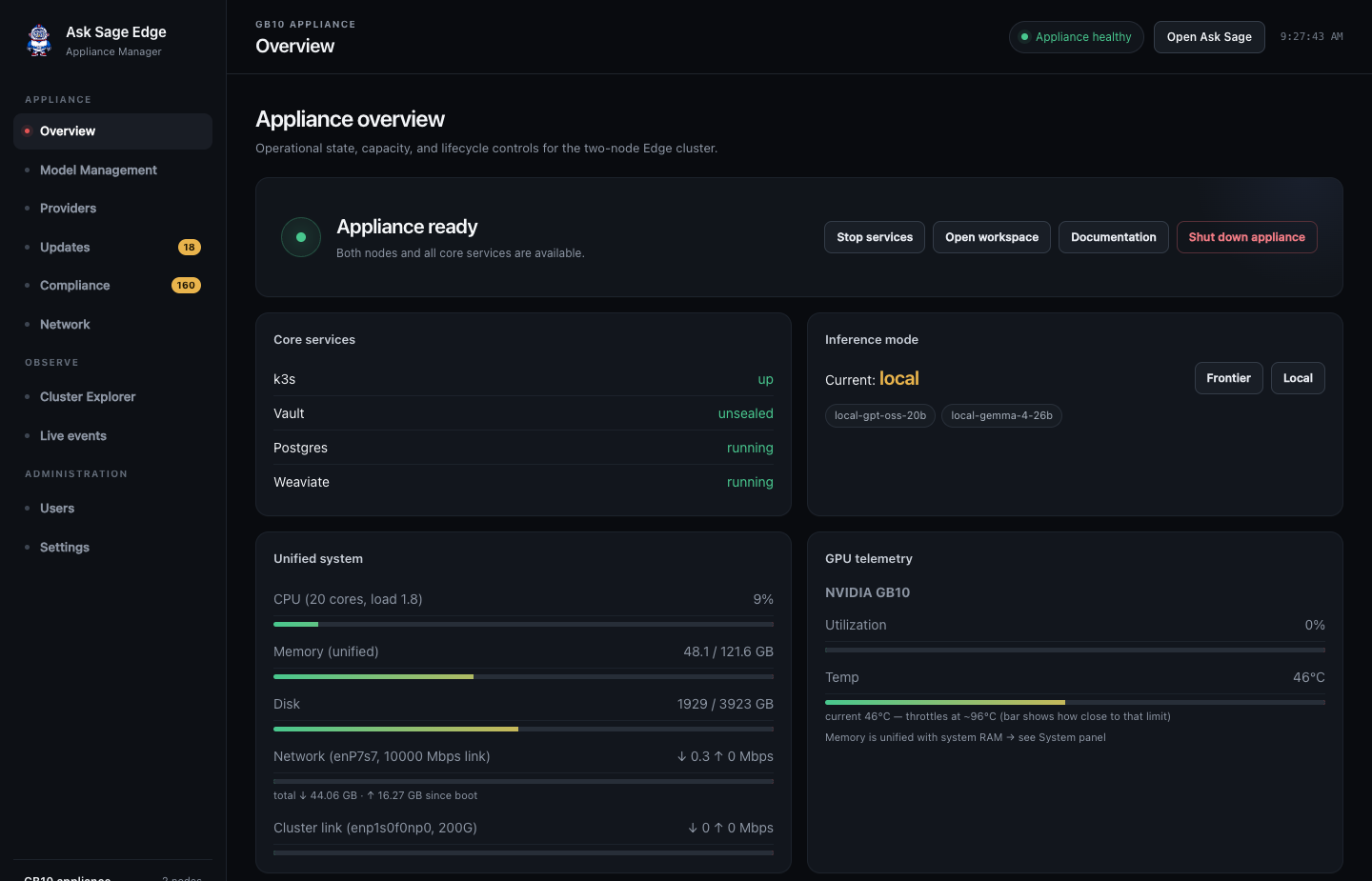
Find the right control
| Section | Purpose |
|---|---|
| Overview | Readiness, core service health, version, resource telemetry, inference mode, and lifecycle controls. |
| Model Management | Available models, per-node capacity, loading, unloading, default selection, and model import. |
| Providers | Credentials for supported cloud model providers. |
| Updates | Appliance releases, rollback, component image patches, and host OS updates. |
| Compliance | Security checklists, scans, recorded decisions, and CKLB exports. |
| Network | Hotspot controls and connected-device information on equipped appliances. |
| Cluster Explorer | Detailed cluster resources and workload inspection. Older releases may show Workloads. |
| Live events | Recent cluster events that help explain failures or scheduling delays. |
| Users | Manager account administration. |
| Settings | Application configuration and available domain, certificate, and SSO controls. |
Some actions require the operator or admin role. See Users and settings. The same management workflows apply across platforms; available controls reflect your role, installed release, and enabled capabilities.
Check health
Begin in Overview. The core services include the cluster runtime, secret store, application database, and vector database. Confirm the appliance is ready, then inspect Model Management to check node readiness and the models serving requests.
A healthy service indicator does not prove that a chat model is loaded or that document retrieval works. Complete a short chat and document test after startup, updates, or significant configuration changes.
Start or stop services
To start a stopped stack, select Start Ask Sage in Overview and follow the progress output. Wait for readiness before opening the workspace.
To stop the stack, notify users, allow active work to finish, and select Stop services. Confirm the action and wait for the ordered shutdown to complete. This ends active sessions and leaves the hardware powered on. Use Start Ask Sage in the Manager when you are ready to bring services back online.
Shut down the appliance
- Arrange the interruption with users and confirm no update or model import is running.
- In Overview, select Shut down appliance with an admin account.
- Read the confirmation. For a multi-node appliance, review which nodes will shut down and in what order.
- Confirm and wait for the units to power off before disconnecting power or moving them.
Powering the units back on requires physical access or the appropriate hardware management facility. After startup, confirm all expected nodes and the required models are ready. If application services remain stopped, use Start Ask Sage. Follow your deployment’s runbook for the hardware power-on sequence.
Avoid interrupting power during database activity, model imports, or updates. If normal controls are unavailable, follow Recovery planning and your deployment’s console procedure.