Ingesting Data into Ask Sage
Transform your data into powerful AI insights with Ask Sage datasets. Ingest once, use everywhere across all GenAI models

- Ingest data in any format—text, images, audio—to generate tailored responses
- Upload once, use across multiple GenAI models on the platform
- Share datasets organization-wide for seamless collaboration
Table of Contents
Understanding Datasets, Tokens, and Embeddings
Purpose of Ingesting Data into an Ask Sage Dataset
When users ingest data into an Ask Sage dataset, that information is stored and made available as a reference source. When a user submits a prompt, the platform automatically retrieves the most relevant content from the selected dataset(s) and combines it with the user's prompt. This enriched prompt is then sent to the AI model, enabling it to generate responses that are grounded in your specific data rather than relying solely on its general training knowledge. This approach is particularly advantageous for organizations seeking tailored responses based on their unique data and knowledge. This method, known as Retrieval Augmented Generation (RAG), enhances GenAI models by incorporating external information. This results in more accurate and contextually relevant outputs.
Ask Sage Training Tokens
Think of training tokens as a form of currency that allows you to input data into the platform. Each month, users receive a specific number of training tokens based on their subscription plan. When users ingest data into Ask Sage, the platform utilizes training tokens to convert that data into embeddings, which are then stored in an Ask Sage dataset.
Ask Sage Inference Tokens
Inference Tokens are the tokens consumed on the Ask Sage platform whenever you submit prompts, generate responses, use plugins/agents, or interact with any AI model to process text data and produce predictions or outputs.
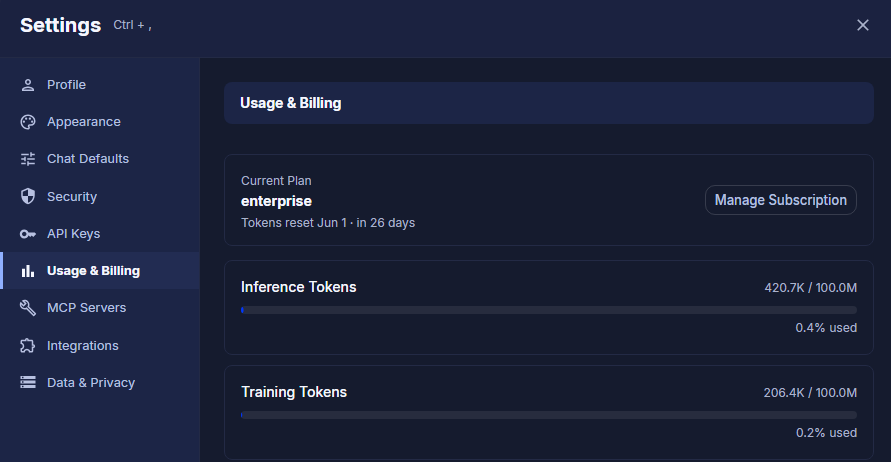
To view your available tokens, navigate to your name in the bottom left corner of the screen, then click on Settings and then Usage & Billing. Here, you will find the counts for both Inference Tokens and Training Tokens along with a percentage of usage.
What is a Token?
A token is a unit of text that the model processes, which can range from a single character to a whole word. For instance, the word "hello" is a single token, while the phrase "I love programming!" consists of five tokens: "I", "love", "programming", "!", and a space. When you ingest data into Ask Sage, the platform uses tokens to represent the text, converting it into a format that the model can understand. The more tokens you have, the more data you can ingest into an Ask Sage dataset and the more you can interact with AI models.
What is an Embedding?
An embedding is a numerical representation of data that captures its meaning in a way that a model can interpret. Essentially, embeddings transform complex data—such as text or images—into a format that allows algorithms to analyze it effectively.
Tokens and embeddings are closely related: once the text is tokenized, each token is mapped to a corresponding embedding. This mapping allows the model to understand the relationships and meanings of the tokens in a more nuanced way, enabling it to generate relevant responses based on the ingested data.
Steps to Ingest Data into Ask Sage
Create a Dataset
The first step is to create a dataset in Ask Sage. A dataset is equivalent to a folder where you can store all the data you want to ingest into Ask Sage. You can create multiple datasets to organize your data based on specific use cases or projects.
To create a dataset, follow these steps:
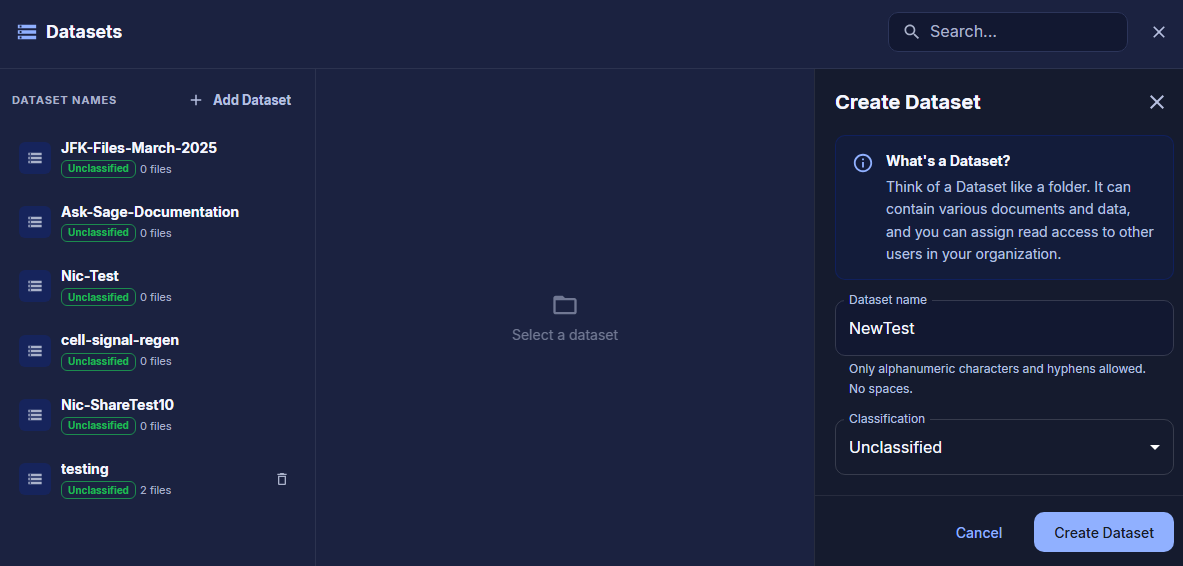
- Click the
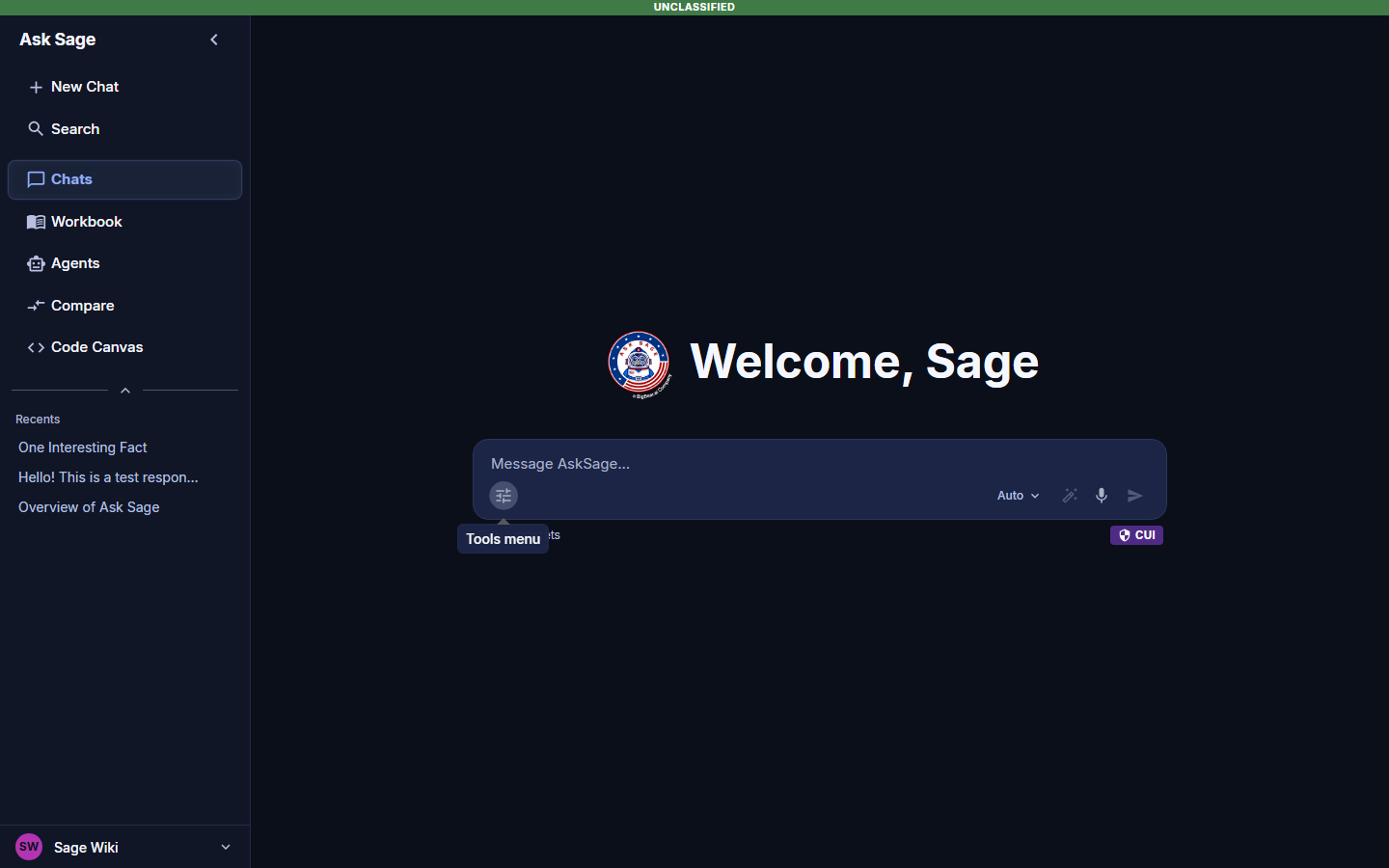
Tools menubutton, then selectDatasets. - Click on the
+ Add Datasetbutton.- Enter a dataset name. Only alphanumeric characters and hyphens are allowed. No spaces or special characters are allowed (e.g.,
my-dataset12345). - Classify the dataset as
Unclassified, orCUI(Controlled Unclassified Information). - Click on the
Create Datasetbutton. (If successful, you will seeDataset created)
- Enter a dataset name. Only alphanumeric characters and hyphens are allowed. No spaces or special characters are allowed (e.g.,
CUI or Unclassified. Users without a CAC/PIV card are limited to labeling datasets as Unclassified. If you need to label a dataset as CUI but do not possess a CAC/PIV card, please contact Support at support@asksage.ai for assistance. 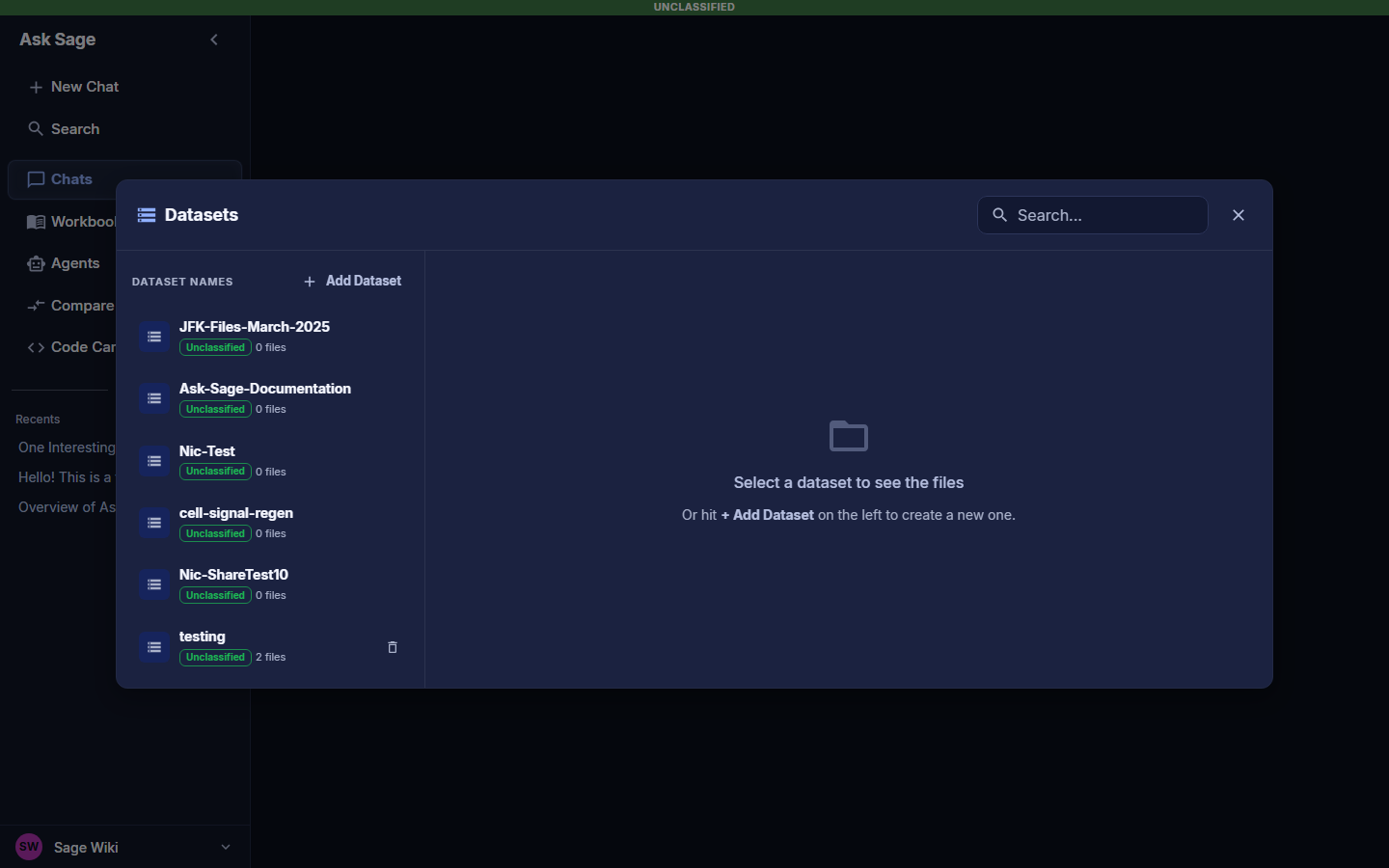
After creating a dataset, you can now start ingesting data into Ask Sage.
- Use a clear naming convention for your datasets to easily identify them when ingesting data
- On your local machine, create a folder with the same name as the dataset you created in Ask Sage to help organize your data locally and easily upload it
After creating a dataset, you can now upload/ingest data into Ask Sage. You can ingest data in any format and as listed in the table below:
| Data Type | File Format | Example | Max Size Per File |
|---|---|---|---|
| Text | .txt, .docx, .pdf, .pptx, .ppt, .csv, .cc, .sql, .cs, .hh, .c, .php, .js, .py, .html, .xml, .msg, .odt, .epub, .eml, .rtf, .doc, .json, .md, .tsv, .yaml, .yml, .java, .rb, .sh, .bat, .ps1 | example.txt | 50MB |
| Image | .jpg, .jpeg, .png | example.jpg | 50MB |
| Audio | .wav, .mp3, .mp4, .mpeg, .mpga, .m4a, .webm | example.wav | 500MB |
| Compressed | .zip | example.zip | 50MB |
| Spreadsheet | .xlsx, .tsv | example.xlsx | 50MB |
| Presentation | .pptx, .ppt | example.pptx | 50MB |
| Code | .cc, .sql, .cs, .hh, .c, .php, .js, .py, .java, .rb, .sh, .bat, .ps1 | example.py | 50MB |
| E-book | .epub | example.epub | 50MB |
| .eml, .msg | example.eml | 50MB | |
| Rich Text | .rtf | example.rtf | 50MB |
| Markup | .md, .html, .xml | example.html | 50MB |
| Data Interchange | .json, .yaml, .yml | example.json | 50MB |
To upload data into Ask Sage, navigate to the Datasets section and follow these steps:
- Select the dataset you created from the dropdown list.
- Drag and drop the files you want to upload into the designated box under
File Ingeston the right, or clickChoose filesto select from your local machine. - Once the files are selected, their names will appear in the box. Review the list to ensure accuracy, select the X next to
File Ingestto clear the list. - Click the
Upload File(s)button to begin the upload process. - If the upload is successful, it will display in the middle section of the dataset.
Tools menu and then Add photos and files. Ask Sage will then use Python libraries to analyze the data and generate text based on that analysis. This approach allows you to effectively leverage GenAI for data analysis without the need to ingest the data into a dataset (or use Training tokens). Using the Dataset with Ask Sage Models
After ingesting data into an Ask Sage Dataset, you can now use the vector dataset with any of the GenAI models available on the platform.
To use the data with the GenAI models, follow these steps:
- Click the
Tools Menuand then mouse over Datasets - Select the
dataset(s)you want to reference/use when prompting questions.- Note: You can select multiple datasets or all.
- Update any other settings as needed (e.g.,
Model,Persona,Temperature, etc.) - Enter a prompt and click
send.
Here is an example of when a dataset is selected and used within Ask Sage:
The dataset(s) selected will appear under the prompt window so users can easily identify the dataset(s) used with the prompt.
Temperature setting at its default value of 0.0 and ensuring that the Live setting is turned off. Incorrect settings may result in subpar outcomes or data contamination. Live feature is not CUI compliant and cannot be used with CUI labeled datasets. 
The inference/response generated by the GenAI model utilizes the dataset assigned to the prompt.
Show Explainability feature, which provides users with a detailed reference to the data used to generate the text when using a dataset and/or the live feature. This is useful for understanding the context of the generated text and ensuring the text is relevant and not a hallucination. None from the dropdown list. This will allow you to use the GenAI models without any dataset reference. This will also save inference tokens, as the model will not need to reference any dataset. How RAG Works
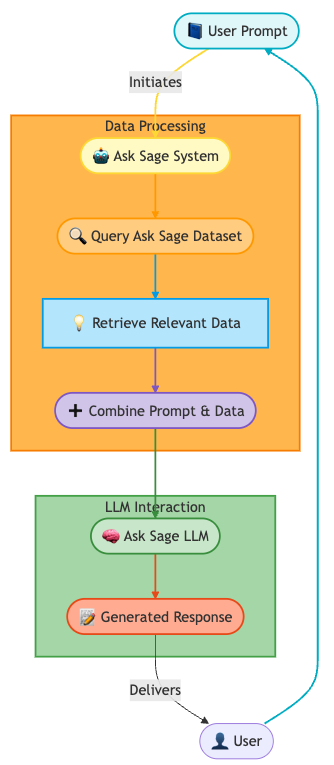
Retrieval Augmented Generation (RAG) is a two-step process that enhances the capabilities of GenAI models by incorporating external information:
Example
User Prompt: "What are the best practices for securing a web application?"
- Retrieve Relevant Context:
- The RAG system searches a database and finds relevant articles, guidelines, and facts about web application security, such as:
- Use HTTPS to encrypt data in transit
- Implement input validation to prevent injection attacks
- Regularly update software dependencies to patch vulnerabilities
- The RAG system searches a database and finds relevant articles, guidelines, and facts about web application security, such as:
- Augment Prompt:
- The system combines the original prompt with the retrieved information:
- Augmented Prompt: "What are the best practices for securing a web application? Use HTTPS to encrypt data in transit, implement input validation to prevent injection attacks, and regularly update software dependencies to patch vulnerabilities."
- Generate Response:
- The GenAI model processes the augmented prompt and generates a more informed response:
- "Securing a web application involves several best practices. First, always use HTTPS to encrypt data in transit, ensuring that sensitive information is protected from eavesdroppers. Second, implement robust input validation to prevent injection attacks, such as SQL injection or cross-site scripting (XSS). Lastly, regularly update your software dependencies to patch known vulnerabilities and reduce the risk of exploitation."
In this section, we guided you through the process of ingesting data into Ask Sage. Understanding this process is crucial to generating relevant and accurate results relevant to your work/organization.
Now that you have a better understanding of how to ingest data into Ask Sage, you are ready to start utilizing the platform and leveraging the power of GenAI!