Model Management
Load, place, and import models within your available capacity
Table of Contents
About this guide
Open Model Management in the Appliance Manager with an operator or admin account. The catalog shows models known to the appliance; the node cards show where models are running and how much memory is available.
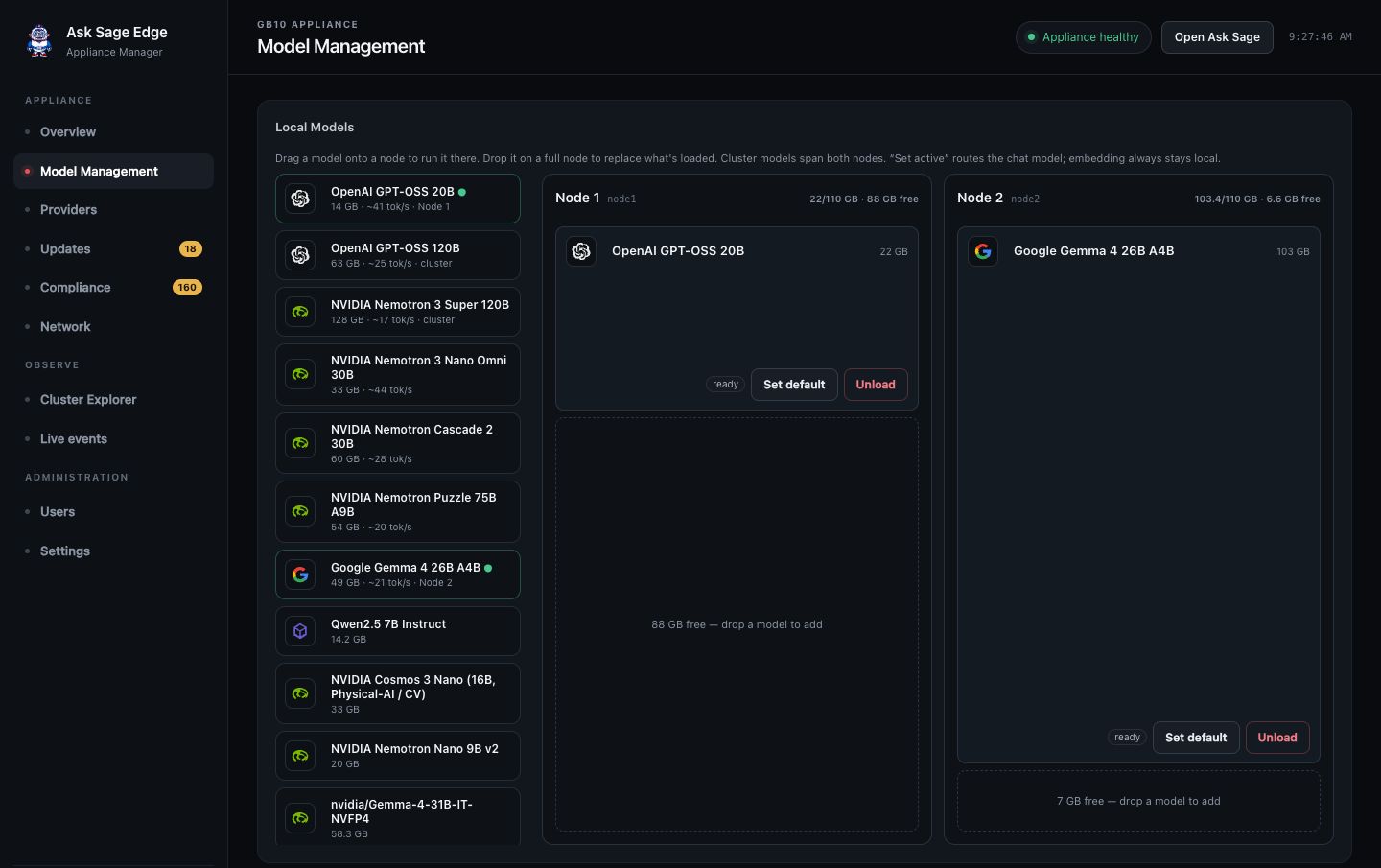
Understand model state
| State or action | Meaning |
|---|---|
| In the catalog | The Manager knows how the model is configured. It may still need files or a compatible serving image. |
| Weights available | The model files are on storage. They are not necessarily loaded into memory. |
| Loading | Files are being prepared or the serving process is starting. The model is not ready for requests yet. |
| Ready / loaded | The serving process is available. Supported chat models can appear in the workspace picker. |
| Set default | Choose the default chat model. Other loaded chat models can remain selectable. |
| Unload | Stop serving the model and release its runtime resources. This is separate from deleting model files. |
Load or switch a model
- Confirm the target node is ready and review its available memory.
- Choose an approved model from the catalog. Open its card to review capabilities and requirements.
- Drag the model onto the intended node, or use the load control offered by your release.
- If the Manager asks to replace another model, review what will be unloaded. Confirm only when the interruption is acceptable.
- Wait until the model is ready. Copying missing files to another node and starting the engine can take time.
- Use Set default if this should be the default chat model. Older releases may label the routing control Set active.
- Refresh the workspace model list, select the model, and send a test prompt.
Do not repeatedly submit load requests while an operation is still running. Check progress and Live events if startup stalls.
Respect each node’s capacity
Model files, serving overhead, and the cache used to process conversations all consume memory. Depending on the hardware, models use dedicated GPU memory or unified memory shared with the operating system. File size alone is not a safe estimate of runtime requirements.
The Manager budgets placement per node. A cluster model uses resources on each participating node; an interconnect does not turn them into one unrestricted memory pool. Loading additional models can require unloading the cluster model or choosing a smaller model.
Memory safety: Exhausting memory can stop model serving and, on systems with unified memory, can crash the entire node. Do not bypass placement checks, lower reservations to force a fit, or override engine memory settings without a validated configuration from your deployment team.
Import from a drive or folder
- Obtain an approved model package with complete weights, configuration, and tokenizer files. Confirm its license and compatibility with the installed engine.
- Attach the approved drive to the appliance, or have the deployment team stage the files in a location available to the Manager.
- Select + Add model → Import from a drive or folder.
- Browse to the model directory and select Use.
- Review the compatibility result and proposed configuration. Leave advanced settings at their detected values unless you have a validated override.
- Submit the import and wait for it to finish before removing the drive.
- Load the model, wait for readiness, and test it in the workspace.
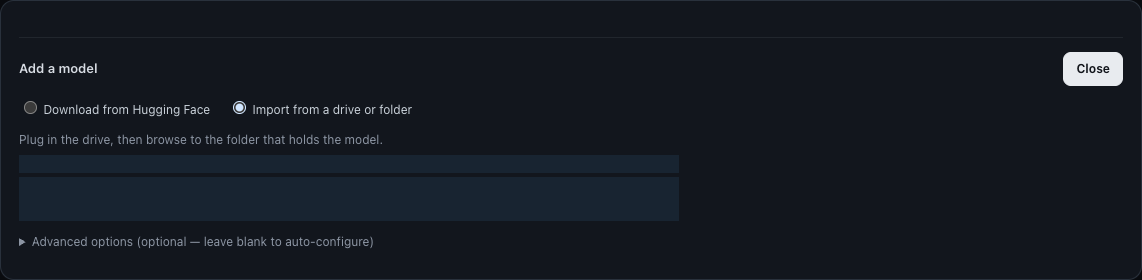
The folder browser reads storage attached to the appliance, not folders on your workstation. If the drive is absent, have an administrator check that it is mounted and readable.
Download on a connected appliance
Where site policy permits downloads, choose + Add model → Download from Hugging Face, search for the model, and review the compatibility result. Restricted models require the appropriate repository access, acceptance of license terms, and a configured Hugging Face token. A provider API key is not a model-download token.
An air-gapped deployment must use approved staged files. A model that requires a newer engine or additional components also needs those dependencies supplied through the deployment’s software process.
Catalog changes and updates
Custom model definitions are stored separately from the shipped catalog so application updates can preserve them. Keep an operational record of custom models and validated settings as part of recovery planning.
Unloading, removing a catalog entry, and deleting weights are different actions. Read the confirmation before removing anything; do not assume that removing an entry frees disk space. Ask your administrator to plan storage cleanup when needed.