User Management
Manage users and their access to the Ask Sage platform
Table of Contents
As an Administrator of an Enterprise Account, you have the ability to manage users and their access to the Ask Sage platform. This section covers how Administrators can effectively manage users and their access levels.
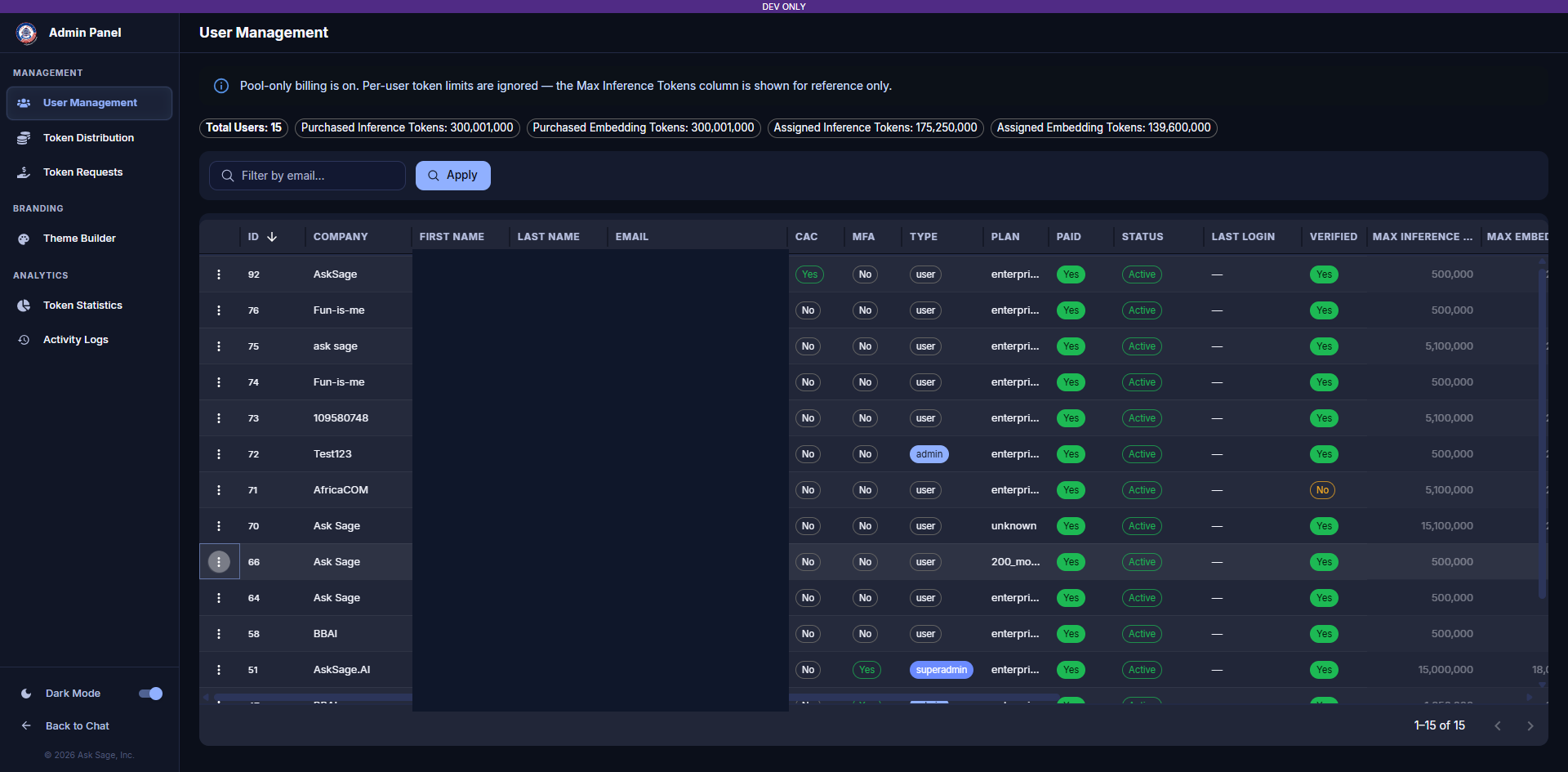
User Management
Accessing User Account Information
To look up a specific user in the User Management tab:
- Click the Filter by email... text box
- Type the user's email address and press Enter or click Apply
- The user's profile row will appear, displaying their current account details
Summary Bar
A row of summary pills above the table gives a real-time snapshot of the organization:
- Total Users — the number of users in the organization
- Purchased Inference Tokens — total inference tokens purchased for the organization
- Purchased Embedding Tokens — total embedding tokens purchased for the organization
- Assigned Inference Tokens — inference tokens currently assigned across all users
- Assigned Embedding Tokens — embedding tokens currently assigned across all users
User Table Columns Reference
Each row in the User Management table includes the following information:
| Column | Description |
|---|---|
| ID | User's unique identifier on the tenant |
| Company | Company name associated with the user's organization |
| First name / Last name | User's registered name |
| User's registered email address | |
| CAC | Whether the user has a CAC/PIV card registered (Yes/No) |
| MFA | Whether multi-factor authentication is enabled (Yes/No) |
| Type | The user's privilege level: SuperAdmin — full tenant access Admin — manages their organization exclusively via the admin portal User — no elevated privileges, cannot access admin portals |
| Plan | The subscription plan the user is enrolled in |
| Paid | Whether the user has access to paid features (Yes/No) |
| Status | The account's current state — Active or Disabled |
| Last Login | Date and time the user last logged in — displays "—" if the user has never logged in |
| Verified | Email verification status — only applies to tenants that require email verification |
| Max Inference Tokens | The monthly inference token allocation assigned to the user. Shown for reference only when the organization's Shared Token Pool is on. |
| Max Embedding Tokens | The training/embedding token allocation assigned to the user. Shown for reference only when the organization's Shared Token Pool is on. |
| Total Inference Tokens | Total inference tokens consumed by the user since the account was created |
| Total Embedding Tokens | Total embedding/training tokens consumed by the user since the account was created |
Activating and Disabling User Accounts
Enterprise Account and do not have access, check that you have setup multi-factor authentication (MFA) for your account. This is a mandatory requirement for all admin users who will be managing the Enterprise Account. No: User will not have access to paid features but will still be able to loginYes: User will have access to the paid features of the Ask Sage platform
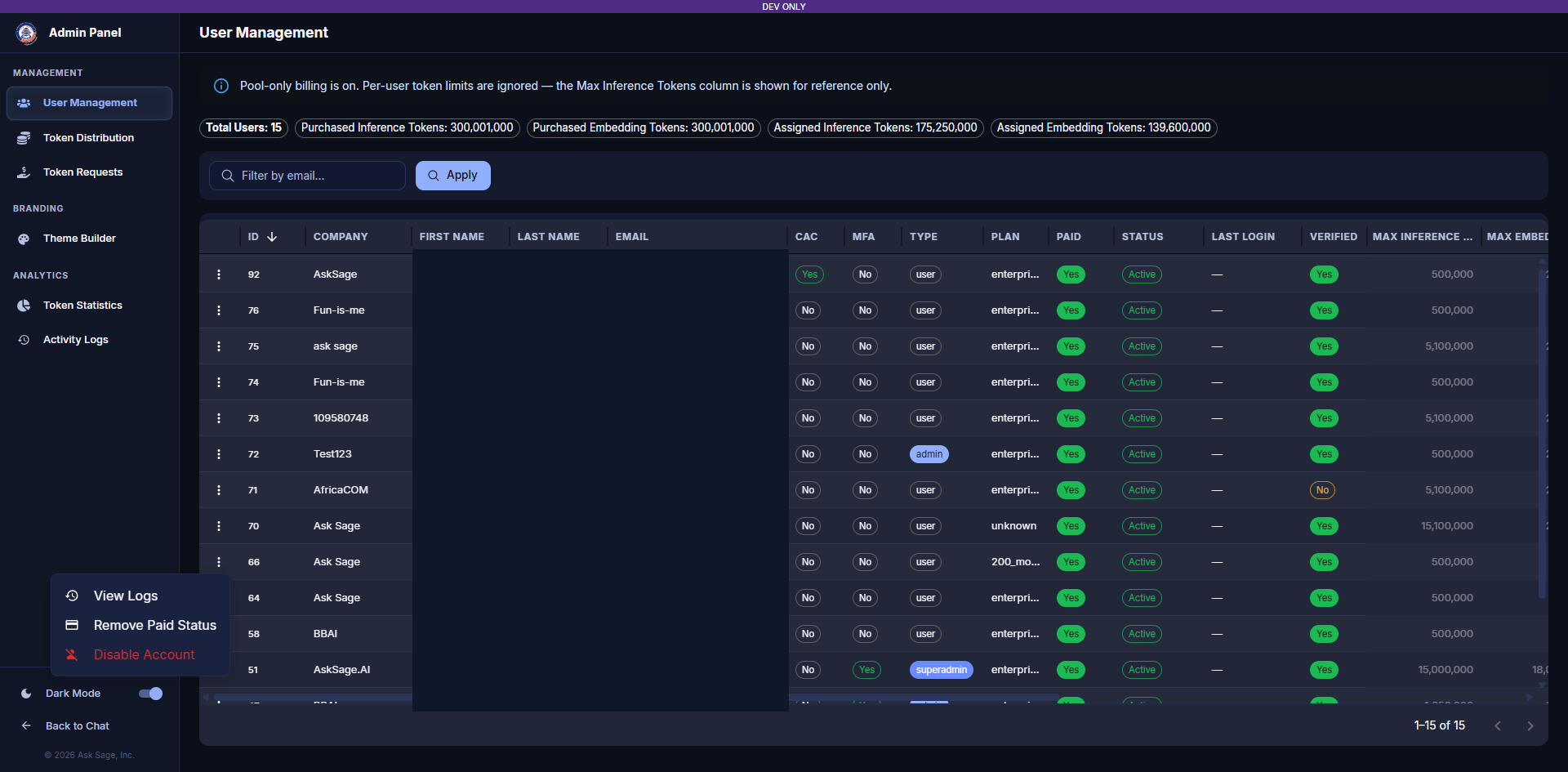
User Account Actions Menu
User Account Actions Menu
Each user row has a context menu accessible by clicking the three vertical dots () to the left of the user’s information. Available actions include:
| Action | Description |
|---|---|
| View Logs | Opens the user's interaction and activity history |
| Remove Paid Status | Revokes paid feature access without disabling the account |
| Disable Account | Blocks login access entirely |
Disabling Users
Reducing Access (Non-Paid Status)
To disable a user and reduce their access, click the three vertical dots () to the left of the user and select Remove Paid Status.
Blocking Login Entirely
To completely block a user from logging in to the platform, click the three vertical dots () to the left of the user and select Disable Account. The user's Status column will change from Active to Disabled.