Token Management
Manage and distribute tokens for users on the Ask Sage platform
Table of Contents
Administrators have the ability to manage tokens for users on the Ask Sage platform. This section covers how Administrators can effectively manage and distribute tokens to users in their organization.
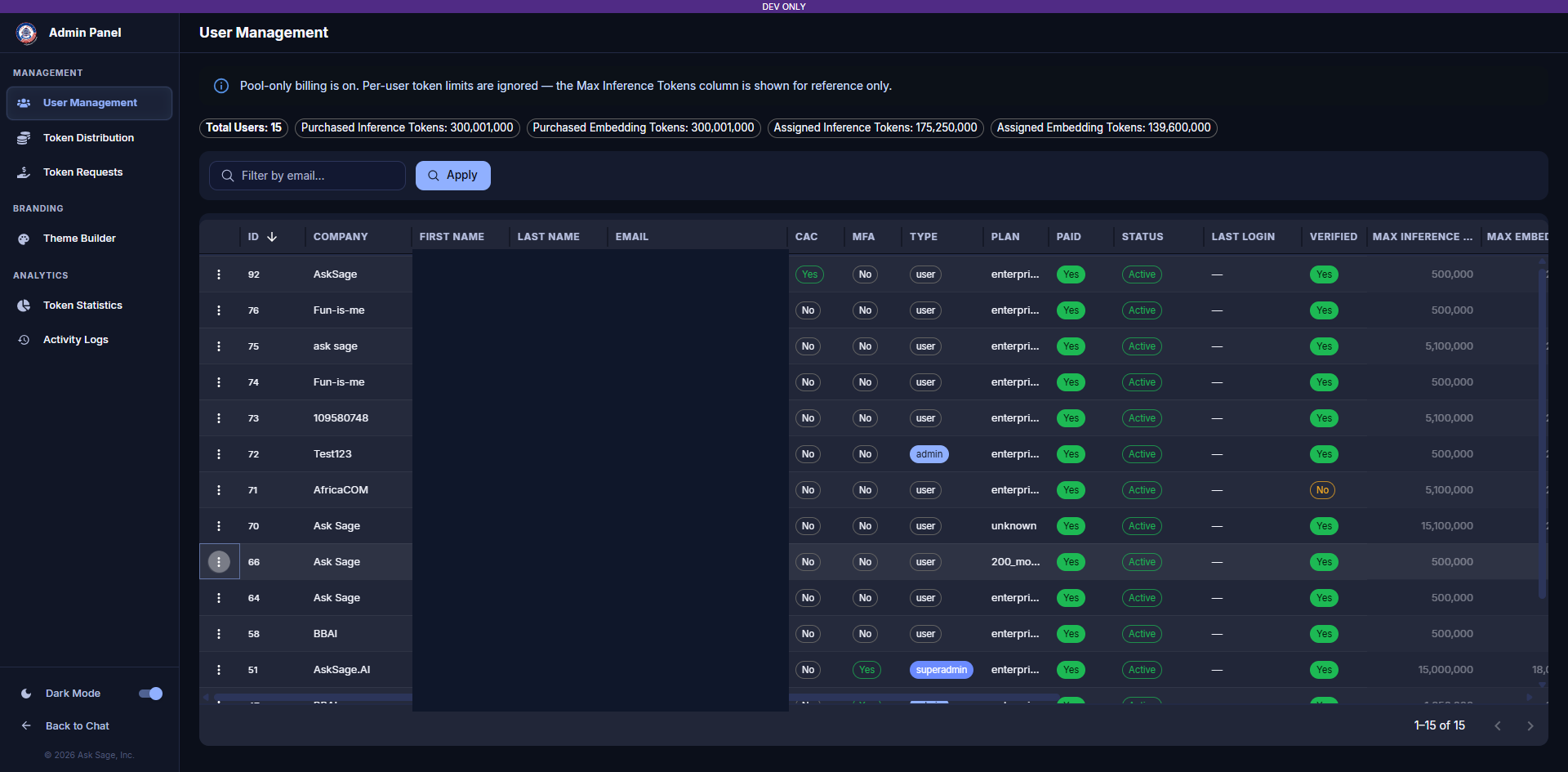
User Management Table
- All users are required to have a minimum amount of Ask Sage Tokens, set by Token Distribution Policy settings or set by default. For example, if you have 4 accounts and purchased 2M tokens, each account would be assigned 200K Ask Sage tokens each if using the default settings.
- If more tokens are needed, contact us at sales@asksage.ai
Assigning Tokens Manually (Shared Token Pool Off)
For organizations that have not enabled the Shared Token Pool, Administrators can assign tokens to individual users directly from the User Table in the Admin Panel. Organizations with automated allocation needs should instead use the presets and rebalancing schedules covered in Token Distribution.
Confirming Token Availability
Before assigning tokens to users, Administrators need to ensure that they have the necessary tokens available in their Enterprise Account. To confirm the availability of tokens, Administrators can review the token allocation columns in the User Table, where the per-user Max Inference Tokens and Max Embedding Tokens are visible alongside current usage.
Step-by-Step Token Assignment
Administrators can assign and distribute tokens as needed within their organization. Follow these steps to assign tokens to users:
Token Assignment Steps
- Navigate to the User Management tab of the Admin Panel
- Locate the user you want to assign tokens to
- Double-click the value in the Max Inference Tokens column to enter edit mode
- Type the new token value and press Enter or click outside the cell to confirm
- A blue Save Changes button will appear in the bottom left corner — click it to lock in the change
- Repeat for Max Embedding Tokens
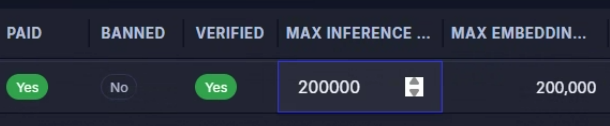
Max Inference Tokens and Max Embedding Tokens columns in edit mode
Token Type Definitions
Understanding the different token types is essential for proper token allocation:
- Max Inference Tokens: Represents the total number of inference tokens assigned to a user
- Max Embedding Tokens: Represents the total number of tokens assigned to a user for embedding purposes