Ask Sage Chat Widget for Your Website
Embed an AI-powered, dataset-grounded chat assistant on any website — built and managed from the Ask Sage Widget Builder, no custom code required.
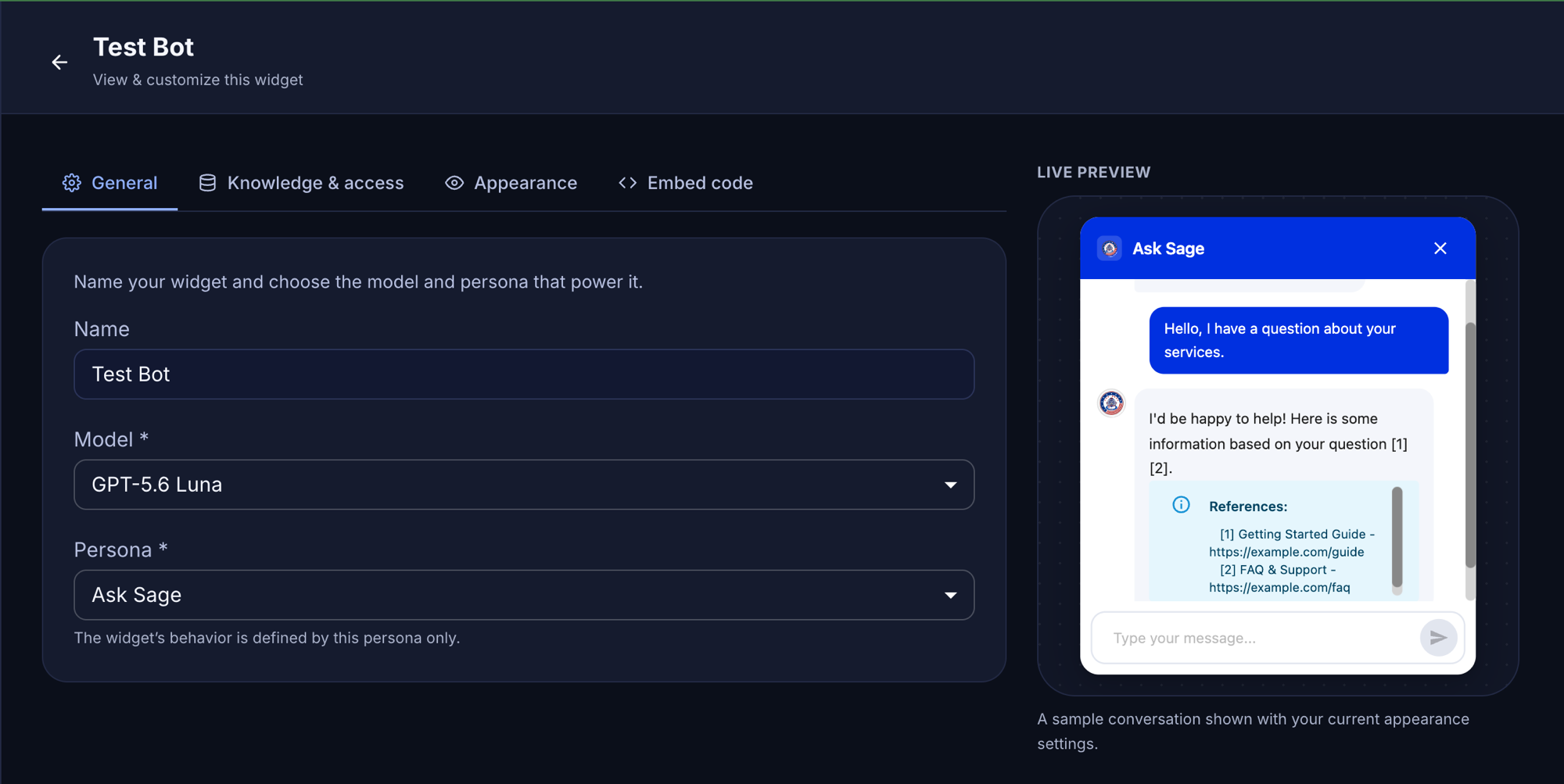
Self-contained, embeddable chatbots — built in the platform, dropped into any site you allow.
Instance-Specific Base URL: The URLs shown reflect the instance at chat.asksage.ai. The chat. / api. prefixes stay the same across deployments — only the instance segment changes based on which Ask Sage instance your organization uses. Always use the instance approved by your organization and applicable regulatory requirements.
Overview
The Ask Sage Website Chat Widget lets you place an AI chat assistant on any web page your organization controls — an intranet portal, a program site, a public-facing knowledge page. Visitors ask questions in plain English and get answers grounded in the datasets you attach (optional), with source citations, in a clean chat interface.
Each widget is created and managed in the Widget Builder inside the Ask Sage platform. You choose the model, persona, and knowledge scope; brand the look and feel; and copy a two-line embed snippet onto your page. Everything else — appearance, datasets, access rules — is applied centrally, so you can change any setting later without ever re-pasting the snippet.
Domain Whitelisting is Required (CORS): A widget only works on domains you have explicitly added to its Whitelisted domains list. Browsers send the embedding page’s origin with every request, and the Ask Sage tenant validates it against the widget’s whitelist before issuing a session — on the initial load and on every subsequent API call. On any domain not on the list, the cross-origin request is refused and the widget will not respond. Before embedding, make sure every site that will host the widget has its URL whitelisted in the widget’s configuration.
How It Works
- Build — In the platform, open Widgets (
https://chat.asksage.ai/widgets) and create a widget: name it, pick a model and persona, whitelist the domains it may run on, optionally scope it to specific datasets and endpoints, and style it to match your site. - Embed — Copy the generated snippet from the widget's Embed code tab and paste it into your page. The snippet loads a small script from your Ask Sage instance and drops a
<asksage-chatbot-embed>element carrying the widget's public chatbot ID. - Authenticate — When the page loads, the widget requests a session from your Ask Sage tenant using its chatbot ID. The tenant checks that the requesting page's domain is on the widget's allowed list, then issues a scoped session limited to exactly the model, persona, datasets, and endpoints configured for that widget. Visitors never log in and never see your API keys.
- Answer — Visitor questions are answered by the configured model using retrieval over the selected datasets, with citations.
Key Capabilities
Cited, Dataset-Grounded Answers
Responses come from the datasets you select, with source citations
Centrally Managed
Change model, knowledge, or branding anytime — embedded widgets update without touching the snippet
Domain Whitelist Security
Widgets refuse to run on any domain you haven't approved
Endpoint Scoping
Restrict each widget to only the API capabilities it needs
Your Branding
Title, welcome message, colors, and light/dark mode — with a live preview
Get Started
The Setup Guide walks through building a widget in the Widget Builder, whitelisting your site's domain, and embedding the snippet — start to finish in about 15 minutes.
Not the SharePoint Widget: This page covers the embeddable widget for general websites, built with the in-platform Widget Builder. For the Microsoft 365 / SharePoint web part, see the SharePoint Chat Widget documentation.