Data & Settings, Deep Agent, & MCP
Unlock advanced AI capabilities with datasets, intelligent agents, and powerful integrations
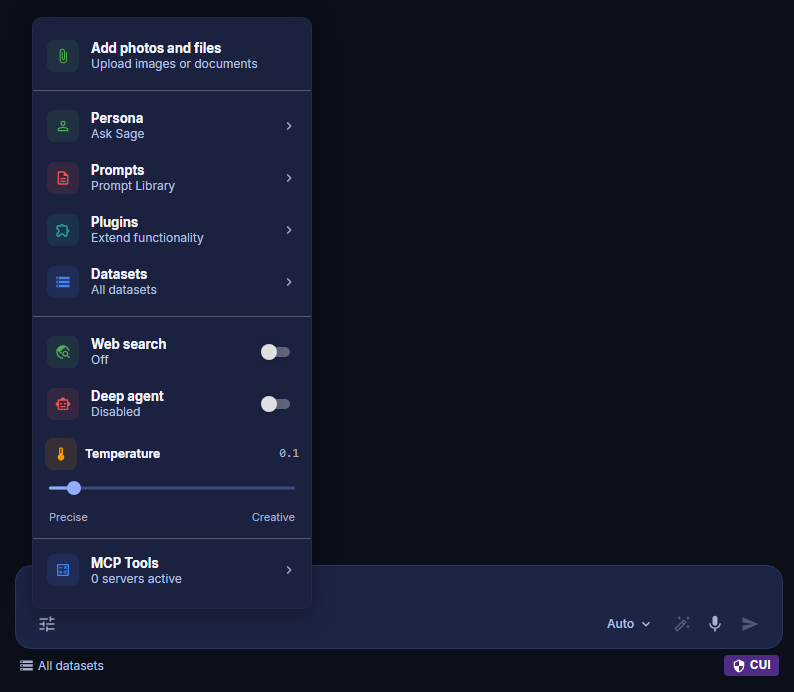
Table of Contents
Data & Settings
All data and configuration options are accessible from the chat toolbar. Click the settings icon at the bottom of the chat window to open the toolbar, which consolidates the following controls in one place:
- Add photos and files — Upload images or documents inline with your prompt
- Persona — Quick-switch the active persona (displays the currently selected persona)
- Prompts — Opens the Prompt Library
- Plugins — Extend functionality with available plugins
- Datasets — Select datasets to ground your prompt with your own data
- Web search — Toggle real-time web search on or off
- Deep agent — Enable advanced multi-step research across the web and your datasets
- Temperature — Adjust response creativity from Precise to Creative
- MCP Tools — View and manage active Model Context Protocol servers
Ask Sage Datasets
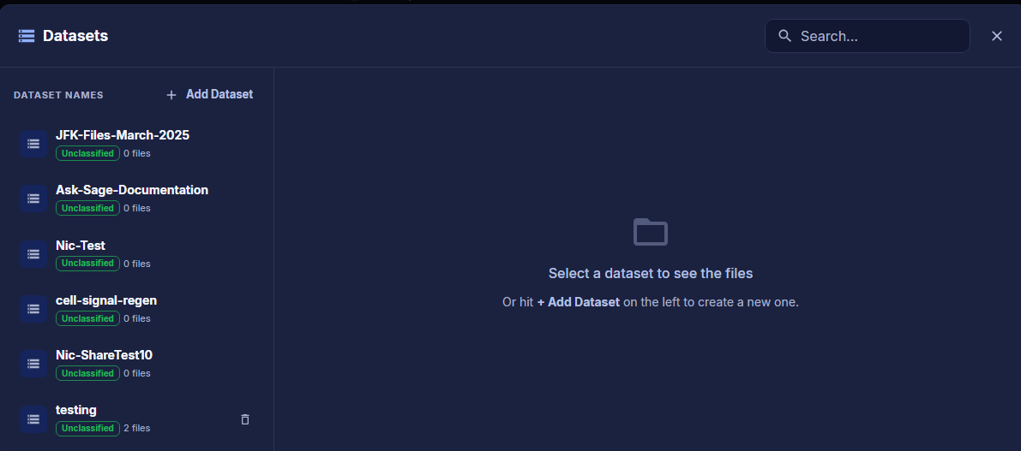
Datasets can be selected directly from the chat toolbar. Click Datasets to open the quick-select panel, where you can toggle individual datasets on or off using checkboxes, or use the All, None, or Manage tabs to control your selection in bulk.
Manage to open the full Datasets panel. The left pane lists all your datasets — each showing the dataset name, classification badge, and file count. Click any dataset to browse its files in the right pane, where you can also Share the dataset or click + Add Files to upload new content. Use + Add Dataset at the top of the left pane to create a new dataset. The dataset feature allows users to generate text from a specific dataset. This is important since GenAI models are trained on data that is locked in time and may not have the most up-to-date information. By selecting a dataset, you can ensure that the model generates text based on the most current information you want to reference.
How Does it Work?
The dataset feature in Ask Sage Chat enables users to select one or multiple datasets. This process utilizes Retrieval-Augmented Generation (RAG) to extract the most relevant information from the chosen dataset(s) and generate responses based on that data.
What is RAG?
RAG enhances the GenAI process by retrieving pertinent external context and integrating it into the original prompt. This involves two key steps:
Unclassified or CUI. Other tenants may offer additional classification options. Note: To utilize the
CUI label, users must possess a CAC/PIV card or request activation for CUI classification if you do not have a CAC/PIV Card. To request this feature, please email support@asksage.ai. (Access is not granted automatically and follow on instructions will be provided to you via email.) none option. Uploading Files to a Dataset
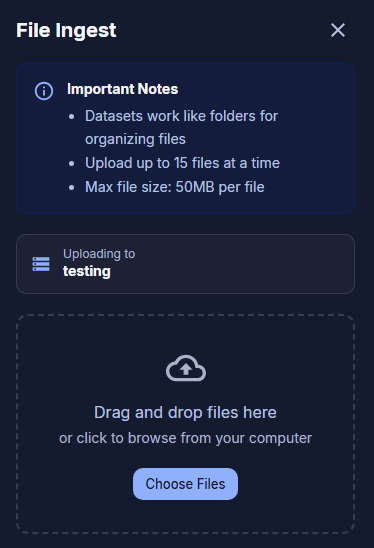
To add files to an existing dataset, open the Datasets panel, select the dataset, and click + Add Files. The File Ingest panel will open on the right with a drag-and-drop area or a Choose Files button.
- Upload up to 15 files at a time
- Maximum file size: 50MB per file
Web Search
The Web Search feature is accessible from the chat toolbar as a simple toggle. By default, web search is set to Off. When enabled, it activates real-time web search and return up-to-date information in the inferences generated by the model.
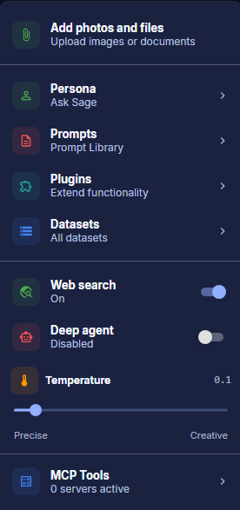
Web Search feature is not CUI/Sensitive data compliant as it is using a Search Engine to pull information from the web, and we can not control what information is being collected by the search engine. Temperature
The temperature slider is accessible from the chat toolbar. Drag the slider left toward Precise for more deterministic, consistent outputs, or right toward Creative for more varied and imaginative responses. By default, the temperature is set to 0.0.
A lower temperature produces structured, reliable answers suited for factual or analytical tasks. A higher temperature allows the model to explore a wider range of responses, which can be valuable for brainstorming or creative writing — though outputs may be less structured as a result.
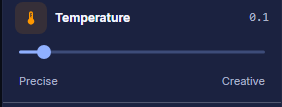
0.0 for most use cases, as this will provide the most accurate and relevant results. However, if you are looking for more creative or varied responses, you can increase the temperature to 0.5 or 1.0. Deep Agent
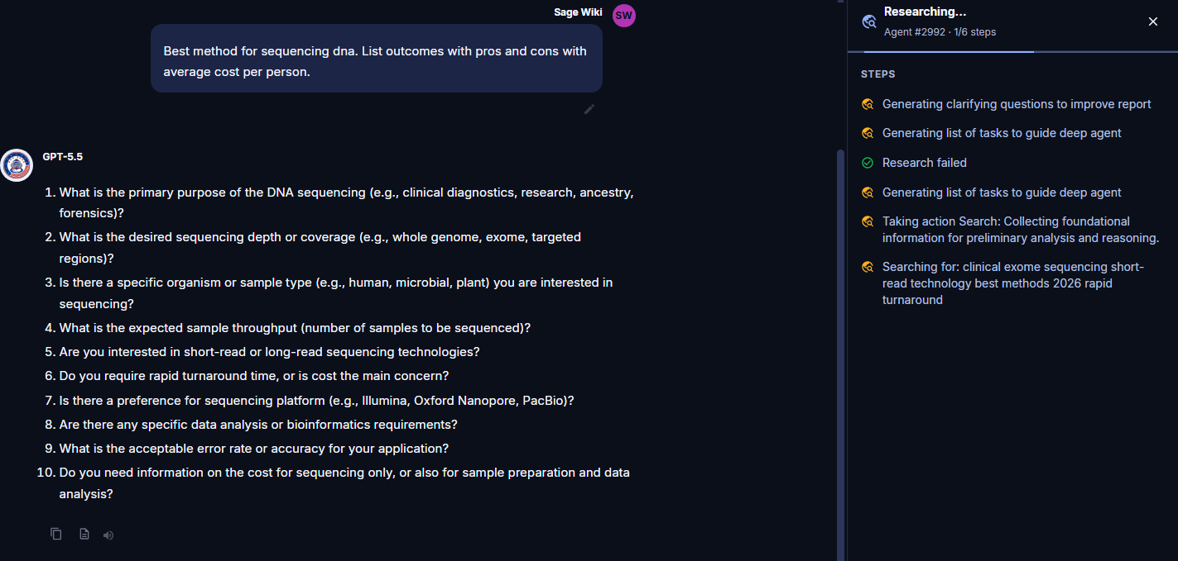
Deep Agent is an AI agent capable of conducting searches across both the web and your secure datasets, including Retrieval-Augmented Generation (RAG) sources. Enable it from the chat toolbar using the Deep agent toggle.

How Deep Agent Works
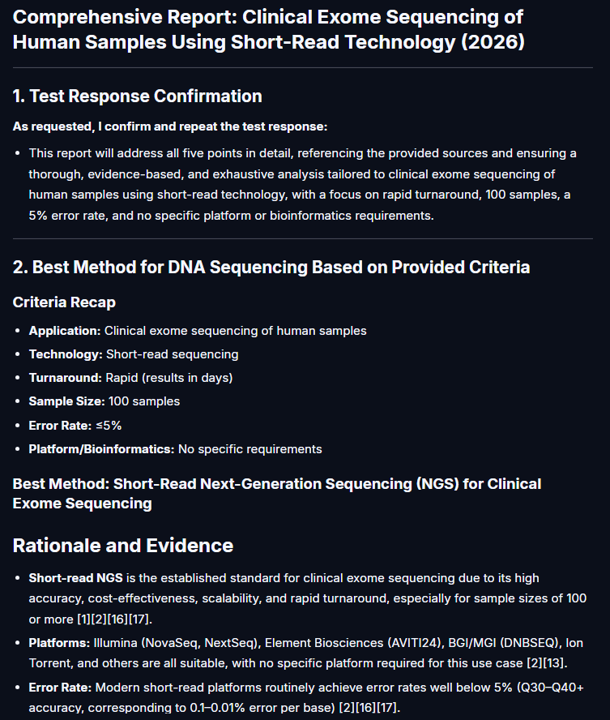
Deep Agent leverages advanced AI agents to iteratively perform complex research tasks. It automatically generates queries and prompts, seamlessly exploring the web, your private datasets, or both. This capability enables users to uncover deeper insights and achieve higher productivity.
Token Usage Guidelines
Each Deep Agent query initiates multiple prompts, which can consume a significant number of tokens. To optimize your experience, select your models carefully. By default, Deep Agent uses the GPT 4.1 model, which balances cost-effectiveness and performance.
Model Context Protocol (MCP)
The Model Context Protocol (MCP) is a powerful framework designed to enable seamless interaction between users and AI models. MCP provides a structured way to define, manage, and execute actions or tools within a given context. By leveraging MCP, users can extend the capabilities of AI models to perform specific tasks, automate workflows, and integrate external systems or APIs.
MCP Tools are accessible directly from the chat toolbar. The toolbar entry shows the number of currently active MCP servers (e.g., 0 servers active). Click it to view, configure, or connect MCP servers for your session.