Pay
Choose a plan and complete checkout with Stripe — tokens land in your account immediately.
Table of Contents
Before You Start
- An activated Ask Sage account on
chat.asksage.ai. If you don't have one yet, start with Sign Up. - A payment card (Visa, Mastercard, American Express, or Discover).
- A billing address.
Step-by-Step
Sign in to chat.asksage.ai. Click your name at the bottom-left of the sidebar to open the user menu, choose Settings, then click the Usage & Billing tab inside the Settings dialog. This is the entry point for every subscription action.
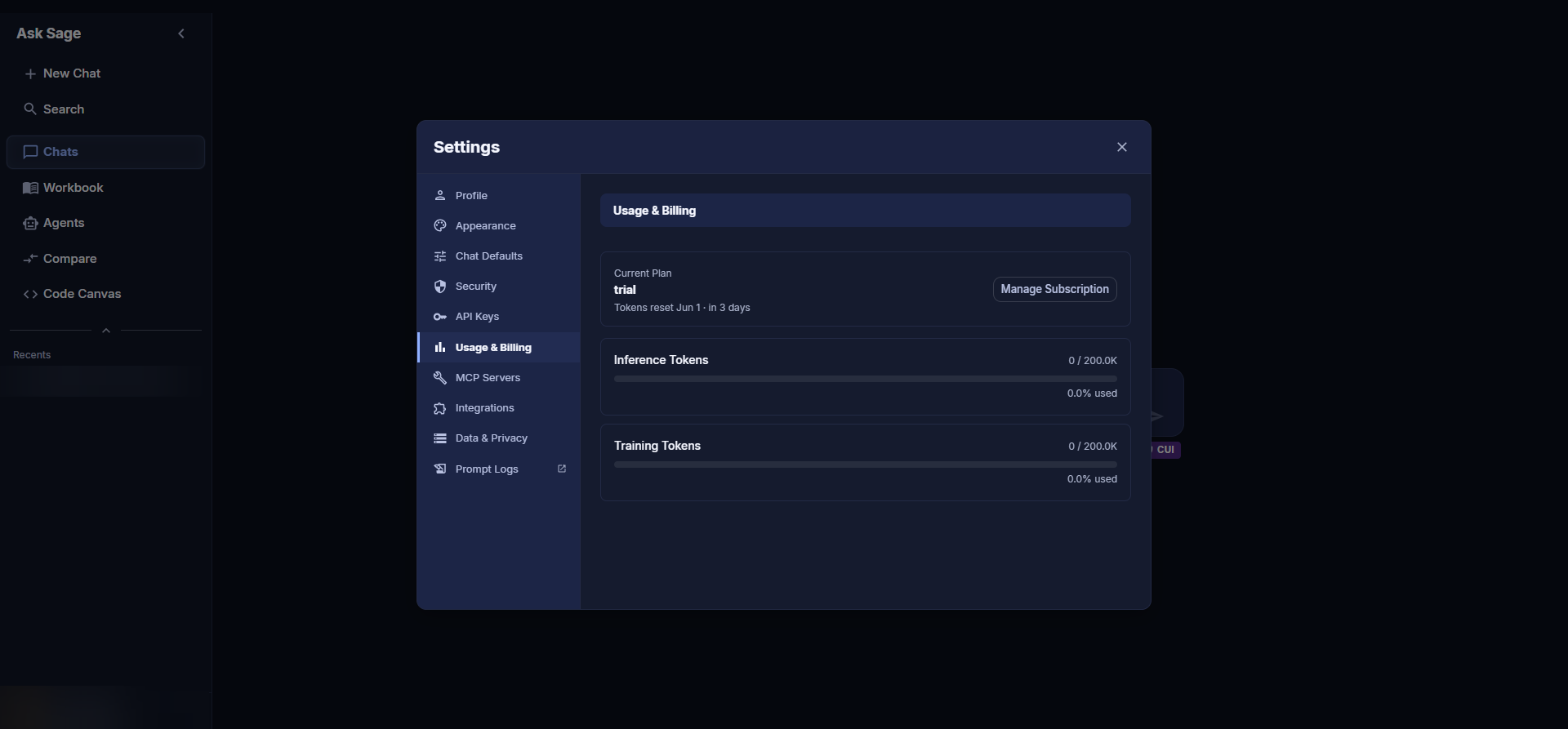
Usage & Billing on a fresh trial account — current plan, token meters, and the Manage Subscription button.
Click the Manage Subscription button. This opens the plan picker in a new browser tab.
The plan picker lists every tier with its included monthly token allowance and price. Each plan includes access to all models, document upload, and enterprise-grade security — tiers differ only in token allowance.
Use the Monthly / Yearly toggle near the top to switch between billing frequencies. Yearly billing gives a small discount over the monthly price.
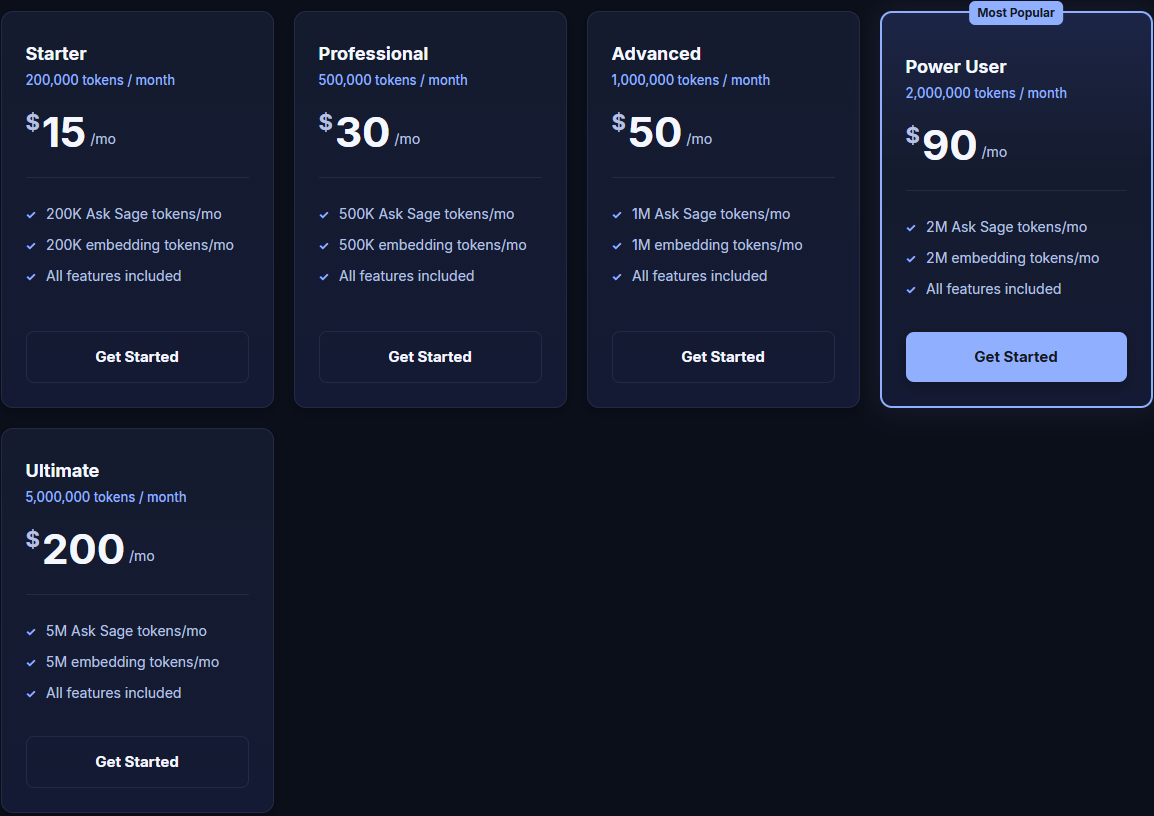
Choose Your Plan — five monthly tiers from Starter to Ultimate.
Click Get Started on the tier you want. You can always change it later (see Change).
Selecting a plan opens Stripe Checkout. Your email is pre-filled from your Ask Sage account. Choose Card as the payment method, then enter:
- Card number, expiration, CVC
- Cardholder name
- Billing address (autocompletes from address lookup, or click Enter address manually)
- Phone number
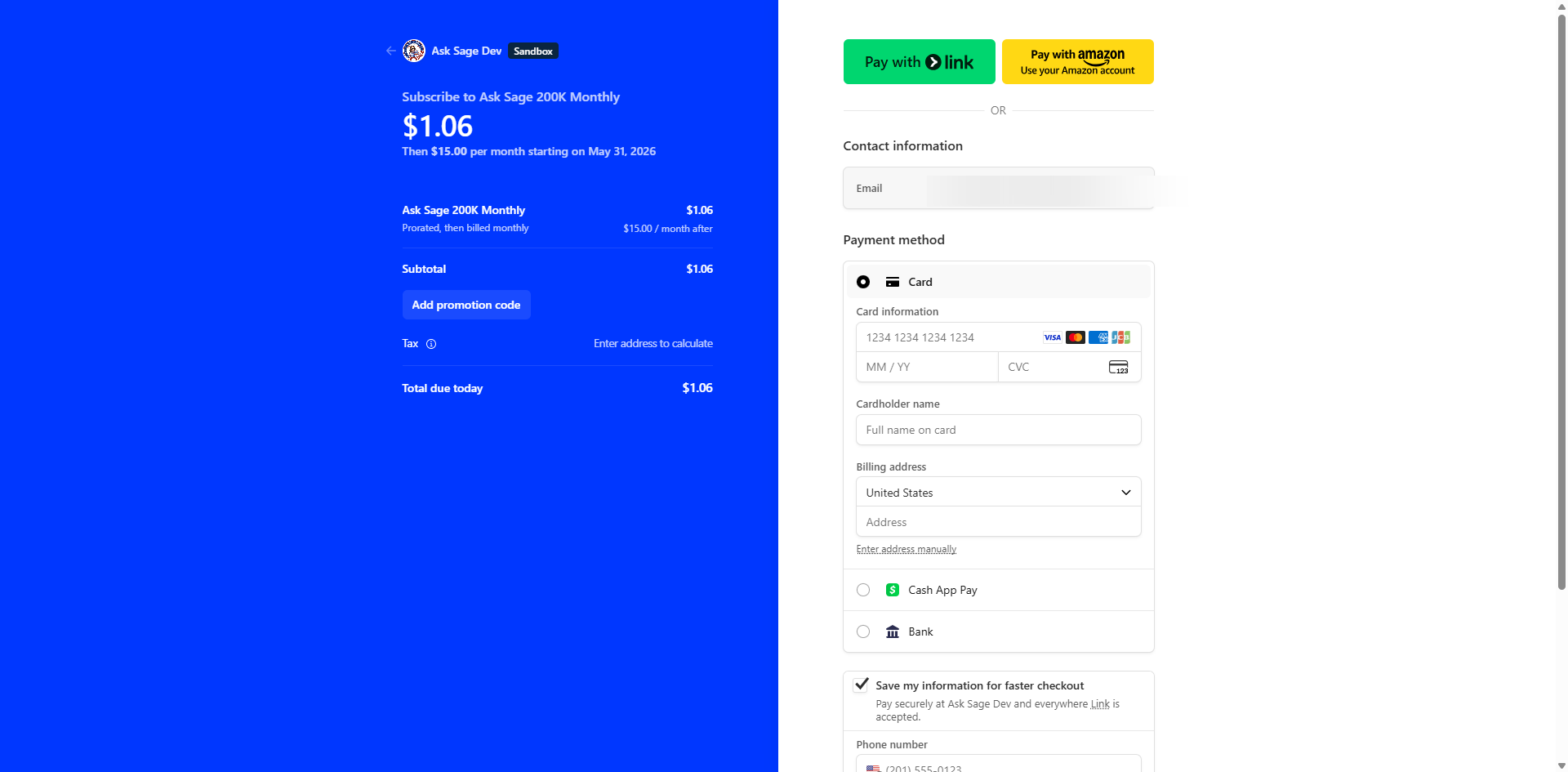
Stripe Checkout — Card payment form expanded.
Review the order summary on the left — for a mid-month start, the first charge is prorated, then full price recurs each cycle. Click Subscribe to complete the purchase.
After payment succeeds, you'll be returned to Ask Sage. Reopen Settings → Usage & Billing to confirm your new plan is active — the Current Plan field now shows your chosen tier and the token meters reflect your new allowance.
Stripe emails a receipt to the email on your Ask Sage account.
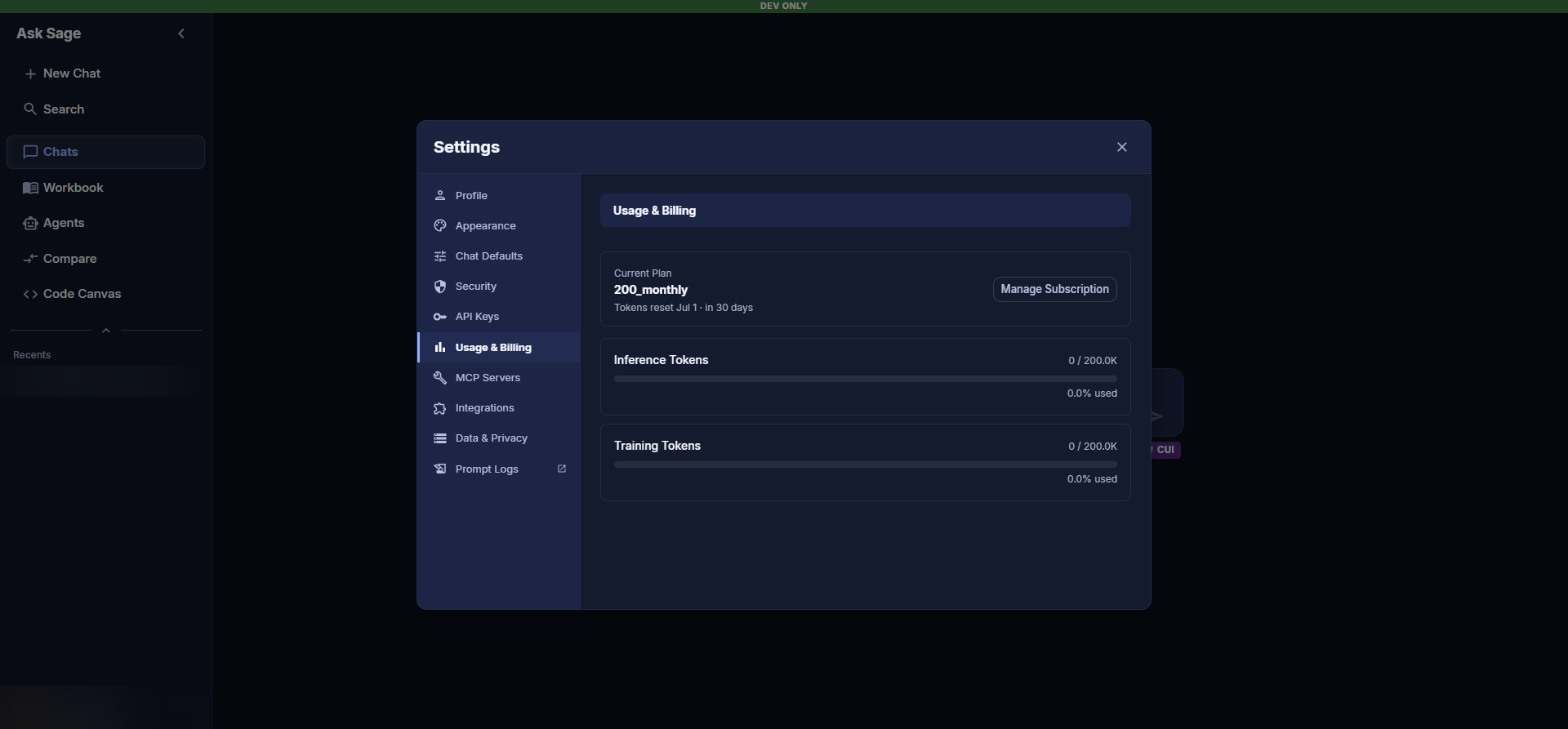
Usage & Billing after payment — Current Plan, tokens reset date, and updated token meters.