Dataset Management
Organize, manage, and share datasets seamlessly across your organization with powerful collaboration tools

Table of Contents
Manage Datasets
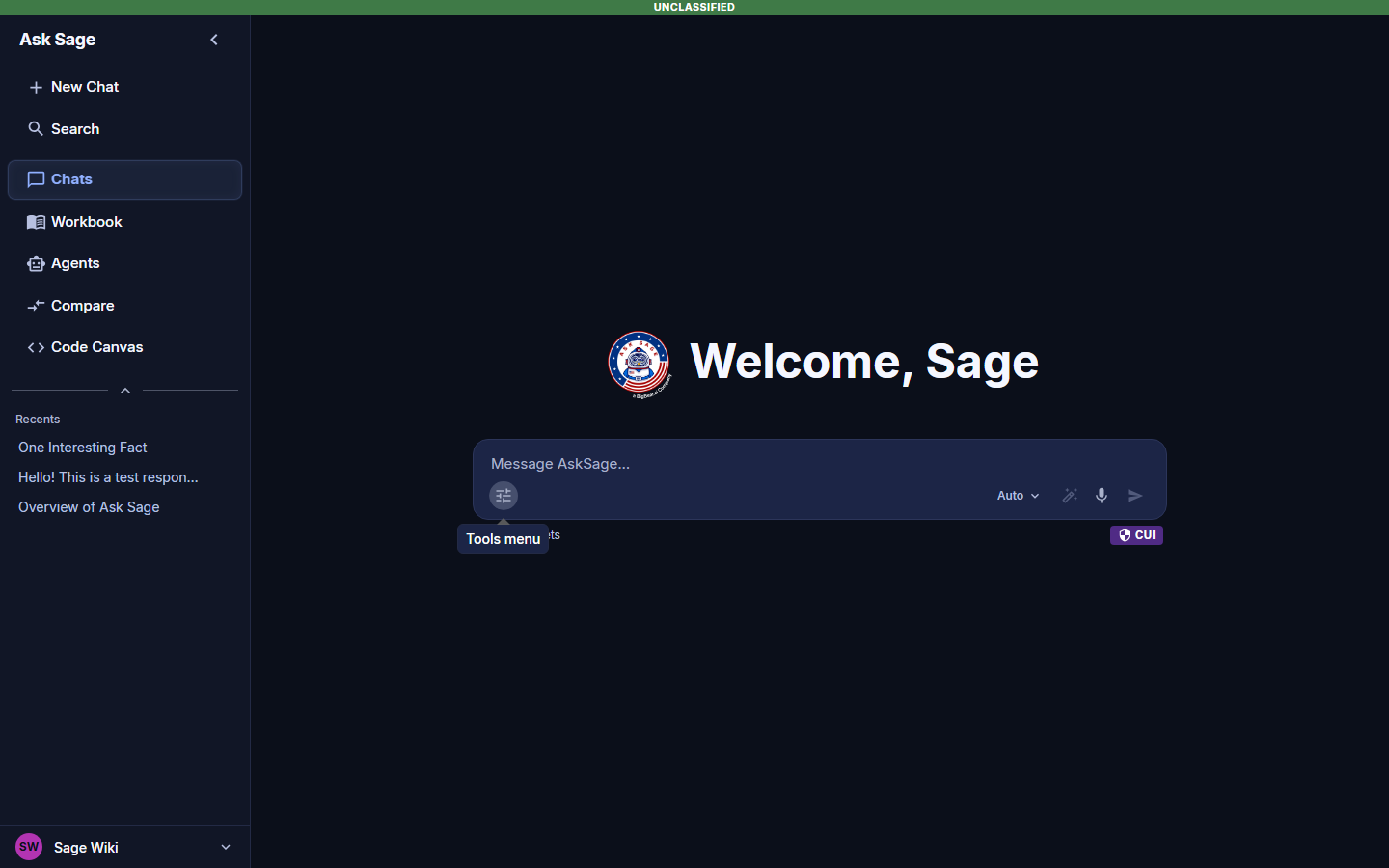
Share Dataset
In the Manage Datasets section, you can share datasets with other users in your organization. This feature enhances collaboration and allows team members to access and leverage the same datasets for their projects. To share a dataset, click on the share icon:

Sharing with Specific Users
The Share Dataset section will display on the right, where you can enter the email addresses of the users you want to share the dataset with separated by a comma or new line.
Please note that dataset sharing is contingent upon its classification as either CUI (Controlled Unclassified Information) or Unclassified. Only users with CUI access enabled on their accounts can view CUI datasets. If you attempt to share a CUI dataset with users lacking the necessary classification, you will encounter an error message.
CUI or Unclassified. However, users without a CAC/PIV card are restricted to labeling datasets as Unclassified. If you need to label a dataset as CUI but do not possess a CAC/PIV card, please reach out to Support at support@asksage.ai for assistance. 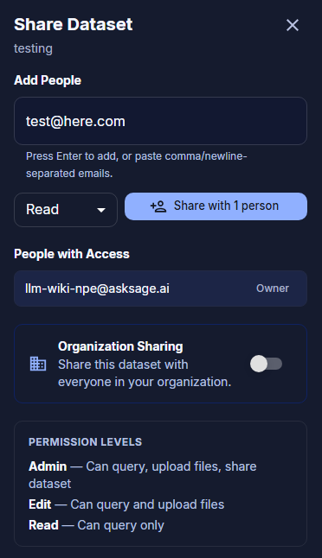
Enter the email addresses of the user(s) you want to share the dataset with, select the type of permission you want them to have (Read, Edit, Admin) and click on the Share button.
- Users can add an email one at a time in the text box or paste in a comma or new line separated list of email addresses.
- More users can be added by repeating the above step.
- Select the permission you want the users to have.
- Lastly, click on the
Sharebutton to share the dataset with the selected users. - Dataset sharing is now complete. Users can access the shared dataset from their Ask Sage account.
To unshare a dataset, click on the X icon next to the user's email address.
Permissions
When sharing a dataset, you can assign permissions to the users you are sharing the dataset with. The permissions include:
Sharing with All Users
To share a dataset with all users in your organization, click on the Organization Sharing button.
The dataset will be shared with all users in your organization.
Dataset Commands
Ask Sage provides a comprehensive set of commands to help you effectively manage and interact with your datasets.
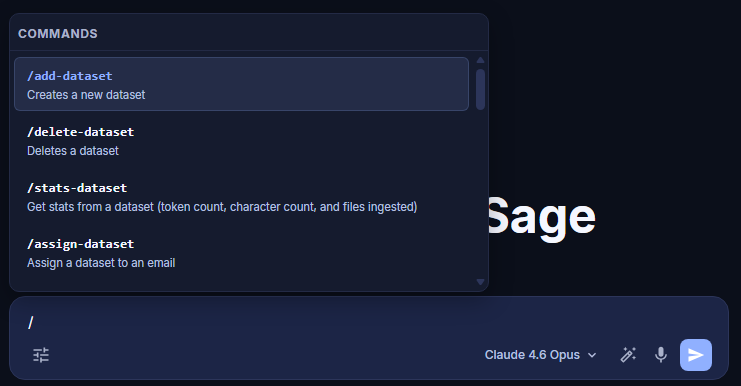
/ character in the prompt field, which will display a list of available commands. Once you select a command, ensure you enter the dataset name exactly as it appears after the command. Example: /add-dataset sample-dataset-2025 List of Dataset Commands
| Index | Command | Description of Dataset Command |
|---|---|---|
| 1 | /add-dataset | Creates a new dataset |
| 2 | /delete-dataset | Deletes a dataset |
| 3 | /stats-dataset | Get stats from a dataset (token count, character count, and files ingested) |
| 4 | /assign-dataset | Assign a dataset to an email |
| 5 | /deassign-dataset | Deassign a dataset from an email |
| 6 | /get-datasets | Lists your datasets |
| 7 | /train | Train text/plain content into dataset |
| 8 | /get | Retrieves matching content from ALL your custom datasets in vector database |
| 9 | /get-results-dataset | Retrieves all results from a specific dataset |
| 10 | /get-files-dataset | Retrieves the names of files ingested in a specific dataset |
| 11 | /delete | Deletes a training from your custom datasets in vector database |