Admin Navigation
Navigation & Layout
Understanding the sidebar navigation and page layout
Table of Contents
The new admin panel uses a persistent sidebar for navigation, replacing the horizontal menu bar from the classic interface. This provides quick access to all admin pages without scrolling.
Sidebar Layout
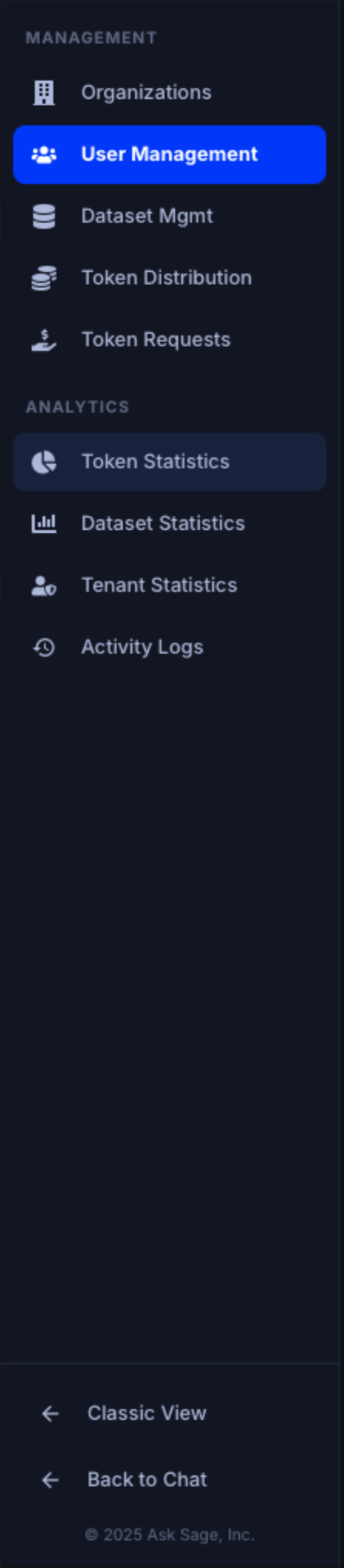
Sidebar navigation with Management and Analytics sections
The sidebar is divided into two sections:
Management
- Organizations — View and manage all organizations, assign users, and control model access (Super Admin only)
- User Management — View users, update paid/banned status, manage tokens
- Dataset Mgmt — Manage datasets and files (Super Admin only)
- Token Distribution — Configure token allocation policies
- Token Requests — Review pending token requests
Analytics
- Token Statistics — Token usage dashboards and CSV exports
- Dataset Statistics — Dataset usage breakdown by user and organization (Super Admin only)
- Tenant Statistics — Cross-tenant subscriber metrics (Super Admin only)
- Activity Logs — User interaction history and audit trail
Responsive Behavior
On smaller screens (below 1200px), the sidebar collapses into a slide-out drawer:
- A hamburger menu icon () appears in the top-left of the content header
- Tap the icon to open the sidebar as an overlay drawer
- Selecting a page automatically closes the drawer
Switching Between Views
At the bottom of the sidebar, you'll find two navigation links:
- Classic View — Returns to the original admin interface with the horizontal navigation bar
- Back to Chat — Returns to the main Ask Sage chat interface
Tip: Both the new and classic admin interfaces access the same data. Changes made in one view are immediately reflected in the other.