Custom MCPs
Create bespoke integrations tailored to your organization's needs
Table of Contents
Requesting MCP Access for Your Tenant
If you would like to enable custom MCPs for your tenant, please follow these steps:
- Contact your local administrator or Ask Sage Instance lead
- Have them submit a formal request to support@asksage.ai
Our support team will review your request and provide guidance on the approval process and implementation timeline.
Getting Started with MCP
Access MCPs
Navigate to the Settings gear icon and select the Account tab in Ask Sage. Here, you can select the Manage your MCPs menu.
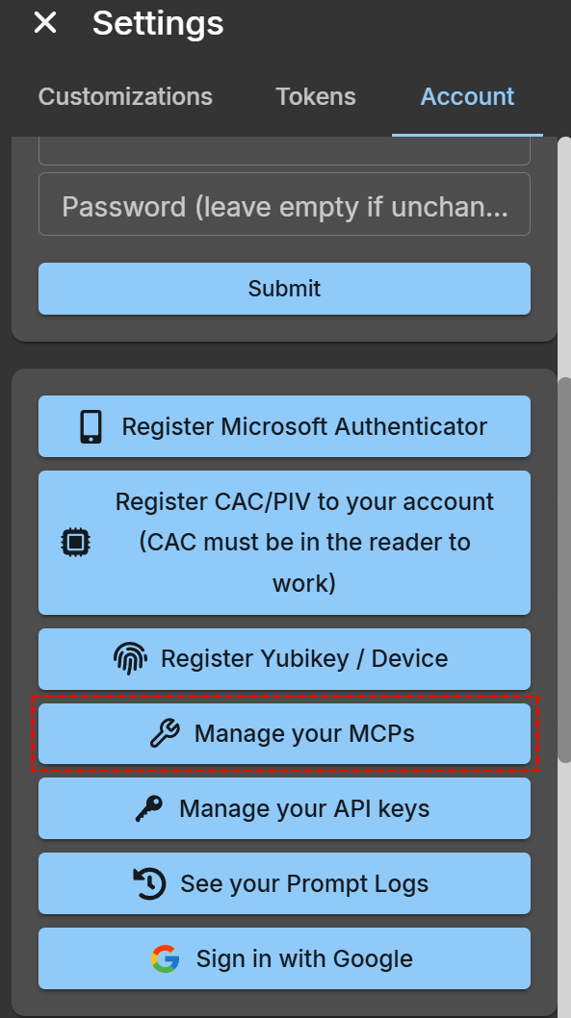
Access MCPs from Settings
Security Notice: The use of MCP Servers may present significant security vulnerabilities. It is your sole responsibility to ensure that the MCP capabilities you choose are secure and appropriate for your intended use. Ask Sage, Inc. assumes no liability for any risks, damages, or losses arising from your use of MCP Servers. We strongly recommend that you carefully review the terms, conditions, and security measures of any MCP Server prior to use. If you wish to request the whitelisting of an MCP Server, please contact our support team at support@asksage.ai.
Add a New MCP
Click on the Add New MCP button and fill in the required details:
- Name: Provide a descriptive name for the MCP
- URL: https://your-mcp-server.com
- Server Type: e.g., API
- Description: Brief description of the server
- Metadata JSON: {"key": "value"}
Click on the Add MCP button.
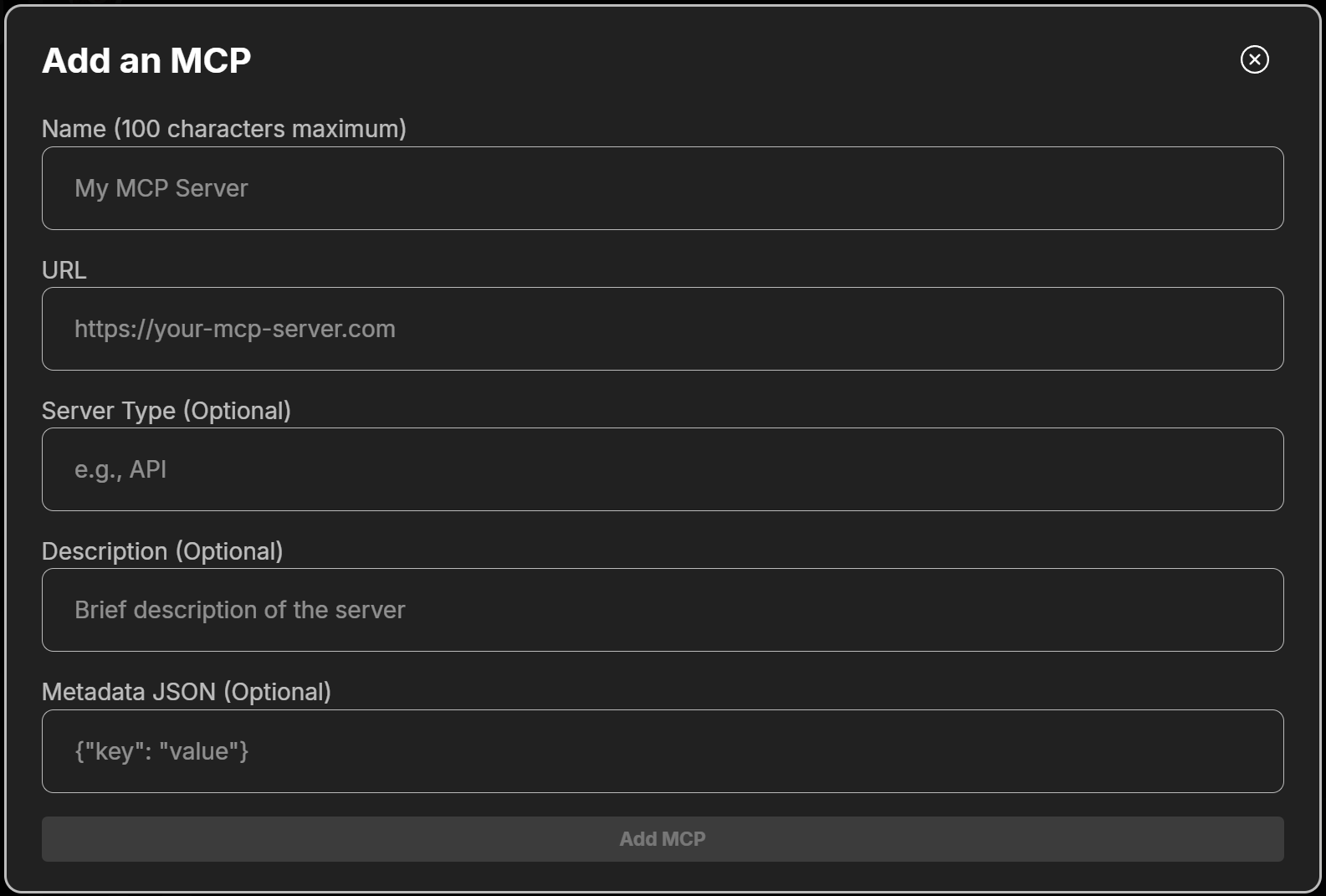
Add MCP Configuration
Use your MCPs
Once you have set up your MCP, go to your Prompt Tools menu and turn on your MCP. To prevent accidental usage, remember to turn off the MCP when not in use.
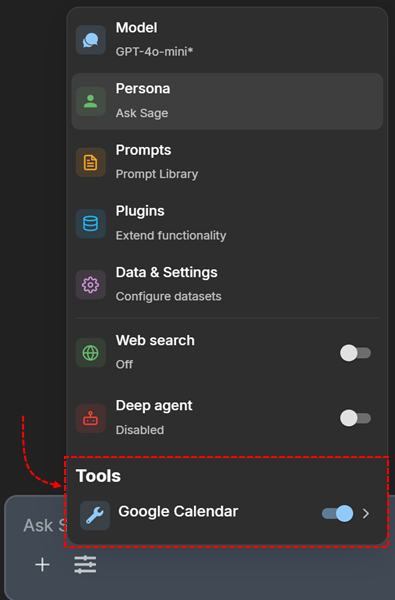
Manage MCP Tools
Example Use Cases
Calendar Management
Use MCP tools to retrieve events, find busy periods, and schedule new meetings.
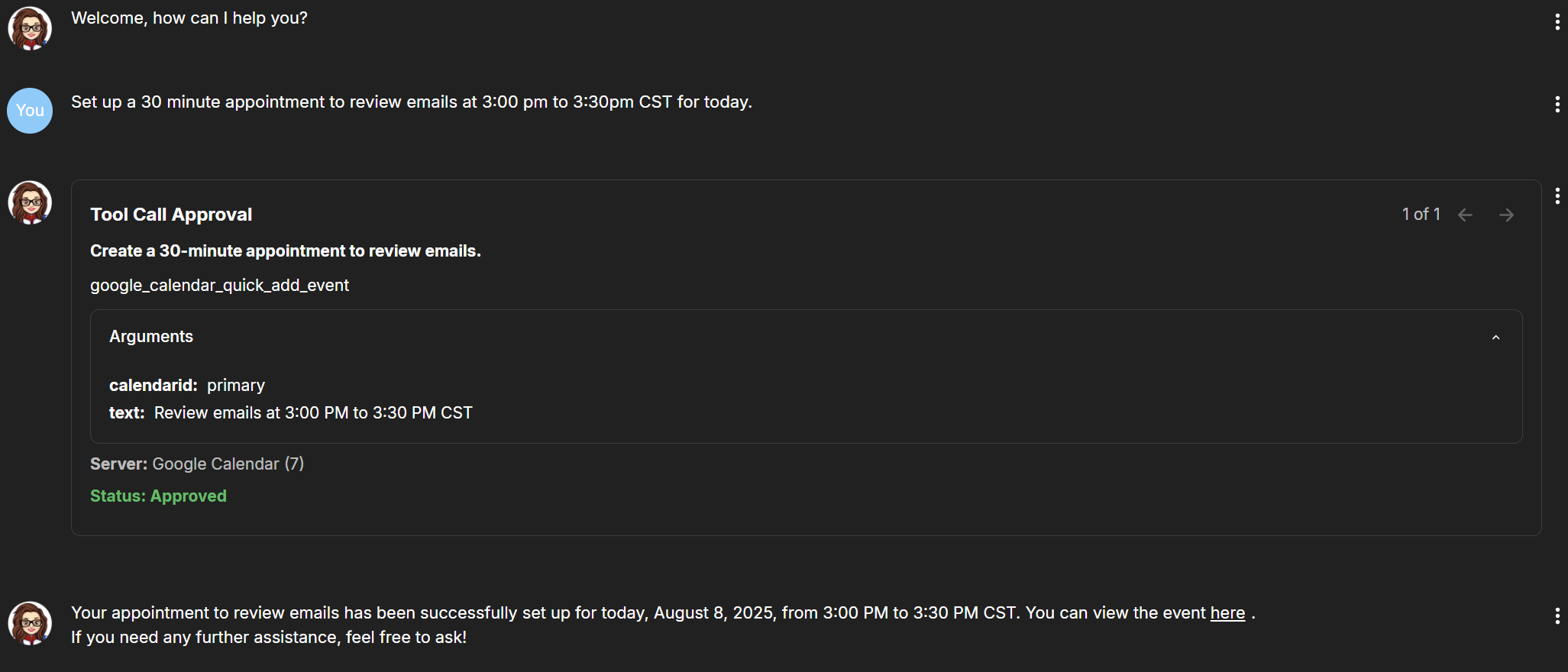
Tool Approval Interface
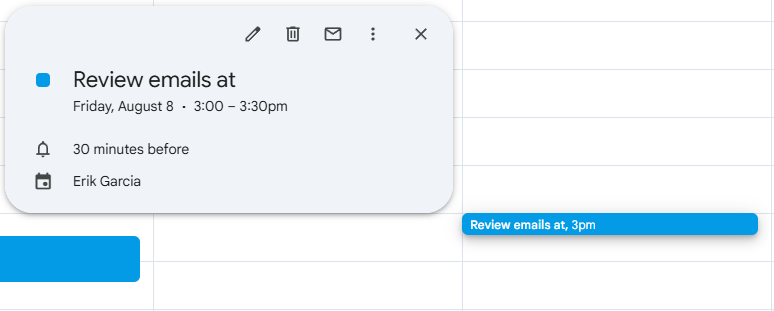
Calendar Management Example
Task Automation
Automate repetitive tasks like sending emails, updating records, or generating reports.
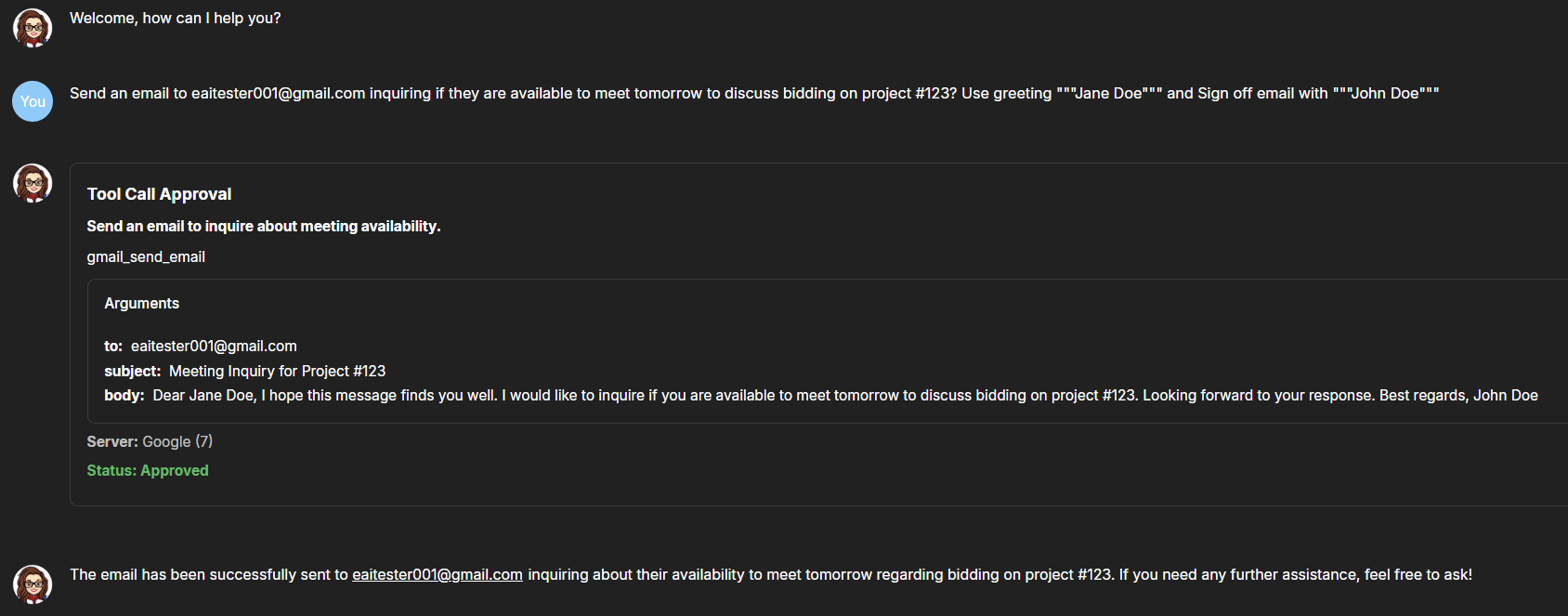
Task Execution

Task Result
Customization and Best Practices
Flexibility and Power: Remember there are many ways to customize and utilize MCP to fit your workflow—writing your own MCP servers, composing existing ones, scoping permissions, adding org-specific prompts, and chaining actions to streamline everything from research and reporting to DevOps and customer support.