Continue.Dev Integration
Bring Ask Sage AI directly into your IDE for VS Code and JetBrains platforms
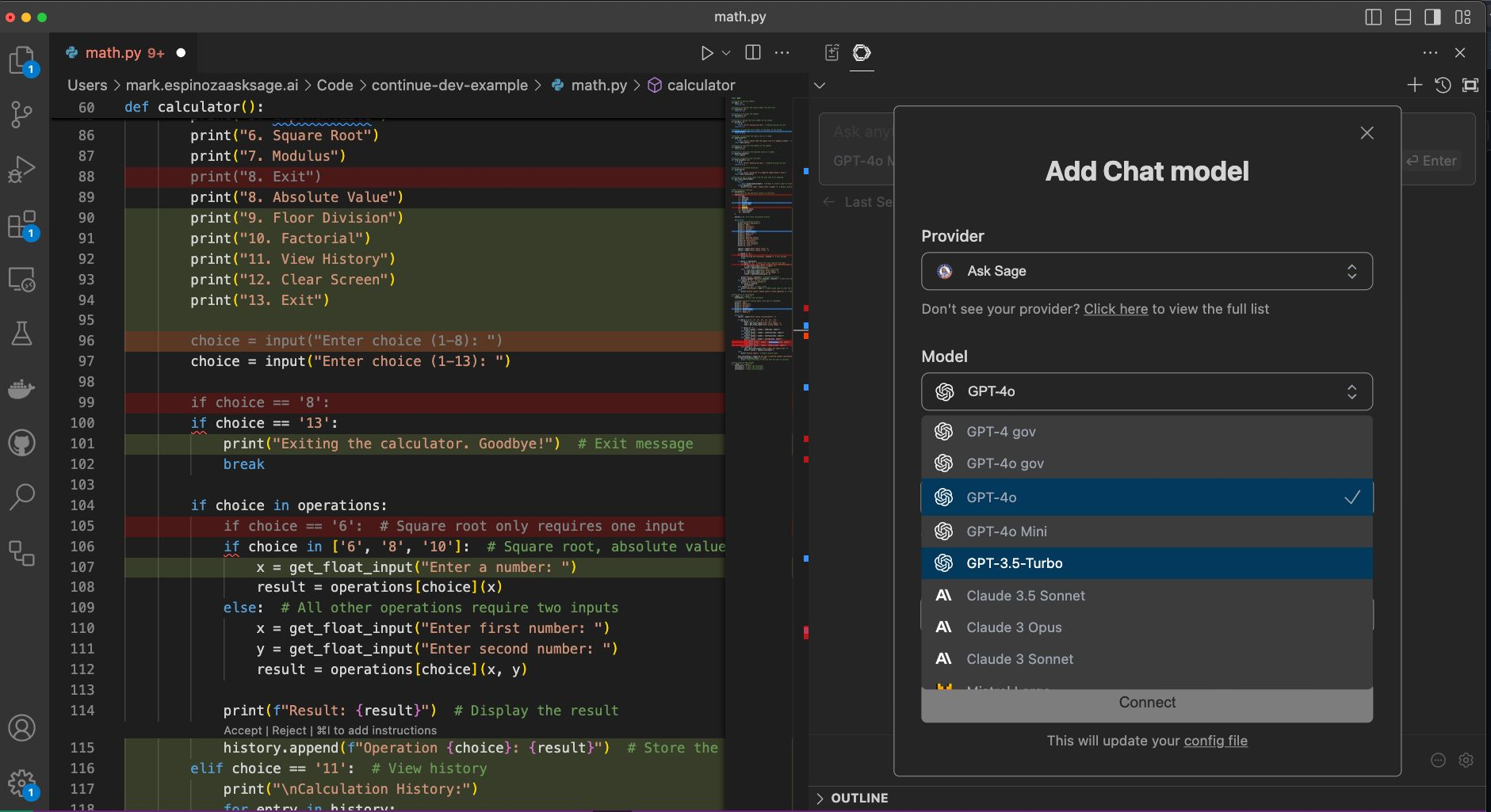
Bring Ask Sage's into your development environment with Continue.Dev—available for Visual Studio Code and all JetBrains IDEs.
Table of Contents
Prerequisites
Installing Continue

Quick Setup
Step 1: Choose Your Model Provider
After installing Continue, you'll see a setup wizard. Creating a Continue account is optional—you can skip directly to configuration.
- Open the Continue sidebar in your IDE
- Select Ask Sage as your model provider
- Choose your preferred model from the list
- Enter your API key and base URL
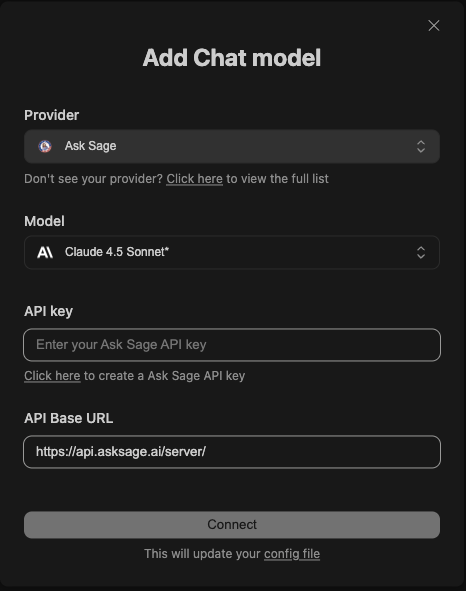
- Production:
https://api.asksage.ai/server/ - Army GenAI:
https://api.genai.army.mil/server/
Step 2: Add Additional Models (Optional)
You can add multiple models and switch between them:
- Click on the current model name in the Continue sidebar
- Select Add Model from the dropdown
- Choose another Ask Sage model
- Switch between models anytime using the dropdown
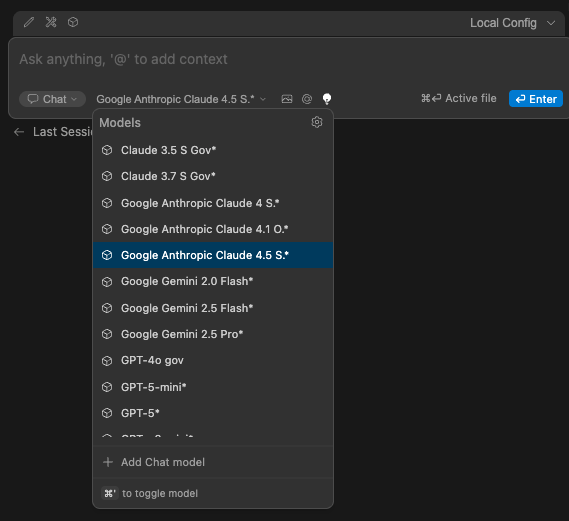
/get-models endpoint. Configuration
How to add your Ask Sage models to the Continue configuration file:
- VS Code:
~/.continue/config.yaml - JetBrains:
~/.continue/config.yaml(Mac/Linux) orC:\Users\{username}\.continue\config.yaml(Windows)
Example YAML Configuration
name: Ask Sage Integration
version: 1.0.0
schema: v1

models:
  - name: Google Gemini 2.5 Pro
    provider: askSage
    model: google-gemini-2.5-pro
    apiKey: YOUR_API_KEY
    apiBase: https://api.asksage.ai/server/
    roles:
      - chat
      - edit
      - apply
    capabilities:
      - tool_use
      - image_input

  - name: Anthropic Claude 4 Sonnet
    provider: askSage
    model: google-claude-4-sonnet
    apiKey: YOUR_API_KEY
    apiBase: https://api.asksage.ai/server/
    roles:
      - chat
      - edit
      - apply
    capabilities:
      - tool_use
      - image_input

  - name: GPT-5
    provider: askSage
    model: gpt-5
    apiKey: YOUR_API_KEY
    apiBase: https://api.asksage.ai/server/
    roles:
      - chat
      - edit
      - apply
    capabilities:
      - tool_use
      - image_input

  - name: Anthropic Claude 4.5 Sonnet
    provider: askSage
    model: google-claude-45-sonnet
    apiKey: YOUR_API_KEY
    apiBase: https://api.asksage.ai/server/
    roles:
      - chat
      - edit
      - apply
    capabilities:
      - tool_use
- image_inputYOUR_API_KEY with your actual Ask Sage API key. DoD Certificate Configuration
For secure government environments requiring DoD PKI certificates, follow this process. These steps work identically for VS Code and JetBrains IDEs.
Download DoD Certificates
- Navigate to DoD Cyber Exchange PKI/PKE
- Download "PKI CA Certificate Bundles: PKCS#7 for DoD PKI Only" (latest version)
- Extract the downloaded ZIP file (e.g.,
unclass-certificates_pkcs7_DoD.zip) - Locate the
.der.p7bfile (e.g.,Certificates_PKCS7_v5_14_DoD.der.p7b) - Save to a permanent location on your system
# Navigate to your certificate directory
cd /path/to/certificates

# Convert DER to PEM format
openssl pkcs7 \
  -in Certificates_PKCS7_v5_14_DoD.der.p7b \
  -inform DER \
  -print_certs \
  -out Certificates_PKCS7_v5_14_DoD.der.pem
This creates the .pem file required for Continue configuration.
models:
  - name: GPT-4 Gov
    provider: askSage
    model: gpt4-gov
    apiBase: https://api.asksage.ai/server/
    apiKey: YOUR_ASK_SAGE_API_KEY
    requestOptions:
      caBundlePath: /path/to/Certificates_PKCS7_v5_14_DoD.der.pem
    roles:
      - chat
      - edit
      - apply
    capabilities:
- tool_use- Windows: Use forward slashes or escaped backslashes
C:/Users/username/certs/cert.pemorC:\\Users\\username\\certs\\cert.pem - Mac/Linux: Standard Unix paths
/Users/username/certs/cert.pem
Environment-Specific Configurations
For users on the Army GenAI platform:
models:
  - name: GPT-4 Gov (Army)
    provider: askSage
    model: gpt4-gov
    apiKey: YOUR_API_KEY
    apiBase: https://api.genai.army.mil/server/
    requestOptions:
      caBundlePath: /path/to/Certificates_PKCS7_v5_14_DoD.der.pem
    roles:
      - chat
      - edit
      - apply
Getting Your Army GenAI API Key:
Click the Settings icon (⚙️) in the bottom left
Navigate to the Account tab
Find "Manage your API Keys"
Click Create New Key and copy it immediately
Features & Capabilities
Continue.Dev with Ask Sage supports the following features:
Activation & Testing
Troubleshooting
Model doesn't show up in Continue sidebar
Solutions:
- ✅ Verify API key is correct (no extra spaces)
- ✅ Confirm
config.yamlis in the correct location - ✅ Check YAML syntax (indentation matters!)
- ✅ Restart IDE completely (not just reload window)
- ✅ Check Continue logs for errors (View → Output → Continue)
SSL/TLS certificate validation failures
Solutions:
- ✅ Verify
.pemfile path is absolute and correct - ✅ Use forward slashes in paths (even on Windows)
- ✅ Ensure certificate conversion completed successfully
- ✅ Download the latest DoD certificate bundle
- ✅ Check file permissions (must be readable)
Cannot connect to Ask Sage API
Solutions:
- ✅ Confirm correct
apiBaseURL for your environment - ✅ Check firewall/proxy settings
Slow responses or timeouts
Solutions:
- ✅ Check your internet connection speed
- ✅ Try a different model (some are faster than others)
- ✅ Reduce context size in Continue settings
Additional Resources
Documentation
Support
- Email: support@asksage.ai
- Documentation: https://docs.asksage.ai
If you encounter issues not covered here, reach out to support@asksage.ai with:
- Your IDE and version
- Continue plugin version
- Relevant error messages from Continue logs
- Your
config.yaml(with API key redacted)