The Audio plugins are used to interact with audio data or generate audio content. Convert your text into natural-sounding speech with multiple voice options and quality settings.
Text to Speech
Convert text to audio
Multiple Voices
6 unique voice options
HD Quality
High-fidelity audio output
Fast Processing
Real-time generation
List of Audio Plugins & Agents
Available Plugins
PaidRequires paid subscription
Text to SpeechPaid
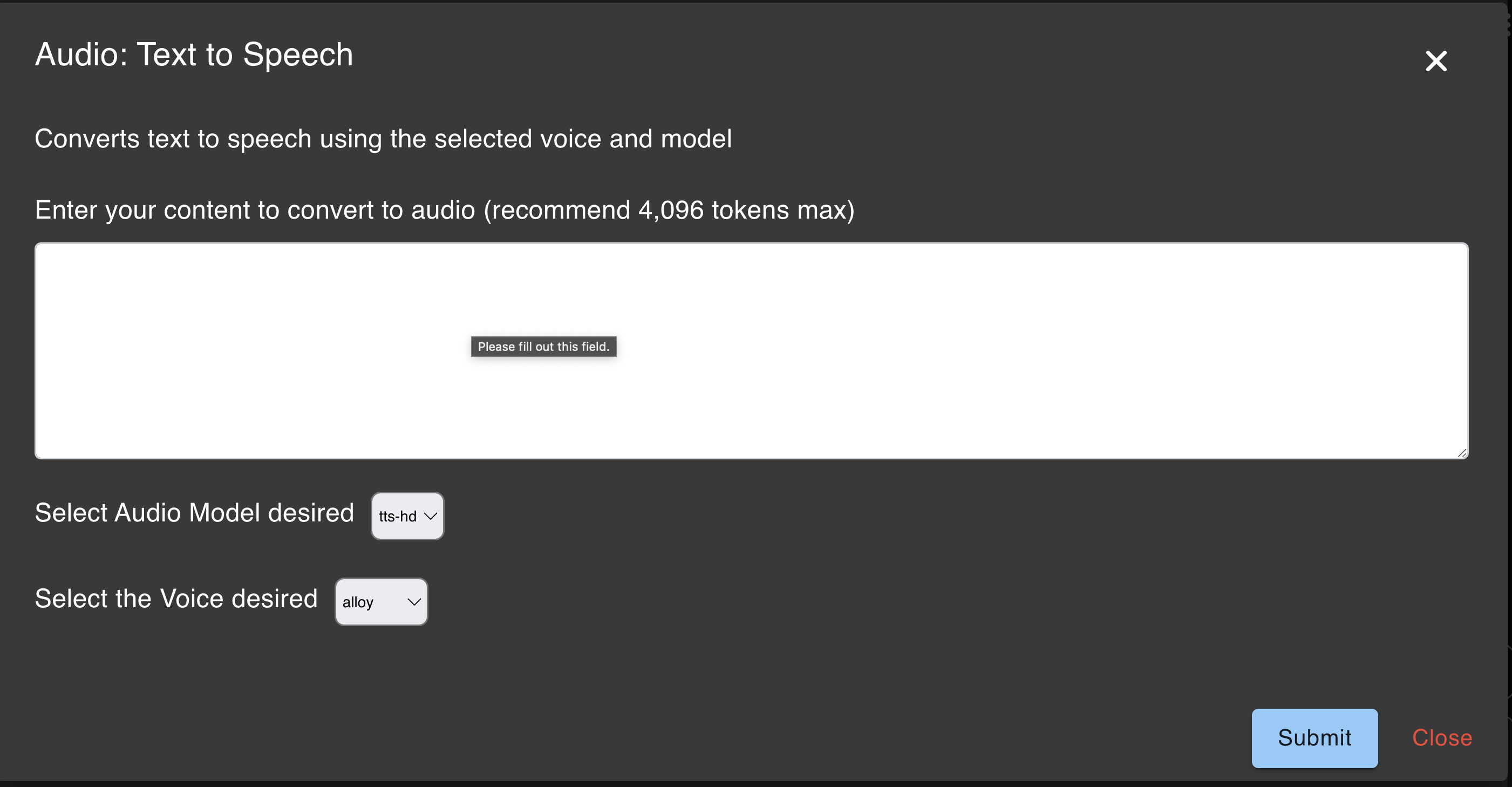
Converts text to speech using the selected voice and model
Text to Speech
Text to Speech Plugin
The Text to Speech plugin converts text to speech using the selected voice and model. The plugin is available for paid users only.
1
Navigate to the Plugin
Navigate to the Ask Sage Plugins tool and select the Audio category. Followed by then selecting the Text to Speech plugin.
2
Enter Text
In the text box, enter the text you want to convert to speech.
3
Select Audio Model
Select the Audio Model desired (tts-hd or tts) from the dropdown list.
Audio Model Comparison:
TTS (tts)
Optimized for speed, providing lower latency in audio generation, making it suitable for real-time applications.
Fast Processing
TTS HD (tts-hd)
Optimized for quality, resulting in higher fidelity audio output, which is ideal for applications where audio quality is paramount.
High Quality
4
Select Voice
Select the Voice desired from the dropdown list.
Available Voices:
AlloyNeutral
Can be perceived as either male or female, making it a versatile option.
EchoMale
Characterized as a masculine voice, suitable for various applications.
FableMale
A masculine voice, often used for storytelling and narration.
OnyxMale
Another masculine voice, providing a deep and rich tone.
NovaFemale
A feminine voice, known for its clarity and expressiveness.
ShimmerFemale
A feminine voice, often described as warm and engaging.
5
Submit
Click on the Submit button.
6
Listen and Download
Audio will be generated and you can listen to it by clicking on the Play button. Download Audio button is also available to download the audio file.
Character Limit: The Text to Speech plugin handles a max of 4,096 characters at a time.
Important: Audio files will not be saved on the platform. Please download the audio file for future use.
Use Cases
Common Use Cases
Content Narration
Convert articles, blog posts, or documentation into audio format for accessibility or podcast-style content.
E-Learning
Create audio versions of training materials and educational content for learners who prefer listening.
Accessibility
Make written content accessible to visually impaired users or those with reading difficulties.
Announcements
Generate audio announcements for internal communications or public-facing messages.
Tips & Best Practices
Getting the Best Results
Use Proper Punctuation
Include commas, periods, and other punctuation to create natural pauses in the speech.
Match Voice to Content
Choose a voice that matches the tone and purpose of your content for better engagement.
Use HD for Final Output
Use TTS HD for final production audio and standard TTS for quick previews and drafts.
Download Immediately
Always download your audio files right away as they are not stored on the platform.