The Connectors plugins are used to connect to external services, APIs, and databases. These plugins are used to ingest data from external sources, search data, and perform other operations. This is where individuals can leverage Ask Sage with real-time data from external sources.
Real-Time Data
Query live data sources
Database Access
Connect to your databases
Secure Secrets
Encrypted credential storage
Natural Language
Query without coding
List of Connectors Plugins & Agents
Available Plugins
PaidRequires paid subscription
ElasticPaid
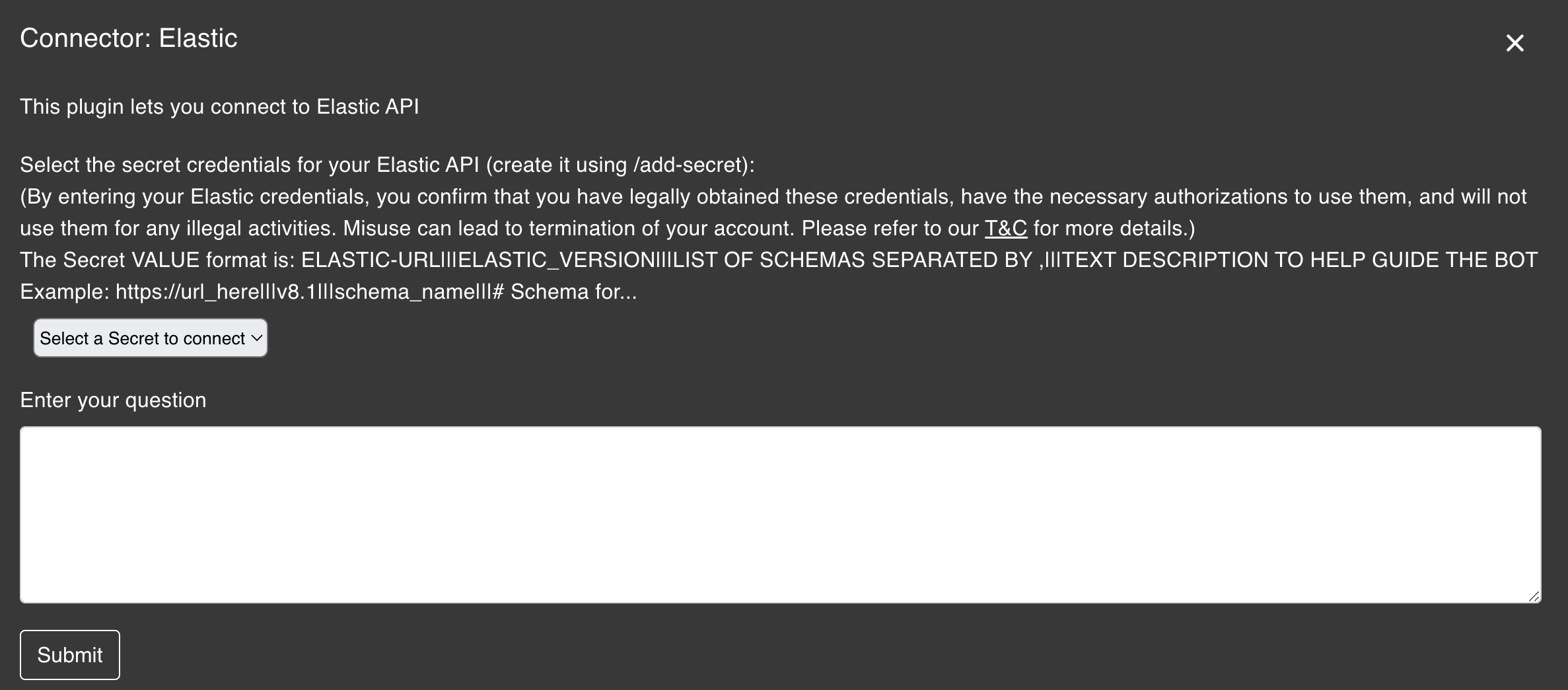
This plugin lets you connect to Elastic API
PostgresPaid
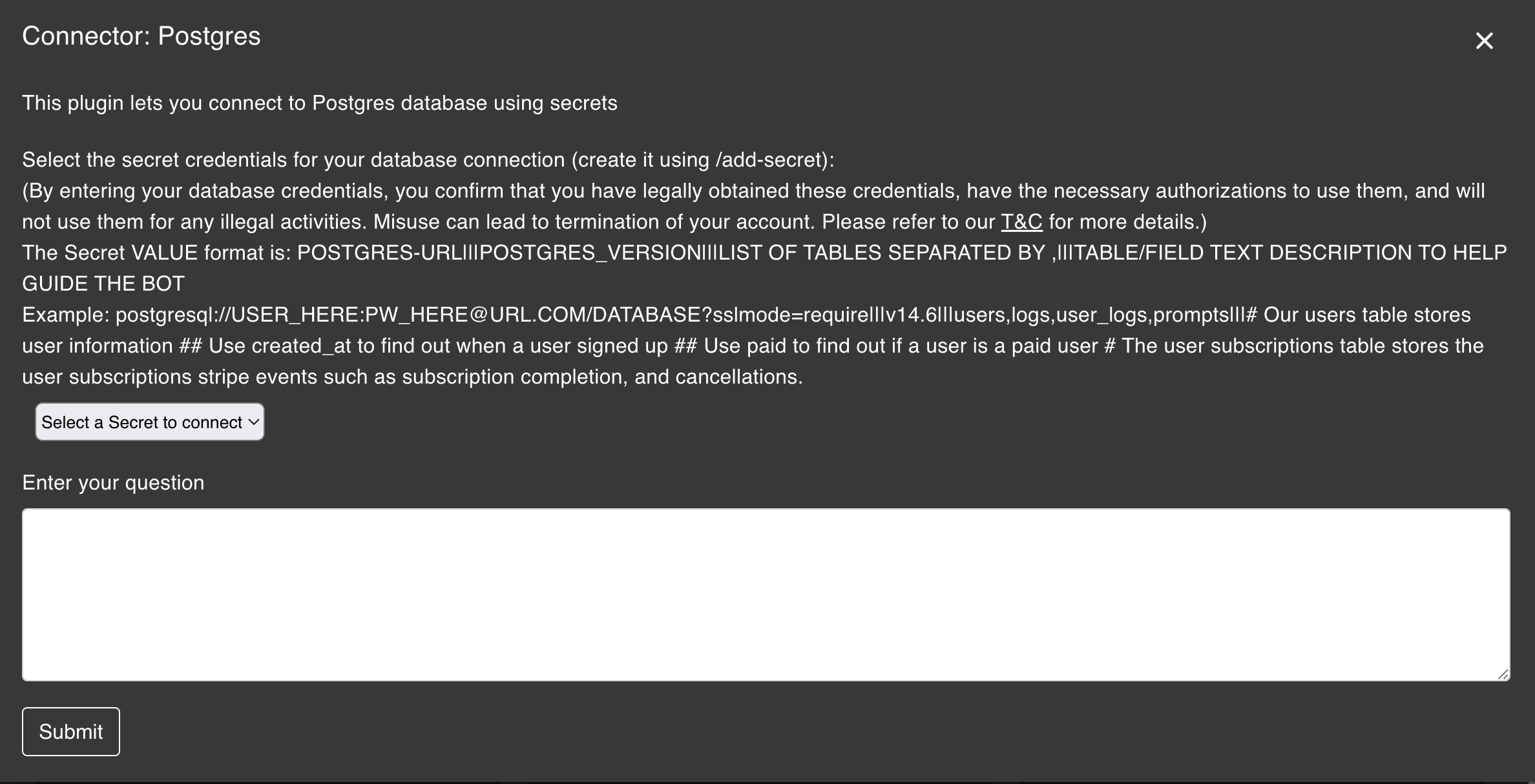
This plugin lets you connect to Postgres database using secrets
Elastic
Elastic Plugin
The Elastic plugin lets you connect to your Elastic API to ingest data from external sources.
Setting Up Your Secret
Before you can use the Elastic plugin, you need to have a secret for the Elastic API. To do this, you need to submit your secret through the prompt window in the following format:
Secret Format:
URL|||VERSION|||SCHEMA|||#DESCRIPTION
https://your-elastic-url.com|||v8.1|||schema1,schema2|||# Schema for log data and user data
1
Navigate to the Plugin
Navigate to the Ask Sage Plugins tool and select the Connectors category. Followed by then selecting the Elastic plugin.
2
Select Your Secret
Select the secret that is for the Elastic API.
3
Enter Your Question
Enter a question you want to know about the data that your Elastic API has. (Does not need to be in a coding format as the plugin will generate the query for you)
4
Submit
Click on the Submit button.
Natural Language Queries: You don't need to write Elastic queries manually. Simply describe what you're looking for in plain English, and the plugin will generate the appropriate query for you.
Postgres
Postgres Plugin
The Postgres plugin lets you connect to your Postgres database using secrets.
Setting Up Your Secret
Similar to the Elastic plugin, you need to have a secret for the Postgres database. To do this, you need to submit your secret through the prompt window in the following format:
Secret Format:
POSTGRES-URL|||POSTGRES_VERSION|||LIST OF TABLES|||TABLE/FIELD DESCRIPTION
postgresql://user:password@your-database-url.com/your-database-name?sslmode=require|||v14.6|||users,logs,user_logs,prompts|||# Our users table stores user information ## Use created_at to find out when a user signed up ## Use paid to find out if a user is a paid user # The user subscriptions table stores the user subscriptions stripe events such as subscription completion, and cancellations.
Description Tips: The table/field description helps guide the AI to understand your database schema. Use # for table descriptions and ## for field-specific notes.
1
Navigate to the Plugin
Navigate to the Ask Sage Plugins tool and select the Connectors category. Followed by then selecting the Postgres plugin.
2
Select Your Secret
Select the secret that is for the Postgres database.
3
Enter Your Question
Enter a question you want to know about the data that your Postgres database has. (Does not need to be in a coding format as the plugin will generate the query for you)
4
Submit
Click on the Submit button.
Security First: Your database credentials are stored as encrypted secrets. Ask Sage never exposes your connection strings or passwords in the generated queries.
Best Practices
Tips for Using Connectors
Provide Good Descriptions
The more context you provide in your secret's description, the better the AI can understand your data structure and generate accurate queries.
Use Read-Only Credentials
For safety, consider using read-only database credentials when possible to prevent accidental data modifications.
Be Specific in Questions
The more specific your question, the more accurate the generated query will be. Include relevant table names or field names if you know them.
Review Generated Queries
Always review the generated SQL or Elastic query before executing to ensure it matches your intent.