Learn how to use the AI-powered chatbot to find answers quickly on your SharePoint site.
Welcome to Ask Sage
Ask Sage is an AI-powered chatbot that helps you find information from your organization's knowledge bases quickly and easily. Instead of searching through multiple documents and folders, you can simply ask questions in natural language and get accurate, cited answers.
How It Works: Ask Sage answers questions using datasets from the Ask Sage platform, not directly from the SharePoint page where the chatbot appears. SharePoint is where you access the chatbot; the Ask Sage platform is where your organization's knowledge bases are stored and managed.
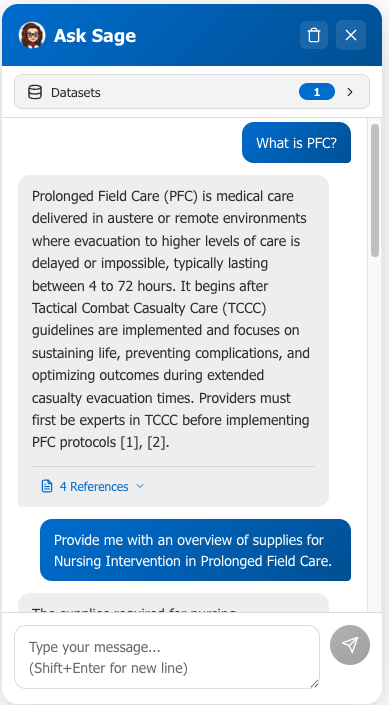
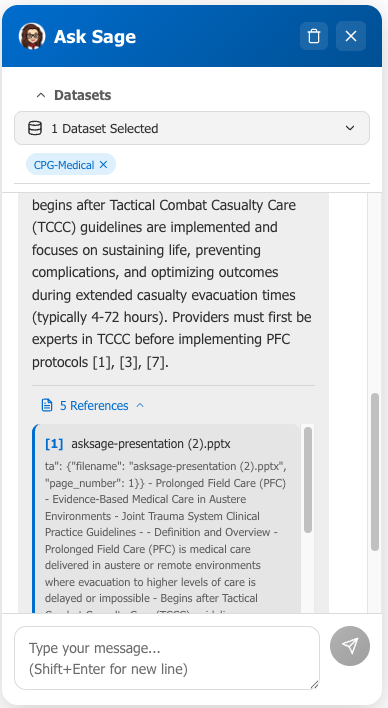
Every answer includes references to source documents
Follow-Up Questions
Handle contextual follow-ups in the same conversation
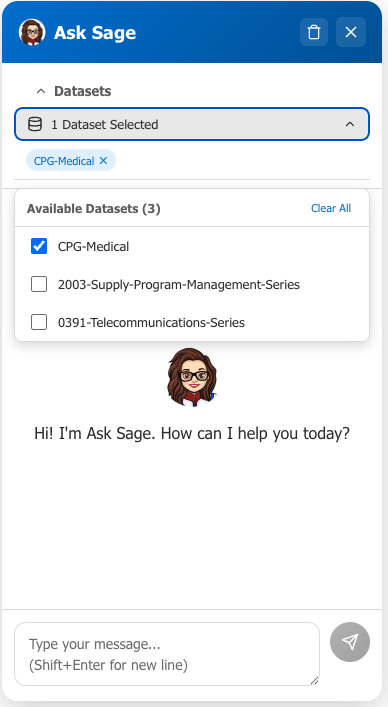
Multi-Dataset Search
Search across multiple knowledge bases at once
Ask Sage Cannot:
Search the current SharePoint page, site, or document libraries
Answer questions outside of configured Ask Sage datasets
Make up information or guess -- it only uses your organization's documents
Remember conversations after you close the chat
Execute actions or make changes to documents
Getting Started
Opening the Chat
1
Find the Chat Button
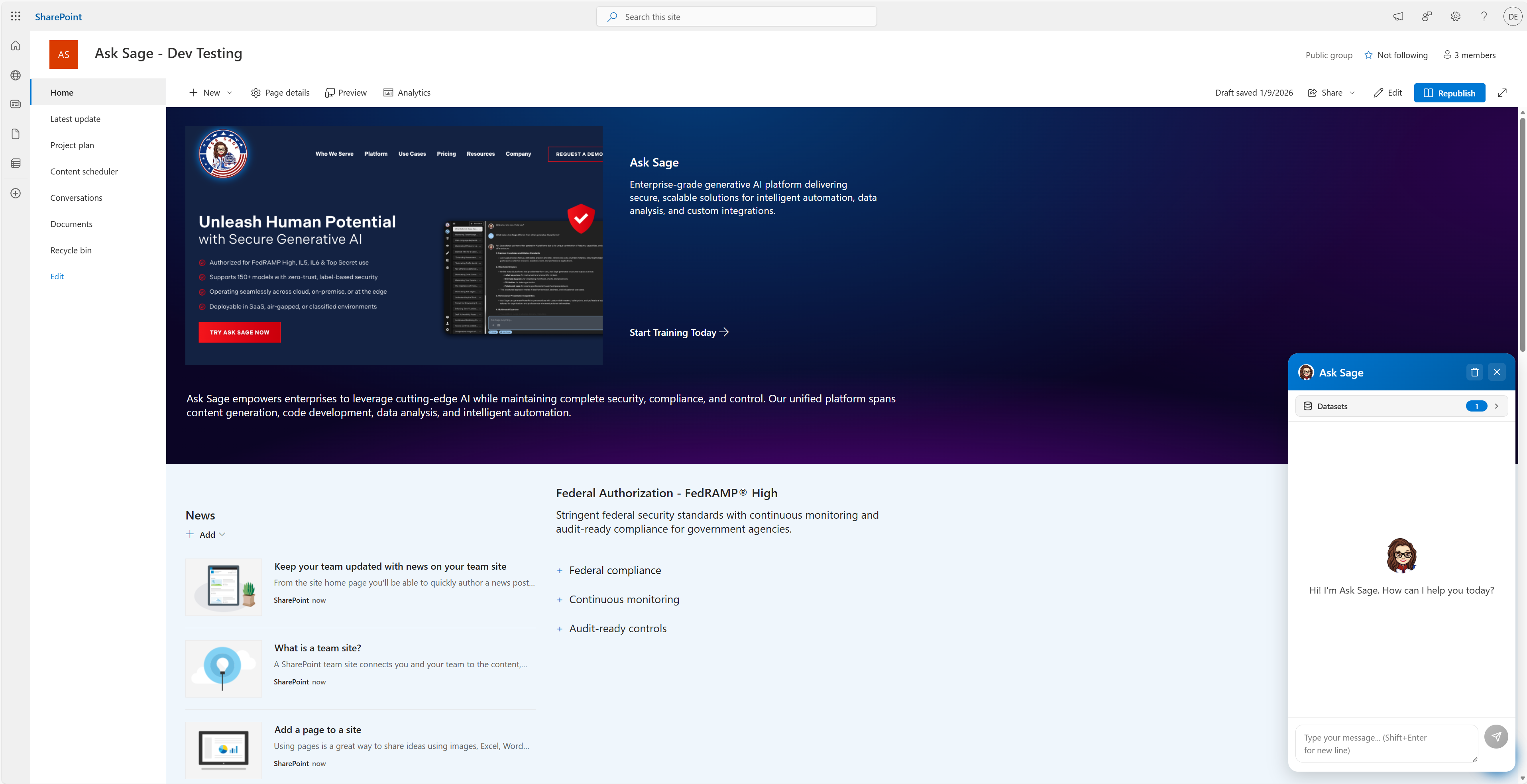
Look for the Ask Sage button in the bottom-right corner of your SharePoint page.
2
Click to Open
Click the button to expand the chat interface. You'll see available datasets at the top, the chat area in the middle, and the message input box at the bottom.
3
Check Connection Status
If there is no "Connecting..." message, you're ready to go. If you see "Connecting..." wait a moment -- if it persists, contact your administrator.
Using the Chatbot
Asking Questions
1
Select Your Datasets
Make sure the relevant knowledge bases are selected (checked/highlighted) at the top of the chat. Some may already be pre-selected by your administrator.
2
Type Your Question
Enter your question in the message box at the bottom. Use natural language -- ask questions the way you naturally speak.
3
Send and Wait
Click Send or press Enter. Your answer will appear above your question.
Example Questions
Good Questions
"What is our company's remote work policy?" "How do I submit a travel expense report?"
Less Effective Questions
"Tell me everything" (too broad), "What's the weather?" (not in knowledge bases)
Follow-Up Questions
You can ask follow-up questions based on previous answers in the same conversation. The chatbot remembers the context of your conversation (up to 10 messages).
Example Conversation:
You: "What is our vacation policy?"
Ask Sage:Provides the vacation policy details with citations...
You: "How many days do new employees get?"
Ask Sage:Answers based on the same context...
You: "How do I request time off?"
Ask Sage:Provides the request process...
Working with Datasets
Understanding Datasets
Datasets are the knowledge bases that Ask Sage searches to answer your questions. Think of them as different collections of documents:
HR Policies
Employee handbook, benefits, procedures
IT Documentation
Technical guides, software manuals
Sales Materials
Product information, pricing
Company Procedures
SOPs, workflows, guidelines
Selecting Datasets
Available datasets are displayed at the top of the chat interface as selectable buttons or checkboxes.
Checked/Highlighted datasets = Will be searched
Unchecked/Grayed datasets = Will NOT be searched
Click a dataset to toggle its selection on/off
You can select multiple datasets at once to search across different knowledge bases simultaneously
Tip: Only select datasets related to your question for more focused results. For example, if asking about HR benefits, select only HR-related datasets.
Note: If you try to ask a question without selecting any datasets, the chatbot will remind you to select at least one first. You can change datasets at any time -- new questions will search the newly selected datasets.
Understanding Responses
Response Structure
Each AI response includes several parts:
1
Main Answer
A direct response to your question in clear, formatted text.
2
Source Citations
Numbered references like [1], [2], [3] indicating which source document the information came from.
3
References Section
An expandable "N References" button at the bottom of the response. Click to see the full source text for each citation, including document names and relevant excerpts.
Example Citation:
"The vacation policy allows 15 days per year [1]. New employees accrue vacation time starting from their first day [2]."
This means "15 days per year" comes from source [1] and "accrue vacation time" comes from source [2]. Click "Show more" on a reference to see the full excerpt.
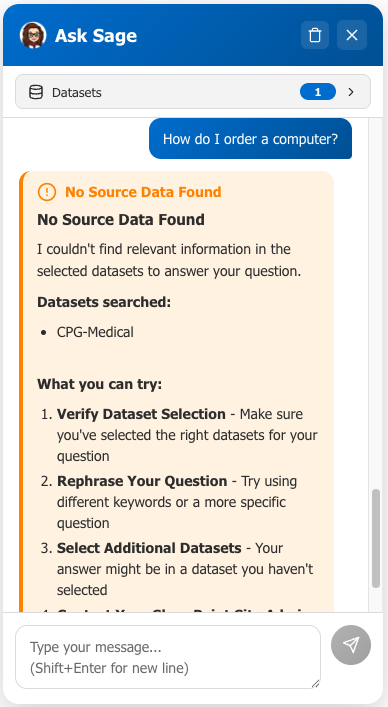
"No Source Data" Responses
If Ask Sage cannot find relevant information in the selected datasets, you'll see a message saying no source data was found. This commonly happens when you ask a question that is unrelated to any of the connected knowledge bases. When this happens:
Try rephrasing your question
Select different or additional datasets
Check if you're asking about information outside the available knowledge bases
Contact your administrator if you believe the information should be available
Tips for Best Results
Tips for Best Results
Be Specific
Instead of "Tell me about policies," try "What is the policy for remote work equipment?"
Select Relevant Datasets
Only select datasets related to your question for more focused results.
One Question at a Time
Break complex questions into simpler parts for better answers.
Use Follow-Ups
Build on previous answers for better context and deeper details.
Verify With Sources
Always check the source references to verify information and see the full context.
Rephrase If Needed
If you don't get a good answer, try different keywords or break it into simpler parts.
Frequently Asked Questions
FAQ
Is my conversation private?
Yes. Your conversation history is stored temporarily in your browser's memory while the chat is open. When you close the chat, the conversation is completely cleared. Conversations are not saved to SharePoint or any permanent storage.
How many messages can I send?
You can send up to 30 messages per minute. If you exceed this limit, you'll see a rate limit message. Wait 60 seconds and you can continue.
How long does the conversation history last?
The chatbot remembers up to 10 messages (5 back-and-forth exchanges) in your current conversation. Older messages beyond this limit won't be considered for follow-up questions.
Why can't I see certain datasets?
Your administrator controls which datasets are available to you based on your role and the SharePoint site you're on.
Can Ask Sage make changes to documents?
No. Ask Sage is read-only. It can search and retrieve information but cannot modify, create, or delete documents.
What if the answer is wrong?
Check the source references to see the original content and verify the information. If you believe an answer is incorrect, report the issue to your administrator. Accuracy depends on the quality and currency of the source documents.
Can I use Ask Sage on mobile devices?
Yes. Ask Sage works on mobile devices through your SharePoint site's mobile interface.
Does Ask Sage support other languages?
Ask Sage can respond in multiple languages if your source documents are in those languages. The interface itself is in English.
Troubleshooting
Common Issues
Chat Won't Open
Solutions:
Refresh the page (F5 or Ctrl+R)
Clear your browser cache
Try a different browser (Edge, Chrome, Firefox)
Contact your IT administrator
"Connecting..." Message Won't Go Away
Solutions:
Wait 30 seconds -- it may still be connecting
Refresh the page
Check your internet connection
Contact your administrator if the issue persists
No Datasets Available
Solutions:
Refresh the page
Contact your administrator to verify dataset access
Check if other users have the same issue
"No Source Data" for Every Question
Solutions:
Try selecting different datasets
Ask questions you know should have answers in your knowledge base
Contact your administrator if the datasets should contain relevant information
"Rate Limit Exceeded" Message
Solutions:
Wait 60 seconds for the rate limit to reset
The message will automatically clear
Responses Are Cut Off or Incomplete
Solutions:
Ask the question again
Refresh the page and retry
Report to your administrator if it happens consistently
Still Need Help?
Refresh the page -- solves many temporary issues
Check with colleagues -- see if others experience the same problem
Contact your administrator -- provide details about what you were trying to do, what happened, and any error messages
Privacy & Security
Privacy & Security
HTTPS Encryption
All communication is encrypted in transit
No Permanent Storage
Conversations are not saved after you close the chat
Private Sessions
Your questions are not shared with other users
Access Controlled
Only authorized SharePoint users can use the chatbot