Token Distribution
Automate and manage token allocation across your organization using presets, policies, and per-user overrides
Table of Contents
The Token Distribution panel gives administrators full control over how tokens are allocated to users — both automatically and manually. Administrators can choose from pre-configured allocation presets, define floor and ceiling limits, configure auto-increase rules, and set per-user overrides to handle edge cases.
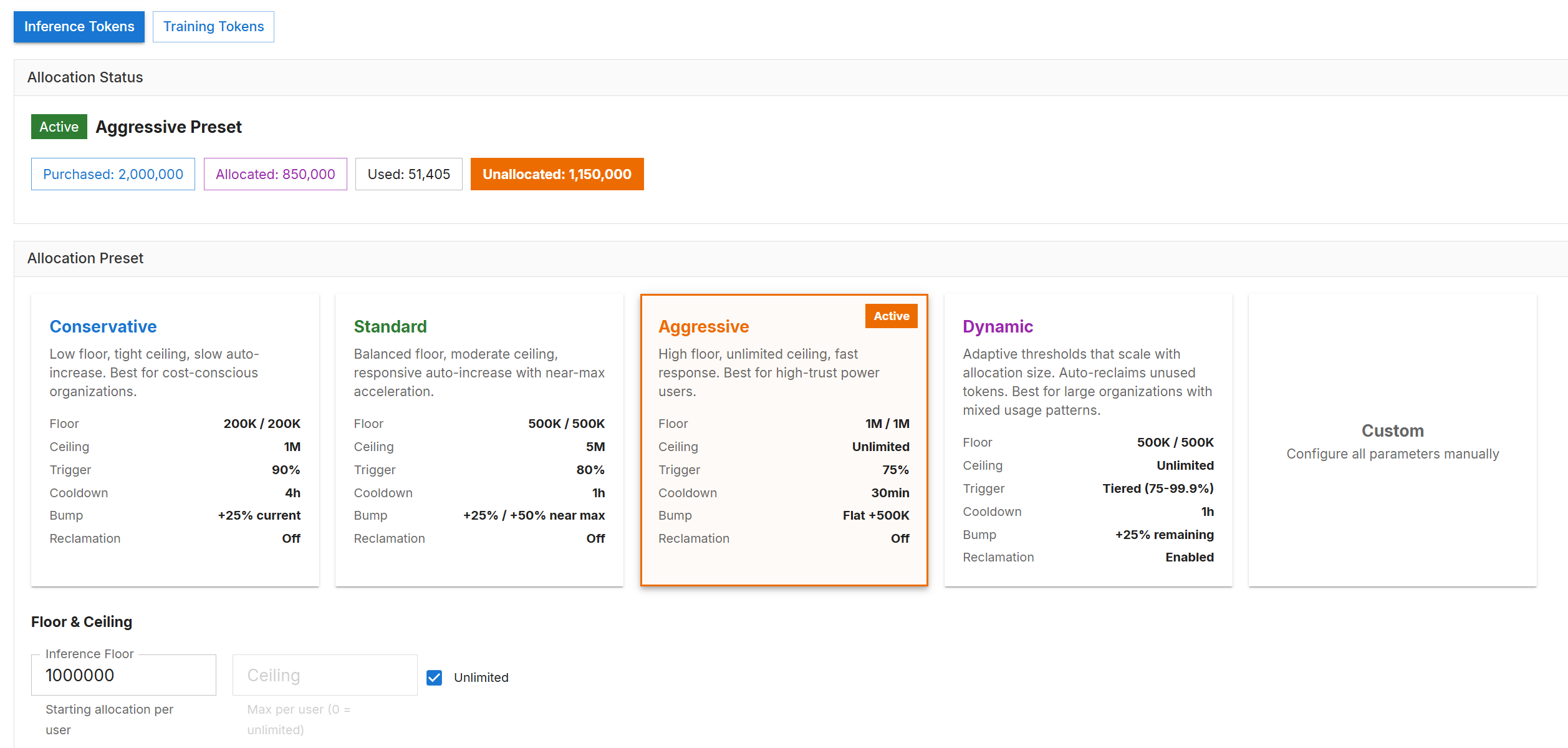
Token Distribution — Allocation Status and Presets
Allocation Status
At the top of the panel, the Allocation Status section provides a real-time snapshot of your organization’s monthly token pool:
- Purchased — total tokens purchased for your organization
- Allocated — tokens currently assigned to users
- Used — monthly tokens consumed by users
- Unallocated — tokens in your pool not yet assigned to any user
The Active badge is displayed based on your current preset (e.g., Aggressive Preset) next to the allocation status.
Allocation Presets
Administrators can select from five allocation presets to define how tokens are distributed and managed across the organization. Each preset balances floor levels, ceilings, auto-increase aggressiveness, and reclamation behavior.
| Preset | Best For | Floor | Ceiling | Trigger | Cooldown | Bump | Reclamation |
|---|---|---|---|---|---|---|---|
| Conservative | Cost-conscious organizations | 200K / 200K | 1M | 90% | 4h | +25% current | Off |
| Standard | Balanced teams | 500K / 500K | 5M | 80% | 1h | +25% / +50% near max | Off |
| Aggressive | High-trust power users | 1M / 1M | Unlimited | 75% | 30min | Flat +500K | Off |
| Dynamic | Large orgs with mixed usage | 500K / 500K | Unlimited | Tiered (75–99.9%) | 1h | +25% remaining | Enabled |
| Custom | Specific manual requirements | Configure all parameters manually | |||||
Floor & Ceiling
The Floor & Ceiling section defines the minimum and maximum token allocation boundaries for users.
- Floor — the starting token allocation given to each user when added. This is the minimum a user can hold at any time.
- Ceiling — the maximum tokens a user can accumulate.
Auto-Increase
When enabled, auto-increase automatically bumps a user's token allocation when they approach their limit — preventing workflow interruptions without requiring manual intervention.
Core Settings
- Enable Auto-Increase — toggle to activate automatic token bumping
- Trigger Mode — choose how tokens are automatically increased. Select Tiered (Dynamic) for a hands-off approach that adjusts automatically, or Flat Threshold to set a specific usage percentage that triggers the increase.
- Trigger % (10–99%) — the percentage of token usage at which an auto-increase fires. For example, 80% means a bump is triggered when the user has consumed 80% of their allocation.
- Cooldown (min) — minimum time that must elapse between consecutive auto-increases for the same user
- Bump Method — choose how additional tokens are calculated. Select Flat Fixed Amount to add a set number of tokens each time, or use % of Current / % of Remaining to scale the increase based on the user's current or remaining token balance.
- Bump Amount/Bump % — the number of tokens added per bump
- Buffer Days — days before the end of the period at which a pre-emptive bump is applied to ensure users don't run out
Near-Max Settings
- Near-Max Threshold — a value between 0.0 and 1.0 (e.g., 0.8 = 80%) that defines when a user is considered "near ceiling"
- Near-Max Bump — a larger bump amount applied specifically when the user's allocation is near the ceiling, to avoid frequent small increments
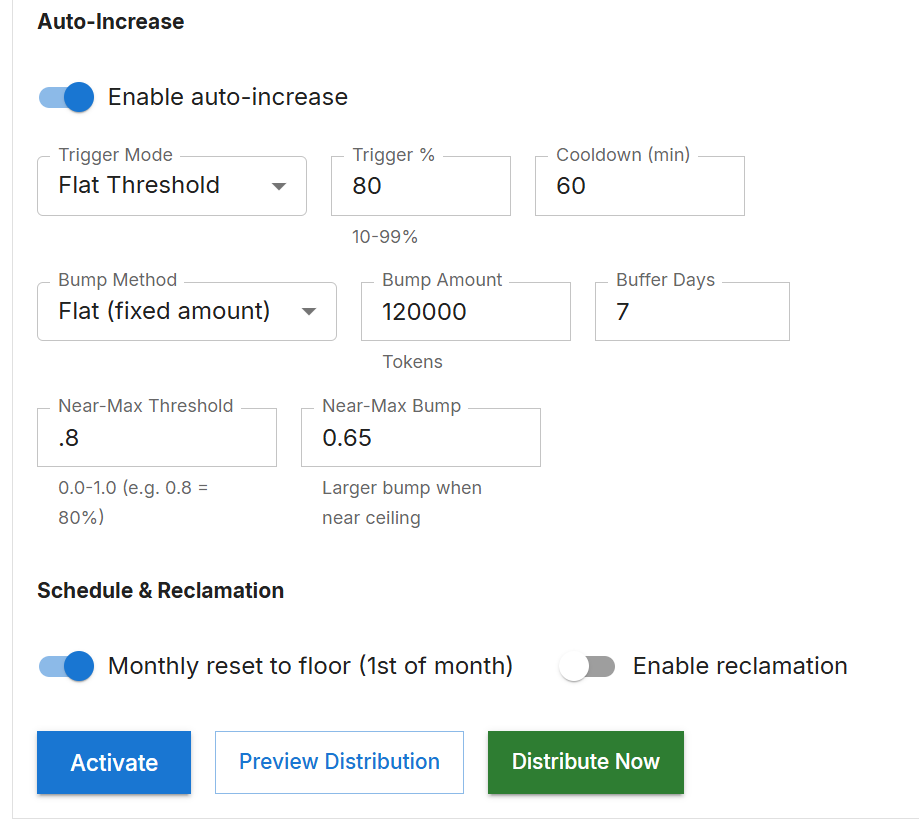
Auto-Increase Settings and Per-User Overrides
Schedule & Reclamation
- Monthly Reset to Floor (1st of month) — when enabled, all user allocations are reset back to the configured floor value on the 1st of each month, ensuring consistent token budgets across monthly periods
- Enable Reclamation — when enabled, the system identifies users with excess allocation above their projected need and reclaims those tokens back into the pool for redistribution
Distribution Actions
Three action buttons control how the distribution policy is applied:
- Activate [Preset] — applies the currently selected preset and saves it as the active policy
- Preview Distribution — shows a projected view of how tokens would be distributed under the current settings before committing any changes
- Distribute Now — immediately distributes tokens to all users according to the current policy without waiting for the scheduled cycle
Reclamation Preview
The Reclamation Preview section allows administrators to preview which users have excess token allocation above their projected need before reclamation runs. Click Preview Reclamation to generate the report and review it prior to enabling reclamation.
Per-User Overrides
The Per-User Overrides table allows administrators to set individual floor and ceiling values for specific users, overriding the organization-wide policy. This is useful for power users or restricted accounts that require different allocation limits.
Table Columns
- Email — the user's email address
- Current — the user's current token allocation
- Floor Override — a custom floor value for this user (leave as Default to use the global floor)
- Ceiling Override — a custom ceiling value for this user (leave as Default to use the global ceiling)
- Override — when user set to Override, this user's allocation is excluded from auto-increase and reclamation
- Status — indicates whether the override is active
- Actions — remove the override
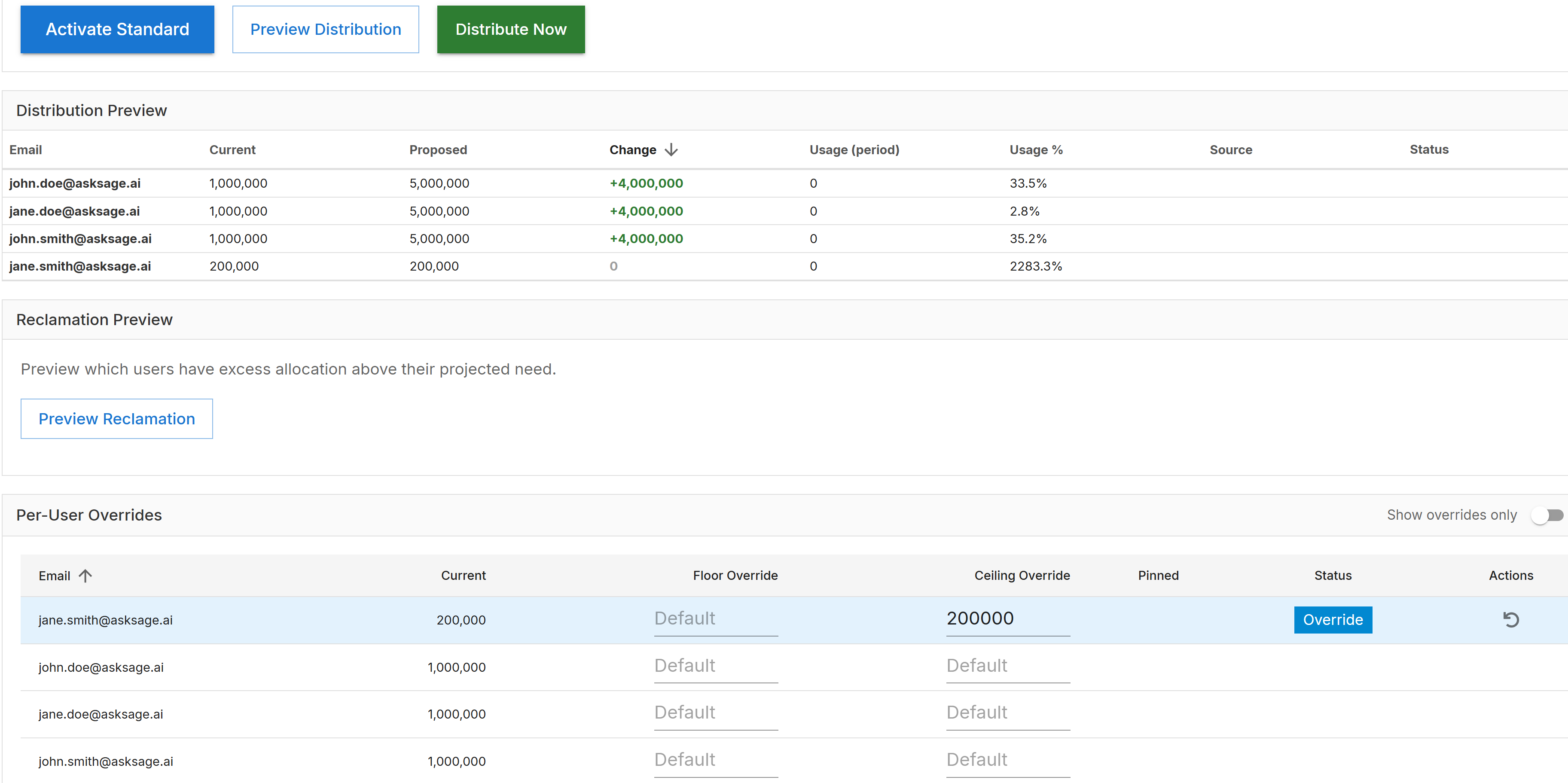
Distribution Preview, Reclamation Preview, and Per-User Overrides