Transcription
Turn a meeting, interview, or hearing recording into a verbatim transcript with every speaker labeled by name
Table of Contents
What is Transcription?
Transcription converts an uploaded audio recording into a speaker-labeled, verbatim transcript. You tell Ask Sage who is talking, and it matches each voice in the recording to a name on your list, so the finished transcript reads JORDAN: instead of a generic speaker number. The result downloads as a plain text file you can drop into a report, a record of proceedings, or a document template.
Transcription is built for recordings like:
- Meetings and briefings where you need an accurate record of who said what
- Interviews for research, investigations, or hiring panels
- Hearings and boards that call for verbatim minutes, including medical quality assurance reviews protected under 10 U.S.C. § 1102
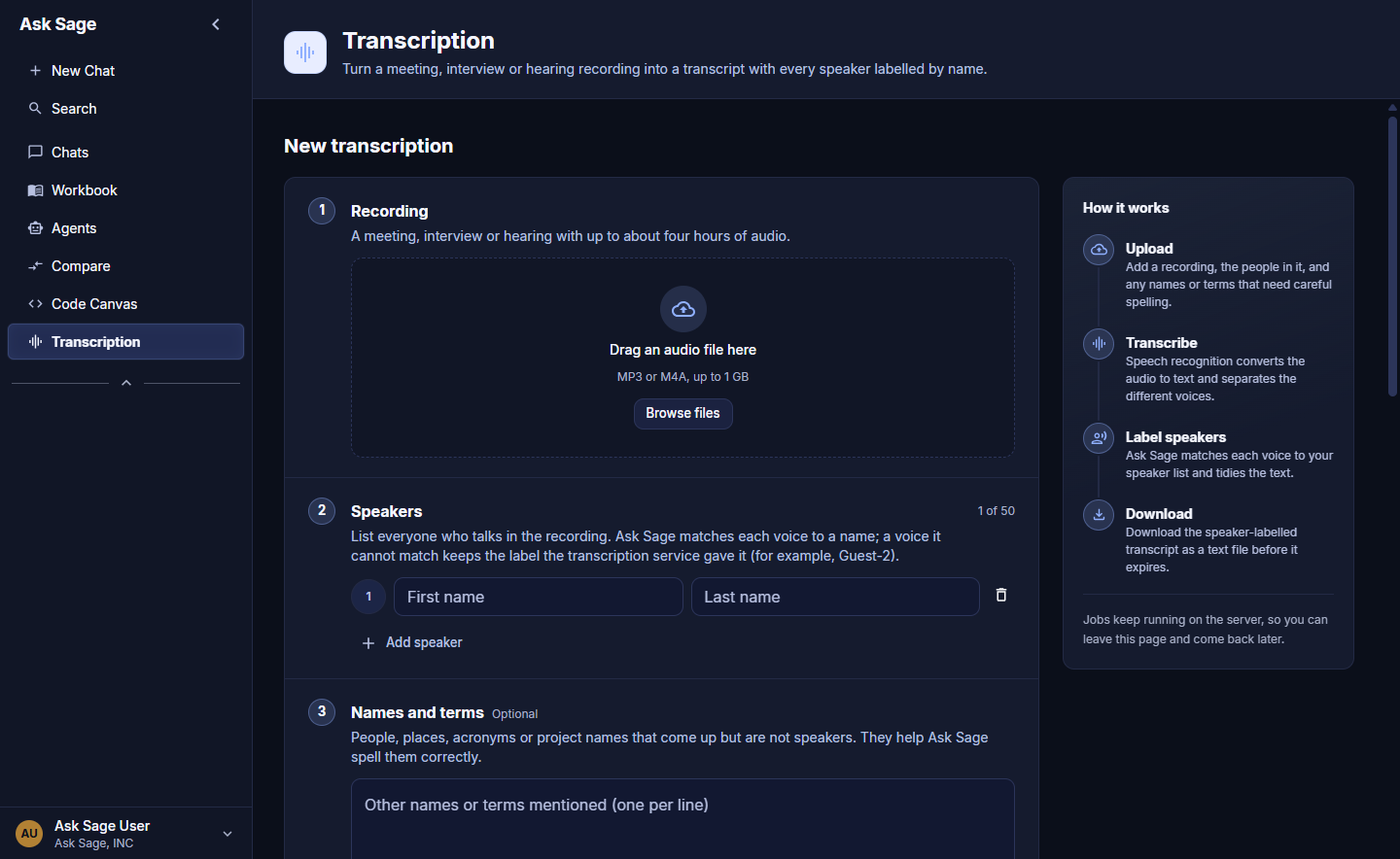
The Transcription page: the New transcription form on the left, How it works on the right, and your Transcriptions list below.
Transcription in the left rail, below Code Canvas. The page opens on the New transcription form. Transcription in the left rail, it isn't enabled for your organization. Contact your Ask Sage administrator or Ask Sage to request access. How It Works
Jobs run on the server, so you can leave the page, or close the browser, and come back later. Ask Sage sends an email and an in-app notification when a transcript is ready or if a job fails.
Start a Transcription
Drag an audio file onto the drop zone, or click Browse files and pick one from your computer. Transcription accepts MP3 or M4A files up to 1 GB, with up to about four hours of audio.
Once the file is attached, the drop zone shows its name and size. Click Replace to choose a different file, or the trash icon to remove it.
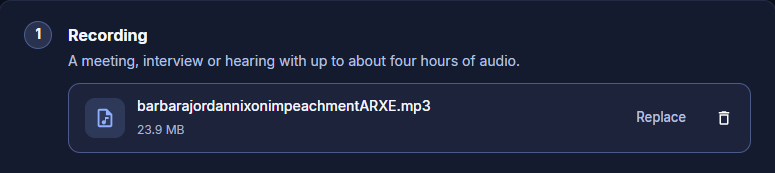
An attached recording. Replace swaps the file; the trash icon removes it.
List everyone who talks in the recording, with a first and last name for each. Click + Add speaker for another row, or the trash icon to remove one. You can list up to 50 speakers; the counter in the corner shows how many you've added.
Ask Sage matches each voice to a name on your list where the recording makes the match clear. A voice it can't match keeps the neutral label the transcription service gave it, for example Guest-2, so you can fix it by hand rather than trust a guess.
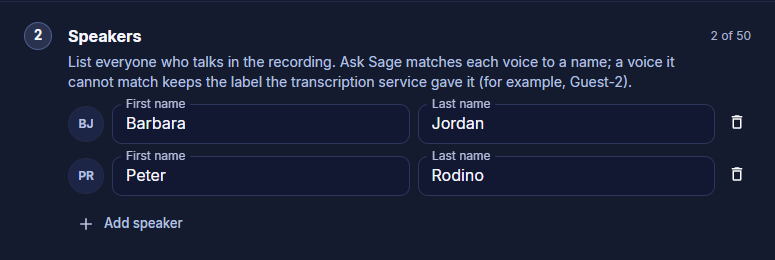
A two-person speaker roster for a 1974 House Judiciary Committee recording.
Add people, places, acronyms, or project names that come up in the recording but aren't speakers, one per line. Ask Sage uses the list to spell them correctly. You can add up to 200 entries.
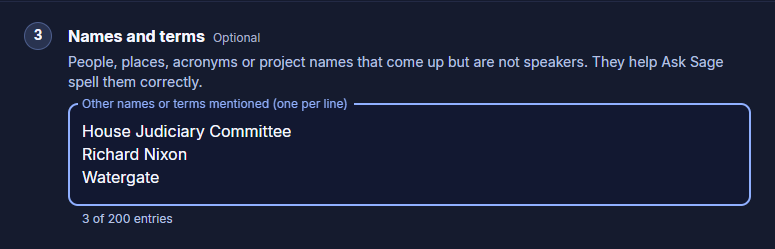
Names and terms help with proper nouns and acronyms the speech recognizer may not know.
Handling Options
Handling controls how the transcript is cleaned up and formatted.
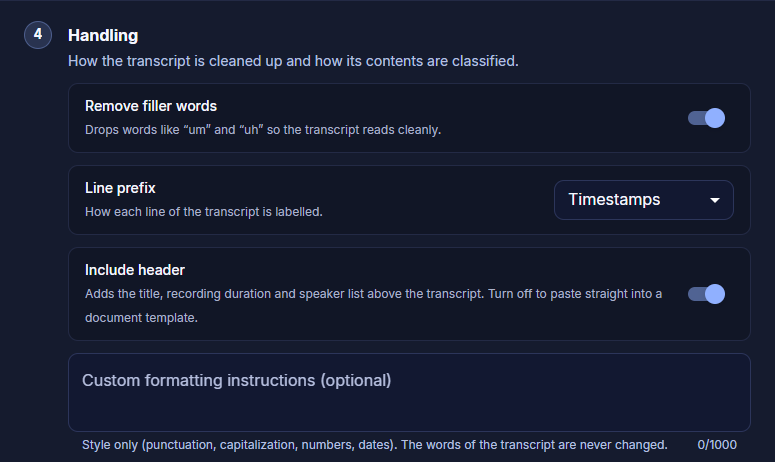
Handling options with their defaults: filler words removed, timestamps on each line, header included.
| Option | Default | What it does |
|---|---|---|
| Remove filler words | On | Drops words like "um" and "uh" so the transcript reads cleanly. Turn it off for a strictly verbatim record. |
| Line prefix | Timestamps | How each line of the transcript is labeled: Timestamps, Line numbers, or None. |
| Include header | On | Adds the title, recording duration, and speaker list above the transcript. Turn it off to paste straight into a document template. |
| Custom formatting instructions | Empty | Optional style guidance, up to 1,000 characters: punctuation, capitalization, numbers, dates. The words of the transcript are never changed. |
Data Controls and Retention
The last part of Handling is Data controls. Check every label that applies to the recording, or leave them all unchecked if none apply. The labels select a compliant model for processing and decide how long the transcript is kept.
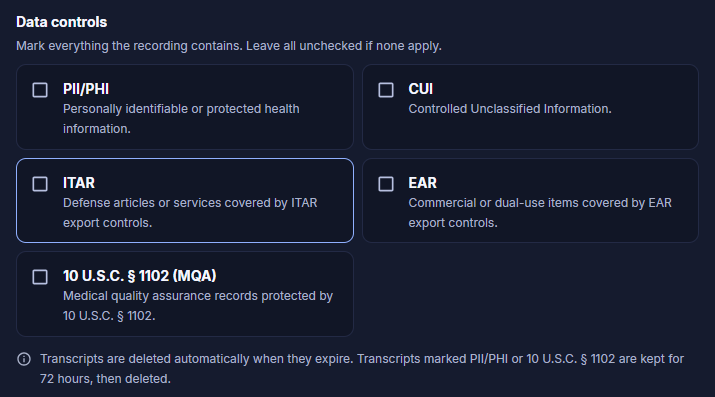
Data controls and the retention notice.
| Label | Use it when the recording contains |
|---|---|
| PII/PHI | Personally identifiable or protected health information |
| CUI | Controlled Unclassified Information |
| ITAR | Defense articles or services covered by ITAR export controls |
| EAR | Commercial or dual-use items covered by EAR export controls |
| 10 U.S.C. § 1102 (MQA) | Medical quality assurance records protected by 10 U.S.C. § 1102 |
Submit and Track Your Transcriptions
The Transcribe button at the bottom of the form stays disabled until you add a recording. Once it's enabled, the footer summarizes what you entered (for example, "2 named speakers."). Click Transcribe to submit.

Ready to submit.
Submitted jobs appear in the Transcriptions list below the form. While a job is in progress the list updates automatically; click Refresh to check on demand. Each row shows:
- Recording: the file name
- Submitted: when you submitted it, the recording's length, and (once voices are separated) how many speakers were detected
- Status: where the job is, with a progress bar
- Data controls: the labels you checked, or None
- Expires: how long until the transcript is deleted; hover for the exact date and time
- Actions: cancel or delete while a job runs; download or delete once it's ready

A job in progress. The list updates automatically until the transcript is ready.
Job statuses
| Status | Detail shown | What's happening |
|---|---|---|
| Queued | Waiting to start | The job is accepted and waiting for a slot. |
| Transcribing | Converting speech to text | Speech recognition is turning the audio into text and separating voices. |
| Formatting | Labelling speakers | Ask Sage is matching voices to your speaker list and applying your Handling options. |
| Ready | Transcript available | The transcript can be downloaded until it expires. |
Processing time depends on the recording's length and how busy the service is. As a reference point, a 13-minute recording went from submitted to Ready in about six minutes.
When the status reads Ready, click Download in the Actions column. The transcript downloads as a plain text file named transcript-<id>.txt. Rename it and store it wherever your records policy requires before the Expires time passes. Transcripts without PII/PHI or § 1102 labels expire after 7 days.

A finished transcript, ready to download.
With the default Handling options (header on, timestamp prefix), the file starts like this:
TRANSCRIPT
Recording duration: 00:13:03
Speakers: JORDAN

...

[00:00:26] JORDAN: Earlier today, we heard the beginning of the preamble to the Constitution of the United States: We the people.

[00:00:35] JORDAN: It's a very eloquent beginning.

[00:00:38] JORDAN: But when that document was completed on the 17th of September in 1787, I was not included in that.
Each line carries the prefix you chose, then the speaker's label in capitals (the last name of a matched speaker, or the service's neutral label for an unmatched voice), then what they said. Speakers on your list who never talk in the recording are left out of the header.
Limits at a Glance
| Item | Limit |
|---|---|
| File formats | MP3, M4A |
| File size | Up to 1 GB |
| Recording length | Up to about four hours |
| Speakers | Up to 50 |
| Names and terms | Up to 200 entries |
| Custom formatting instructions | Up to 1,000 characters |
| Jobs running at once | Up to 3 |
| Retention for PII/PHI and § 1102 transcripts | 72 hours |
| Output format | Plain text (.txt) |
FAQ
I don't see Transcription in the left rail. Why?
Transcription is off by default and enabled per deployment. Ask your Ask Sage administrator whether it's available for your organization.
Do I have to stay on the page while a job runs?
No. Jobs keep running on the server. You'll get an email and an in-app notification when the transcript is ready or if the job fails.
Why does my transcript say Guest-2 instead of a name?
Ask Sage only applies a name when the recording makes the match clear. Check that the speaker is on your list with the right spelling. Recordings where people never address each other by name are harder to match.
Will custom formatting instructions change what was said?
No. They affect style only: punctuation, capitalization, numbers, and dates. The words of the transcript are never changed.
Which data controls should I check?
Check every label that applies to anything said in the recording. If you're not sure whether a recording contains CUI or export-controlled information, ask your security officer before submitting. The labels decide which model processes the audio and how long the transcript is kept.
Can I get my transcript back after it expires?
No. Expired transcripts are deleted automatically. Download the transcript as soon as it's ready and store it where your organization's records policy requires.
Can I transcribe a video file?
Not directly. Extract the audio track to MP3 or M4A first, then upload that.