Organization Settings
Restrict sign-in by network, set API key and account policies, choose available models, and check MCP status
Table of Contents
Organization admins open Org Settings from the Management section of the Admin Panel. It’s one scrolling page with your organization’s IP allowlist, policies, and model access. MCP Status, a separate item in the same sidebar section, is covered at the end of this page.
The top of the page shows your organization’s name and its Organization Contact.
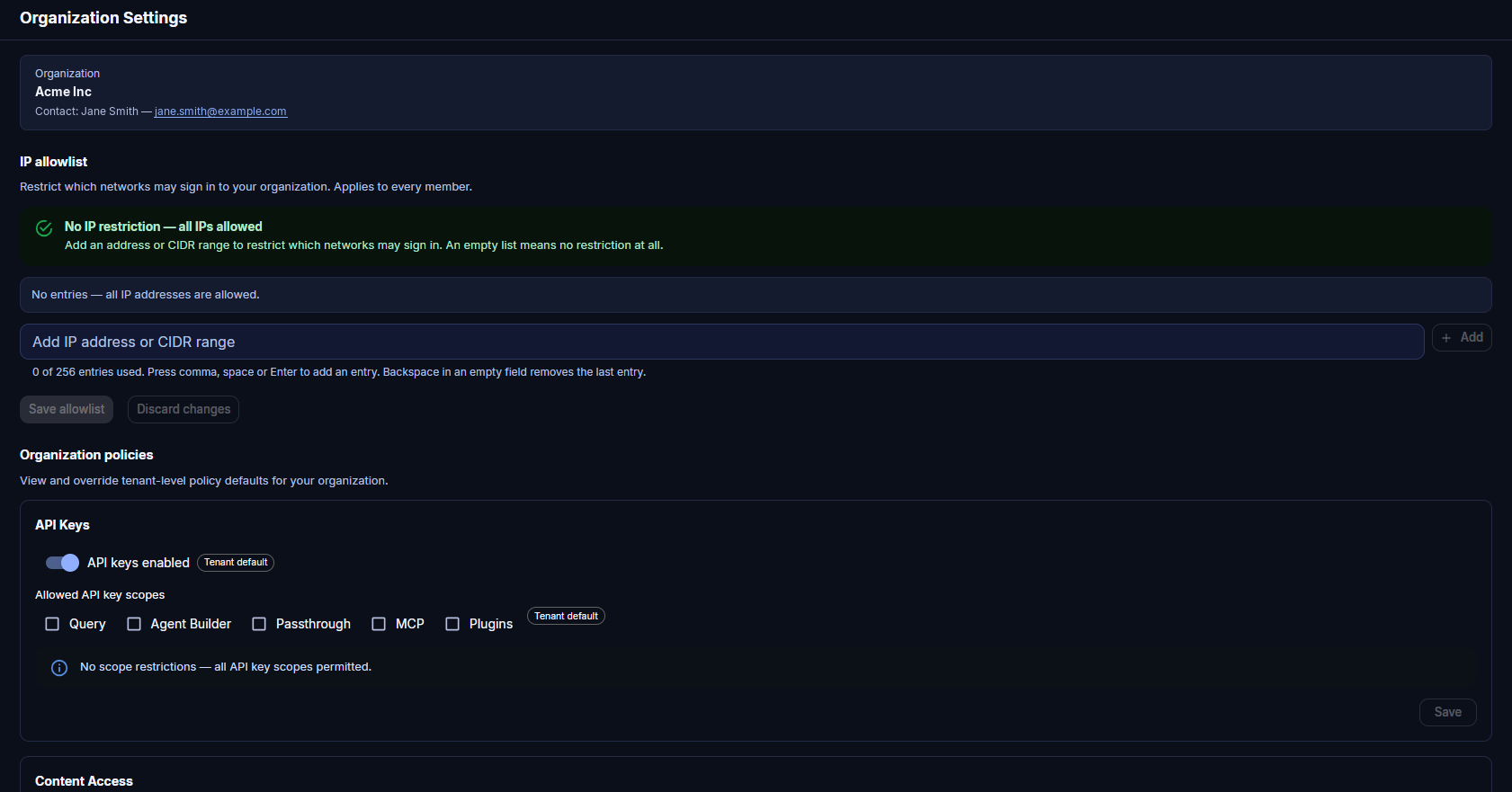
Organization Settings — organization, IP allowlist, and API Keys
IP Allowlist
The IP allowlist limits which networks can sign in to your organization. It applies to every member. An empty list means no restriction, and the panel shows "No IP restriction — all IPs allowed."
- Type an IP address or CIDR range (for example
203.0.113.0/24) in Add IP address or CIDR range. - Press Enter, comma, or space, or click Add. Backspace in an empty field removes the last entry. The list holds up to 256 entries.
- Click Save allowlist, or Discard changes to undo your edits.
Organization Policies
Organization policies override tenant-level defaults for your organization. Each card has its own Save button.
- API Keys — turn API keys enabled on or off for your members. Under Allowed API key scopes, check Query, Agent Builder, Passthrough, MCP, or Plugins to limit what members' keys can do. With no boxes checked, every scope is allowed. See API Keys for what each scope covers.
- Content Access — model access is set in the Models section below. Click Manage models to jump there.
- Account Defaults — Default inference tokens and Default training tokens for new accounts in your organization.
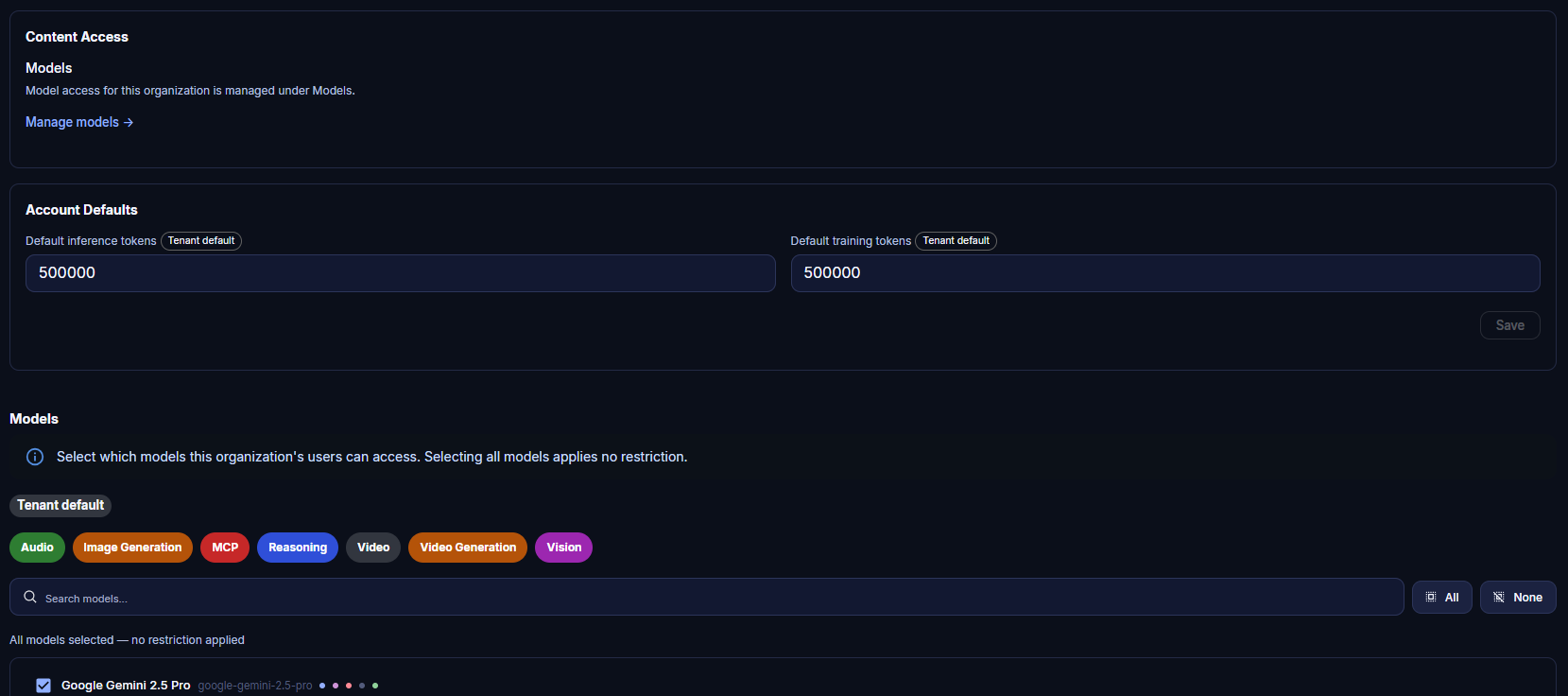
Organization Settings — Content Access, Account Defaults, and Models
Models
Select which models your organization's users can access. Selecting all models applies no restriction. Filter the list with the capability chips (Audio, Image Generation, MCP, Reasoning, Video, Video Generation, Vision) or the search box, and use All / None to toggle every model at once. A status line above the list reports the current state, for example "All models selected — no restriction applied."
Each row shows the model's display name, the model ID used by the API, and colored dots for its capabilities.
MCP Status
MCP Status is its own item in the Admin Panel sidebar. It lists your tenant's hosted MCP servers, such as Box, Microsoft 365, GitHub, and Calculator, with an Active or Inactive badge. Active status reflects whether each server is reachable and properly configured for your organization. Org admins can view status here but can't change it. Super Admins turn servers on from the MCPs tab of the Manage organization dialog.
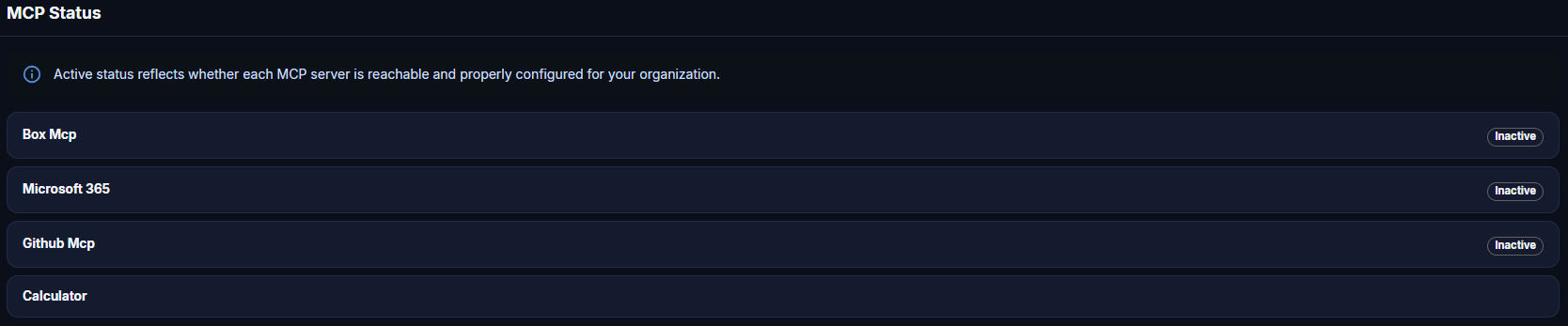
MCP Status
Related Pages
- Member Roles — default role and group role changes
- Organization Contact — your organization's point of contact and how to change it
- Model Context Protocol — hosted MCPs and how users connect them