Core Concepts
Master the building blocks of workflows and nodes
Table of Contents
Agents vs Workflows
Agent Builder distinguishes between an Agent (the persona that runs) and a Workflow (the visual logic the persona executes). One Agent runs exactly one Workflow.
What Are Workflows?
A workflow is a visual representation of your agent's logic - a sequence of connected nodes that define how data flows and transforms through your agent.
Key Characteristics
- Visual Design: Workflows are created using a drag-and-drop canvas
- Node-Based: Composed of individual nodes, each performing a specific function
- Data Flow: Information flows from node to node through connections
- Reusable: Workflows can be saved, shared, and reused
Sharing Workflows
While in-platform sharing is currently in development, you can share your workflow builds with others using the Import/Export functionality:
- Export: Use the Import/Export button to download your workflow as a JSON file
- Share: Send the exported JSON file to other users
- Import: Recipients can use the Import/Export button to load your workflow into their Agent Builder
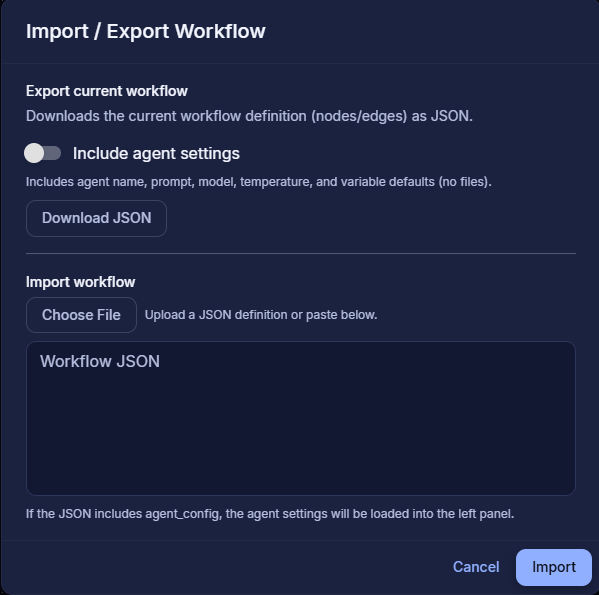
Import/Export interface for sharing workflows
Workflow Components
Understanding Nodes
Nodes are the building blocks of workflows. Each node performs a specific operation and can be configured to meet your needs.
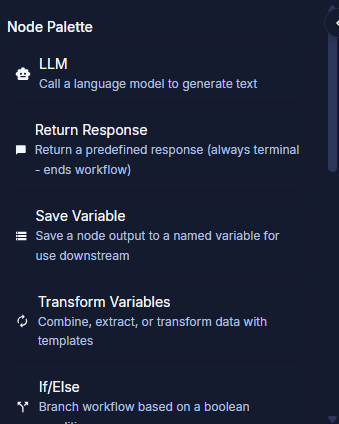
Nodes palette with available node types
Node Types
Nodes are organized into categories based on their function:
- AI Operations: LLM, Decision Tree, Train File, Train Array, and Text to Speech nodes — call a model, classify and route, ingest into a dataset, or generate audio
- Control Flow: If/Else, Loop, and Return Response nodes — branch on a condition, iterate over a collection, and end the workflow with a response
- Data: Save Variable, Transform Variables, and Read File nodes — store, reshape, and load data for downstream nodes
- Integration: the API Call node — make an outbound HTTPS request to an external service and use its status code and body downstream
That is the complete set of twelve node types. To call a finished agent from an external system, use the Ask Sage API — see API & Integration.
Node Structure
Every node has:
- Input Ports: Where data enters the node
- Output Ports: Where processed data exits
- Configuration Panel: Settings and parameters
- Status Indicator: Shows execution state (available when running the workflow in agent mode)
Node Properties
- Name: Identify the node in your workflow
- Type: Determines what the node does
- Parameters: Configure the node's behavior
- Connections: Links to other nodes
Connections and Data Flow
Connections define how data moves through your workflow. Understanding data flow is crucial for building effective agents.
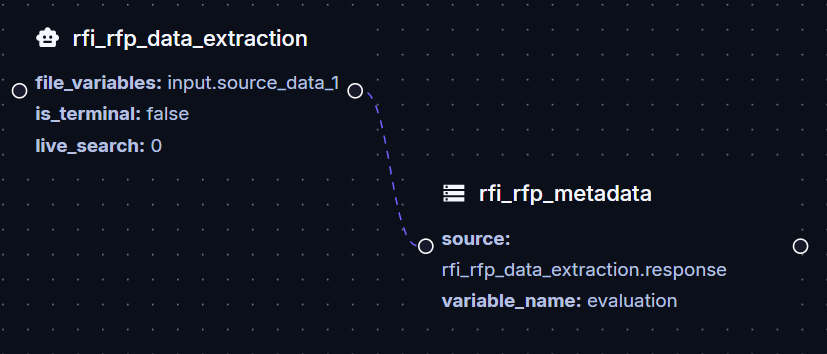
Example of a workflow showing connections and data flow between nodes
Connection Basics
Data Types
Connections can carry different types of data:
- Text/String: Textual information
- Number: Numeric values
- Boolean: True/false values
- Object: Complex structured data
- Array: Lists of items
- Any: Flexible data type
Connection Rules
- Execution starts at the entry node — the node with no incoming connection. Keep a single entry point
- Workflows execute in a single direction from start to finish
- Output types must match input types
- Circular connections are not allowed (unless using loop nodes)
- Disconnected nodes won't execute
- No parallel processing - nodes execute sequentially in order
Variables and Data Passing
Variables allow you to store and reuse data throughout your workflow, making your agents more flexible and powerful.
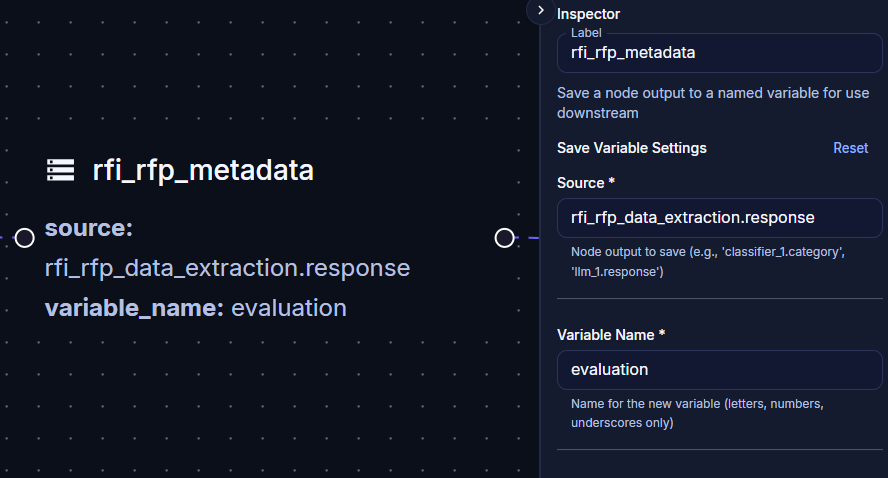
Saving output data to variables in the workflow
Variable Basics
- Definition: Named storage for data values
- Scope: Can be workflow-wide or node-specific
- Types: Support all data types (text, number, object, etc.)
- Reference: Access variables from any node
Using Variables
- Set Variables: Store data for later use
- Get Variables: Retrieve stored data
- Update Variables: Modify existing values
- Delete Variables: Remove when no longer needed
Best Practices
- Use descriptive variable names
- Initialize variables before use
- Clean up unused variables
- Document complex variable usage
Conditional Logic
Conditional logic allows your workflow to make decisions and take different paths based on conditions.
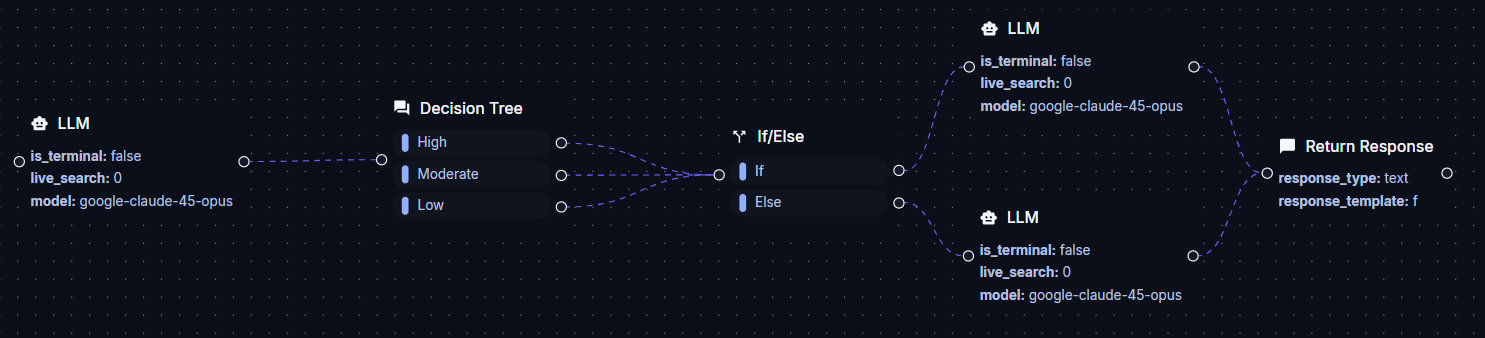
Example of conditional logic in a workflow
Types of Conditional Nodes
Common Conditions
- Comparison: Equal, not equal, greater than, less than
- Logical: AND, OR, NOT
- Existence: Is null, is empty, exists
- Pattern: Matches regex, contains text
Loops and Iterations
Loops allow you to repeat operations multiple times or process collections of data efficiently.
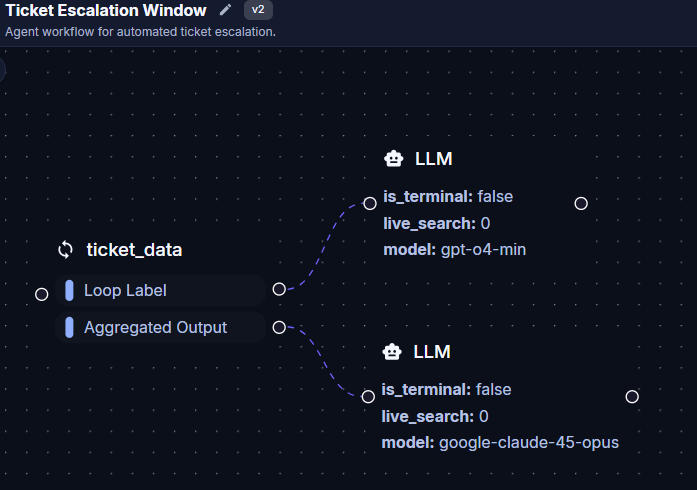
Example of a loop in a workflow
Loop Types
The Loop Node (type: loop) iterates over the items of an array variable — for example the rows of a CSV loaded by a Read File node. To repeat a fixed number of times, loop over an array with that many items.
Loop Components
- Iteration Variable: Current item being processed
- Loop Body: Nodes executed on each iteration
Best Practices
- Avoid infinite loops
- Process data in batches for large collections
- Monitor performance with loops
Error Handling
Proper error handling ensures your workflows handle unexpected situations gracefully and provide useful feedback.
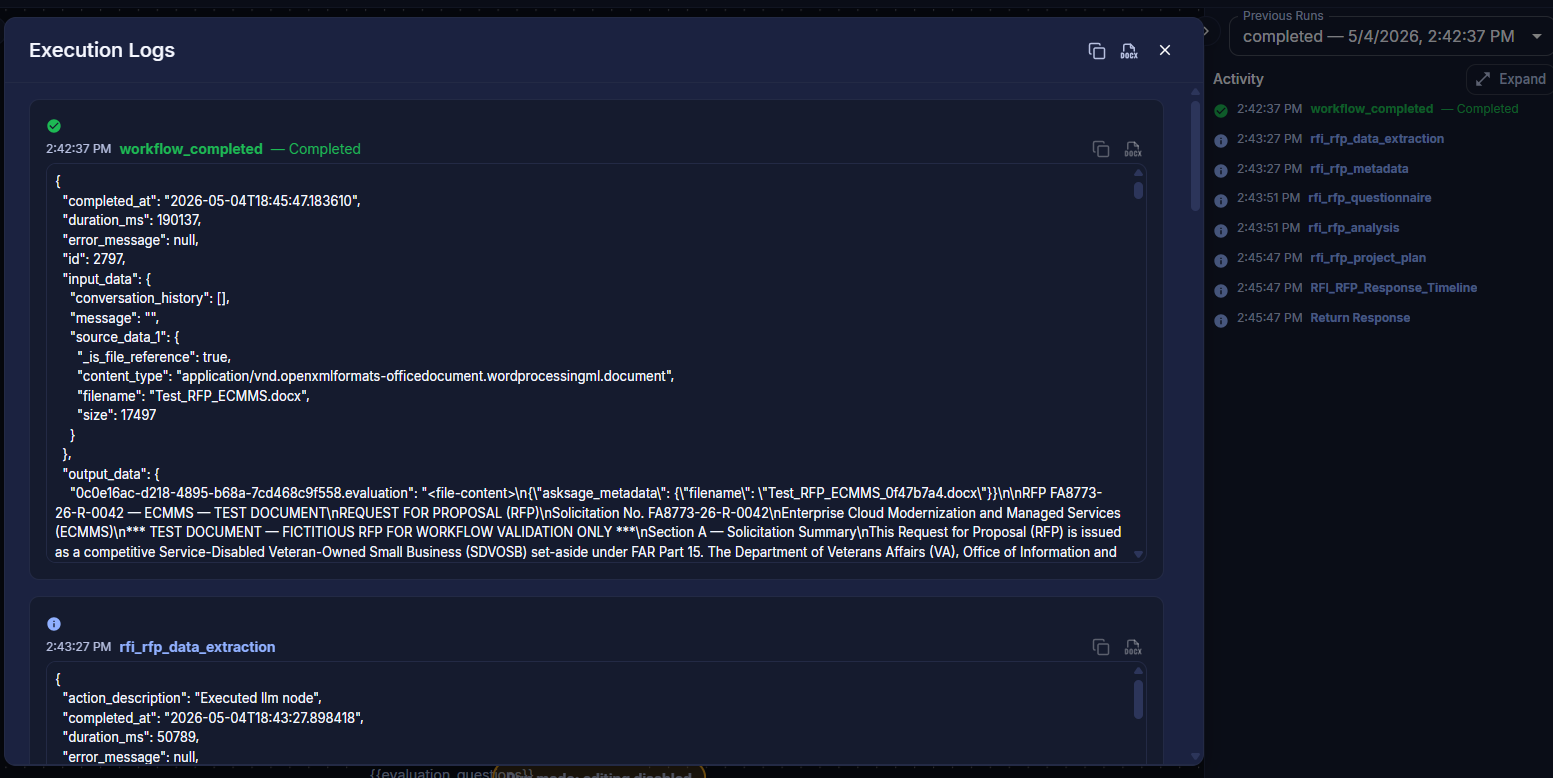
Agents in the UI display execution logs showing how the workflow is operating, including error details and execution status for each node
Error Handling Strategies
Agent Builder has no dedicated try/catch construct. A node that fails stops the run and reports the error in the execution logs. Design for that:
Error Types
- Validation Errors: Invalid input data
- Connection Errors: Network or API failures
- Processing Errors: Node execution failures
- Timeout Errors: Operations taking too long
Recovery Options
- Re-run: Correct the node configuration or input and run the agent again
- Fallback branch: Route unmatched or invalid cases to an alternative path with an If/Else or Decision Tree node
- Informative terminal response: End fallback branches with a Return Response node that explains what was missing
Execution Flow
Understanding how workflows execute helps you design more efficient and predictable agents.
Execution Order
Workflows execute in a specific order:
- Entry Node: The node with no incoming connection executes first
- Sequential Execution: Nodes execute when all inputs are ready
- Completion: Workflow finishes when all paths complete
Execution States
- Pending: Waiting to execute
- Running: Currently executing
- Success: Completed successfully
- Failed: Encountered an error
- Skipped: Bypassed due to conditions
Performance Considerations
- Token Usage: AI operations consume tokens
- Execution Time: Complex workflows take longer
- Resource Limits: Stay within platform limits
Best Practices
Design Principles
- Keep It Simple: Start with simple workflows and add complexity gradually
- Modular Design: Break complex workflows into reusable components
- Clear Naming: Use descriptive names for nodes and variables
- Test Incrementally: Test as you build, not just at the end
Avoid Common Pitfalls
- Don't create overly complex workflows
- Don't skip error handling
- Don't ignore data type mismatches
- Don't forget to test edge cases
- Don't create circular dependencies
Organization Tips
- Group related nodes together
- Use consistent naming conventions
- Keep workflows focused on single tasks
- Create reusable sub-workflows