Account Settings
Customize your interface, manage tokens, secure your account, and configure integrations all in one place
Table of Contents
Settings Overview
Open Settings from the bottom of the left sidebar by clicking Settings. Settings are organized into eleven tabs in the left panel:
- Profile — Personal info, custom intro prompt, and password
- Appearance — Theme, timestamps, chat width, and display toggles
- Chat Defaults — Default model, temperature, persona, and datasets
- Security — MFA, CAC/Smart Card, and YubiKey registration
- API Keys — Create and manage API keys
- Usage & Billing — Token usage and subscription plan
- MCP Servers — Add and manage Model Context Protocol servers
- Integrations — Connect GitHub and Microsoft accounts (plus Google and Box where your tenant enables them)
- Data & Privacy — Review recent login history and jump to your prompt logs
- Widgets — Opens the embeddable Widgets configuration page
- Prompt Logs — Opens your prompt/response log history
Profile
Update your personal details including First Name, Last Name, Company, and Phone. Your email address is displayed but cannot be changed directly.
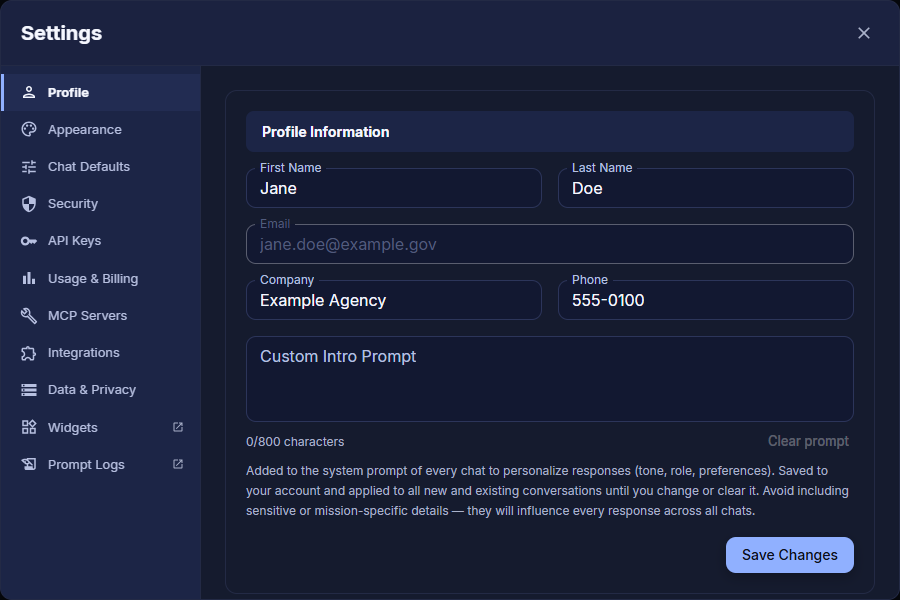
Custom Intro Prompt
The Custom Intro Prompt field (800 character limit) is added to the system prompt of every chat to personalize responses — tone, role, and preferences. It is saved to your account and applied to all new and existing conversations until you change or clear it.
Change Password
Scroll down within the Profile tab to access the Change Password section and update your account password.
Forgot your password and can't sign in? Use Forgot password? on the sign-in page instead. See Reset Your Password for a step-by-step guide with pictures.
Appearance
The Appearance tab controls how the Ask Sage interface looks and behaves. Most options are simple toggles; Chat Width is a multi-option selector.
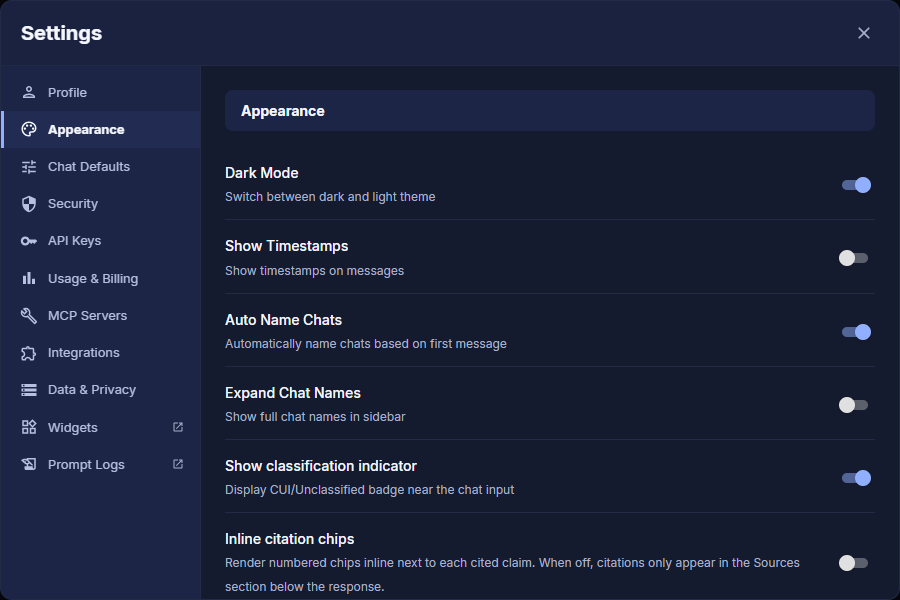
Inline Citation Chips
Render numbered chips inline next to each cited claim. When off, citations only appear in the Sources section below the response
Chat Defaults
Chat Defaults set the starting configuration applied to every new conversation. Individual settings can still be overridden per-chat from the Tools menu.
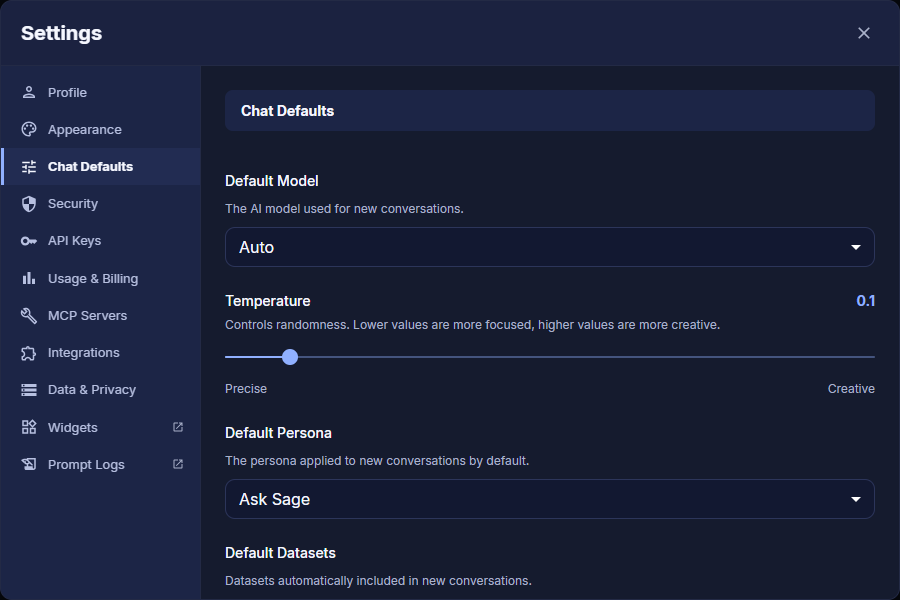
Default Model
The AI model used for new conversations. Select from all available models in the dropdown
Temperature
Controls randomness. Slide toward Precise for focused outputs or Creative for more varied responses
Security
The Security tab lets you register additional authentication methods to protect your account. Three options are available:
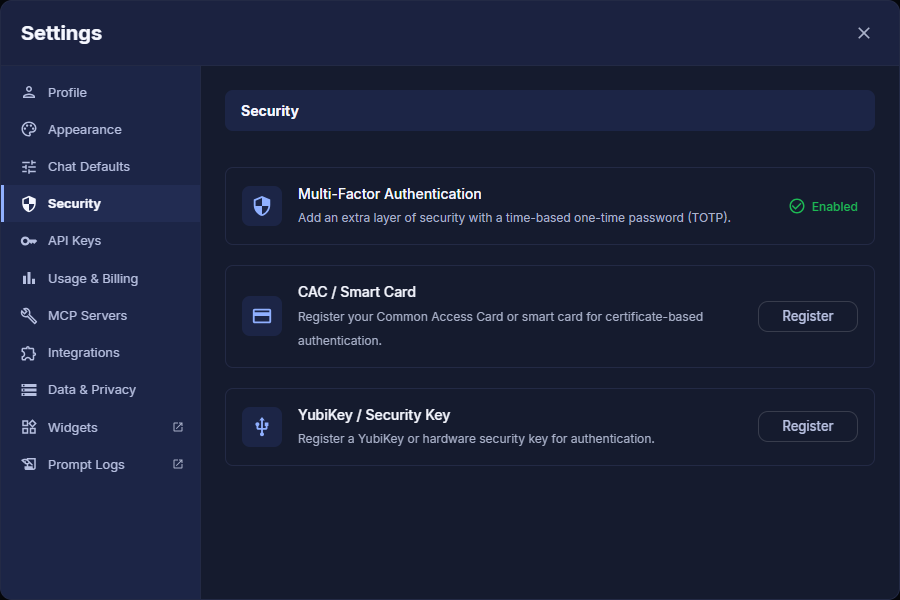
Authenticator app
Add an extra layer of security with a one-time code from any authenticator app that shows a 6-digit code (TOTP). Click Set up authenticator app and scan the QR code
When MFA Is Required
MFA can be required for your organization or for your entire Ask Sage deployment. If it is required and you haven't set it up yet, you're taken to the MFA setup page the next time you sign in, with the message "Your organization requires multi-factor authentication. Set it up to continue using Ask Sage." Choose how to set it up, then continue as usual:
- Authenticator app — scan the QR code with any authenticator app that shows a 6-digit code, then enter the code.
- Security key or passkey — use a YubiKey or other security key, or a passkey on this device. Your browser may ask for the key's PIN or your fingerprint.
- CAC / PIV card — where your deployment supports it, choose your card's certificate and enter its PIN.
- Until MFA is set up, you can't use the rest of Ask Sage, and your sign-in session can only be used to set up MFA.
- If you sign in with single sign-on (SSO) or a CAC / smart card, you aren't affected.
- You can add more sign-in methods later on the Security tab. When you sign in, you'll see an option for each method you've set up.
- Where your deployment requires periodic password changes, you're asked to update your password after completing MFA sign-in when a change is due.
mfa_enrollment_required organization policy through the organization policy API, or contact support@asksage.ai. API Keys
Generate and manage API keys for authenticating with the Ask Sage API. Under Create a new key, enter a name in the Enter API key name... field, choose its Access (keep Full access or pick one or more scopes), and click + Create Key to generate a new key.
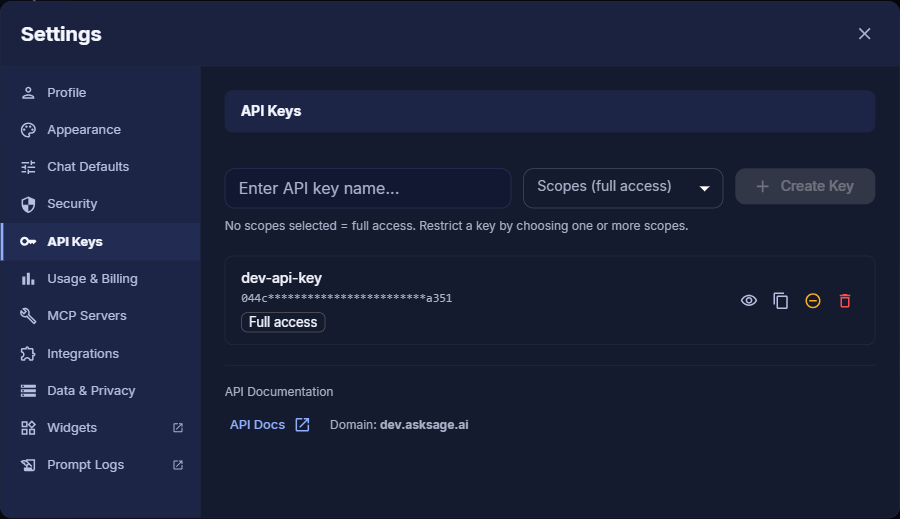
Each key in the list shows a masked value, the scopes it can use, and four action icons:
- Show — Reveal the full key value
- Copy — Copy the key to clipboard
- Revoke — Disable the key without deleting it
- Delete — Permanently remove the key
API Key Scopes
By default, Full access is selected and a new key can call every Ask Sage API. To limit what a key can do, select one or more scope chips under Access before creating it — the key will only be able to call endpoints covered by the selected scopes.
| Scope | Grants access to |
|---|---|
query | Core chat and completion endpoints, such as /query and /query_with_file |
mcp | MCP server management endpoints, such as adding, listing, and removing MCP servers |
passthrough | Ask Sage's OpenAI/Anthropic-compatible passthrough proxy, used when configuring Ask Sage as a custom model provider in third-party tools |
agent_builder | Triggering Agent Builder workflows programmatically via POST /execute-agent |
Inactive Keys Are Retired Automatically
To keep unused credentials from lingering, Ask Sage retires API keys that are no longer in use:
- Unused for 30 days: a key that hasn't been used for 30 days is revoked. Only using that key resets its 30 days; signing in to Ask Sage does not.
- Accounts deactivated for inactivity: if your account is deactivated after a period of inactivity, all of its keys are revoked. Re-enabling the account doesn't restore them, so create new keys.
- Reminders: you get an email 7 days and 1 day before a key is revoked, and a notice when it happens.
- Account activity: using an API key counts as activity on your account, so an account used only through the API isn't deactivated for inactivity.
A revoked key stays in your list marked as revoked and can't be used again. Create a new key to replace it. If you exchange a key for an access token (/get-token-with-api-key), a revoked, expired, or unknown key returns "API key has been revoked or expired."
Usage & Billing
The Usage & Billing tab shows your current subscription plan, token reset date, and real-time token consumption with progress bars for each token type.
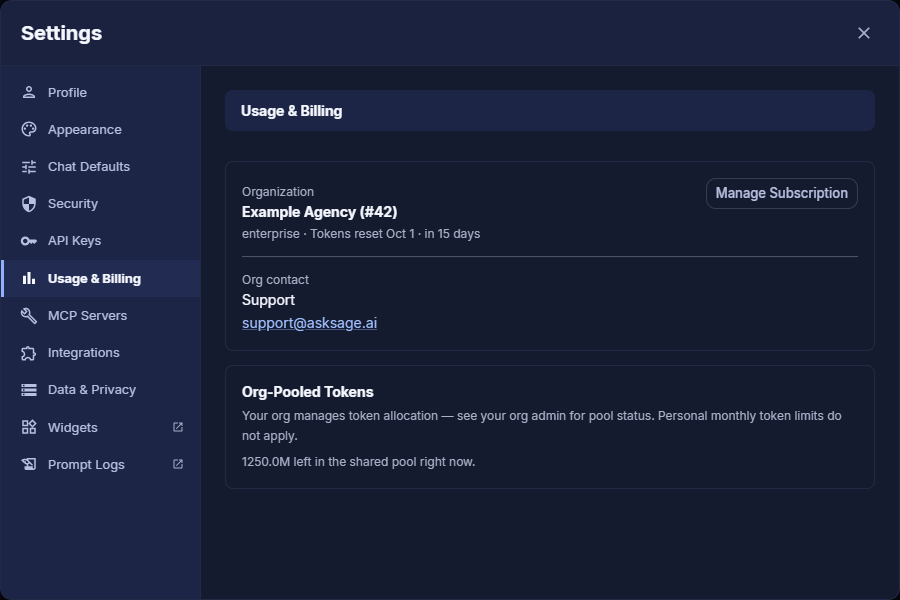
Current Plan
Displays your active subscription (e.g., enterprise) and the next token reset date. Click Manage Subscription to update your plan
Approaching Your Token Limit
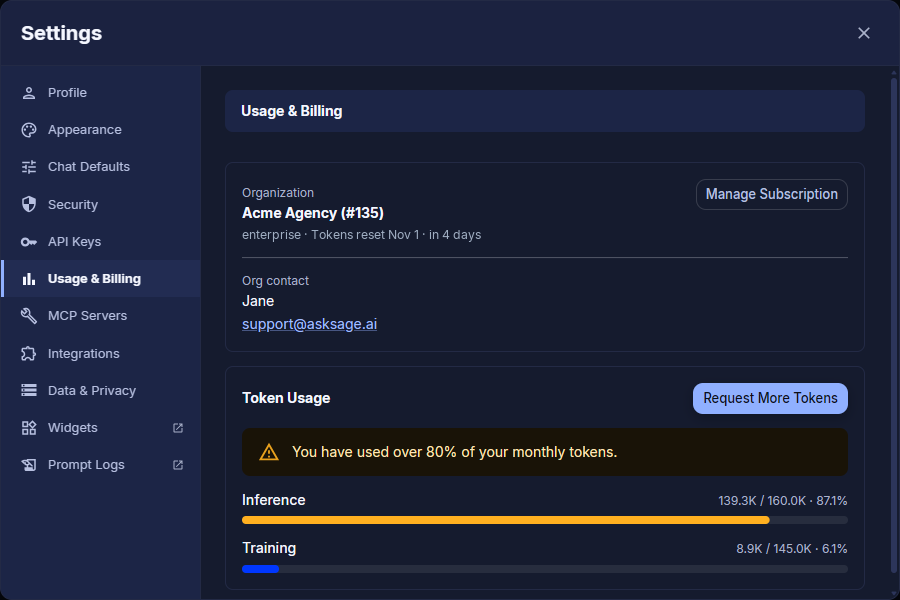
Your organization may set a per-user monthly cap so no single person uses up the shared pool. When you pass 80% of your cap, Token Usage shows a warning and the progress bar turns amber. Click Request More Tokens to ask for more.
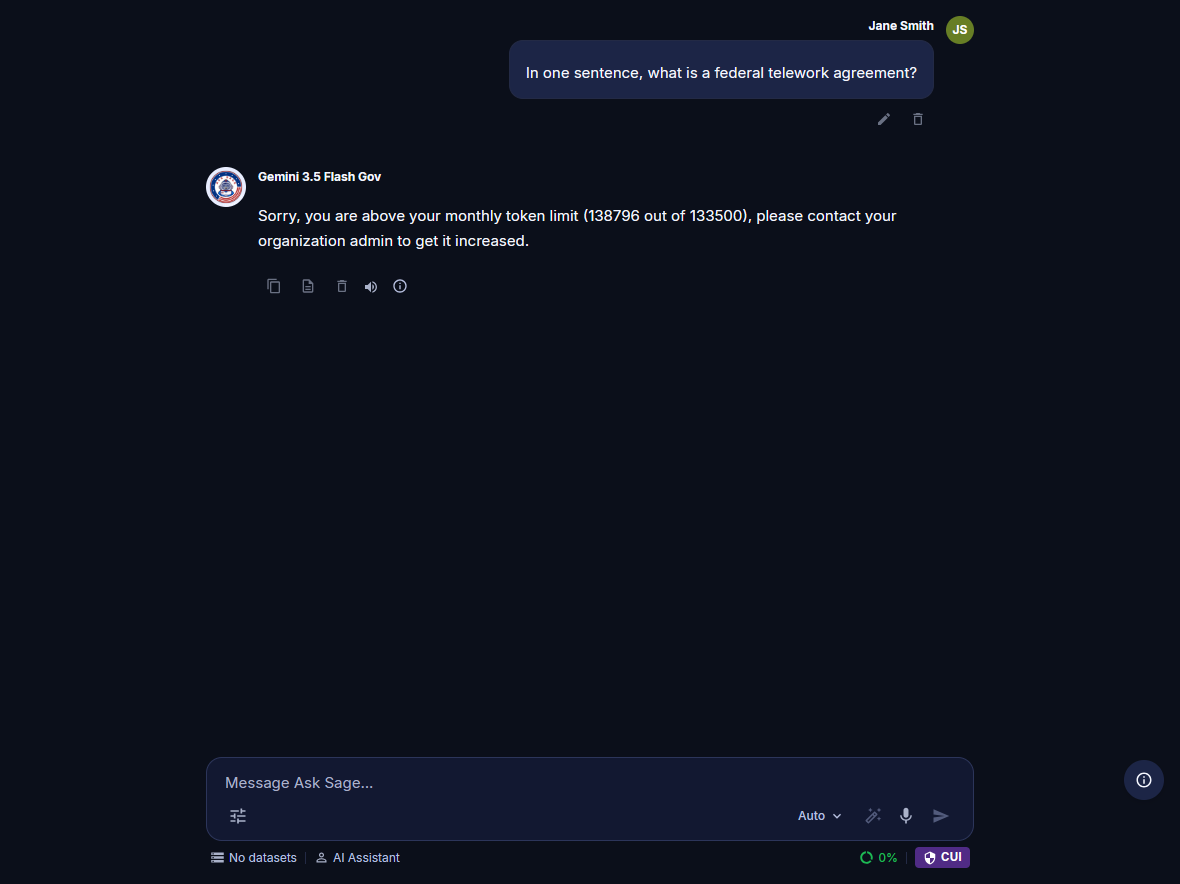
Once you reach the cap, new prompts are blocked. The chat replies that you are above your monthly token limit, and a notice at the bottom of the screen asks you to have an administrator raise your cap. Your organization's pool may still have tokens left.
MCP Servers
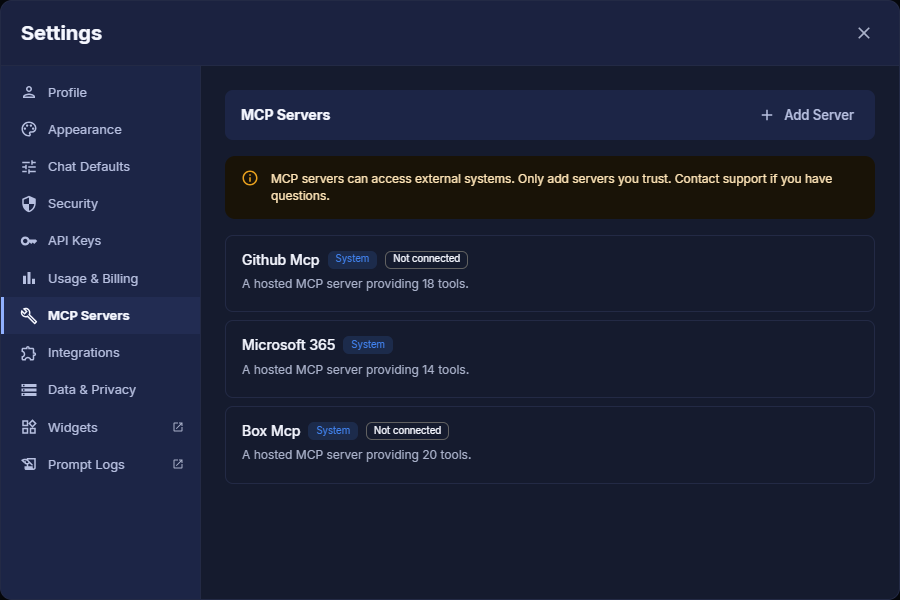
The MCP Servers tab is where you add and manage Model Context Protocol servers that extend the AI with external tools and data sources. Click + Add Server to configure a new MCP connection.
Integrations
Connect external accounts to access files and services directly within Ask Sage. Click Connect next to an integration to authorize it, or Disconnect to revoke it. The connectors listed depend on what your tenant has enabled: GitHub and Microsoft are standard, while Google and Box appear only when your administrator has turned them on.
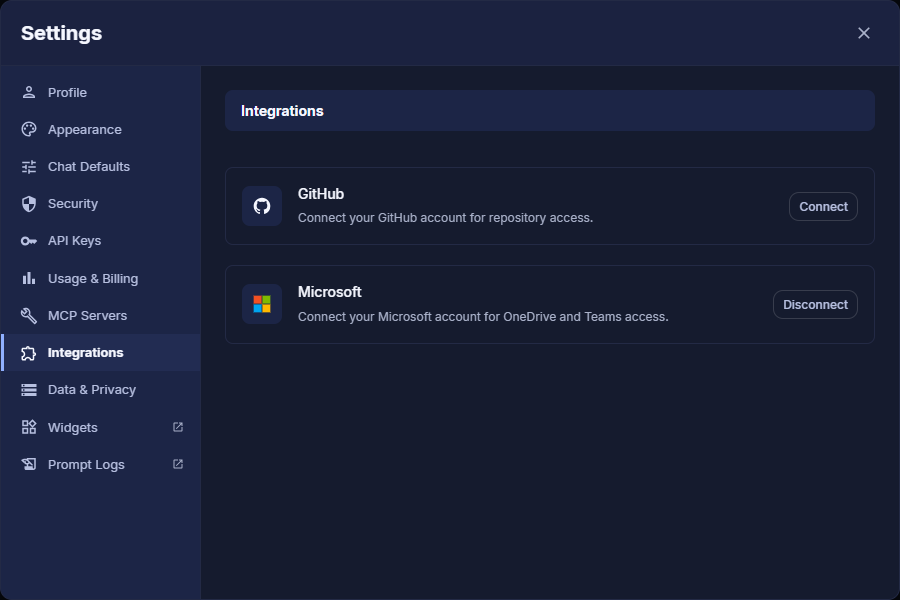
GitHub, Microsoft 365, and Box connections power the hosted MCP tools described under Model Context Protocol.
Data & Privacy
Recent Logins
A log of your recent login activity, showing the Date & Time, Status (Success or failure), and a Comment column for each login event. Use this to monitor for unexpected access to your account.
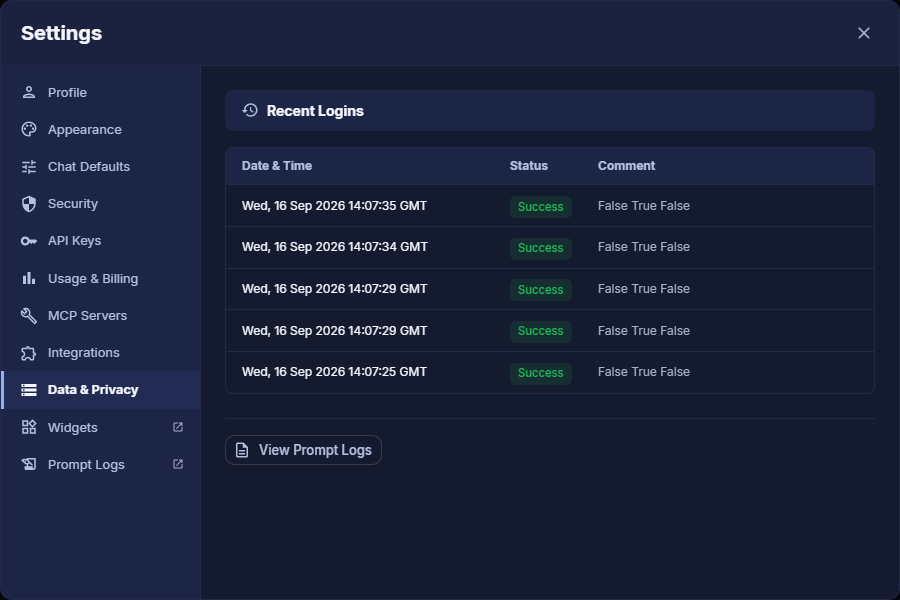
A View Prompt Logs button at the bottom of the panel links to your prompt/response log history (see Prompt Logs below).
Widgets
Prompt Logs
You now have a complete overview of the Ask Sage Settings panel — from personalizing your profile and appearance, to securing your account, managing API keys, monitoring token usage, and connecting external integrations.