Microsoft 365 MCP
Connect and manage your Microsoft 365 data — calendar, mail, OneDrive, SharePoint — directly from Ask Sage.
Table of Contents
Prerequisites
- Account type: Enterprise account with a minimum of 10M monthly tokens, or a dedicated Ask Sage tenant/instance.
- Activation: Contact your administrator to request hosted MCP access through Ask Sage support at support@asksage.ai.
After we work with you or your administrator to enable the integration, you'll receive confirmation and users can follow the setup steps below.
Connecting Your Microsoft Account
- Open Settings → Integrations: Click your user profile in the bottom-left corner, choose Settings, then select the Integrations tab.
- Connect Microsoft: Click Connect next to Microsoft.
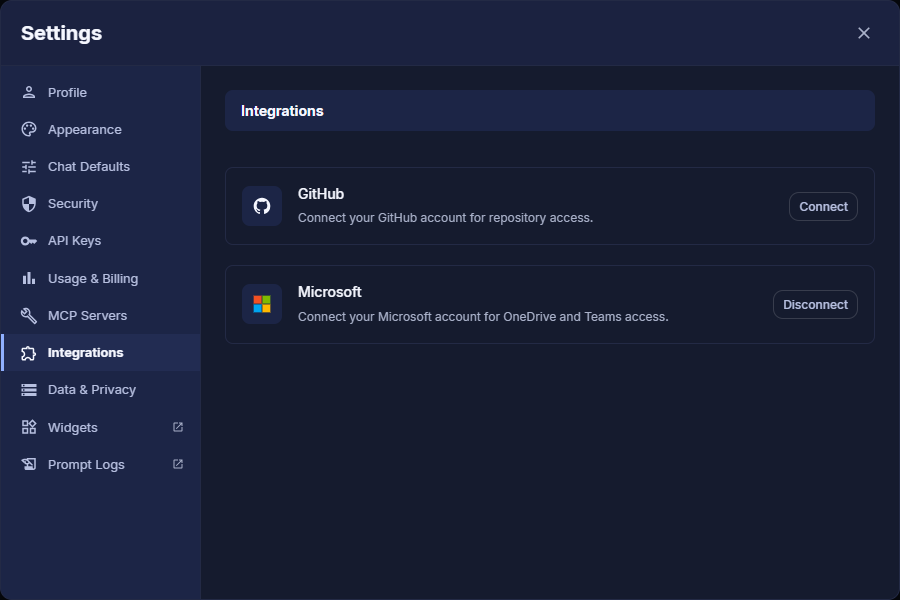
Settings → Integrations
- Authenticate: A Microsoft login window will open. Sign in with your Microsoft 365 credentials.
- Verify the connection: You are returned to Ask Sage and the Microsoft entry now shows Disconnect, confirming you're connected. The MCP Servers tab in Settings also lists Microsoft 365 as a hosted system server.
Activating and Using the Microsoft 365 Tool
Once your account is connected, enable the tool in the chat interface to start using it.
- Open the Tools menu: In the chat window, click the sliders icon at the left of the prompt box to open the Tools menu, then open MCP Tools.
- Enable Microsoft 365: Find Microsoft 365 in the list and click its toggle. The switch turns blue when active and the entry shows how many of its tools are enabled.
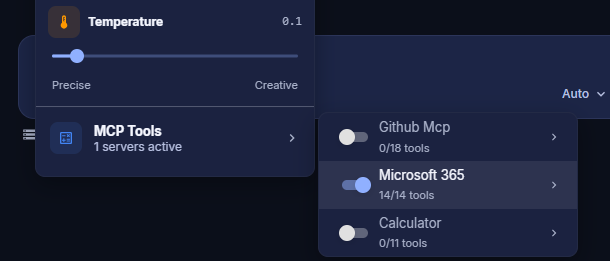
Tool Configuration
- Select a compatible model: Use a model that supports tool integration (MCP). Filter for these by selecting the MCP tag on the model selection screen. Models like GPT-Auto are designed to use these tools automatically.
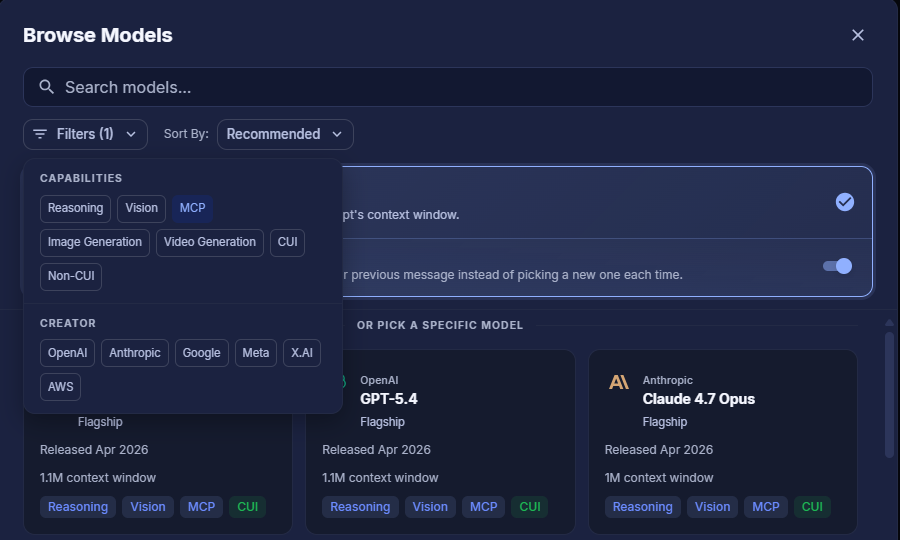
Model Selection with MCP Filter
Making a Request
You can now ask questions or give commands related to your Microsoft 365 data.
- Make a request: Type a natural-language command into the chat. For example:
- "What is on my calendar for tomorrow?"
- "Find the sales report from last quarter in my OneDrive."
- "Send an email to 'jane.doe@example.com' with the subject 'Project Update'."
- Approve tool usage: For security, Ask Sage prompts you before accessing your data. A Tool Approval Required card appears showing the exact tool and its parameters. Review and click Approve (or Deny).
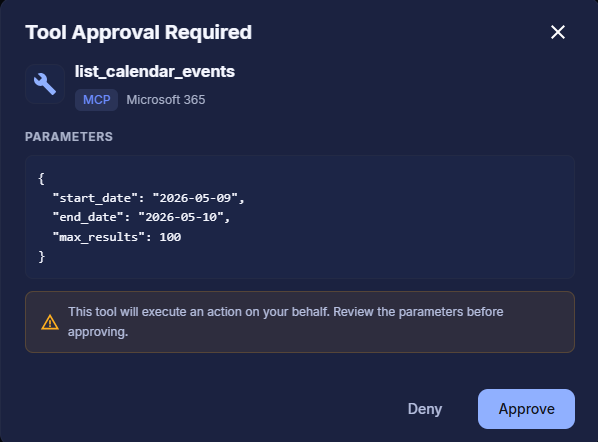
Tool Approval Required
Once approved, Ask Sage executes the task and returns the requested information or confirms the action completed.
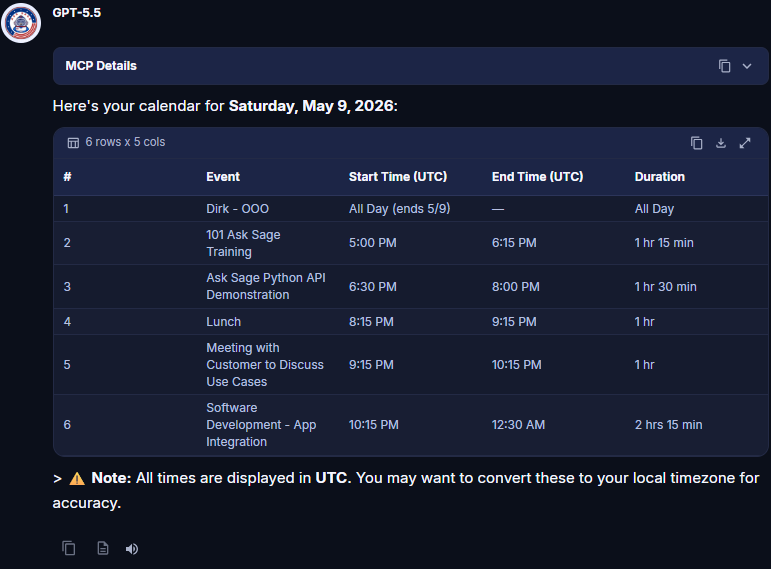
Tool Execution Result
Available Functions
The Microsoft 365 tool exposes 14 functions across Calendar, Email, and Files (OneDrive / SharePoint), grouped below. Optional arguments are shown in italics.
Calendar
| Function | Arguments | Description |
|---|---|---|
list_calendar_events | start_date, end_date (max_results, target_user_email) | List events from a calendar within a date range. |
create_calendar_event | subject, start_time, end_time (attendees, location, body, is_online_meeting) | Create an event with attendees, location, and optional online meeting. |
update_calendar_event | event_id (subject, start_time, end_time, attendees, location, body) | Update an existing event's properties. |
delete_calendar_event | event_id (send_cancellation) | Delete an event; sends cancellation first for meetings with attendees. |
cancel_calendar_event | event_id (comment) | Cancel a meeting and send cancellation notices to attendees. |
search_calendar_events | query (date_from, date_to, max_results) | Search events via the Microsoft Search API (KQL). |
get_calendar_availability | start_time, end_time (interval_minutes) | Get free/busy schedule with a configurable interval. |
| Function | Arguments | Description |
|---|---|---|
search_emails | query (from_address, date_from, date_to, has_attachments, importance, max_results) | Search emails via the Microsoft Search API (KQL). |
list_emails | (folder, max_results, unread_only) | List emails from a mail folder, with an unread-only filter. |
send_email | to_recipients, subject, body (cc_recipients, bcc_recipients, importance) | Send an email with TO/CC/BCC recipients and importance level. |
Files (OneDrive / SharePoint)
| Function | Arguments | Description |
|---|---|---|
list_items | (path, site_id, drive_id, folder_id, max_results) | List files and folders by path, folder ID, or root across OneDrive and SharePoint. |
search_files | query (file_types, location, max_results) | Search files across OneDrive and SharePoint (KQL). |
ms_get_file_content | item_id (site_id, drive_id, encoding) | Download file content (text decoded, binary returned as base64). |
get_item_metadata | item_id (site_id, drive_id) | Get detailed metadata including sharing info and SharePoint IDs. |