Claude Cowork Integration
Bring Ask Sage's AI models into the Claude Desktop app with Anthropic's Cowork
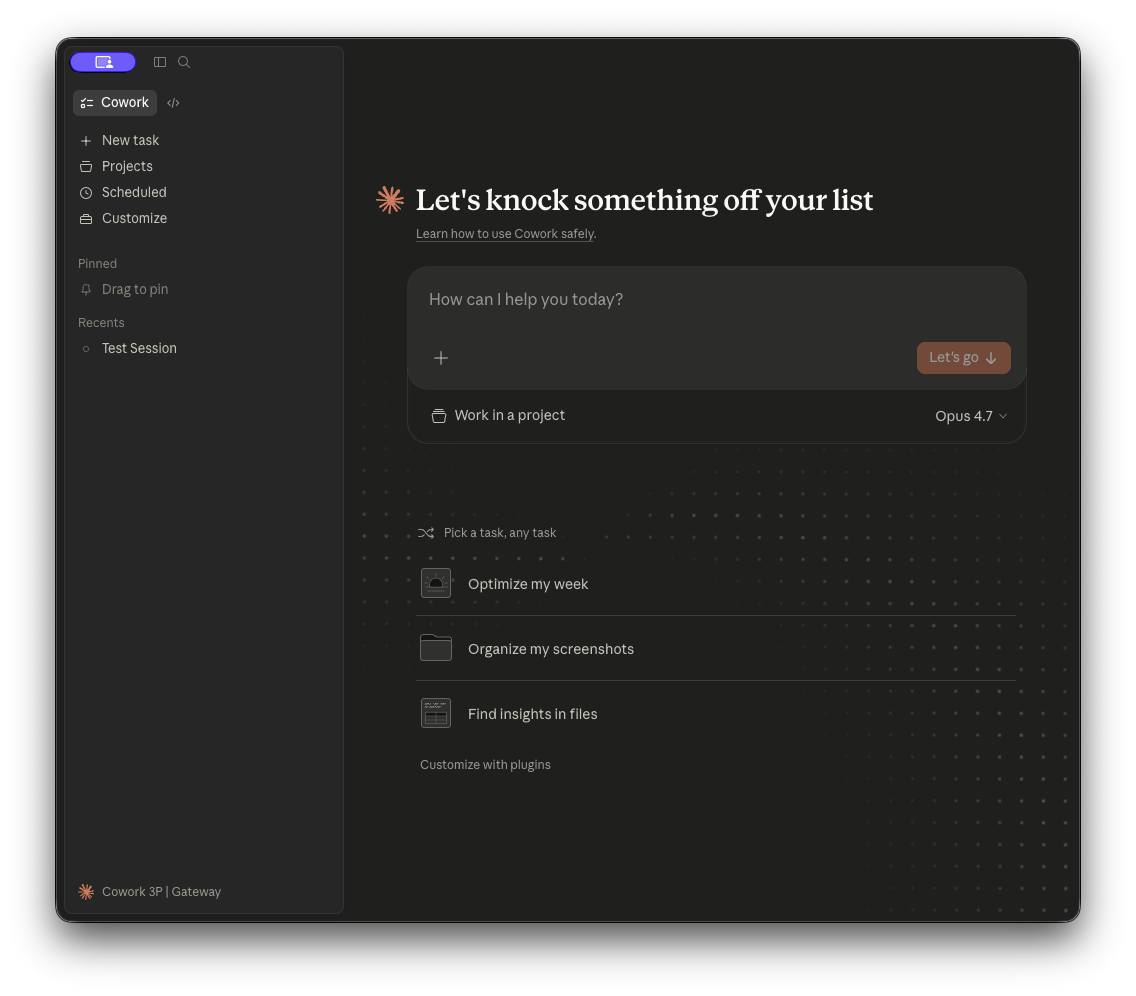
About Claude Cowork on 3P
Run Anthropic's Cowork desktop app against Ask Sage as your inference provider — full Cowork agentic workspace, with all model routing handled by Ask Sage's gateway.
Cowork on third-party (3P) is a deployment mode of the Claude Desktop app (Cowork and Code tabs) that routes all model inference through a provider you configure instead of Anthropic's first-party API. Conversation history is stored locally on the user's device, and the agent runs against the LLM gateway of your choice — including Ask Sage.
You get the same agentic Cowork experience (file creation, multi-step research, sub-agent coordination, the Code tab) with inference and billing handled by Ask Sage. This page walks you through pointing Cowork at Ask Sage as a Gateway provider, signing in with your normal Ask Sage account instead of an API key, picking the model (including Claude Opus 5 with the 1M-token context window), and locking down all telemetry to Anthropic so that — apart from a one-time downloads.claude.ai fetch at session start — the only outbound traffic is to your Ask Sage endpoint.
Table of Contents
Instance-Specific Base URL: The endpoints and configuration shown reflect the instance at chat.asksage.ai. The api. prefix and path suffix stay the same across deployments — only the instance segment in the middle changes based on which Ask Sage instance you are logging into. Always use the instance approved by your organization and applicable regulatory requirements, and match the base URL in your configuration to the instance you authenticate against.
Prerequisites
Before you begin, ensure you have the following:
3P Mode Available
Your Claude Desktop build must support Cowork on 3P (see installation)
Quick Start
The fastest path to a working setup uses Claude Desktop's built-in configuration window — no hand-editing of plist or registry files required.
Open Claude Desktop and go to Developer → Configure third-party inference.
The Developer menu is hidden by default. Enable it from Help → Troubleshooting → Enable Developer Mode, then it will appear in the menu bar.
Choose Gateway as the inference provider.
Set the gateway base URL to https://api.asksage.ai/server/anthropic (no trailing slash).
Set the credential kind to interactive and leave the API key field empty. This is the recommended path — see Sign in with Ask Sage.
Prefer a static key? Paste your Ask Sage API key instead and set the auth scheme to bearer. Do not set both.
(Recommended) Apply the telemetry-disable settings below before saving.
Click Apply Changes, then Save & Restart. Choose Sign in with your organization and complete the short-code prompt. The model picker will then auto-discover available models from https://api.asksage.ai/server/anthropic/v1/models.
POST /v1/messages) plus a model-list endpoint (GET /v1/models) — exactly what Cowork on 3P's Gateway provider expects. No need for a separate LiteLLM/Portkey proxy in front of Ask Sage; you can point Cowork directly at us. Sign in with Ask Sage (recommended)
Ask Sage is an OAuth 2.0 / OpenID Connect authorization server. When Claude Desktop is configured for interactive credentials, it discovers that automatically and runs a standard RFC 8628 device authorization sign-in. The user authenticates with whatever their tenant already enforces — password + MFA, SAML SSO, or CAC — and Ask Sage issues short-lived tokens directly to the app.
- No key on the endpoint. Nothing to paste, leak, or rotate out of a registry hive or plist.
- Real user identity. Every request is attributed to the signed-in user, so existing per-user token accounting, model gating, and revocation all apply unchanged.
- Your existing controls. Tenant SAML, MFA, and CAC are enforced by the normal Ask Sage login page — Claude Desktop never sees the credential.
- Deprovisioning works. Disabling the user in Ask Sage kills the session; a static API key would keep working.
The three settings that enable it
| Setting | Value |
|---|---|
inferenceProvider | gateway |
inferenceGatewayBaseUrl | https://api.asksage.ai/server/anthropic |
inferenceCredentialKind | interactive |
inferenceGatewayOidc is load-bearing. Leaving it unset is what selects gateway-hosted mode, where Ask Sage itself is the authorization server. Setting it switches to a completely different mode in which sign-in is delegated to a third-party IdP (Entra, Okta) and Ask Sage only validates the resulting token. If you are following this page, leave it out — and also clear inferenceGatewayApiKey, or the app may keep using the stale key. What the user sees
Open Claude Desktop and choose Sign in with your organization.
A short code appears (for example 8LFX-RMMD) and the browser opens to the Ask Sage device-approval page.
They log in to Ask Sage as normal — SSO, MFA, or CAC as configured for the tenant — and confirm the code matches.
They click Approve. The app picks up its tokens within about five seconds.
The whole flow takes roughly 30 seconds. Both Claude Desktop's own tabs and the Claude Code sessions it launches use the resulting token, so the embedded Code tab needs no separate credential.
Confirm your instance supports it
Interactive sign-in requires an Ask Sage instance running the authorization server. Check discovery before you roll anything out:
curl https://api.asksage.ai/server/anthropic/.well-known/oauth-authorization-serverYou should get a JSON document whose issuer is your gateway base URL — https://api.asksage.ai/server/anthropic, i.e. the value you set for inferenceGatewayBaseUrl, without the /.well-known/… suffix you requested — and whose grant_types_supported includes urn:ietf:params:oauth:grant-type:device_code. A 404 means the instance predates the feature; use an API key until it is upgraded. An issuer pointing at a different host (a chat. host, say) is a server-side misconfiguration — raise it with your Ask Sage administrator rather than working around it on the endpoint.
HKLM\SOFTWARE\Policies\Claude on Windows, a managed preferences profile on macOS), the in-app Configure Third-Party Inference form becomes read-only — which is the desired end state for a managed fleet. On Windows, machine policy also causes user policy under HKCU to be ignored entirely. Configuration
Cowork on 3P is configured entirely through OS-native managed preferences. You can manage them via MDM (recommended for fleets) or by hand in a per-user config file (good for evaluation on your own machine).
macOS (MDM):        /Library/Managed Preferences/<user>/com.anthropic.claudefordesktop.plist
macOS (per-user):   ~/Library/Application Support/Claude-3p/configLibrary/

Windows (MDM):      HKLM\SOFTWARE\Policies\Claude   (machine)  or  HKCU\SOFTWARE\Policies\Claude   (user)
Windows (per-user): %LOCALAPPDATA%\Claude-3p\configLibrary\

Linux (managed):    /etc/claude-desktop/managed-settings.json
Linux (per-user): ~/.config/Claude-3p/configLibrary/- When an MDM source sets any key other than the app-behavior keys (update, relaunch-window, config-recheck and network-proxy settings), the managed configuration owns the device: locally authored values in
configLibrary/are ignored and the in-app configuration window becomes read-only. - Configuration is read at launch — fully quit and reopen the app after any change.
- Write every value as a string — including booleans (
"true"/"false") and arrays or objects (JSON encoded into a single string). That form is accepted on every platform, which is why the examples on this page use it. Two platform exceptions are worth knowing: on macOS a native<array>or<dict>is also accepted and read as the equivalent JSON, and on Linux the config file is real JSON so native arrays, objects and booleans are the normal form. On Windows, arrays and objects must be aREG_SZcontaining JSON, though booleans and integers may beREG_DWORD.
Required keys (Ask Sage / Gateway provider)
| Setting | Value | Why |
|---|---|---|
inferenceProvider | gateway | Selects the Gateway backend — what Ask Sage is, in Cowork's terms. |
inferenceGatewayBaseUrl | https://api.asksage.ai/server/anthropic | Ask Sage's Anthropic-compatible endpoint. Must be HTTPS. Use the equivalent for your Ask Sage instance (e.g. https://api.dev.asksage.ai/server/anthropic for dev). |
inferenceCredentialKind | interactive | Recommended. Selects interactive SSO sign-in. Omit this (and supply a key below) only if you specifically want static-key auth. |
inferenceGatewayOidc | (leave unset) | Must be absent for interactive sign-in against Ask Sage. Its presence delegates authentication to a third-party IdP instead. |
inferenceGatewayApiKey | your Ask Sage user API key | API-key mode only. Authenticates the request to Ask Sage. Generate this in your Ask Sage account. Leave empty when using interactive. |
inferenceGatewayAuthScheme | bearer | API-key mode only. Ask Sage keys do not start with sk-, so Cowork's auto scheme would default to Authorization: Bearer — which happens to be correct. Setting bearer explicitly avoids any ambiguity. |
deploymentOrganizationUuid | optional — a UUID you generate | Not required. Its only function is attributing essential telemetry to your organization so Anthropic support can find issues you report. If you disable essential telemetry (recommended below), it does nothing. Set it once per organization if you are leaving telemetry on. |
disableDeploymentModeChooser | true | Skips the sign-in mode chooser at first launch and boots directly into 3P mode. Stops users from accidentally signing into a personal Anthropic account. |
Models — picker and 1M context window
Cowork on 3P automatically discovers available Ask Sage models by calling GET /server/anthropic/v1/models against your gateway base URL. You do not need to configure inferenceModels just to populate the picker — it fills in automatically.
You only need to set inferenceModels when you want to:
- Restrict the picker to a curated subset of the available models
- Pick which model is the default (the first entry wins)
- Surface a 1M-token context window variant of a model that supports it
The model IDs Cowork expects are the public, Anthropic-style IDs that GET /server/anthropic/v1/models returns — not Ask Sage's internal model names. The current set is:
| Model ID | Display name | 1M context |
|---|---|---|
claude-opus-5 | Claude Opus 5 | Yes |
claude-opus-4-8 | Claude Opus 4.8 | Yes |
claude-opus-4-7 | Claude Opus 4.7 | Yes |
claude-opus-4-6 | Claude Opus 4.6 | Yes |
claude-sonnet-5 | Claude Sonnet 5 | No |
claude-sonnet-4-6 | Claude Sonnet 4.6 | Yes |
claude-opus-4-5 | Claude Opus 4.5 | No |
claude-sonnet-4-5 | Claude Sonnet 4.5 | Yes |
claude-fable-5-1 | Claude Fable 5.1 | Yes |
claude-sonnet-4-5-vertex | Claude Sonnet 4.5 (Vertex) | Yes |
claude-haiku-4-5 | Claude Haiku 4.5 | No |
/v1/models response as authoritative for your environment, not this table. Enabling Opus 5 with 1M context
Add an inferenceModels entry with supports1m: true to surface the 1M context variant in the picker. Order this first if you want it as the default.
[
  { "name": "claude-opus-5", "supports1m": true },
  { "name": "claude-opus-4-8", "supports1m": true },
  { "name": "claude-sonnet-4-6", "supports1m": true },
  { "name": "claude-sonnet-5" },
  { "name": "claude-haiku-4-5" }
]supports1m: This is a capability assertion you make about your deployment — Cowork does not probe Ask Sage to verify it. Only set supports1m: true on models that actually support it. Ask Sage enforces this server-side too: the context-1m-2025-08-07 beta header is stripped for any model not on the 1M allowlist, so asserting it on, say, claude-sonnet-5 or claude-haiku-4-5 does not silently grant a larger window — the session fails once the conversation grows past that model's real limit. The models where it is valid are marked Yes in the table above. inferenceModels is a single string containing the JSON above — in a .mobileconfig, <string>[...]</string> with the entire JSON inside. macOS also accepts a native <array> of <dict> entries and reads it as the same JSON, and on Linux native JSON is the normal form. On Windows this is not optional: the value must be a REG_SZ containing JSON. Disabling all telemetry to Anthropic
By default, Cowork on 3P sends a small amount of operational telemetry to Anthropic-operated hosts (crash reports, product analytics, favicon fetches, auto-update checks). For Ask Sage deployments — particularly in regulated or air-gapped environments — you'll typically want to disable all of it, so that the only outbound traffic from the device is to your Ask Sage endpoint.
Set all four of the following keys to true. With these set, the desktop application makes no outbound connections to Anthropic-operated hosts at runtime.
| Setting | Value | What it blocks |
|---|---|---|
disableEssentialTelemetry | true | Crash reports, error stack traces, performance timings (Sentry, Datadog). |
disableNonessentialTelemetry | true | Product-usage analytics: feature adoption, session counts, UI interactions. |
disableNonessentialServices | true | Favicon fetches and the third-party iframe used for artifact previews. UI degrades cosmetically (generic icons, static previews) but functionality is unaffected. |
disableAutoUpdates | true | Update checks and downloads from Anthropic. Your IT team becomes responsible for distributing new builds. |
disableEssentialTelemetry (setting it to true) opts you into a manual support model. Anthropic will have zero remote visibility into failures on your fleet, so to get help with an issue your team will need to collect application logs from affected machines and send them to Anthropic directly. We recommend leaving disableEssentialTelemetry: false during initial rollout, then turning it on after the deployment is stable. Optional: send your own telemetry to your collector
Independently of what's sent to Anthropic, you can export full session activity (prompts, tool calls, token counts, errors) to your own OpenTelemetry collector. This is the recommended way to retain an audit trail in environments that disable Anthropic-bound telemetry.
| Setting | Value | Description |
|---|---|---|
otlpEndpoint | e.g. https://otel.your-org.com | Base URL of your OTLP collector. The endpoint host is automatically added to the sandbox network allowlist. |
otlpProtocol | http/protobuf (default), http/json, or grpc | Wire format used by your collector. |
otlpHeaders | e.g. x-api-key=...,x-org=asksage | Comma-separated key=value pairs sent on every OTLP request (standard OTEL_EXPORTER_OTLP_HEADERS format). |
Recommended security profile (Ask Sage)
This profile is a starting point for regulated or sensitive deployments. It disables every optional Anthropic-bound connection, leaving outbound traffic to Ask Sage (model inference), your OTLP collector (audit/telemetry), and one required Anthropic host.
downloads.claude.ai, which serves the VM workspace bundle and the Claude CLI binary at session start — without it, Cowork sessions cannot start at all. The only way to remove that dependency is the offline installer, which builds both components into the package. Plan your firewall allowlist around this before telling a security team the deployment talks only to Ask Sage. {
"inferenceProvider": "gateway",
"inferenceGatewayBaseUrl": "https://api.asksage.ai/server/anthropic",
"inferenceCredentialKind": "interactive",
"disableDeploymentModeChooser": "true",
"inferenceModels": "[{\"name\":\"claude-opus-5\",\"supports1m\":true},{\"name\":\"claude-opus-4-8\",\"supports1m\":true},{\"name\":\"claude-sonnet-4-6\",\"supports1m\":true},{\"name\":\"claude-sonnet-5\"},{\"name\":\"claude-haiku-4-5\"}]",
"disableEssentialTelemetry": "true",
"disableNonessentialTelemetry": "true",
"disableNonessentialServices": "true",
"disableAutoUpdates": "true",
"isLocalDevMcpEnabled": "false",
"isDesktopExtensionEnabled": "false",
"isDesktopExtensionDirectoryEnabled": "false",
"disabledBuiltinTools": "[\"WebSearch\",\"WebFetch\"]",
"skipWebFetchPreflight": "true",
"coworkEgressAllowedHosts": "[]",
"allowedWorkspaceFolders": "[\"~/Documents/AskSage\"]",
"otlpEndpoint": "https://otel.your-org.com"
}.mobileconfig, .reg, ADMX template, or Profile Manifest for your MDM — see Fleet rollout via MDM. All values are written as strings, including booleans and JSON arrays. The Developer menu is hidden by default — enable it from Help → Troubleshooting → Enable Developer Mode. inferenceCredentialKind and add "inferenceGatewayApiKey": "your-asksage-api-key-here" plus "inferenceGatewayAuthScheme": "bearer". Everything else in the profile is unchanged. Note the migration is not symmetric: if you later switch a fleet to interactive, clear the old inferenceGatewayApiKey value explicitly — leaving it behind can keep endpoints on the key. REG_SZ for strings and REG_DWORD for booleans and integers. REG_EXPAND_SZ, REG_QWORD, REG_MULTI_SZ and REG_BINARY are silently ignored — no error, the policy simply does nothing. Object- and array-valued settings such as inferenceModels and allowedWorkspaceFolders are a single REG_SZ containing compact JSON, never nested subkeys. downloads.claude.ai— VM workspace bundle and Claude CLI binary, fetched at session start. Without this, Cowork sessions cannot start.api.asksage.ai(or your Ask Sage instance host) — model inference, and the device-approval redirectorchat.asksage.ai(or your instance's web host) — required for interactive sign-in. The device-approval URL is issued on the API origin and then redirects the user's browser here to authenticate and approve. Omit this and the sign-in this page recommends cannot complete.- Your identity provider's hosts — required if the tenant uses SAML SSO, since the browser is redirected there to authenticate (for example
login.microsoftonline.comfor Entra ID). Not needed for local password + MFA. - Host of
otlpEndpoint— your OTLP collector (only if you set it)
The last two apply to the user's browser rather than to Claude Desktop itself, so if browsing egresses through a different path than the app, allowlist them there.
Allowlist these on your perimeter firewall on HTTPS port 443. Everything else can be denied. With the offline installer,downloads.claude.ai drops off too, leaving your Ask Sage host as the only required egress. Why
skipWebFetchPreflight is in the profile: without it, Claude Code inside Code sessions checks every fetched domain against api.anthropic.com, which puts an Anthropic host back on your egress list. Disabling WebFetch outright (as above) has the same effect; the key is set as belt-and-braces. Verification
After saving the configuration and restarting Claude Desktop, run the following checks.
1. Confirm the model list endpoint is reachable
curl -s https://api.asksage.ai/server/anthropic/v1/models | jqYou should see a JSON response with a data array containing claude-opus-5, claude-opus-4-8, claude-sonnet-5, etc. If you get a 404, you're hitting an Ask Sage instance that hasn't been updated with the model-list endpoint yet — let support know.
2. Confirm interactive sign-in is available
Only needed if you configured inferenceCredentialKind: interactive:
curl -s https://api.asksage.ai/server/anthropic/.well-known/oauth-authorization-server | jqThe issuer must equal your gateway base URL (https://api.asksage.ai/server/anthropic) — not the /.well-known/… URL you requested — and grant_types_supported must include urn:ietf:params:oauth:grant-type:device_code. This endpoint needs no authentication.
3. Test an API key, if you are using one
Skip this if you configured interactive sign-in — there is no key to test. The only way to verify a key is to make a real inference call:
curl -s -X POST https://api.asksage.ai/server/anthropic/v1/messages \
  -H "Content-Type: application/json" \
  -H "x-api-key: $ASKSAGE_API_KEY" \
  -d '{"model":"claude-opus-5","max_tokens":16,
"messages":[{"role":"user","content":"reply with OK"}]}'{"response":"Token is invalid [1]","status":400}. Read the body: a success contains the model's reply, a failure contains that error. This is also why a bad key surfaces in clients as a vague streaming error rather than an obvious 401. Passing the key via $ASKSAGE_API_KEY rather than typing it inline keeps it out of your shell history.
4. Confirm Cowork picks up your models
Open Claude Desktop and click the model picker in the Cowork tab. You should see the models from the /v1/models response. If you set inferenceModels with supports1m: true on Opus 5, you'll see a separate Opus 5 (1M context) entry.
5. Confirm no traffic is leaving to Anthropic hosts
Run a packet capture or check your firewall logs for connections to *.sentry.io, browser-intake-us5-datadoghq.com, a-cdn.anthropic.com, a-api.anthropic.com, api.anthropic.com, or www.claudeusercontent.com. With the locked-down profile applied, the only Anthropic-domain traffic should be the one-time downloads.claude.ai fetch at session start.
Deploying to a fleet (Windows, macOS, Linux)
Claude Desktop on 3P is officially supported on Windows, macOS, and Linux. Cowork itself has hardware requirements beyond the app:
| Requirement | Windows | macOS |
|---|---|---|
| Operating system | Windows 10 build 19041 (2004) or later, including Windows 11 | macOS 14 (Sonoma) or later |
| CPU architecture | x64 or Arm64 | Apple silicon or Intel (x64) |
| Installer | .msix | .dmg |
.msix package. Fleets provisioned with the legacy .exe installer get Claude Desktop without Cowork. Migrating them to .msix enables it. Cowork also requires working hardware virtualization. Where configuration lives
| Platform | Source | Path | Precedence |
|---|---|---|---|
| Windows | Machine policy | HKLM\SOFTWARE\Policies\Claude | Highest |
| User policy | HKCU\SOFTWARE\Policies\Claude | ||
| Local (user) | %LOCALAPPDATA%\Claude-3p\configLibrary\ | Lowest | |
| macOS | Managed (per-user) | /Library/Managed Preferences/<user>/com.anthropic.claudefordesktop.plist | Highest |
| Managed (machine) | /Library/Managed Preferences/com.anthropic.claudefordesktop.plist | ||
| Local (user) | ~/Library/Application Support/Claude-3p/configLibrary/ | Lowest | |
| Linux | Managed | /etc/claude-desktop/managed-settings.json | Highest |
| Local (user) | ~/.config/Claude-3p/configLibrary/ | Lowest |
- Values must sit directly under the key. The app never reads values nested in a subkey — which is how some ADMX-based and Policy CSP tooling writes them. Those values do not apply and do not count as machine policy being present.
- The hives do not merge. When any value is present directly under
HKLM\SOFTWARE\Policies\Claude— including an empty string — the app ignoresHKCUentirely. Deploy the complete configuration to one hive;HKLMis recommended. - Use
REG_SZ(REG_DWORDis also accepted for boolean and integer keys). AvoidREG_EXPAND_SZ: the app counts it as machine policy being present but cannot read its contents, so a single one underHKLMdisables user policy while supplying no configuration.REG_QWORD,REG_MULTI_SZandREG_BINARYare invisible to the app. - Object- and array-valued keys such as
inferenceModelsmust be a singleREG_SZcontaining compact JSON — never nested subkeys. (On macOS a native<array>/<dict>is also accepted; on Windows it is not.)
HKLM and HKCU must consolidate into one hive before updating. Single-machine setup (pilot or evaluation)
There is no need to hand-edit a config file. Use the in-app window:
Install Claude Desktop from claude.com/download.
Launch the app. Do not sign in or create an Anthropic account. From the macOS menu bar — or on Windows the application menu ☰ in the top-left of the login screen — go to Help → Troubleshooting → Enable Developer Mode, then Developer → Configure Third-Party Inference…
In the Connection section, choose Gateway, set the base URL to https://api.asksage.ai/server/anthropic, and set the credential kind to interactive.
Work through Workspace, Telemetry & updates, and the other sections to match the recommended security profile.
Click Apply Changes, confirm, then Save & Restart. The app relaunches and the sign-in screen offers the 3P option.
Choose Sign in with your organization and complete the device-code sign-in.
Fleet rollout via MDM
Configuration reaches devices one of three ways: the Enterprise Admin Console (Anthropic-hosted), an MDM profile, or a bootstrap server you operate. For most Ask Sage customers — especially regulated ones that do not want devices depending on a sign-in to Anthropic — the MDM profile path is the right choice.
Build and validate the configuration on an admin workstation as above, then click Export and choose the format your tooling expects:
| Format | Platform | Deploy with |
|---|---|---|
.reg | Windows | Group Policy, Intune (custom ADMX or script), any MDM that can write registry policy |
.zip (ADMX template) | Windows | Schema-only template — enter values in Intune or Group Policy directly |
.mobileconfig | macOS | Jamf, Kandji, Mosyle, Workspace ONE, any Apple MDM |
.plist (Profile Manifest) | macOS | Schema-only template for Jamf, ProfileCreator, and similar |
HKCU — which the app ignores whenever HKLM has any value. To vary configuration per user group on Windows, deliver every profile through user policy and keep HKLM\SOFTWARE\Policies\Claude empty, or use a bootstrap server. Air-gapped and offline installs
Standard installs fetch the VM workspace bundle and the Claude CLI binary from downloads.claude.ai at session start — without it, Cowork sessions cannot start. For networks that cannot reach it, Anthropic publishes an offline installer with both components built in and checksum-verified. These packages are several gigabytes larger.
| Platform | Format | URL |
|---|---|---|
| Windows (x64) | .msix | https://claude.ai/api/desktop/win32/x64/offline/latest/redirect |
| Windows (Arm) | .msix | https://claude.ai/api/desktop/win32/arm64/offline/latest/redirect |
| macOS (Apple silicon) | .dmg | https://claude.ai/api/desktop/darwin/arm64/offline/latest/redirect |
| macOS (Intel) | .dmg | https://claude.ai/api/desktop/darwin/x64/offline/latest/redirect |
Pair the offline installer with disableAutoUpdates — an air-gapped app cannot reach the update feed, and you update the fleet by distributing each new offline installer through your MDM. With the offline installer and telemetry disabled, your Ask Sage endpoint is the only required egress.
Endpoint security software (EDR / binary authorization)
If you run Santa, CrowdStrike Falcon, Microsoft Defender ASR, or AppLocker with path-based deny rules, the Cowork agent helper may be blocked. The symptom is specific: Claude Desktop opens normally and reads the managed configuration, but Cowork sessions fail to start.
Allowlist by signing identity rather than path, so the rule survives version updates:
| Platform | Helper path | Signature |
|---|---|---|
| macOS | ~/Library/Application Support/Claude-3p/claude-code/<version>/claude.app/Contents/MacOS/claude | Team ID Q6L2SF6YDW (Anthropic PBC), signing ID com.anthropic.claude-code |
| Windows | %LOCALAPPDATA%\Claude-3p\claude-code\<version>\claude.exe | Authenticode publisher Anthropic, PBC |
Verifying a deployed device
On any configured device, go to Help → Troubleshooting → Generate Diagnostic Report and click Export to file. Three files in the resulting .zip answer almost every deployment question:
| File | Tells you |
|---|---|
managed-config.txt | Where the configuration was read from and every key the app actually applied, with secrets redacted. Anything it could not parse is listed under Parse errors. |
provider-status.txt | Whether the provider settings are complete and valid. |
deployment-mode.txt | Whether the app is running in third-party mode at all. |
The report contains configuration state, application logs, and environment details — not user data or conversation content.
HKLM\SOFTWARE\Policies\Claude counts as machine policy and locks the window, so read managed-config.txt instead. If the app shows the standard claude.ai sign-in screen instead of Cowork, the configuration was not read. Check the application log:
| Platform | Log path |
|---|---|
| Windows | %LOCALAPPDATA%\Claude-3p\Logs\main.log |
| macOS | ~/Library/Logs/Claude-3p/main.log |
Troubleshooting
Start with the diagnostic report — managed-config.txt answers most of these directly by showing exactly which keys the app read.
Model picker is empty
Means Cowork couldn't reach GET /server/anthropic/v1/models on your Ask Sage instance. Check:
inferenceGatewayBaseUrlis correct (no trailing slash) and uses HTTPS- The credential is valid — an expired interactive session or a revoked API key both return 401. Sign out and back in, or re-issue the key.
- In API-key mode, that
inferenceGatewayAuthSchemematches how you issued the key. Ask Sage's Anthropic passthrough accepts bothbearerandx-api-key; the failure mode is a mismatch, not a specific value. - Your Ask Sage instance actually serves
/v1/models— check with the curl from Verification above. A 404 means the instance needs upgrading.
Sign-in fails: gateway SSO device init failed
The instance is not serving the OAuth discovery document, or is serving a bad one. Run the discovery curl. An HTTP 404 means the instance predates the authorization server — use an API key until it is upgraded. An HTTP 500 means the instance is running a build that predates the fix for unexpected Content-Type handling on the device endpoint.
verification_uri: must be same-origin as inferenceGatewayBaseUrl
Claude Desktop refuses to start the device flow unless the verification URI it is handed shares an origin with the gateway base URL. Ask Sage returns a redirector on the API origin for exactly this reason, so seeing this error means the server is advertising a chat. host instead. This is a server-side misconfiguration of the issuer URL — raise it with your Ask Sage administrator.
Opus 5 (1M) variant doesn't appear
The name field in inferenceModels must exactly match the ID returned by /v1/models. If discovery returns claude-opus-5 but you set supports1m on an alias like opus-5, the variant won't appear. Also confirm the model is one where 1M is actually supported — see the model table.
Configuration changes aren't taking effect
Configuration is read at launch. After any change, fully quit the app (not just close the window) and reopen it. On macOS that's ⌘+Q; on Windows, right-click the tray icon and choose Quit. Managed configuration is also re-read on a timer (configRecheckIntervalMinutes, default 10) and enforced after relaunchEnforcementHours (default 24) — so a pushed change reaches a running app eventually, but not instantly.
Claude Desktop opens fine but Cowork sessions never start
Two common causes. Either the device cannot reach downloads.claude.ai (required at session start unless you used the offline installer), or your EDR is blocking the agent helper — see Endpoint security software.
"Array key is invalid"
Most often this is a Windows registry value written as a multi-string, or an object written into nested subkeys. On Windows, inferenceModels and coworkEgressAllowedHosts must be a single REG_SZ containing JSON. On macOS both a JSON string and a native <array>/<dict> are valid, so if you see this error there, the JSON itself is malformed rather than the wrong container type.
macOS only — connection times out against a private address
If your Ask Sage instance is on a private address (an on-premises appliance, for example), macOS Local Network privacy blocks the app silently: the app reports net::ERR_CONNECTION_TIMED_OUT while curl from Terminal succeeds, because Terminal holds its own grant. Allow it under System Settings → Privacy & Security → Local Network → Claude, then quit and reopen the app — the permission is read at process start. This does not apply to a public gateway host.
Reference
- Anthropic — Claude Desktop on 3P overview
- Anthropic — configuration reference (every supported key)
- Anthropic — installation & setup (system requirements, readiness check, offline installers)
- Anthropic — deploy with MDM (profile export formats, registry precedence)
- Anthropic — in-app configuration window
- Anthropic — telemetry & egress
- Anthropic — Cowork monitoring (OpenTelemetry schema)
- Ask Sage — Anthropic API compatibility guide
- Ask Sage — Claude Code integration (related: terminal CLI vs. desktop app)