Token Funding
Pools, ceilings, dedicated purchases, and token requests for sub-organizations
Table of Contents
This page explains where the tokens of a member come from, which limits apply to a prompt, and how an administrator adds tokens. Read the first five sections before you change funding or approve a token request.
Token types
The system counts two types of tokens. The administrator screens and the member screens use different names for the second type.
| Token type | What uses it | Name in the administrator screens | Name in the member Settings |
|---|---|---|---|
| Inference | Prompts and responses | Inference | Inference |
| Embedding | Content that a user adds to a dataset | Embedding | Training |
Embedding and Training are the same token type. These pages use the name “embedding”.
The system counts use in calendar months, in UTC. On the first day of each month at 00:00 UTC, the monthly use starts again at zero. The member Settings show the reset date in the local time of the browser, so that date can be one day earlier or later.
The checks on a prompt
Before the system runs a prompt, it makes two checks:
- The monthly token limit of the user. Each user has a monthly inference limit and a separate monthly embedding limit. The capability role does not change these limits.
- The pool of the user. The pool must have inference tokens left this month.
If a check fails, the system refuses the prompt. See Messages that a blocked member sees.
The location of the user controls which pool the system checks:
| Location of the user | Pool |
|---|---|
| Organization level, not in a sub-organization | The organization pool |
| An Inherited sub-organization | The organization pool |
| A Capped sub-organization | The organization pool |
| A sub-organization with a dedicated pool | The dedicated pool of that sub-organization only |
The ceiling of a Capped sub-organization is not one of these checks. The ceiling controls how high administrators can set the monthly token limits.
Note: in standard billing, the system checks embedding use only against the monthly embedding limit of the user. It does not check the embedding tokens of the pool.
How the system calculates a pool
A pool is the total of its purchases. A purchase counts toward the pool only during its term. The term starts at the beginning of the start date and stops at the end of the expiration date.
To calculate the tokens left in a pool this month, the system adds the purchases in their term. Then it subtracts the tokens that the users of the pool used this month.
As a result, each purchase gives its full amount again in each calendar month of its term. A purchase is not one balance that decreases until the term ends.
For example, the organization has one purchase of 100,000,000 inference tokens. Its users use 30,000,000 inference tokens in October. On 1 November, the pool has 100,000,000 inference tokens again.
See the organization pool
- In the Super Admin sidebar, click Organizations.
- In the row of the organization, click the purchases button (the card icon). The Organization Purchases page opens in a new browser tab.
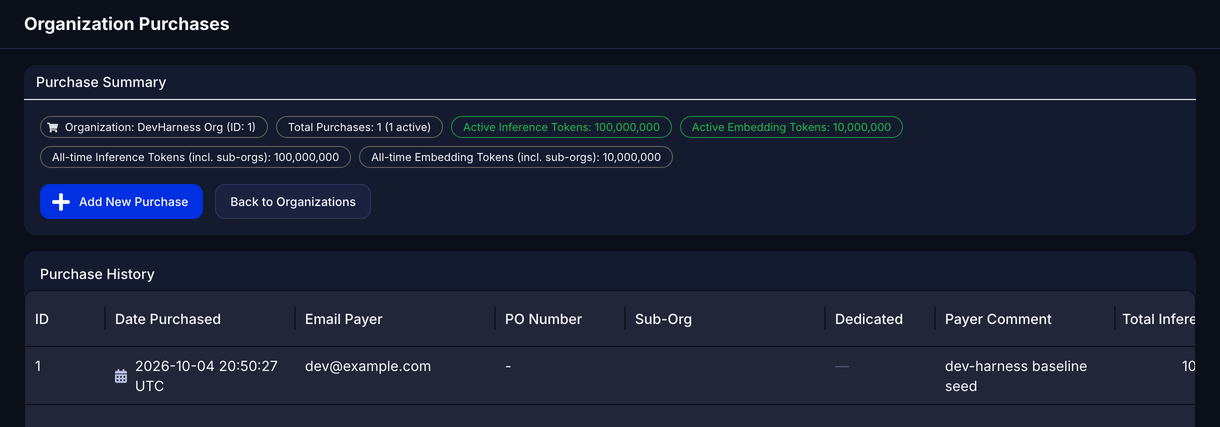
The Organization Purchases page
The Purchase Summary shows these values:
| Value | Meaning |
|---|---|
| Active Inference Tokens | The inference tokens of the organization pool. This value is the total of the purchases in their term. It does not include dedicated pools. |
| Active Embedding Tokens | The embedding tokens of the organization pool, calculated the same way. |
| Sub-Org Inference Tokens, Sub-Org Embedding Tokens | The tokens of all the dedicated pools. The page shows these values only when a dedicated purchase exists. |
| All-time Inference Tokens (incl. sub-orgs), All-time Embedding Tokens (incl. sub-orgs) | The total of all recorded purchases, including the dedicated purchases. |
These values are purchased tokens. The page does not subtract the tokens that users used this month.
What the ceiling of a Capped sub-organization does
The ceiling sets a maximum for the total of the monthly token limits that administrators can give. The ceiling does not stop a prompt. Only the monthly token limits and the organization pool can stop a prompt.
The system applies the inference ceiling in these conditions:
- An administrator approves a token request for a member.
- An administrator increases the monthly inference limit of a member.
- The system approves a request or increases a limit automatically.
- A user moves into the sub-organization.
The embedding ceiling applies only in condition 4.
To apply the ceiling, the system adds the monthly inference limits of all the users who use the organization pool. This total includes the users at the organization level and the members of every Inherited and Capped sub-organization. It is not only the total for the members of the Capped sub-organization. If the new total is more than the ceiling or the organization pool, the system refuses the change.
A ceiling of 0 blocks every increase of a monthly token limit. An empty ceiling field means no ceiling.
Approve or deny a token request shows a request that the system refuses because of the ceiling.
Dedicated pools
A dedicated pool gives a sub-organization its own tokens. Use a dedicated pool when a program pays for its own tokens, and other users must not use them.
The system applies these rules to a dedicated pool:
- Only a Superadmin or an Admin can record a dedicated purchase. A Sub-Org Admin cannot.
- The system adds the purchased tokens to the sub-organization. It does not take them from the organization pool. The organization pool does not change.
- The members of the sub-organization use only the dedicated pool. If the dedicated pool is empty, expired, or not started, the system blocks the members. The system does not use the organization pool instead.
- The first purchase changes the funding of the sub-organization to Dedicated pool. The system removes the ceilings of the sub-organization.
- A purchase does not change the monthly token limits of the members.
- You can edit a purchase. You cannot delete a purchase.
- While a purchase is in its term or has not started, you cannot change the funding to Inherited.
- After all the purchases expire, you can change the funding to Inherited. This change releases the dedicated pool permanently. To make a dedicated pool again, you must record a new purchase.
- While the sub-organization has a dedicated pool, you cannot delete it. An expired purchase also prevents the deletion. To delete the sub-organization, first release the pool (rule 8). See Conditions that prevent a deletion.
Record a dedicated purchase
Warning: before you record a dedicated purchase, make sure that the sub-organization needs its own pool. You cannot delete a purchase. Until every purchase expires, you cannot change the funding to Inherited. Until you change the funding to Inherited, you cannot delete the sub-organization.
- In the Sub-Organizations console, in the row of the sub-organization, click the Manage dedicated purchases button (the card icon).
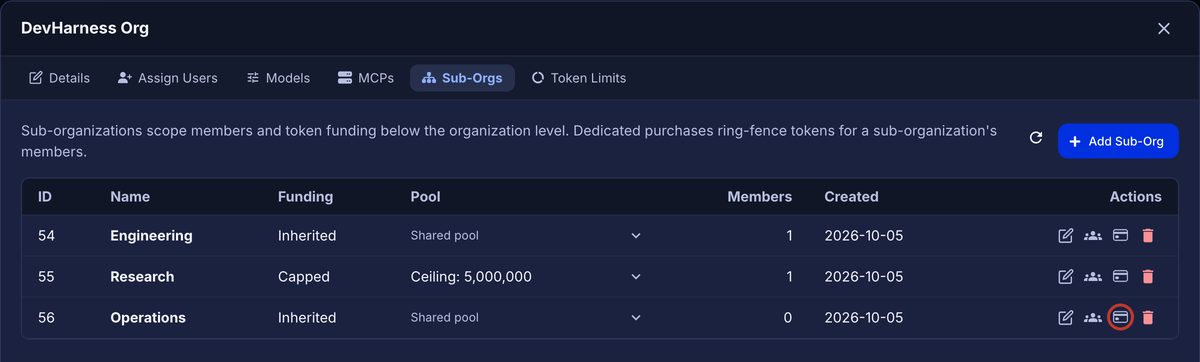
The Manage dedicated purchases button
The Dedicated Purchases dialog opens.
- Complete the fields. The table after this procedure gives the rules for each field.
- Click Add Purchase.
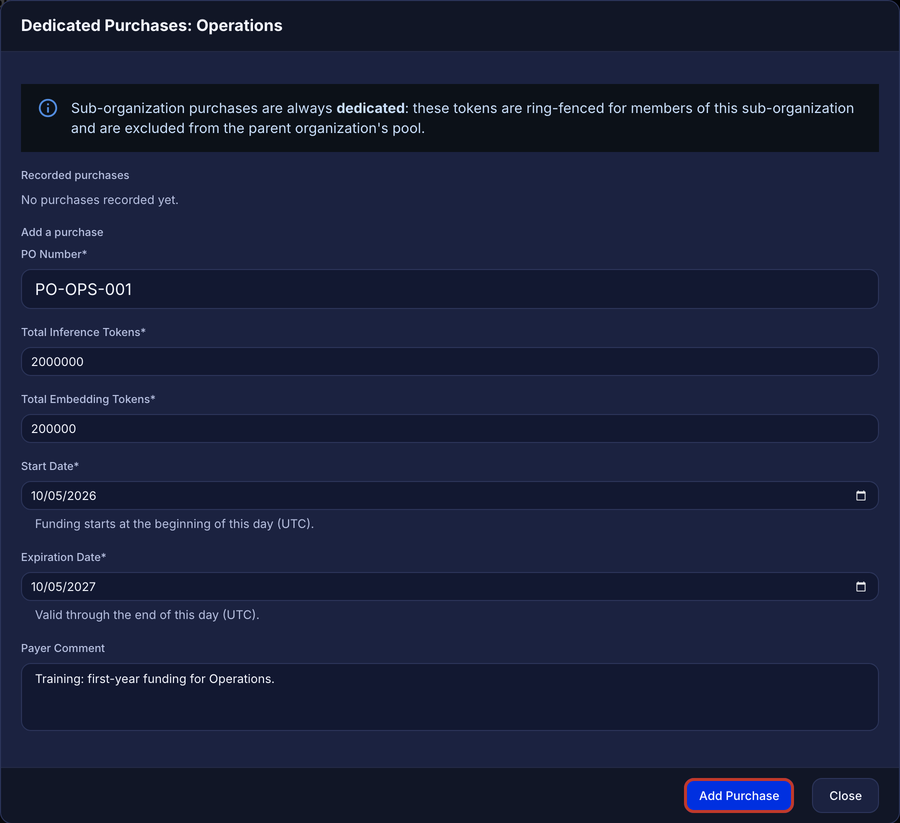
A completed purchase form
The dialog shows the message “Purchase added.” below the form. The Recorded purchases list shows the purchase.
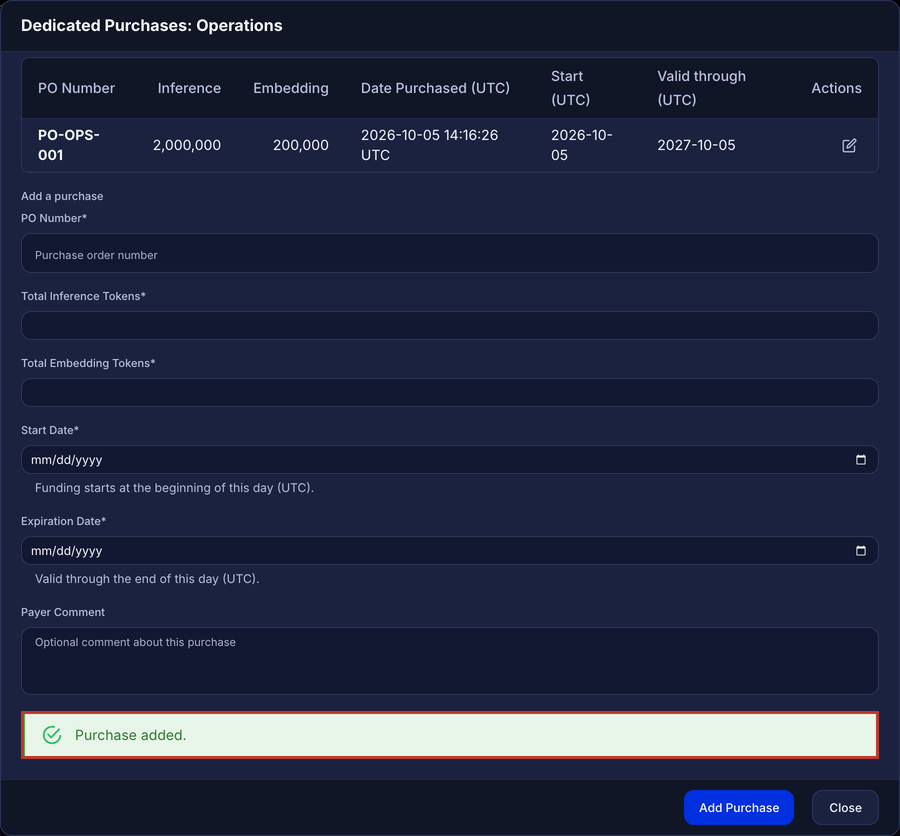
The dialog after the system adds the purchase
- Click Close.
| Field | Rule |
|---|---|
| PO Number | Required. The purchase order number, up to 255 characters. |
| Total Inference Tokens | Required. A whole number, 0 or more. |
| Total Embedding Tokens | Required. A whole number, 0 or more. |
| Start Date | Required. The funding starts at 00:00 UTC on this day. |
| Expiration Date | Required. The funding stays valid to the end of this day, in UTC. The date must be after the start date and in the future. |
| Payer Comment | Optional. Up to 2,000 characters. |
If a required field is empty, the system keeps the form open and shows a message, for example “PO Number is required.”
Edit a dedicated purchase
- In the Dedicated Purchases dialog, in the row of the purchase, click the edit button (the pencil icon). The form shows the values of the purchase.
- Change the values.
- Click Save Changes.
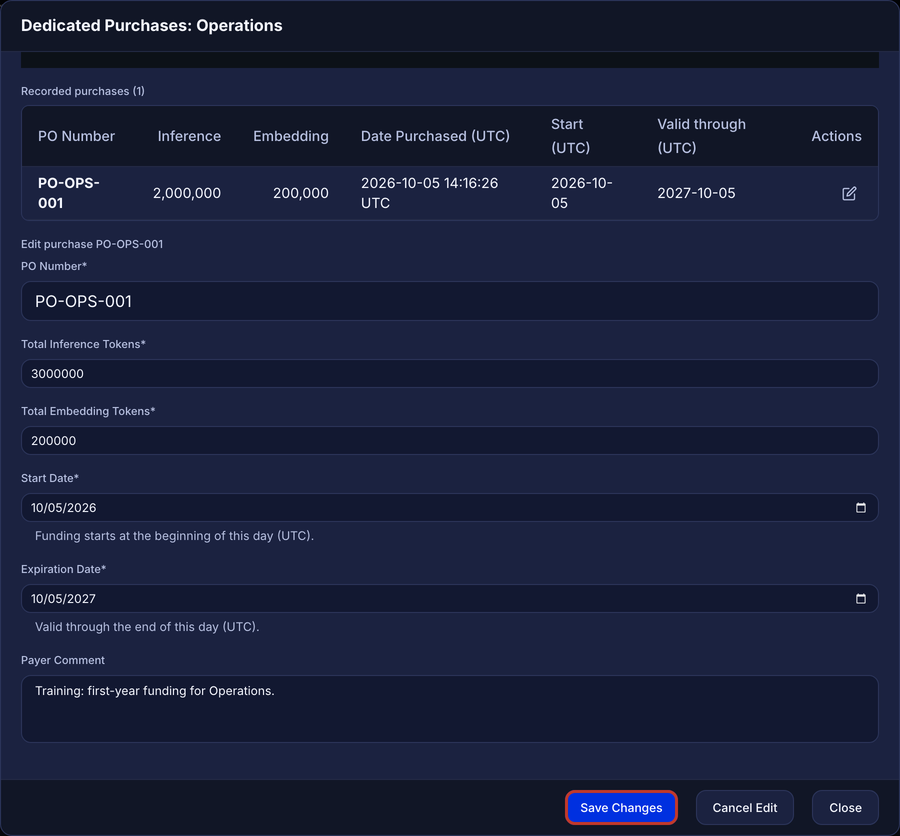
A purchase in edit mode
The dialog shows the message “Purchase updated.” To stop without a change, click Cancel Edit.
A decrease can make the pool less than the total of the monthly token limits of the members. In that condition, the system saves the change and shows a warning. The warning gives the number of tokens over the pool. The system does not decrease the monthly token limits.
Read a dedicated pool in the console
The Funding column shows Dedicated pool. The Pool column shows the inference and embedding tokens of the pool and its status.
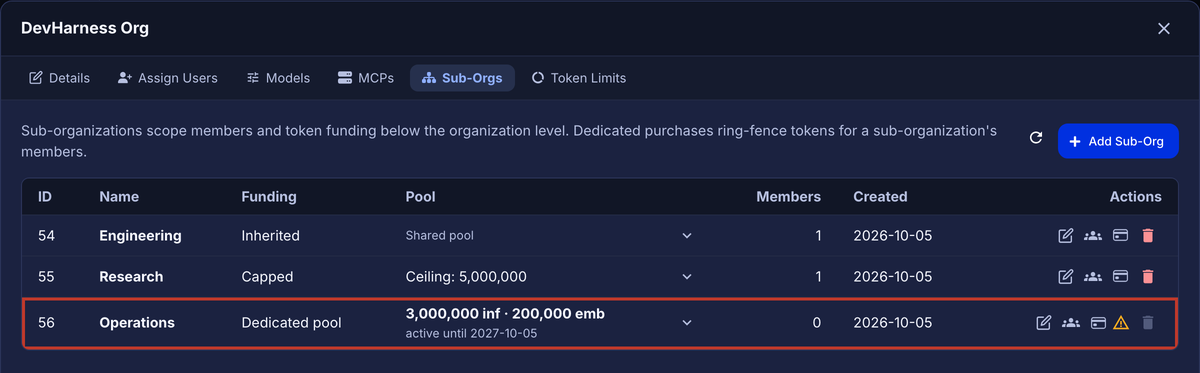
A sub-organization with a dedicated pool
To see the details, click the arrow in the Pool cell.
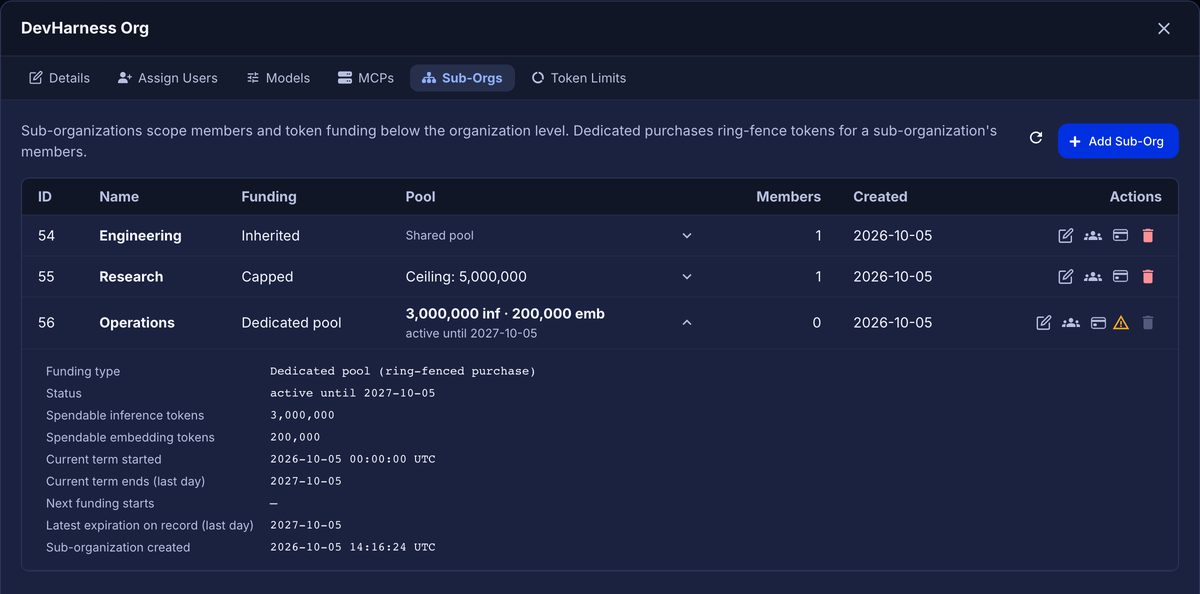
The funding details of a dedicated pool
| Status | Meaning |
|---|---|
| active until date | A purchase is in its term. Members can use the pool. |
| funding starts date | No purchase has started. The system blocks the members until that date. |
| funding lapsed date | All the purchases expired. The system blocks the members. |
| funding exhausted | The members used all the tokens for this month. The system blocks the members until the next month. |
The funding lock
The Edit Sub-Organization dialog shows the date when the funding lock ends.
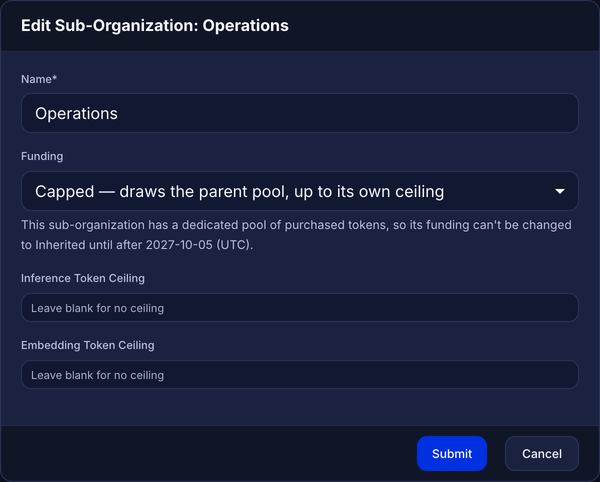
The funding lock in the Edit dialog
The Funding column of the console shows the funding type of the sub-organization.
See dedicated purchases at the organization level
The Organization Purchases page also shows the dedicated purchases. The Sub-Org column gives the name of the sub-organization, and the Dedicated column shows a Dedicated label.
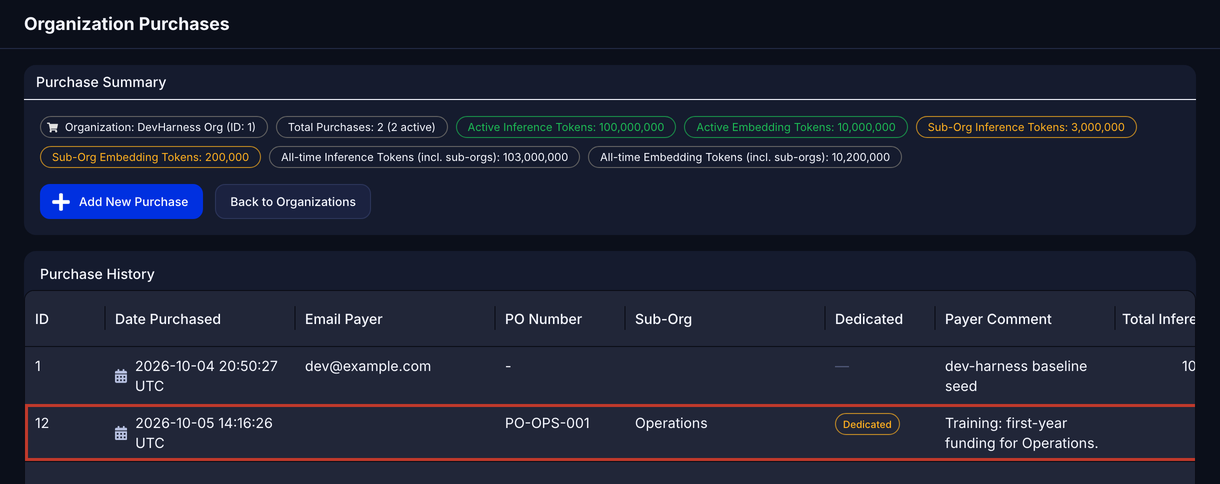
Dedicated purchases on the Organization Purchases page
Token requests
A member sends a token request to ask for a higher monthly inference limit. An administrator approves or denies the request. See also Token Requests.
Send a token request (member)
- In Ask Sage, click the user menu.
- Click Settings.
- Click Usage & Billing. The Token Usage card shows the inference and training use for this month.
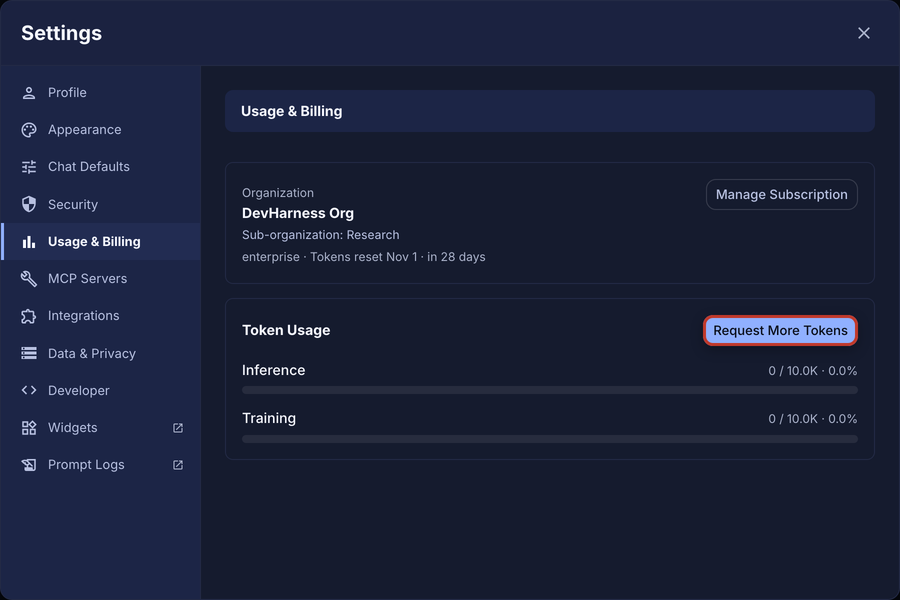
The Usage & Billing page of a member of a sub-organization
- Click Request More Tokens.
- In the Requested Amount field, type the number of additional tokens.
- In the Reason field, type the reason. The maximum is 500 characters.
- Click Submit Request.
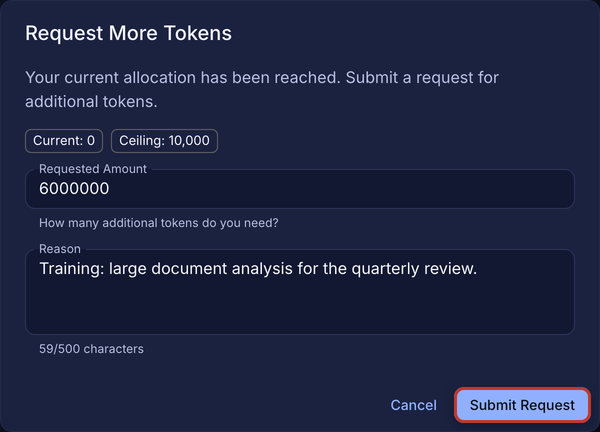
A completed token request
The dialog shows the message “Your request has been submitted for review.”
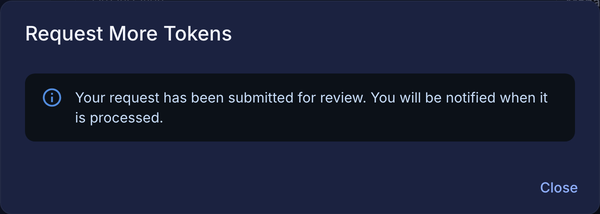
The result after the member sends the request
In the Request More Tokens dialog, Current is the number of inference tokens that the member used this month. Ceiling is the monthly inference limit of the member. This Ceiling is not the ceiling of a sub-organization.
The system applies these rules to token requests:
- A member can have one pending request at a time.
- After a denial, the member must wait one hour before the next request.
- If an automatic approval rule applies, the system approves the request immediately.
Approve or deny a token request
A Superadmin or an Admin of the organization can approve or deny a request. If the deployment enables User Manager access, a User Manager can also do it. A Sub-Org Admin can see the requests of the sub-organization, but cannot approve or deny them.
- In the sidebar, click Token Requests.
- If you are a Superadmin, in the Organization list, select the organization. The page shows no requests until you select an organization.
- Click Pending.
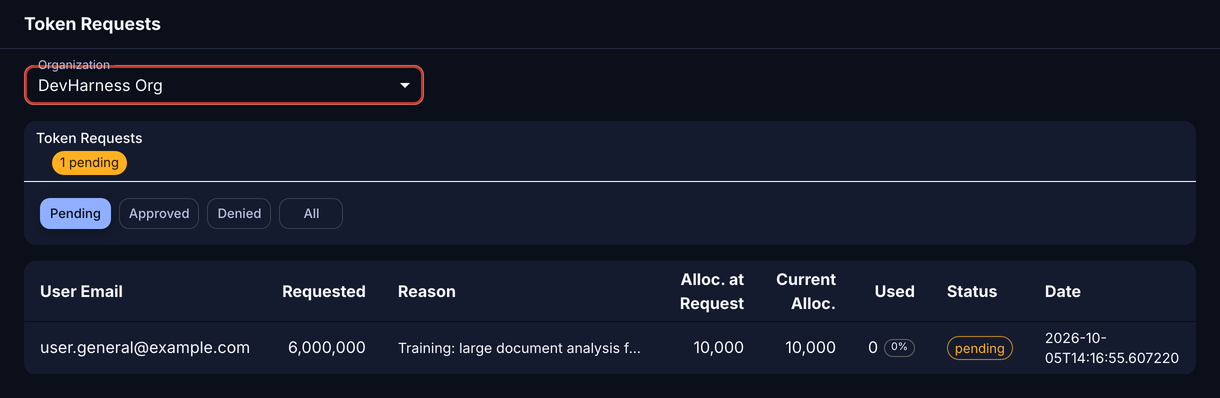
A pending token request
- In the row of the request, click Approve. The Approve Token Request dialog opens with the requested amount.
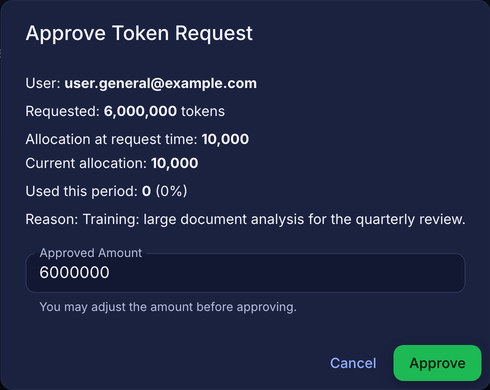
The Approve Token Request dialog
- Optional: in the Approved Amount field, change the amount.
- Click Approve.
The system adds the approved amount to the monthly inference limit of the member.
Before the system approves a request, it checks the new total of the monthly inference limits. The check depends on the location of the member:
| Location of the member | The new total must not be more than |
|---|---|
| Organization level | No limit. If the total is more than the organization pool, the system approves the request and shows a warning. |
| An Inherited sub-organization | The organization pool. |
| A Capped sub-organization | The organization pool or the inference ceiling, whichever is lower. |
| A sub-organization with a dedicated pool | The dedicated pool. |
If the check fails, the system shows the message “Approval would exceed the pool.” The request stays pending.
In this example, the member of Research asks for 6,000,000 tokens. The inference ceiling of Research is 5,000,000, so the system refuses the approval.
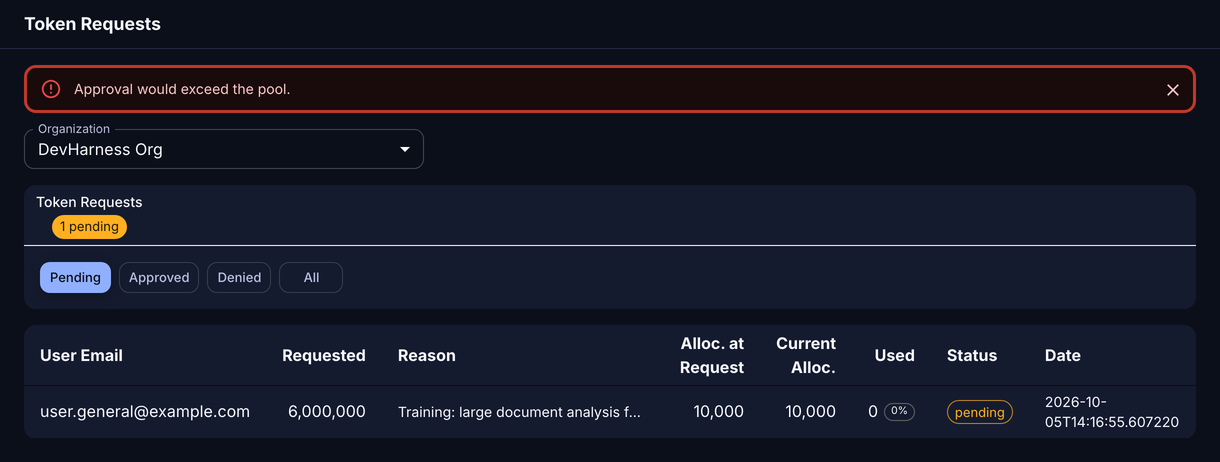
The system refuses an approval that is more than the ceiling
The administrator approves a smaller amount, 40,000 tokens.
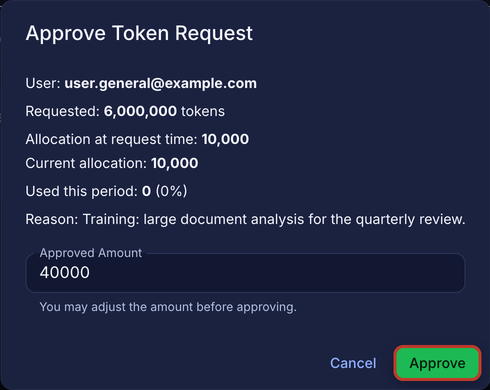
The Approved Amount changed to 40,000
The system shows the message “Token request approved successfully.” Under Approved, the Current Alloc. column shows the new limit, 50,000, and the increase, +40,000.
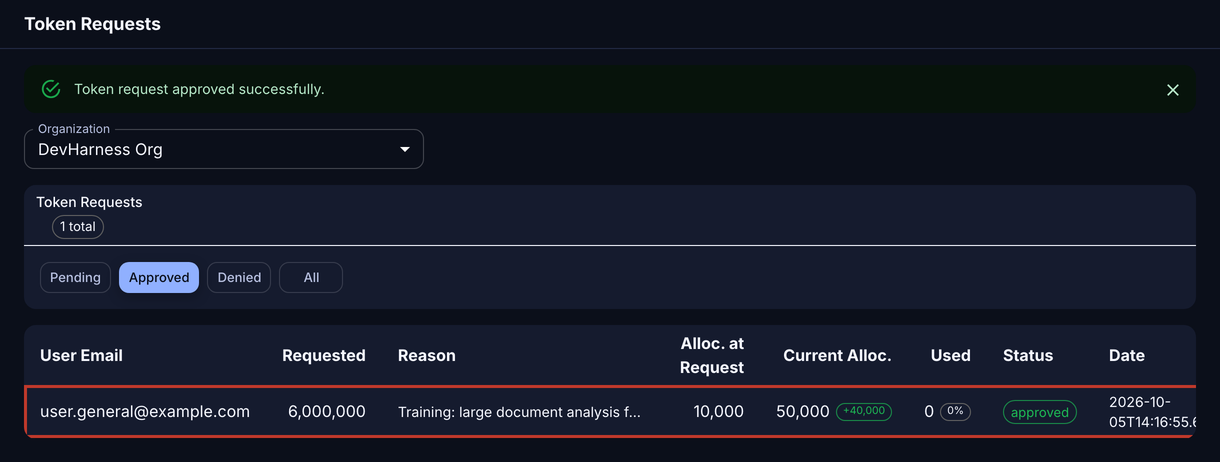
The approved request
The member sees the new limit in Usage & Billing.
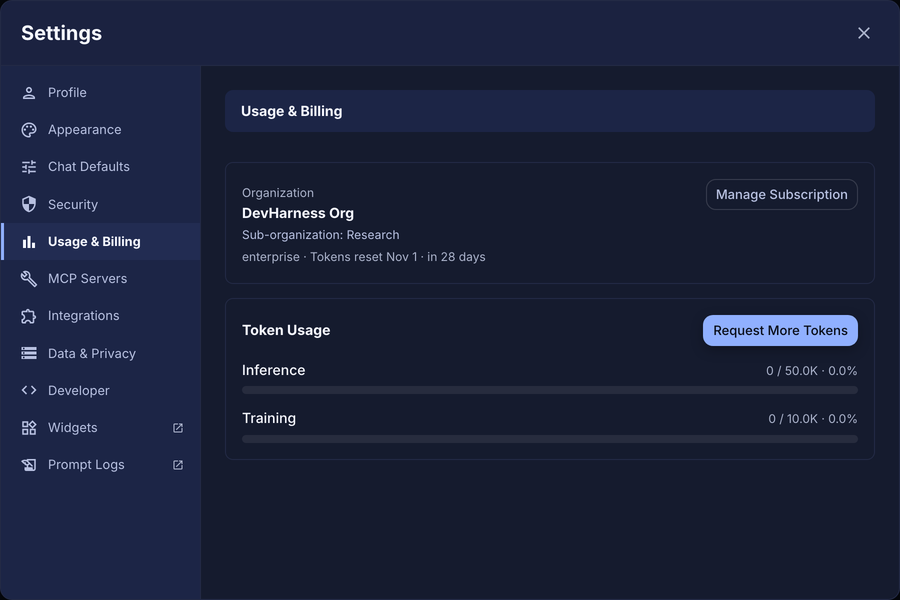
The new monthly inference limit of the member
To deny a request, click Deny in its row. The system denies the request immediately. There is no confirmation dialog.
Messages that a blocked member sees
When the system refuses a prompt, the member sees one of these messages:
| Message | Cause | Action |
|---|---|---|
| You’ve reached your monthly token limit | The member used all of their monthly inference limit. | Approve a token request, or wait for the next month. |
| You’ve reached your monthly training token limit | The member used all of their monthly embedding limit. | Increase the limit, or wait for the next month. |
| Your organization is out of tokens this month | The pool of the member has no inference tokens left this month. | Record a purchase, or wait for the next month. |
| Your organization is out of training tokens this month | The pool of the member has no embedding tokens left this month. In standard billing, the system does not make this check. | Record a purchase, or wait for the next month. |
| Your token funding has lapsed | All the purchases of the pool expired. | Record a new purchase. |
| Your token funding has not started yet | No purchase of the pool has started. | Wait for the start date, or edit the start date. |
For a member of a sub-organization with a dedicated pool, the word “organization” in these messages refers to the dedicated pool.
Token Statistics and Token Distribution
Token Statistics shows the inference and embedding use of each month. An Admin can filter the page by sub-organization. A Sub-Org Admin sees only the use of their own sub-organization. See The Admin view.
Token Distribution sets the monthly token limits of the users from the organization pool. Do not use it for the members of a sub-organization with a dedicated pool. Their tokens come from the dedicated pool. To change their limits, approve a token request.