Admin Views and Removal
The Admin and Sub-Org Admin consoles, removing members, and deleting a sub-organization
Table of Contents
This page shows the screens of an Admin and of a Sub-Org Admin. It also explains how to remove a member and how to delete a sub-organization.
The Admin view
An Admin manages the sub-organizations of their own organization. To open the console, click Sub-Organizations in the admin sidebar. The console has the same buttons as the console of a Superadmin, so the procedures in Create and Manage and Token Funding apply.
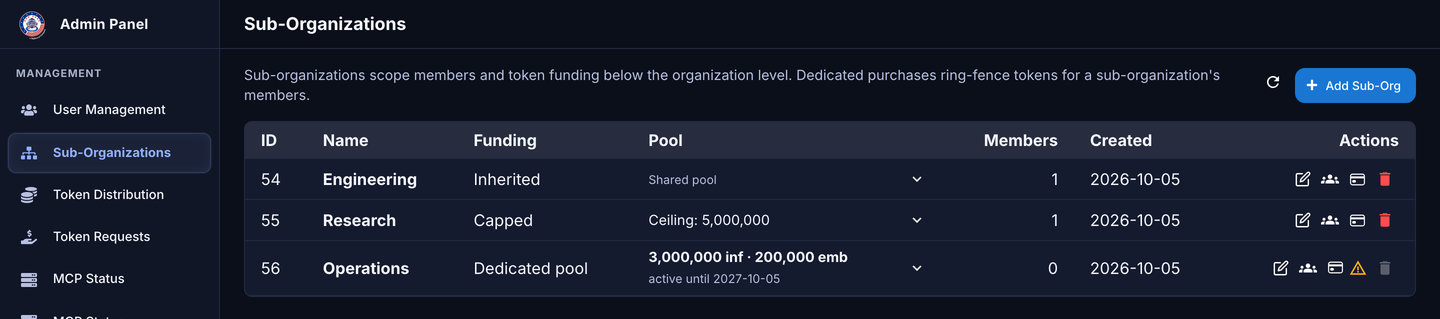
The Sub-Organizations console of an Admin
On the Token Requests page and the Token Statistics page, an Admin sees a Sub-Organization list. Use this list to show the data of one sub-organization.
- In the sidebar, click Token Requests or Token Statistics.
- In the Sub-Organization list, select the sub-organization.
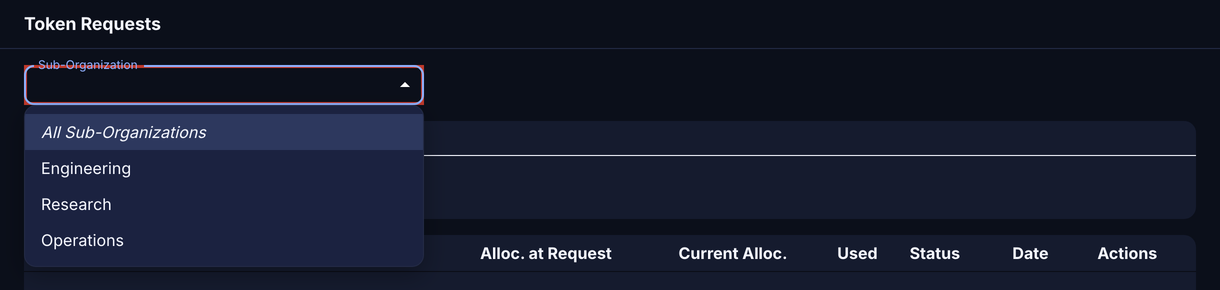
The Sub-Organization list on the Token Requests page
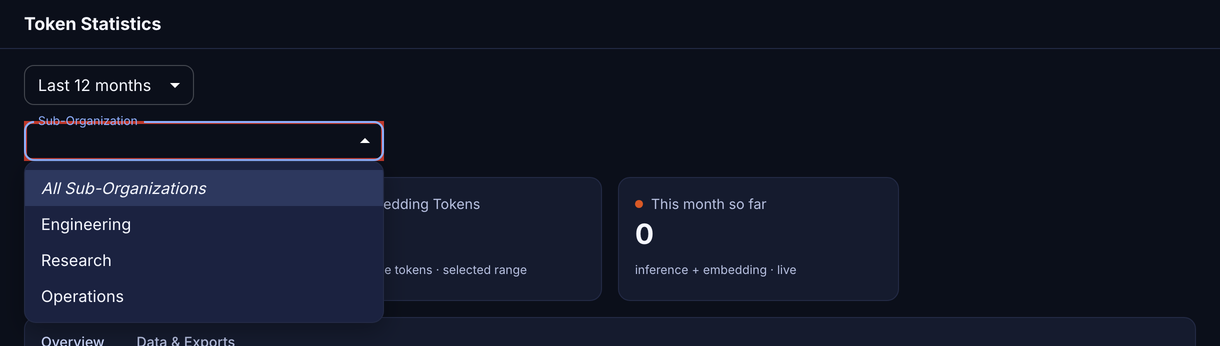
The Sub-Organization list on the Token Statistics page
To show the data of the full organization again, select All Sub-Organizations.
The Sub-Org Admin view
The console of a Sub-Org Admin shows only their own sub-organization. The Parent organization card shows the organization that contains it. The row has only two controls: the Manage members button and the arrow in the Pool cell.
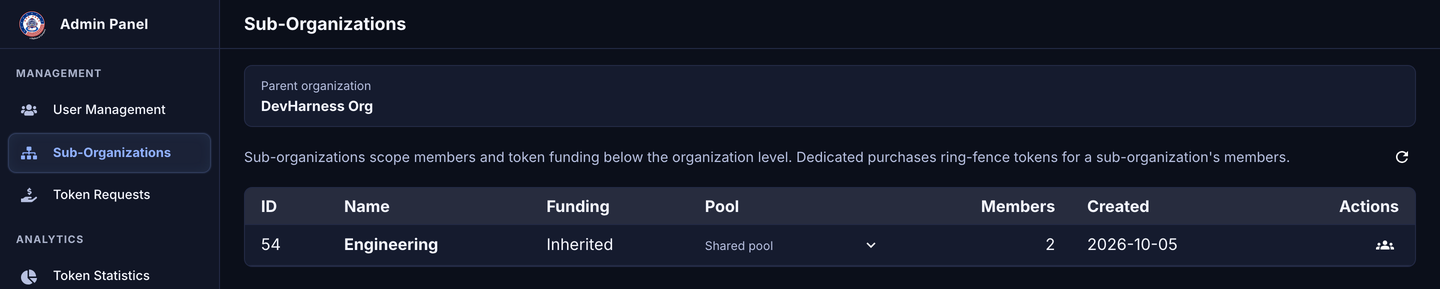
The console of a Sub-Org Admin
On the User Management page, a Sub-Org Admin sees only the members of their sub-organization.
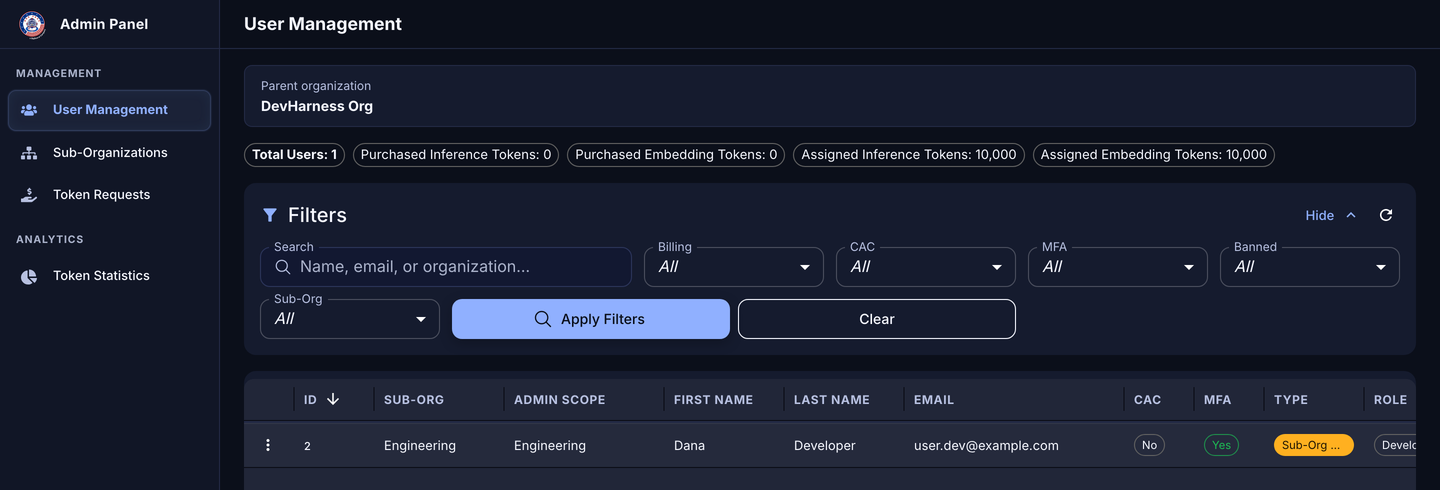
User Management for a Sub-Org Admin
In the Manage Members dialog, the row of the Sub-Org Admin shows “(you)”. Its remove button is disabled, because no administrator can change their own sub-organization. A Sub-Org Admin can remove only standard users. See Remove a member.
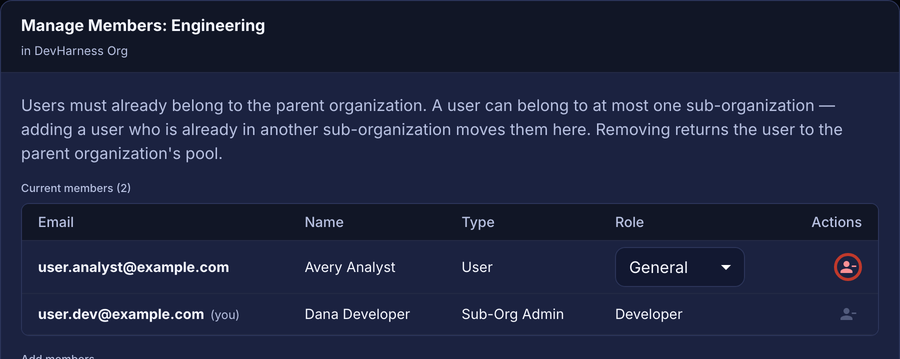
The Manage Members dialog of a Sub-Org Admin
A Sub-Org Admin cannot add members. To add a member to the sub-organization, ask an Admin.
On the Token Requests page, a Sub-Org Admin can see the requests of the sub-organization, but cannot approve or deny them. See Approve or deny a token request.
Remove a member
When you remove a member, the user returns to the organization level. The system checks the monthly token limits of the user against the organization pool. The account type and the capability role of the user do not change.
- In the Sub-Organizations console, click the Manage members button of the sub-organization.
- In the row of the member, click the remove button. The Remove Member dialog opens.
- Make sure that the email address is correct.
- Click Remove.
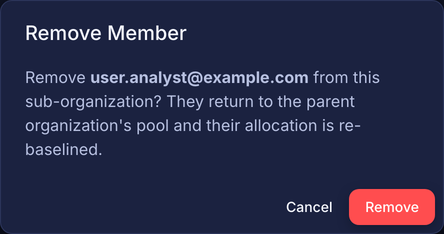
The Remove Member dialog
The dialog shows the message “Removed email.” The Current members list no longer shows the user.
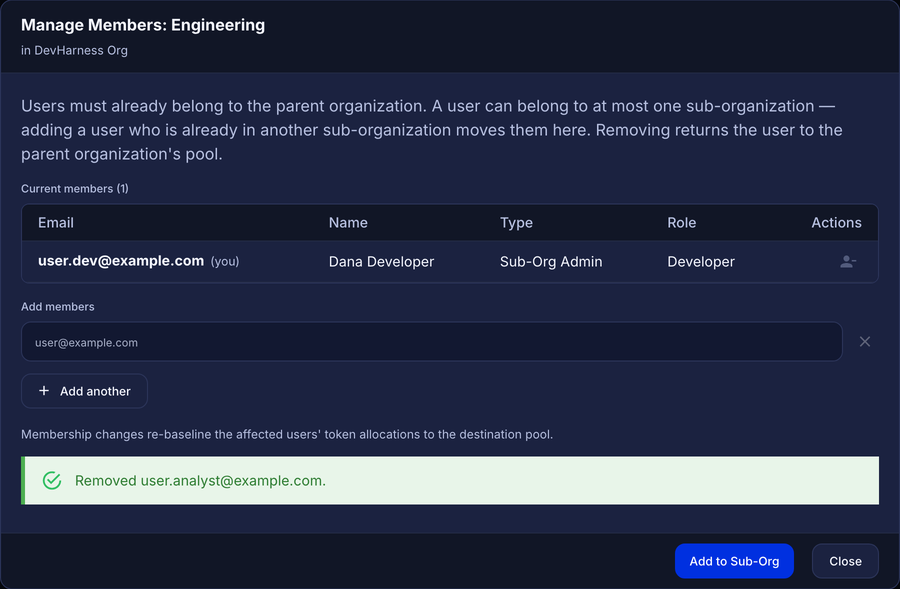
The result message after a removal
- Click Close.
You can also move a user to the organization level from User Management. See Move a user back to the organization level.
Remove a member who is a Sub-Org Admin
Only a Superadmin or an Admin can remove a member who has the Sub-Org Admin account type. The removal also removes the account type. The system records the two changes as two separate audit records.
- In the Manage Members dialog, in the row of the Sub-Org Admin, click the remove button. The Revoke Role & Remove Member dialog opens.
- Click Revoke & Remove.
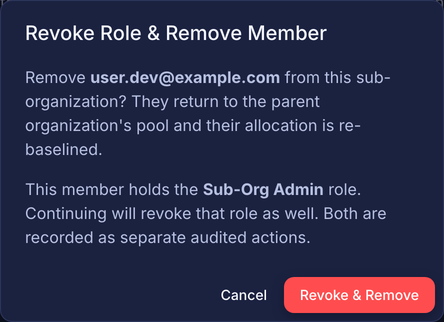
The Revoke Role & Remove Member dialog
The user gets the User account type and returns to the organization level. The capability role does not change.
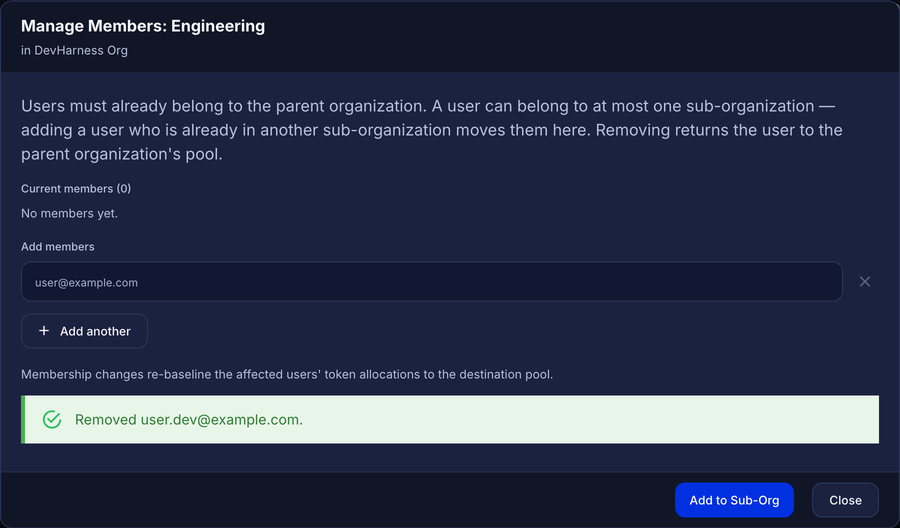
The member list after the removal of the Sub-Org Admin
Delete a sub-organization
When you delete a sub-organization, all its members return to the organization level. The system checks the monthly token limits of each member against the organization pool. The console then stops showing the sub-organization.
Warning: before you delete a sub-organization, make sure that you selected the correct row. You cannot restore a deleted sub-organization from the console. To use it again, you must create a new sub-organization and add the members again.
- In the Sub-Organizations console, in the row of the sub-organization, click the Delete button (the trash icon).
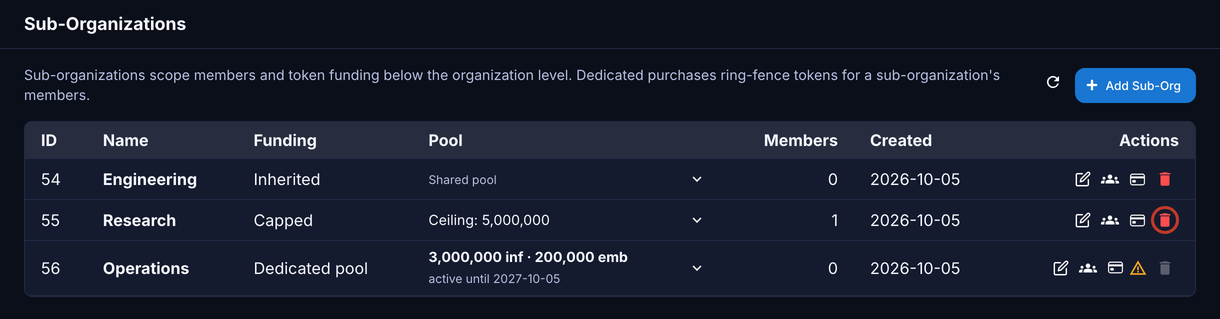
The Delete button of a sub-organization
The Delete Sub-Organization dialog opens.
- Make sure that the name in the dialog is correct.
- Click Delete.
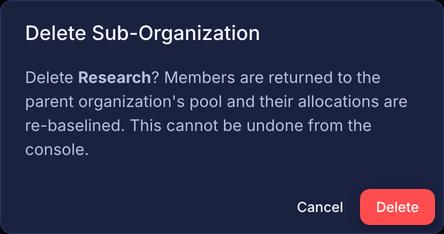
The Delete Sub-Organization dialog
The dialog closes, and the table no longer shows the sub-organization.
Conditions that prevent a deletion
The system refuses to delete a sub-organization in these conditions:
| Condition | What you see | Action |
|---|---|---|
| The sub-organization has a dedicated pool. An expired purchase also counts. | In the Actions column, the Delete button is disabled, and an orange warning icon shows next to it. The icon text is “This sub-organization has dedicated funding, so it can’t be deleted.” | Wait until all the purchases expire. Change the funding to Inherited (see Dedicated pools, rule 8). Then delete the sub-organization. |
| A sub-organization is below this sub-organization. This condition is possible only when the configuration permits a sub-organization inside another sub-organization. | The same warning icon. The icon text is “Delete the sub-organizations beneath this one first.” | Delete the lower sub-organizations first. |
| A member has an administrator account type, for example Sub-Org Admin. | After you click Delete, the dialog shows “Remove administrative roles from this team’s members before deleting it”. | Remove the account type (see Remove the Sub-Org Admin account type), or remove the member. Then delete the sub-organization. |
To read the text of a warning icon, put the pointer on the icon.
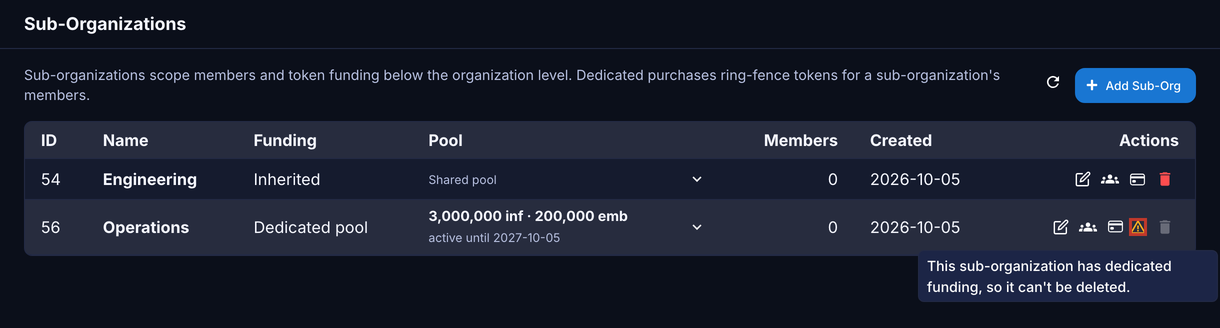
The warning icon of a sub-organization with a dedicated pool
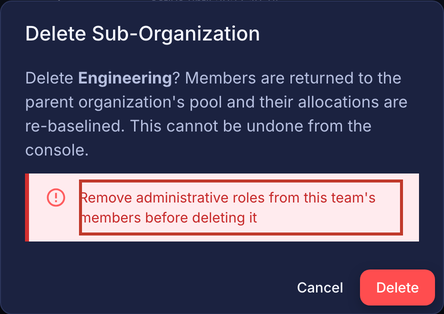
A Sub-Org Admin in the sub-organization prevents the deletion