Claude Code Integration
Bring Ask Sage's AI models directly into your terminal with Claude Code CLI
About Claude Code
Bring Ask Sage's AI models directly into your terminal or IDE with Claude Code—Anthropic's official CLI for Claude, now integrated with Ask Sage.
Table of Contents
Instance-Specific Base URL: The endpoints and configuration shown reflect the instance at chat.asksage.ai. The api. prefix and path suffix stay the same across deployments — only the instance segment in the middle changes based on which Ask Sage instance you are logging into. Always use the instance approved by your organization and applicable regulatory requirements, and match the base URL in your configuration to the instance you authenticate against.
Prerequisites
Before you begin, ensure you have the following:
Claude Code
Installed on your system — see Installation
Installation
Claude Code can be installed in two ways:
Option 1: VSCode Extension
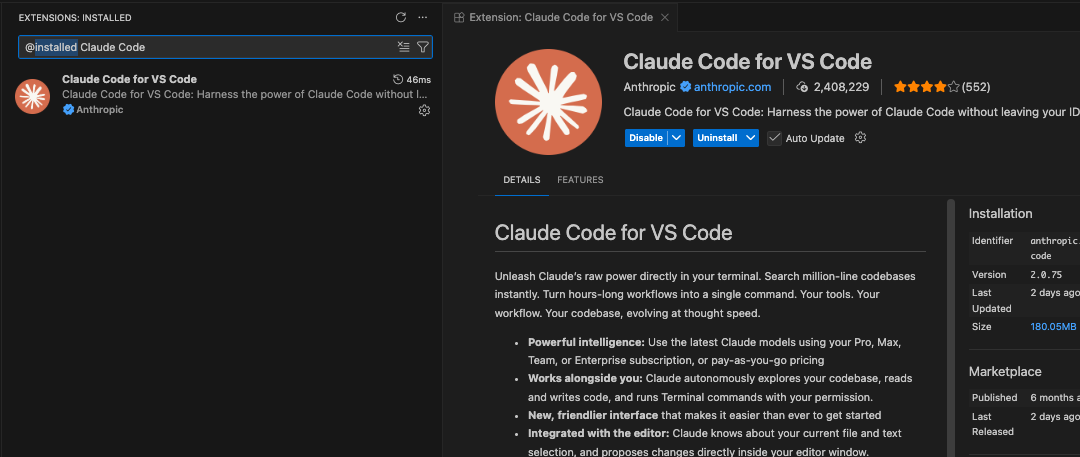
Install the Claude Code extension directly in Visual Studio Code:
Open VSCode and navigate to the Extensions view (Ctrl+Shift+X or Cmd+Shift+X on Mac)
Search for "Claude Code for VS Code" by Anthropic
Click the Install button to add the extension to your VSCode
Option 2: CLI Installation
The native installer is the recommended method — it keeps itself updated in the background.
# macOS, Linux, WSL
curl -fsSL https://claude.ai/install.sh | bash

# Windows PowerShell
irm https://claude.ai/install.ps1 | iex

# Verify
claude --version
Other supported methods:
| Method | Command | Auto-updates |
|---|---|---|
| Native installer | curl -fsSL https://claude.ai/install.sh | bash | Yes |
| Homebrew | brew install --cask claude-code | No — brew upgrade claude-code |
| WinGet | winget install Anthropic.ClaudeCode | No — winget upgrade Anthropic.ClaudeCode |
| npm | npm install -g @anthropic-ai/claude-code | Yes |
| apt / dnf / apk | Signed Anthropic repositories | No — via your normal system upgrade |
claude doctor. It prints read-only installation and settings diagnostics — install health, settings-file validation errors, and suggested fixes — without starting a session. This is the fastest way to confirm Ask Sage configuration was actually picked up. DISABLE_AUTOUPDATER to "1" (stops background checks) or DISABLE_UPDATES (blocks manual updates too) in the env block of settings.json. Confirm with claude doctor. Note that updates require reaching Anthropic hosts — plan for this alongside the DoD network configuration below. sudo npm install -g — it causes permission and security problems. If you hit permission errors, use the native installer instead. Configuration Methods
Claude Code can be configured to work with Ask Sage using two methods. Choose the method that best fits your workflow.
Method 1: Using ~/.claude/settings.json (Recommended)
If on Windows, this file ~/.claude/settings.json might need to be created where you have Claude Code installed. For example: C:\Users\username\.claude
Create or edit ~/.claude/settings.json with the following configuration:
{
  "env": {
    "ANTHROPIC_BASE_URL": "https://api.asksage.ai/server/anthropic",
    "ANTHROPIC_AUTH_TOKEN": "your-asksage-token-here",
    "CLAUDE_CODE_DISABLE_NONESSENTIAL_TRAFFIC": "1"
  },
  "permissions": {
    "allow": ["*"],
    "deny": ["Delete"]
  }
}ANTHROPIC_BASE_URL: Your Ask Sage Server Base URL with/anthropicpath. Note this varies based on instance of Ask Sage you are using.ANTHROPIC_AUTH_TOKEN: Your Ask Sage API KeyCLAUDE_CODE_DISABLE_NONESSENTIAL_TRAFFIC: Set to1to disable all non-essential traffic to Anthropic services (including telemetry, error reporting, and bug reports)
Method 2: Environment Variables (Terminal Session)
Export the following environment variables in your terminal before launching Claude Code:
export ANTHROPIC_BASE_URL="https://api.asksage.ai/server/anthropic"
export ANTHROPIC_AUTH_TOKEN="your-asksage-token-here"
export CLAUDE_CODE_DISABLE_NONESSENTIAL_TRAFFIC=1
Then launch Claude Code from the same terminal session.
env block in a project's .claude/settings.json is applied only after the first-run wizard and the folder-trust prompt. Set ANTHROPIC_AUTH_TOKEN somewhere Claude Code reads earlier: a shell export, the env block in ~/.claude/settings.json, or managed settings. Interactive sign-in via Claude Desktop
Ask Sage runs an OAuth 2.0 / OpenID Connect authorization server, so users can sign in with their normal Ask Sage account — password + MFA, tenant SAML SSO, or CAC — instead of holding an API key. For Claude Code, the supported route to that is Claude Desktop.
Claude Desktop runs its Code tab (and Cowork) on embedded Claude Code sessions and passes them the token from its own interactive sign-in. Configure Desktop once against Ask Sage and the Claude Code sessions it launches need no credential of their own:
{
  "inferenceProvider":       "gateway",
  "inferenceGatewayBaseUrl": "https://api.asksage.ai/server/anthropic",
  "inferenceCredentialKind": "interactive"
}
The user picks Sign in with your organization, approves a short code in the browser, and both the Cowork and Code tabs are authenticated. Full setup — including MDM rollout, telemetry lockdown, and troubleshooting — is on the Claude Cowork page.
claude CLI cannot sign in to Ask Sage interactively. Claude Code's /login picker offers Anthropic accounts and supported cloud providers; its Cloud gateway option targets Anthropic's own Claude apps gateway product, which Ask Sage is not. For the terminal CLI, use ANTHROPIC_BASE_URL + ANTHROPIC_AUTH_TOKEN as documented above. Anyone claiming otherwise is describing the Desktop-embedded path. forceLoginMethod: "gateway" and forceLoginGatewayUrl through managed settings. Both keys are ignored in a developer's own settings files — they only work from an admin-deployed managed source. This adds a component to operate; most deployments should use the Desktop path or an API key instead. Choosing a model
Claude Code talks to Ask Sage over the Anthropic-compatible passthrough, so it uses the public Anthropic-style model IDs that GET /server/anthropic/v1/models returns — not Ask Sage's internal model names. Discover what your instance actually offers:
curl -s https://api.asksage.ai/server/anthropic/v1/models \
  -H "x-api-key: your-asksage-token-here" | jq '.data[].id'
Current IDs, most capable first:
| Model ID | Display name | 1M context |
|---|---|---|
claude-opus-5 | Claude Opus 5 | Yes |
claude-opus-4-8 | Claude Opus 4.8 | Yes |
claude-opus-4-7 | Claude Opus 4.7 | Yes |
claude-opus-4-6 | Claude Opus 4.6 | Yes |
claude-sonnet-5 | Claude Sonnet 5 | No |
claude-sonnet-4-6 | Claude Sonnet 4.6 | Yes |
claude-opus-4-5 | Claude Opus 4.5 | No |
claude-sonnet-4-5 | Claude Sonnet 4.5 | Yes |
claude-fable-5-1 | Claude Fable 5.1 | Yes |
claude-sonnet-4-5-vertex | Claude Sonnet 4.5 (Vertex) | Yes |
claude-haiku-4-5 | Claude Haiku 4.5 | No |
Mapping the built-in aliases
Claude Code's opus, sonnet, haiku and fable aliases point at Anthropic's own model IDs by default, which your Ask Sage instance may not serve. Pin each alias to an Ask Sage ID so /model, plan mode, and background tasks all resolve correctly:
{
  "env": {
    "ANTHROPIC_BASE_URL": "https://api.asksage.ai/server/anthropic",
    "ANTHROPIC_AUTH_TOKEN": "your-asksage-token-here",
    "ANTHROPIC_DEFAULT_OPUS_MODEL": "claude-opus-5",
    "ANTHROPIC_DEFAULT_SONNET_MODEL": "claude-sonnet-5",
    "ANTHROPIC_DEFAULT_HAIKU_MODEL": "claude-haiku-4-5",
    "ANTHROPIC_DEFAULT_FABLE_MODEL": "claude-fable-5-1",
    "CLAUDE_CODE_DISABLE_NONESSENTIAL_TRAFFIC": "1"
  }
}| Variable | What it controls |
|---|---|
ANTHROPIC_DEFAULT_OPUS_MODEL | The opus alias, and what opusplan uses in Plan Mode |
ANTHROPIC_DEFAULT_SONNET_MODEL | The sonnet alias, and what opusplan uses outside Plan Mode |
ANTHROPIC_DEFAULT_HAIKU_MODEL | The haiku alias — also used for background functionality |
ANTHROPIC_DEFAULT_FABLE_MODEL | The fable alias, and automatic model fallback on third-party providers |
ANTHROPIC_MODEL | Overrides the model setting outright, from any source |
ANTHROPIC_CUSTOM_MODEL_OPTION | Adds one extra model ID to the /model picker without replacing the built-in aliases |
ANTHROPIC_SMALL_FAST_MODEL is deprecated. If you are carrying it over from an older Ask Sage setup, replace it with ANTHROPIC_DEFAULT_HAIKU_MODEL. Privacy & Data Usage Controls
Claude Code can send operational telemetry to Anthropic services. You have full control over this data sharing through environment variables.
Disable All Non-Essential Traffic
To ensure no operational data is sent to Anthropic services (including telemetry, error reporting, and bug reports), set the following environment variable:
export CLAUDE_CODE_DISABLE_NONESSENTIAL_TRAFFIC=1Configuration Examples
Method 1: Add to ~/.claude/settings.json (Recommended)
{
  "env": {
    "ANTHROPIC_BASE_URL": "https://api.asksage.ai/server/anthropic",
    "ANTHROPIC_AUTH_TOKEN": "your-asksage-token-here",
    "CLAUDE_CODE_DISABLE_NONESSENTIAL_TRAFFIC": "1"
  },
  "permissions": {
    "allow": ["*"],
    "deny": ["Delete"]
  }
}
Method 2: Export in Terminal Session
export ANTHROPIC_BASE_URL="https://api.asksage.ai/server/anthropic"
export ANTHROPIC_AUTH_TOKEN="your-asksage-token-here"
export CLAUDE_CODE_DISABLE_NONESSENTIAL_TRAFFIC=1Setting this environment variable disables the following Anthropic services:
- Statsig Metrics: Operational telemetry including latency, reliability, and usage patterns (no code or file paths)
- Sentry Error Reporting: Operational error logs for debugging Claude Code itself
- Bug Reports: Prevents the
/bugcommand from sending conversation history to Anthropic
All data sent to these services is encrypted in transit (TLS) and at rest (AES-256). However, disabling these services ensures no operational data leaves your environment.
Individual Service Controls (Advanced)
For finer control, you can disable specific services individually:
# Disable telemetry metrics only
export DISABLE_TELEMETRY=1

# Disable error reporting only
export DISABLE_ERROR_REPORTING=1

# Disable bug report command only
export DISABLE_BUG_COMMAND=1
Two calls that still reach Anthropic even with a custom base URL
Setting ANTHROPIC_BASE_URL moves model traffic to Ask Sage, but two features independently call api.anthropic.com. On a restricted or air-gapped network these surface as confusing failures rather than obvious blocks:
| Feature | Why it calls Anthropic | How to stop it |
|---|---|---|
| WebFetch | Runs a domain safety check against api.anthropic.com before fetching a URL | Set "skipWebFetchPreflight": true in settings.json, or disable the WebFetch tool entirely |
| Fast mode | Its availability check calls api.anthropic.com rather than your gateway base URL | No opt-out — either allowlist api.anthropic.com through your proxy or accept that fast mode reports a connectivity error |
ANTHROPIC_BASE_URL at Ask Sage already removes that traffic — CLAUDE_CODE_DISABLE_NONESSENTIAL_TRAFFIC is belt-and-braces. DoD/DoW Network Configuration
Prerequisites
You'll need a DoD root certificate in PEM format. If you haven't already created this file, see the DoD Certificate Setup guide for instructions.
Configuration for VSCode Extension
Add the following to your VSCode settings.json:
{
  "claudeCode.environmentVariables": [
    { "name": "NODE_EXTRA_CA_CERTS", "value": "C:\\Path\\TO\\AskSage_DoD_Root.pem"},
    { "name": "ANTHROPIC_BASE_URL", "value": "https://api.genai.army.mil/server/anthropic/"},
    { "name": "ANTHROPIC_AUTH_TOKEN", "value": "ASK-SAGE-API-KEY"},
    { "name": "CLAUDE_CODE_DISABLE_NONESSENTIAL_TRAFFIC", "value": 1}
  ]
}- Replace
C:\\Path\\TO\\AskSage_DoD_Root.pemwith your actual certificate path - Use double backslashes (
\\) in Windows paths for JSON - Replace
ASK-SAGE-API-KEYwith your actual Ask Sage API Key. - For Army GenAI environment, use
https://api.genai.army.mil/server/anthropic/ - You can reuse the same PEM file across other Ask Sage integrations
Example Configuration File
For usage on DoD/DoW networks, add the certificate to your ~/.claude/settings.json:
{
  "env": {
    "NODE_EXTRA_CA_CERTS": "/path/to/AskSage_DoD_Root.pem",
    "ANTHROPIC_BASE_URL": "https://api.genai.army.mil/server/anthropic",
    "ANTHROPIC_AUTH_TOKEN": "your-asksage-token-here",
    "CLAUDE_CODE_DISABLE_NONESSENTIAL_TRAFFIC": "1"
  },
  "permissions": {
    "allow": ["*"],
    "deny": ["Delete"]
  }
}
Linux/Mac users: Use forward slashes in paths: /path/to/AskSage_DoD_Root.pem
Troubleshooting
Solutions:
- Verify your API Key is correct
- Remove any extra spaces from the token string
Solutions:
- Verify the
ANTHROPIC_BASE_URLis correct and accessible - Verify your Ask Sage API Key is correct
- Ensure there are no firewall rules blocking the connection
Solutions:
- Verify certificate path is correct in your configuration
- Ensure certificate is in PEM format (not DER)
- Check you have the complete certificate chain
- Windows users: Use double backslashes (
\\) in JSON configuration
Confirm the certificate actually loaded — Claude Code does not validate these paths when it reads them, so a typo only surfaces as a TLS error on a later request. Start a session with claude --debug and look for this line in ~/.claude/debug/<session-id>.txt:
CA certs: Appended extra certificates from NODE_EXTRA_CA_CERTS (/path/to/ca-cert.pem)
A Failed to read or Failed to load line gives the reason instead. The /status command shows an Additional CA cert(s) row, but it prints the configured path without checking that the file loaded — so confirm in the debug log, not in /status.
Note that Claude Code already trusts your operating system certificate store in addition to its bundled Mozilla CA set, so a DoD root installed machine-wide often works with no configuration at all. CLAUDE_CODE_CERT_STORE controls this — it accepts bundled, system, or the default bundled,system.
Set the client certificate pair as environment variables — these are read at startup and re-read when settings are applied:
CLAUDE_CODE_CLIENT_CERT— client certificateCLAUDE_CODE_CLIENT_KEY— client private keyCLAUDE_CODE_CLIENT_KEY_PASSPHRASE— optional, for an encrypted key
To rotate, replace the files at the same paths; Claude Code picks up the replacement in a running session after a connection-level failure. The /status rows mTLS client cert and mTLS client key appear only when the files loaded, so a missing row means the load failed.
Background agents run under a per-user supervisor process that outlives your shell and may have been started by a different terminal — so a export in your shell reaches them only by luck. Put proxy, CA, and mTLS variables in the env block of ~/.claude/settings.json or managed settings instead; that is the only configuration guaranteed to reach every background session.
Additional Resources
- Claude Code Official Documentation
- Claude Code Advanced Setup - System requirements, all install methods, update control
- Claude Code Settings Reference
- Claude Code Environment Variables Reference - Every variable, including the model-alias family
- Claude Code Enterprise Network Configuration - Proxies, custom CAs, mTLS, required hostnames
- Claude Code — Connect to an LLM gateway
- Claude Code Data Usage & Privacy - Learn about telemetry and privacy controls
- DoD Certificate Setup - For DoD/DoW network configuration
- Ask Sage — Claude Cowork integration - Desktop app, and the interactive Ask Sage sign-in