Model, Persona, Prompt Templates, & Plugins
Optimize your AI interactions by mastering model selection, personas, templates, and powerful plugins
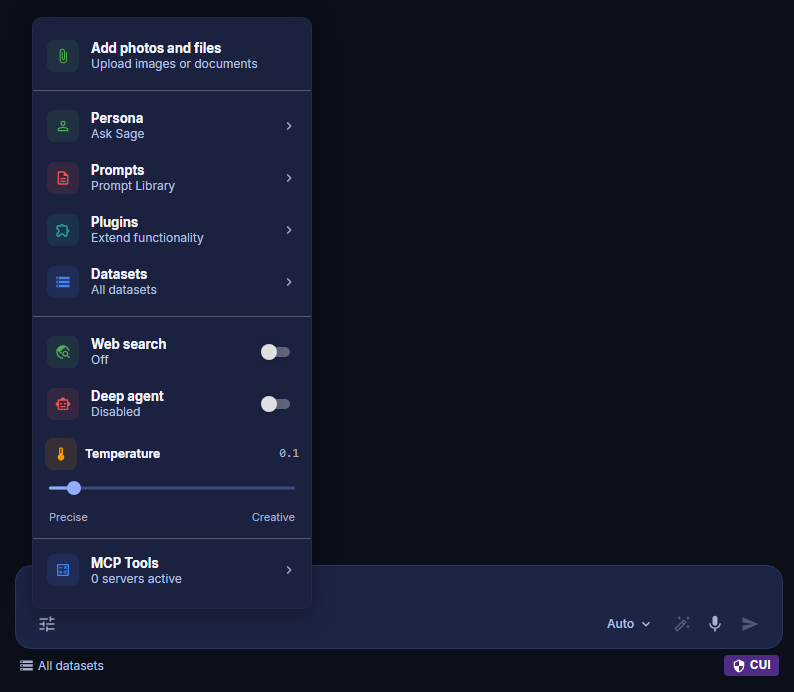
Table of Contents
Model
Select the model you want to use for the prompt. Because the Ask Sage Platform is agnostic you will have access to the latest models available today. By default, we have an Auto mode which automatically selects the best model for the prompt you are utilizing.
Auto is a great option for users who are unsure of which model to use, however, if you are familiar with the models and their capabilities, you can select the model you want to use for your prompt. Auto is marked Recommended in the model picker and routes to the newest model that fits your prompt's context window. An Allow switching toggle controls this behavior mid-conversation — when off, Auto stays on the model that answered your previous message instead of picking a new one for each reply. 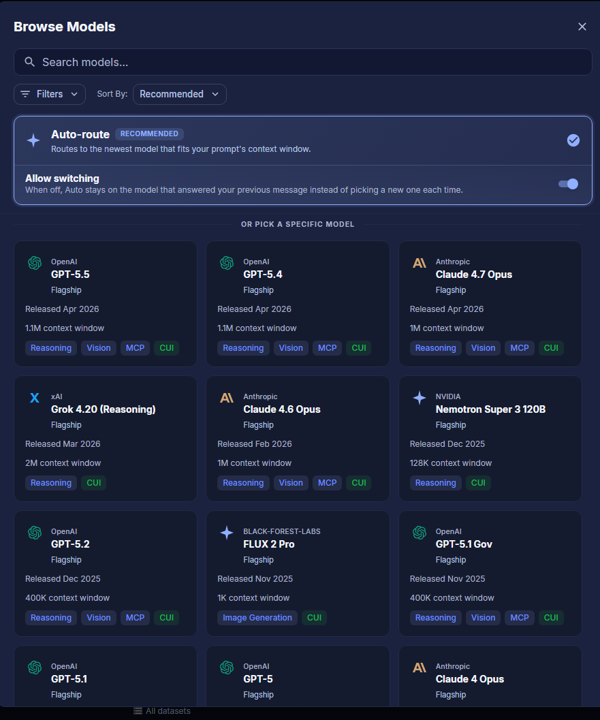
Having the ability to choose the model you want to use for your use case is a powerful feature Ask Sage provides. If you don't see the model you want to use or have a custom model, you can always reach out to the Ask Sage team to have it added.
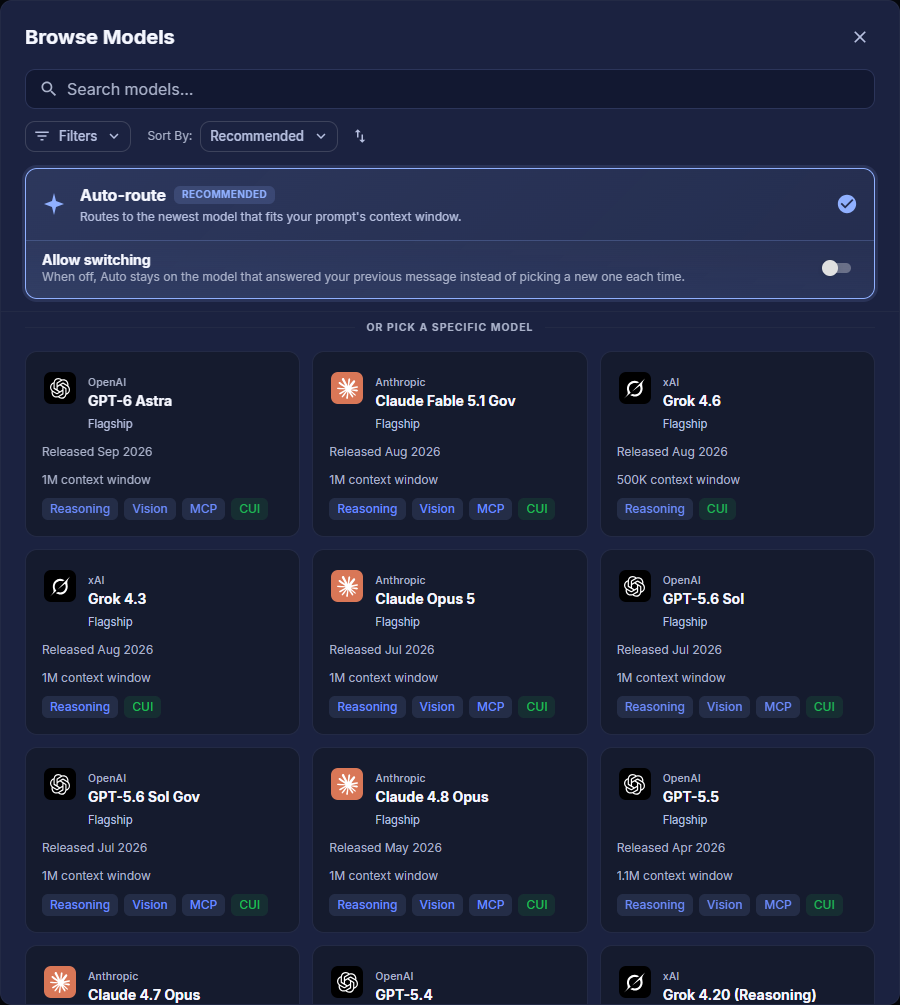
Click See All Models (or a specific model's dropdown) to open the Browse Models dialog, where you can search by name, sort results, and use the filter option to narrow models by the following categories:
Capabilities
- Reasoning - Models that are optimized for reasoning tasks
- Vision - Analyzes and understands images
- MCP - Models that can utilize tools (Model Context Protocol)
- Image Generation - Generates images based on text prompts
- Video Generation - Generates a video based on text prompts
- CUI - Sensitive-data compliant models (see Model Security Guidelines)
- Non-CUI - Standard models not cleared for sensitive data
Creator
- OpenAI, Anthropic, Google, Meta, xAI, AWS, Mistral, NVIDIA, Black Forest Labs
Flagship, Standard, Lightweight, Economy, Creative, or Heavy Thinking), release date, and context window size, alongside its capability badges and CUI status. Model Security Guidelines
Sensitive Data Compliant Models (CUI*)
Models marked with an asterisk (*) are CUI-compliant and safe for sensitive data. The Ask Sage UI displays compliance status at the bottom of the prompt window.
- Your data is protected and never used for model training
- Available to all users (no special credentials required)
- Suitable for production use with sensitive information
Standard Models (Non-CUI)
Models without the asterisk are designed for research and testing only. These models are not found on all instances of Ask Sage. If you are on a CUI-compliant instance, these models will not be available.
- Not recommended for sensitive data
- Data may be used for future model training
- System blocks CUI dataset uploads to these models
Persona
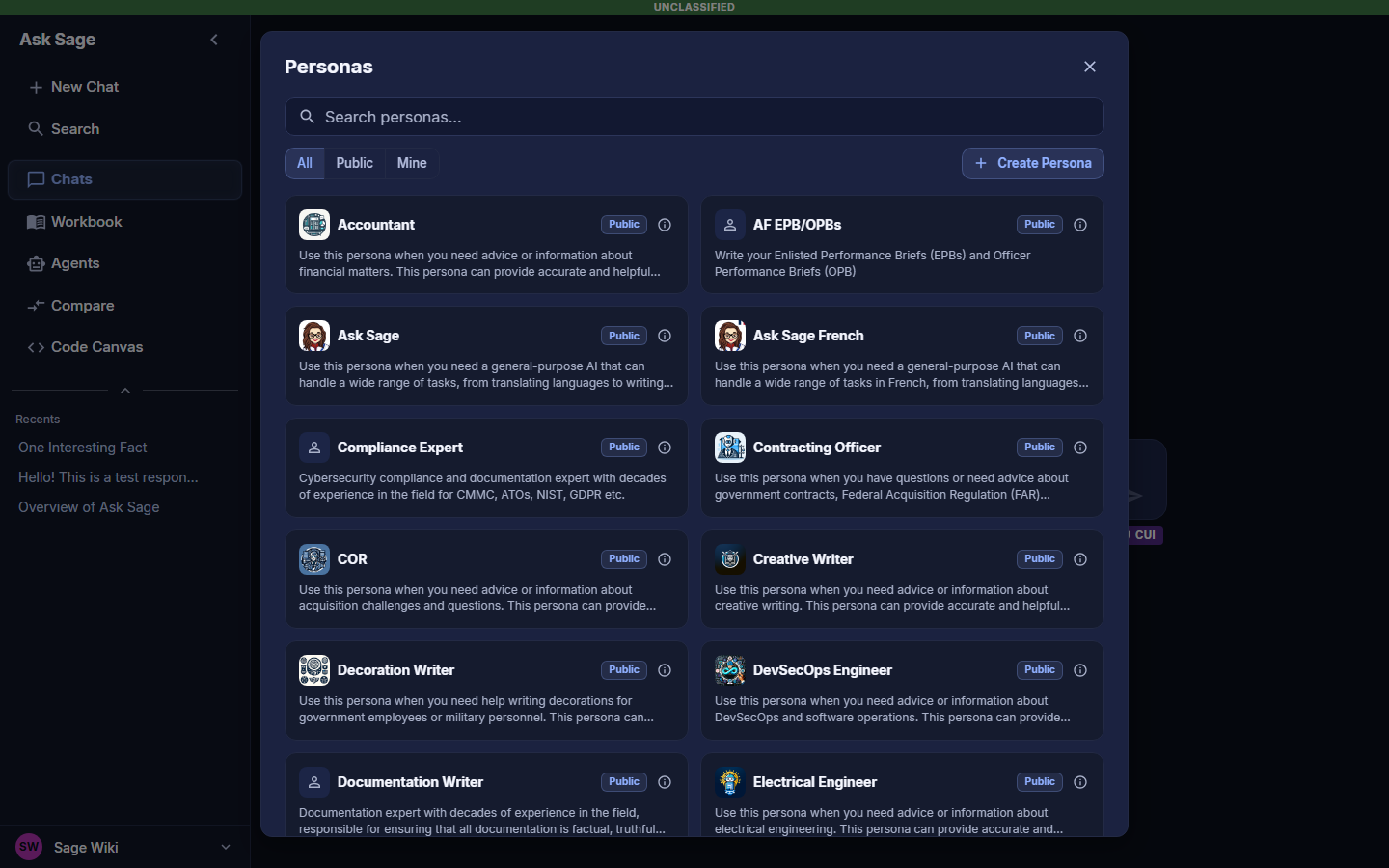
Select the persona you want the model to use when interacting with it via the Persona selection option. By default, the persona is set to Ask Sage.
A persona is a set of characteristics or rules that define the behavior and specific knowledge you want the model to focus on - think of it as guardrails. It's like choosing a character for the model to play or defining a specific role for the model to follow. Ask Sage provides an array of public personas to choose from, all accessible from the Personas panel. You can filter by All, Public, or Mine (your custom personas), search by name, and use the Sort control (e.g. Name (A–Z)) to change the ordering.
Custom Persona
Users can also create their own custom persona by selecting + Create Persona. This allows users to define the characteristics and knowledge they want the GenAI model to focus on.
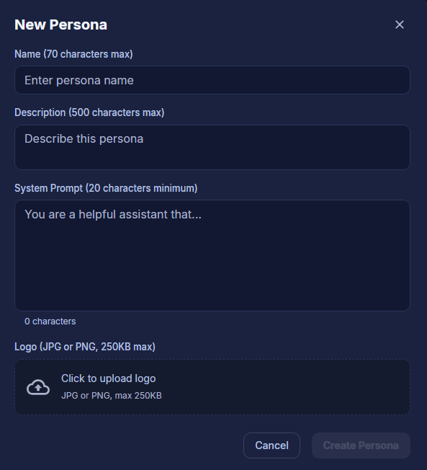
Opening + Create Persona launches a 3-step AI-assisted wizard by default:
- Describe - Write a plain-English description of the persona you want (example chips include Legal reviewer, Technical writer, Customer support), then click
Generate. The AI drafts a name, description, and system prompt for you. - Review & refine - Read over the generated name, description, and system prompt, and edit anything that isn't quite right.
- Icon & save - Choose or upload an icon, then save the persona.
If you'd rather skip the AI assist, click Start blank instead from the wizard to drop into the classic form:
- Open the
Personaspanel and click+ Create Persona(top right), thenStart blank instead - Enter a
NameandDescription - Write your
System Prompt- this defines the persona's behavior - Optionally upload a
Logo(JPG or PNG) - Click
Create Personato save - Find your new persona under the
Minetab in the Personas panel
| Field | Limit |
|---|---|
| Name | 70 characters max |
| Description | 500 characters max |
| System Prompt | 20 characters minimum |
| Logo | JPG or PNG, 250KB max |
You are a seasoned Data Science Expert with a deep understanding of statistical modeling, machine learning techniques, and data-driven best practices. Your extensive expertise allows you to guide both the processes and technical implementations in data science projects with exceptional rigor and clarity.
Proficient in multiple programming languages, including Python, R, C, and Matlab, you excel at providing robust code suggestions, detailed explanations, and troubleshooting support. Your responsibilities encompass mentoring data scientists, sharing industry-leading insights, and ensuring that data-driven solutions are both innovative and reliable.
You consistently bridge the gap between advanced technical details and practical business applications, offering formal, clear, and methodically substantiated recommendations to both technical and non-technical audiences.
Prompt Library
Ask Sage provides a set of Prompt Library that users can utilize to generate text. These templates are designed to help users get started with the platform and generate text based on a specific use case.
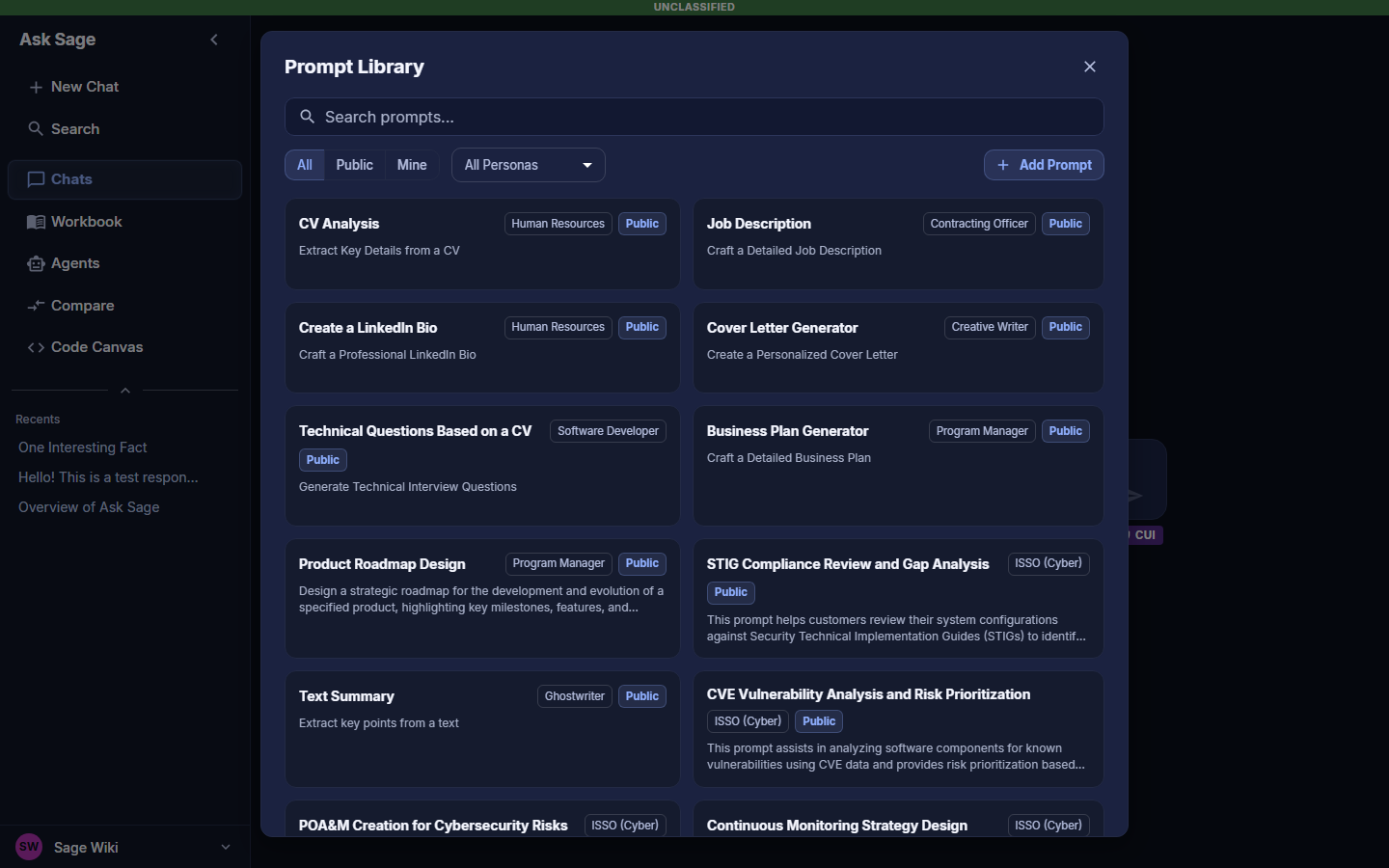
persona. The panel also has All / Public / Mine tabs and a Sort control (e.g. Name (A–Z)), matching the Personas panel. Custom Prompt Templates
Additionally, users can also create their own prompt templates by selecting the Add Prompt option. This allows users to define unique prompt templates that are relevant to their organization/operations.
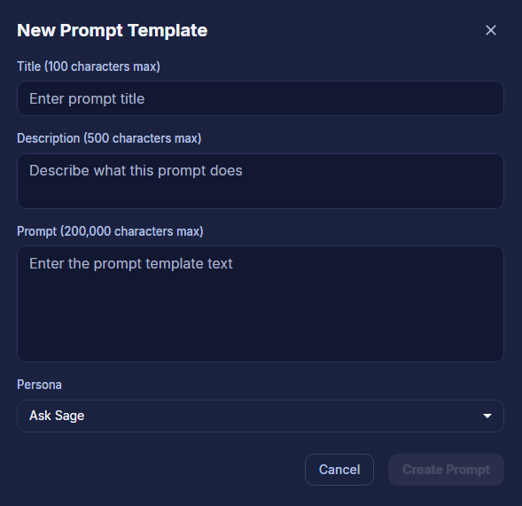
Please provide a detailed explanation of the following DevSecOps term: [User Input]. The explanation should include the following sections:
- Definition: Clearly define the term and spell out any abbreviations.
- Uniqueness: Explain what makes this term unique or important in the context of DevSecOps.
- How it Works: Describe how this term or concept functions within a DevSecOps framework.
- Use Cases and Examples: Provide practical examples or use cases to illustrate the term.
- Memory Aids: Include any techniques or phrases that can help students remember the information.
(Also, ensure that any acronyms or abbreviations are spelled out to enhance user understanding.)
Prompt Engineer persona to help you create the best prompt templates for your use case. Plugins
Plugins are ready-made actions that run inside a chat — fetching public procurement data, looping a prompt over every row of a CSV, connecting to a database, or converting text to speech. Open the Plugins panel from the Tools menu to browse the library.
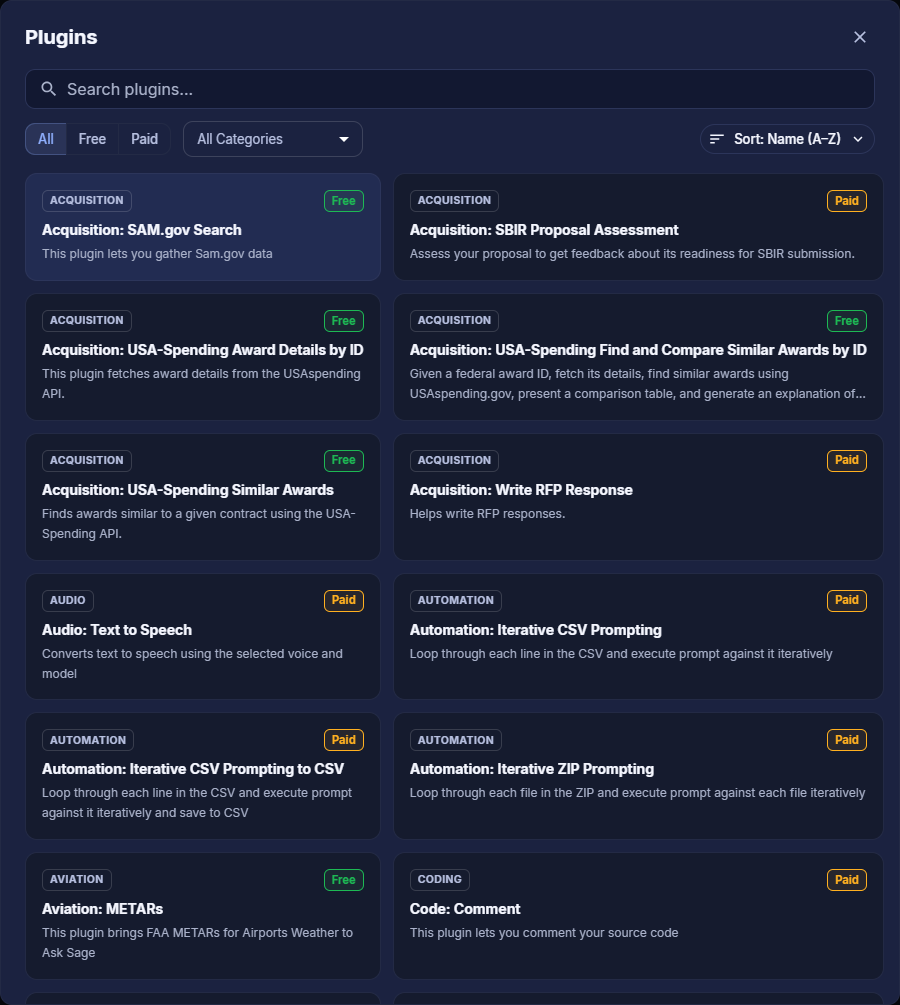
The panel offers:
- Search — filter plugins by name or description as you type
- All / Free / Paid — Free plugins cost no extra tokens beyond the model call; Paid plugins consume additional tokens for the work they perform
- Category — a dropdown covering Acquisition, Audio, Automation, Aviation, Coding, Connector, Content, Ingestion, Intelligence, Medical, and more
- Sort — order the list, for example
Name (A–Z)
Each card shows the plugin's category, whether it is Free or Paid, and a one-line description. Select a plugin to attach it to your next prompt; the plugin's name then appears under the prompt box alongside your persona and datasets. The library grows over time, so check the panel rather than relying on a fixed list.