Member Roles
Set your organization's default role and change many members' roles at once, with an undo
Table of Contents
Organization admins open Member Roles from the Management section of the Admin Panel. Use it to choose the role new members get and to move groups of members between the Developer, General, and Restricted roles. For what each role allows, see Capability roles. To change one member’s role, use User Management.
Role Summary
The top of the page shows the organization's Default role. When no default is set, it reads Not set with a New members get General badge.
Below it, a table counts members in each role: Developer, General, Restricted, and Not set. There's a row for members not in a sub-organization, a row for each sub-organization, and an All members total. Admins are not counted. Expand How the system sets a role for details.
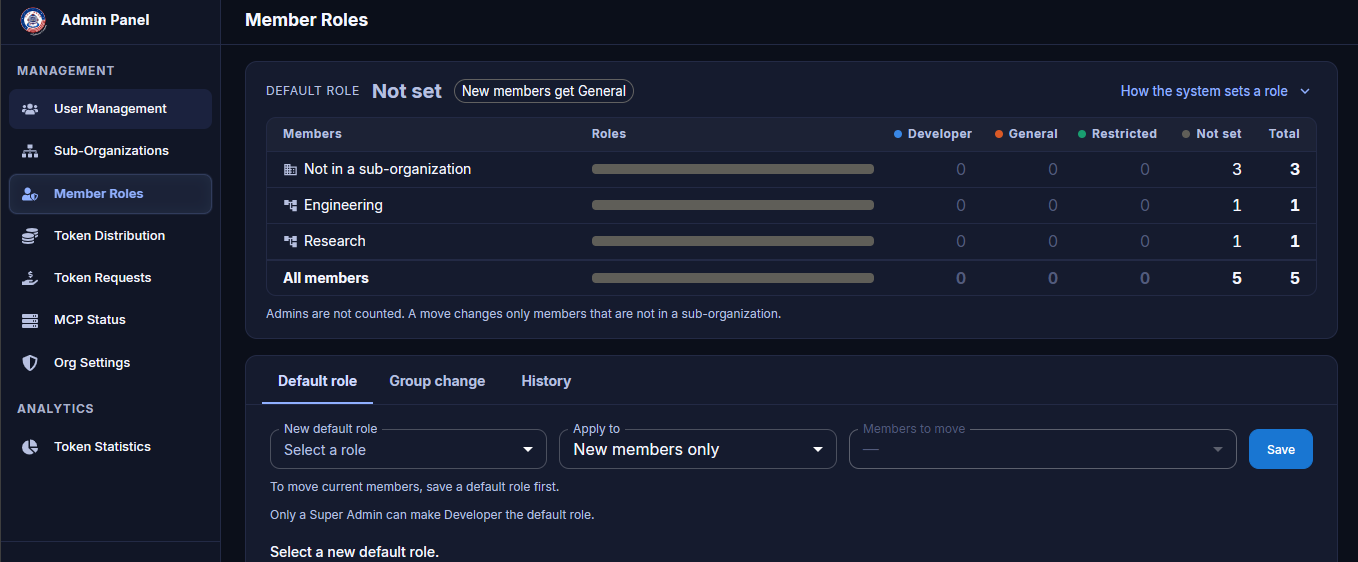
Member Roles — role summary and Default role tab
Set the Default Role
- On the Default role tab, pick a New default role.
- Under Apply to, choose who gets it, for example New members only.
- Click Save.
To move current members to the new default, save a default role first, then choose them under Members to move. A move changes only members who are not in a sub-organization.
Change Roles for a Group
A group change also applies to sub-organization members and to members whose role is not set.
- On the Group change tab, narrow the list with Search (name or email), Current role, or Sub-organization.
- Check the members to change, or use the Select menu to pick members in bulk.
- Select their new role.
Members are grouped by sub-organization. Admin and Super Admin accounts appear greyed out and can't be selected. Only a Super Admin can change an administrator's role.
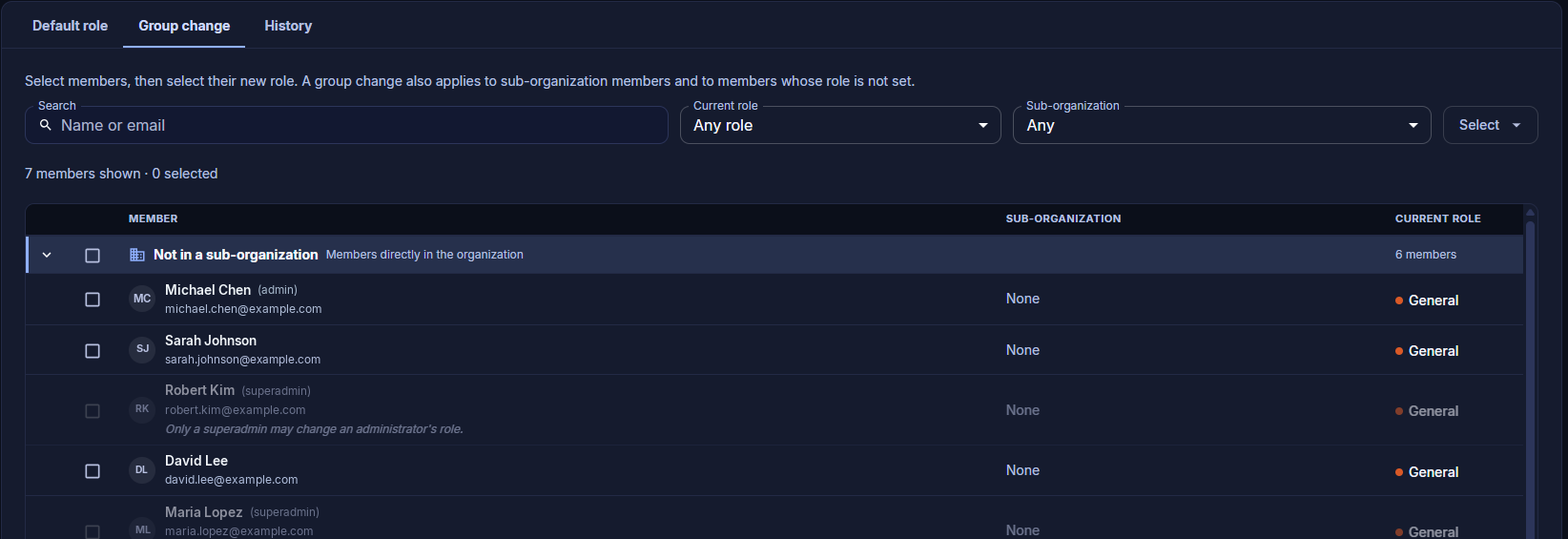
Member Roles — Group change
Review and Undo Changes
The History tab lists default-role moves and group changes from the last 30 days, with who made each change and when. Changes to single members are not shown.
- Filter by Member (name or email) or Type.
- Expand a change to see each member's sub-organization, Previous role, and New role.
- Click Undo to put those members back in their previous roles.
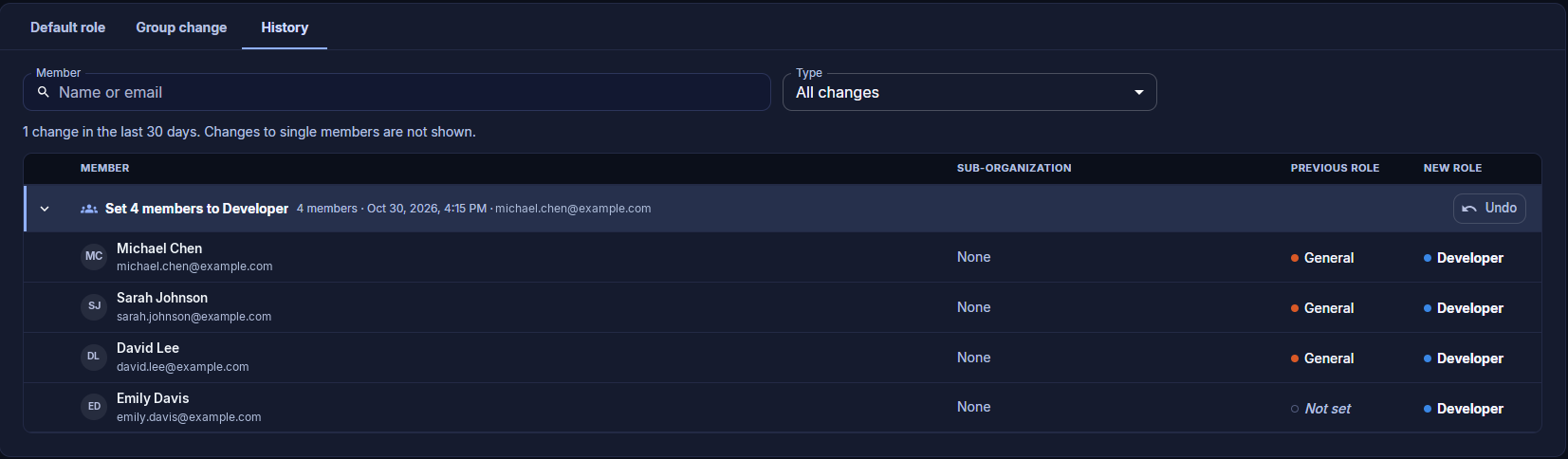
Member Roles — History
Related Pages
- Members and Roles — what each role allows and who can change it
- User Management — change a single user's role
- Organization Settings — IP allowlist, policies, and model access