Members and Roles
Account types, capability roles, and the Sub-Org Admin
Table of Contents
Each user has two separate settings: an account type and a capability role. The account type controls the administrator rights of the user. The capability role controls which product features the user can use. A change to one setting does not change the other.
Account types
| Account type | Administrator rights |
|---|---|
| User | None. A standard user. |
| Sub-Org Admin | Administrator rights in one sub-organization only. |
| Admin | Administrator rights in the full organization. |
| Superadmin | Administrator rights in all organizations. |
| User Manager | Limited administrator rights to manage the users of the organization. A User Manager can use the admin console only when the deployment enables User Manager access. |
| Bot | None. An account for an automated, non-person process. |
The Type column in User Management and in the Manage Members dialog shows the account type.
Capability roles
| Capability | Developer | General | Restricted |
|---|---|---|---|
| Chat | Yes | Yes | Yes |
| Workbook | Yes | Yes | Yes |
| Model Compare | Yes | Yes | Yes |
| Agent Builder | Yes | Yes | No |
| API keys | Yes | No | No |
| MCP servers | All | All | Activated servers only |
A fourth role, NPE (non-person entity), is only for Bot accounts. No administrator can give the NPE role to a person. The console does not let an administrator change the role of a Bot account.
The Role column in User Management and in the Manage Members dialog shows the capability role.
Note: the API keys row applies only when the deployment enables role capability enforcement. The default configuration does not enable it. Ask your system operator for the setting of your deployment.
Who can change what
| Action | Superadmin | Admin | Sub-Org Admin |
|---|---|---|---|
| Give the Developer, General, or Restricted role | Yes | Yes, in the organization | Yes, to standard users in the sub-organization |
| Change the role of an Admin or a Superadmin | Yes | No | No |
| Give or remove Sub-Org Admin | Yes | Yes | No |
| Create, edit, or delete a sub-organization | Yes | Yes | No |
| Add members | Yes | Yes | No |
| Remove members | Yes | Yes | Yes, standard users in the sub-organization |
| Record or edit a dedicated purchase | Yes | Yes | No |
| Approve or deny a token request | Yes | Yes | No. A Sub-Org Admin can see the requests of the sub-organization only. |
No administrator can change their own role or their own account type.
Change a role from the Manage Members dialog
Use this procedure to change the role of a member while you work in a sub-organization.
Warning: before you change a role from Developer to General or Restricted, make sure that the user does not need their API keys. If the deployment enables role capability enforcement, the system revokes all the active API keys of that user. A revoked key cannot be restored.
- In the Sub-Organizations console, click the Manage members button of the sub-organization.
- In the row of the member, open the list in the Role column.
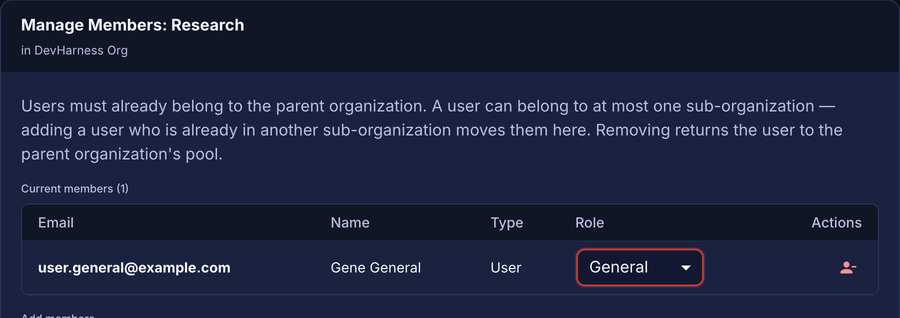
The Role list of a member in the Manage Members dialog
- Select the new role.
The system saves the change immediately. There is no Save button. The dialog shows the message “Updated email to role.”
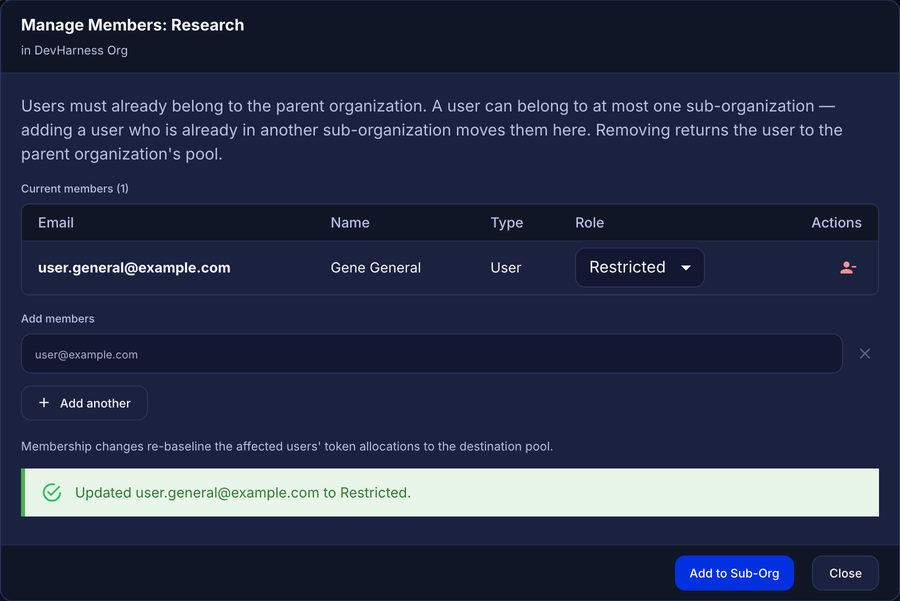
The result message after a role change
- Click Close.
An administrator who is not a Superadmin can change roles in this dialog only for standard users. For a member with a different account type, the Role column shows the role as text.
Change a role from User Management
Use this procedure to change the role of one user, and to record a reason for the change. The system writes the reason to the audit record of the change.
- In the sidebar, click User Management.
- In the Search field, type the email address of the user.
- In the row of the user, click the actions button (three dots).
- Click Change Role.
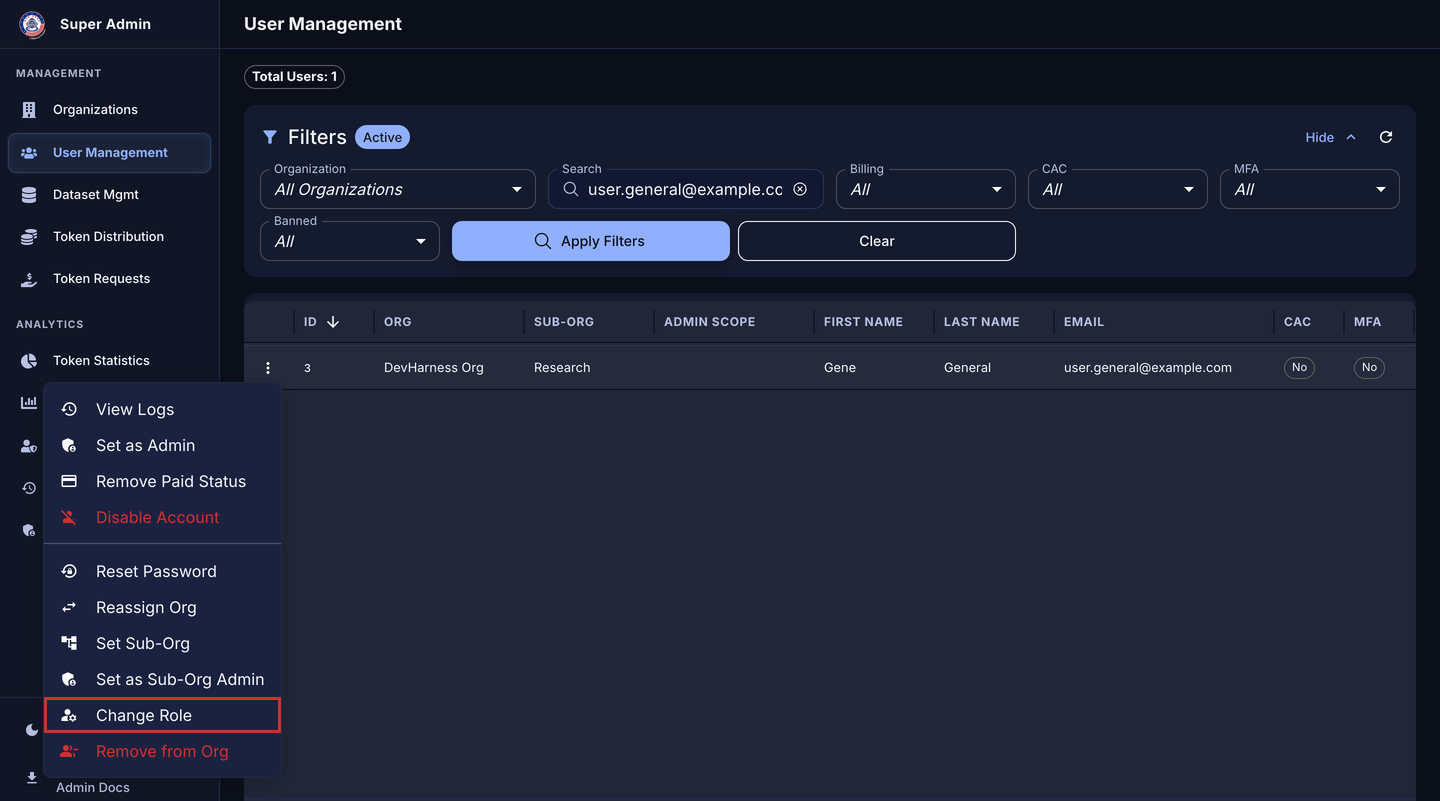
The Change Role item in the actions menu
The Change Capability Role dialog opens. The dialog shows the current role of the user.
- In the Capability role list, select the new role.
- Optional: in the Reason (optional) field, type the reason for the change.
- Click Save Role.
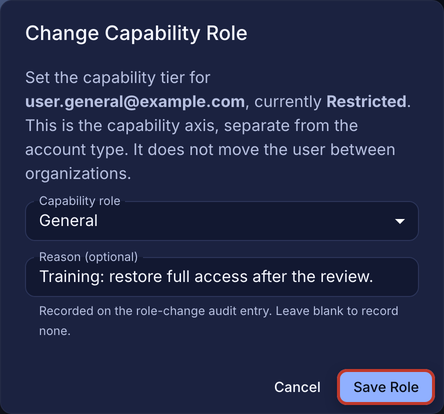
The Change Capability Role dialog
The system shows the message “email is now role.” The Role column shows the new role.
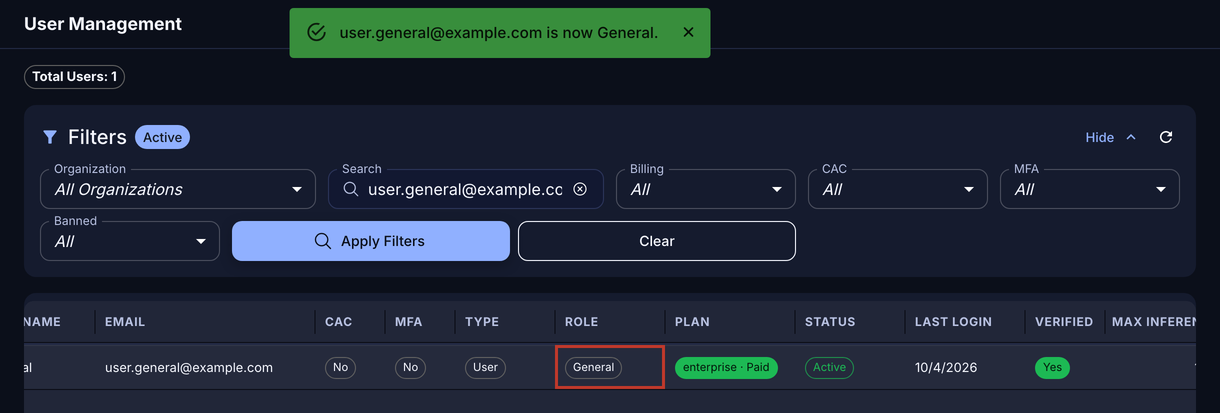
The confirmation message and the updated Role column
The Save Role button stays disabled until you select a role that is different from the current role.
Give the Sub-Org Admin account type
A Sub-Org Admin manages the members of one sub-organization. The system applies these rules:
- Only a Superadmin or an Admin can give the Sub-Org Admin account type.
- The user must have the User account type.
- The user must already be a member of a sub-organization. The administrator rights apply to that sub-organization only.
To give the Sub-Org Admin account type:
- Add the user to the sub-organization. See Add members from the console.
- In User Management, in the row of the user, click the actions button (three dots).
- Click Set as Sub-Org Admin.
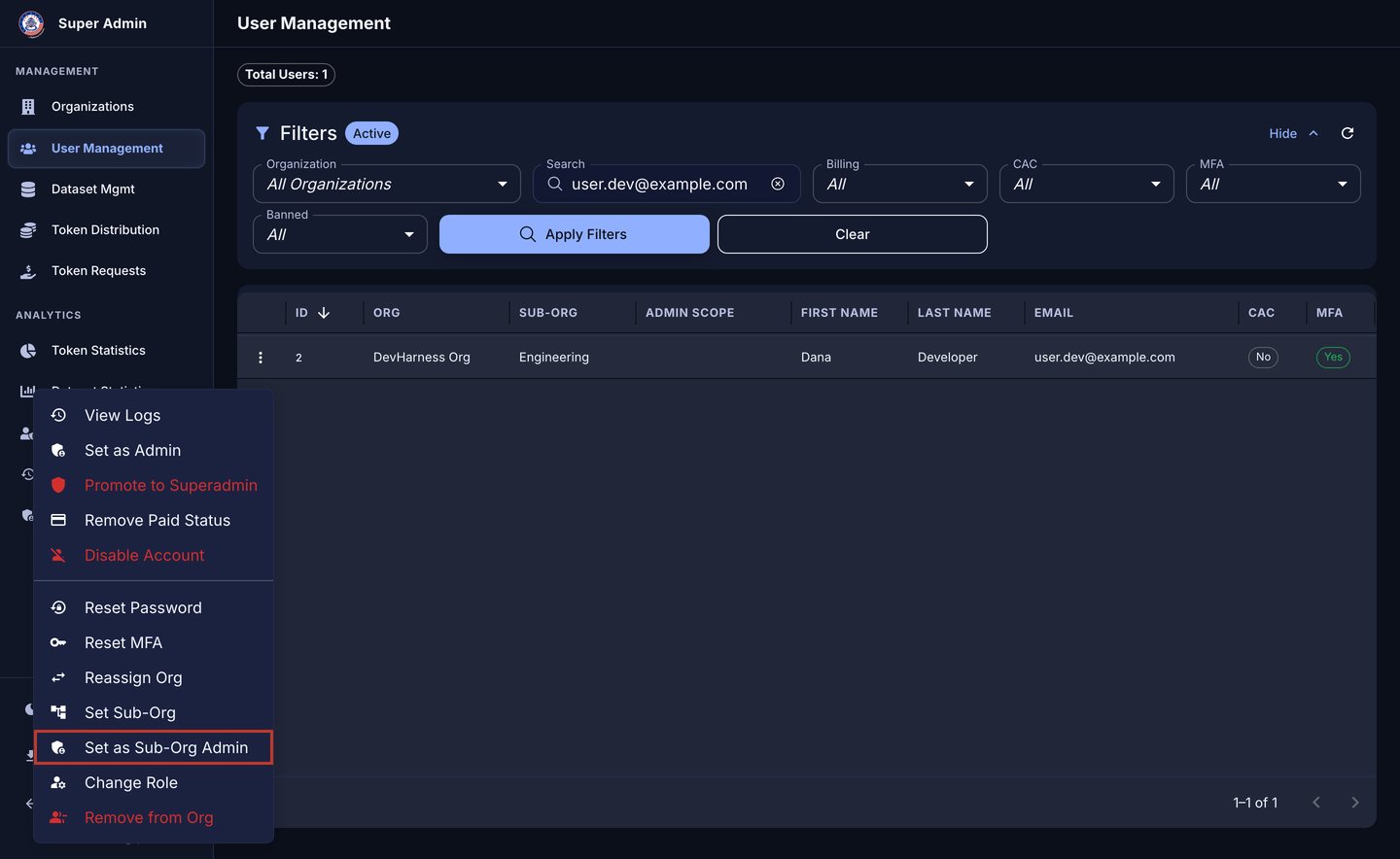
The Set as Sub-Org Admin item in the actions menu
If the user is not in a sub-organization, the menu item is disabled and shows the text “Assign a sub-org first”.
- In the confirmation dialog, make sure that the name of the sub-organization is correct.
- Click Confirm.
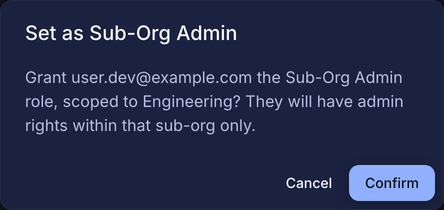
The confirmation dialog names the sub-organization
The system shows the message “Sub-org admin role granted.” The Admin Scope column shows the name of the sub-organization.
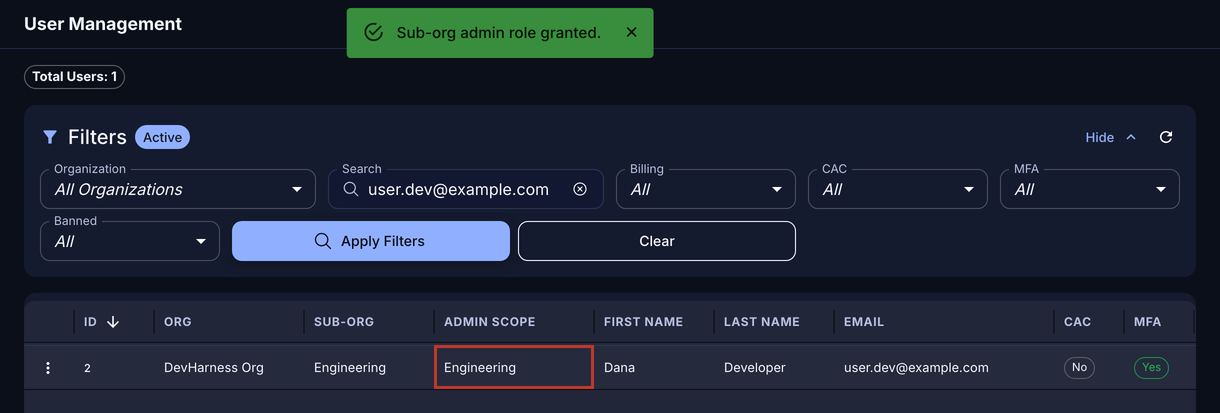
The Admin Scope column of a Sub-Org Admin
The Type column shows an orange Sub-Org Admin label.
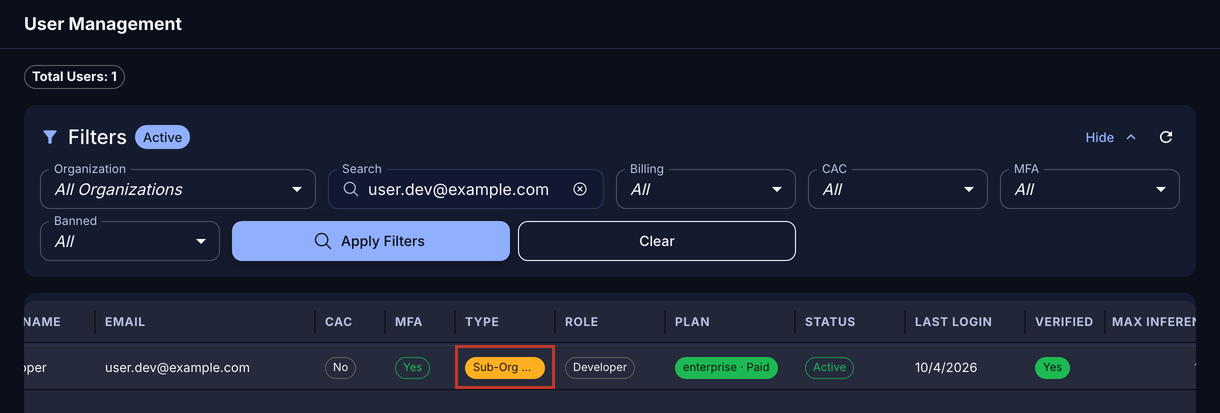
The Type column of a Sub-Org Admin
The Manage Members dialog of the sub-organization also shows the new account type.
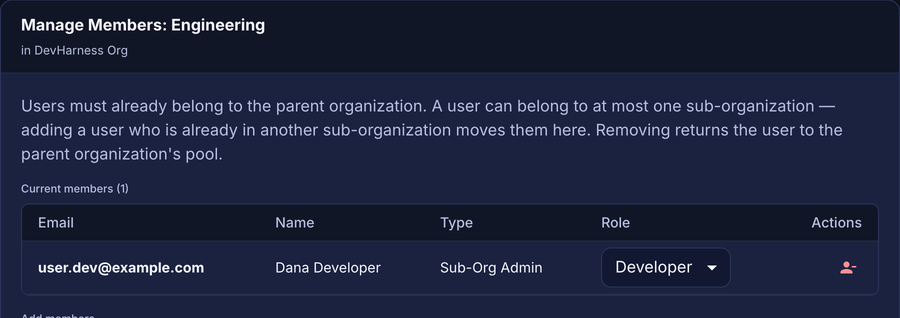
A Sub-Org Admin in the Manage Members dialog
The account type does not change the capability role. A Sub-Org Admin keeps the role that they had before.
What a Sub-Org Admin can do
A Sub-Org Admin uses the admin console. The sidebar shows these items only: User Management, Sub-Organizations, Token Requests, and Token Statistics.
A Sub-Org Admin can do these tasks in their own sub-organization:
- Remove standard users from the sub-organization.
- Change the capability role of standard users.
- See token requests and token statistics for the sub-organization.
A Sub-Org Admin cannot create, edit, or delete a sub-organization, and cannot record a purchase. A Sub-Org Admin cannot give the Sub-Org Admin account type to another user. A Sub-Org Admin also cannot add members. See The Sub-Org Admin view.
Remove the Sub-Org Admin account type
- In User Management, in the row of the user, click the actions button (three dots).
- Click Remove Sub-Org Admin.
- In the confirmation dialog, click Confirm.
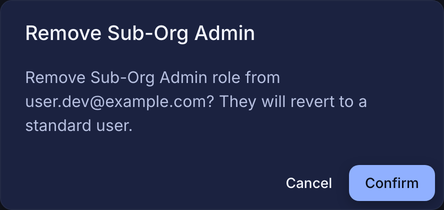
The confirmation dialog for the removal of Sub-Org Admin
The system shows the message “Sub-org admin role removed.” The user gets the User account type again. The user stays a member of the sub-organization, and the capability role does not change.