Token Distribution
Automate and manage token allocation across your organization using presets, policies, and per-user overrides
Table of Contents
The Token Distribution panel gives administrators full control over how tokens are allocated to users within their organization — both automatically and manually. A summary bar across the top shows Purchased, Assigned, and Remaining tokens for both the Inference and Training / Embedding pools. Use the Inference / Training toggle in the top-right corner to switch between managing inference and training token pools; super admins also see an Organization selector for choosing which organization to manage. Administrators can choose from pre-configured allocation presets, define floor and ceiling limits, configure auto-increase rules, and set per-user overrides to handle edge cases. The panel is organized into three tabs: Policy & Distribution, Users, and History.
Shared Token Pool
At the top of the panel, the Shared Token Pool toggle switches the organization between per-user monthly limits and a single, org-wide pool. When turned ON:
Everyone in your organization draws from the shared pool. Individual monthly limits don't apply — anyone can keep using tokens until the pool runs out, and once it does, everyone is paused together until it's topped up or refilled at the start of next month.
A tip below the toggle reminds administrators: "turn this off to go back to per-user limits — useful if some users need more guardrails than others."
While Shared Token Pool is on, an info banner appears at the top of the Policy & Distribution, Users, and History tabs:
Shared Token Pool is on. Per-user policies, allocations, and overrides are disabled because every member draws directly from the org's shared pool. Turn the pool off above to manage individual user limits again.
With the pool on, allocation presets, floor/ceiling, auto-increase, and per-user overrides are all shown for reference but cannot be edited — the Users tab shows "Activate an allocation preset to enable per-user overrides." and the History tab shows no distribution history until the pool is turned off and a policy is activated.
Per-User Cap Inside the Pool
While the pool is on, the Per-user cap inside the pool section lets you set one number that applies to every member so that no single user can drain the shared pool. Enter a Default per-user inference cap and/or Default per-user training cap and click Save caps. Leave a field blank or enter 0 for no cap. While a cap is set here it governs every member — individual limits on the Users page are ignored.
Below the caps, a pool usage bar shows Purchased, Assigned per-user ceilings, and Used totals. Distribution applies to the organization's shared pool only. Do not use it for the members of a sub-organization with a dedicated pool, because their tokens come from that pool (see Dedicated pools).
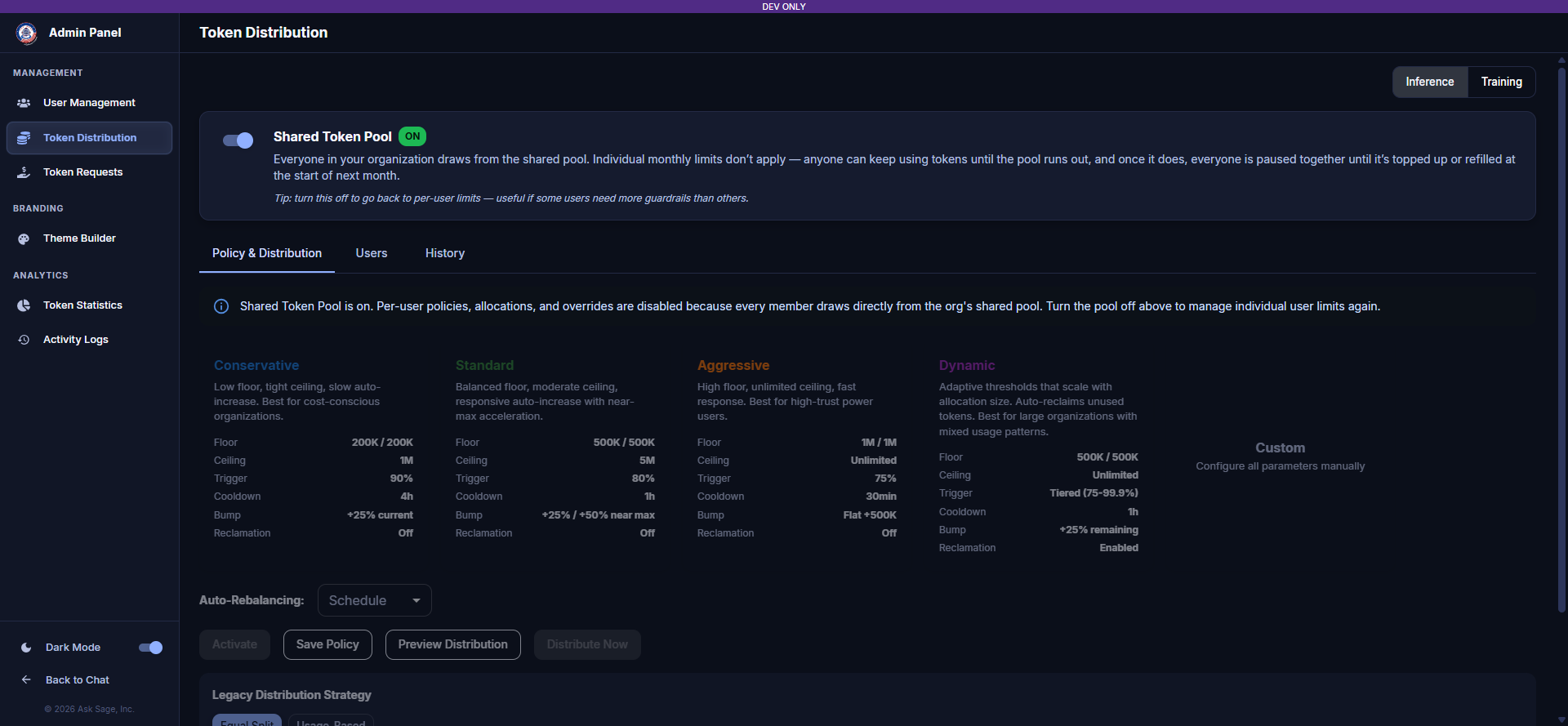
Token Distribution — Shared Token Pool On, with per-user cap settings
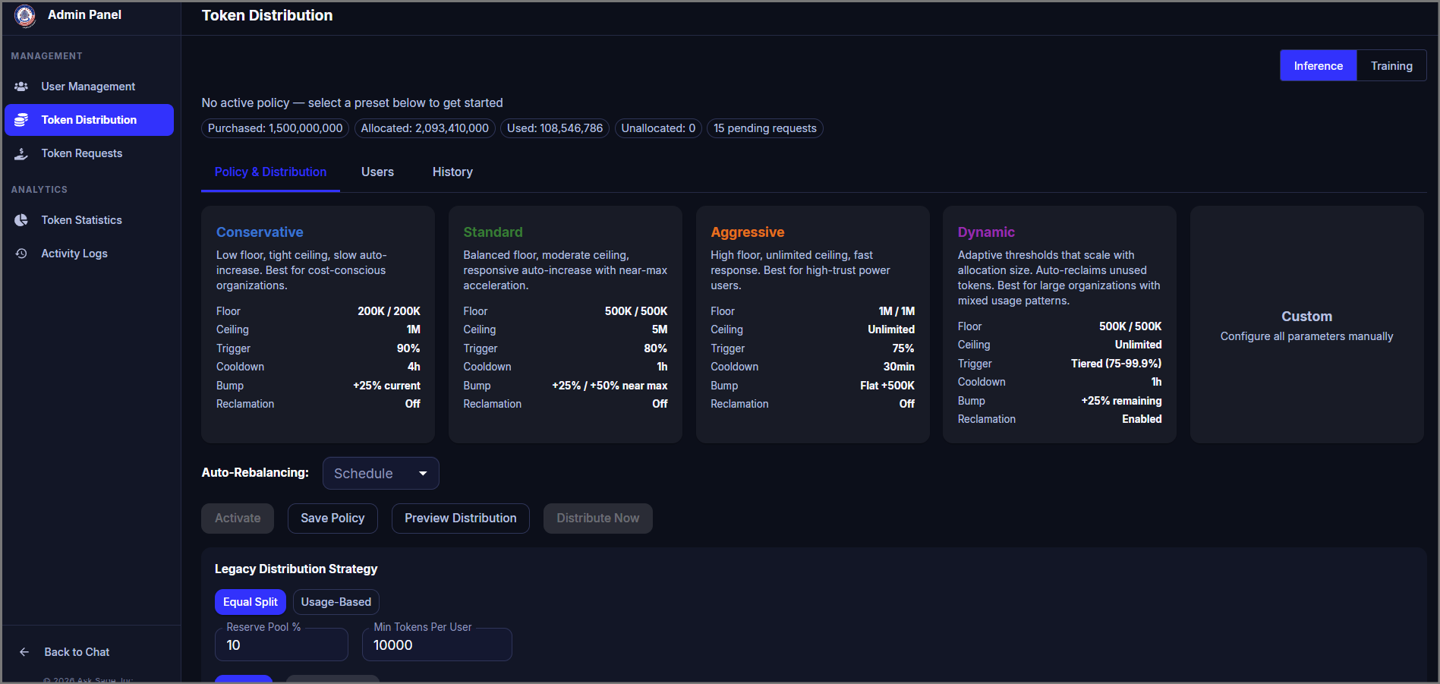
Token Distribution — Shared Token Pool Off, showing Allocation Status and Presets
Allocation Status
At the top of the panel, the Allocation Status section provides a real-time snapshot of your organization’s monthly token pool:
- Purchased — total tokens purchased for your organization
- Allocated — tokens currently assigned to users
- Used — monthly tokens consumed by users
- Unallocated — tokens in your pool not yet assigned to any user
- Pending Requests — the number of user-submitted token requests currently awaiting administrator review
When a preset is active, its name appears as a badge next to the allocation status (e.g., Aggressive Preset). If no preset has been activated yet, the panel shows "No active policy — select a preset below to get started."
Allocation Presets
Administrators can select from five allocation presets to define how tokens are distributed and managed across the organization. Each preset balances floor levels, ceilings, auto-increase aggressiveness, and reclamation behavior.
| Preset | Best For | Floor | Ceiling | Trigger | Cooldown | Bump | Reclamation |
|---|---|---|---|---|---|---|---|
| Conservative | Cost-conscious organizations | 200K / 200K | 1M | 90% | 4h | +25% current | Off |
| Standard | Balanced teams | 500K / 500K | 5M | 80% | 1h | +25% / +50% near max | Off |
| Aggressive | High-trust power users | 1M / 1M | Unlimited | 75% | 30min | Flat +500K | Off |
| Dynamic | Large orgs with mixed usage | 500K / 500K | Unlimited | Tiered (75–99.9%) | 1h | +25% remaining | Enabled |
| Custom | Specific manual requirements | Configure all parameters manually | |||||
Floor & Ceiling
The Floor & Ceiling section defines the minimum and maximum token allocation boundaries for users.
- Floor — the starting token allocation given to each user when added. This is the minimum a user can hold at any time.
- Ceiling — the maximum tokens a user can accumulate.
Auto-Increase
When enabled, auto-increase automatically bumps a user's token allocation when they approach their limit — preventing workflow interruptions without requiring manual intervention.
Core Settings
- Enable Auto-Increase — toggle to activate automatic token bumping
- Trigger Mode — choose how tokens are automatically increased. Select Tiered (Dynamic) for a hands-off approach that adjusts automatically, or Flat Threshold to set a specific usage percentage that triggers the increase.
- Trigger % (10–99%) — the percentage of token usage at which an auto-increase fires. For example, 80% means a bump is triggered when the user has consumed 80% of their allocation.
- Cooldown (min) — minimum time that must elapse between consecutive auto-increases for the same user
- Bump Method — choose how additional tokens are calculated. Select Flat Fixed Amount to add a set number of tokens each time, or use % of Current / % of Remaining to scale the increase based on the user's current or remaining token balance.
- Bump Amount/Bump % — the number of tokens added per bump
- Buffer Days — days before the end of the period at which a pre-emptive bump is applied to ensure users don't run out
Near-Max Settings
- Near-Max Threshold — a value between 0.0 and 1.0 (e.g., 0.8 = 80%) that defines when a user is considered "near ceiling"
- Near-Max Bump — a larger bump amount applied specifically when the user's allocation is near the ceiling, to avoid frequent small increments
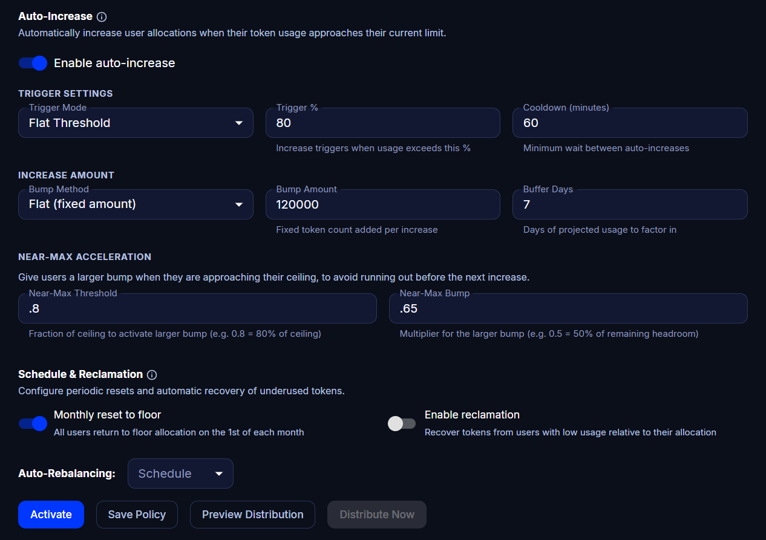
Conservative preset selected — Floor & Ceiling and Auto-Increase settings
Schedule & Reclamation
- Monthly Reset to Floor (1st of month) — when enabled, all user allocations are reset back to the configured floor value at 00:00 UTC on the 1st of each month (not local midnight), ensuring consistent token budgets across monthly periods
- Enable Reclamation — when enabled, the system identifies users with excess allocation above their projected need and reclaims those tokens back into the pool for redistribution
Distribution Actions
Four action buttons control how the distribution policy is applied:
- Activate [Preset] — applies the currently selected preset and saves it as the active policy
- Save Policy - saves any changes to floor, ceiling, or auto-increase settings without immediately activating. Use this to stage configuration changes before going live.
- Preview Distribution — shows a projected view of how tokens would be distributed under the current settings before committing any changes
- Distribute Now — immediately distributes tokens to all users according to the current policy without waiting for the scheduled cycle
- Disable Preset — appears once a preset is active; turns the active policy off
Clicking Activate [Preset] opens an Activate Allocation Policy confirmation that summarizes the floor, ceiling, auto-increase, and reclamation settings about to take effect. Activating replaces the current active policy and applies floor allocations to all non-locked users.
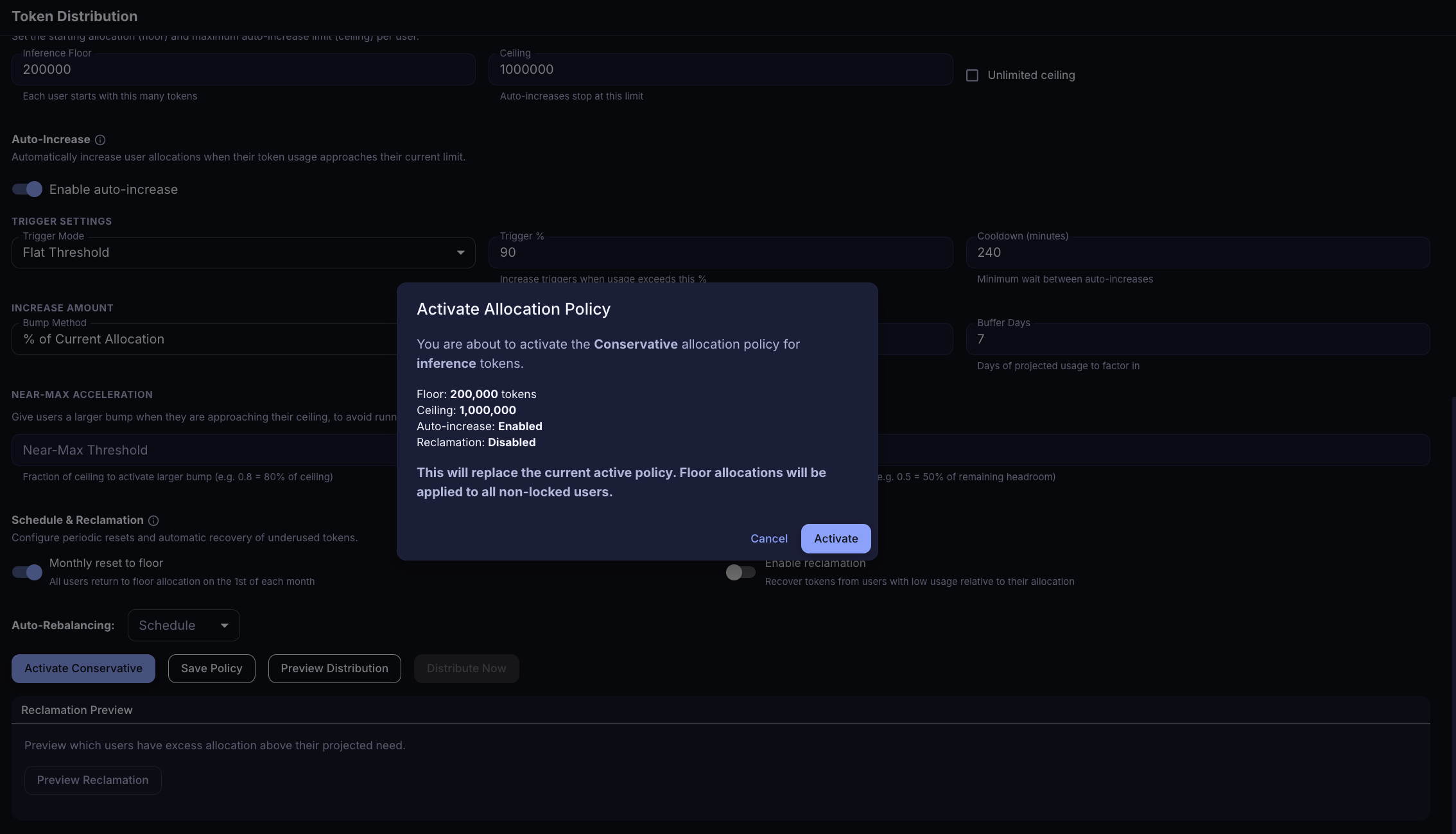
Activate Allocation Policy confirmation
Reclamation Preview
The Reclamation Preview section allows administrators to preview which users have excess token allocation above their projected need before reclamation runs. Click Preview Reclamation to generate the report and review it prior to enabling reclamation.
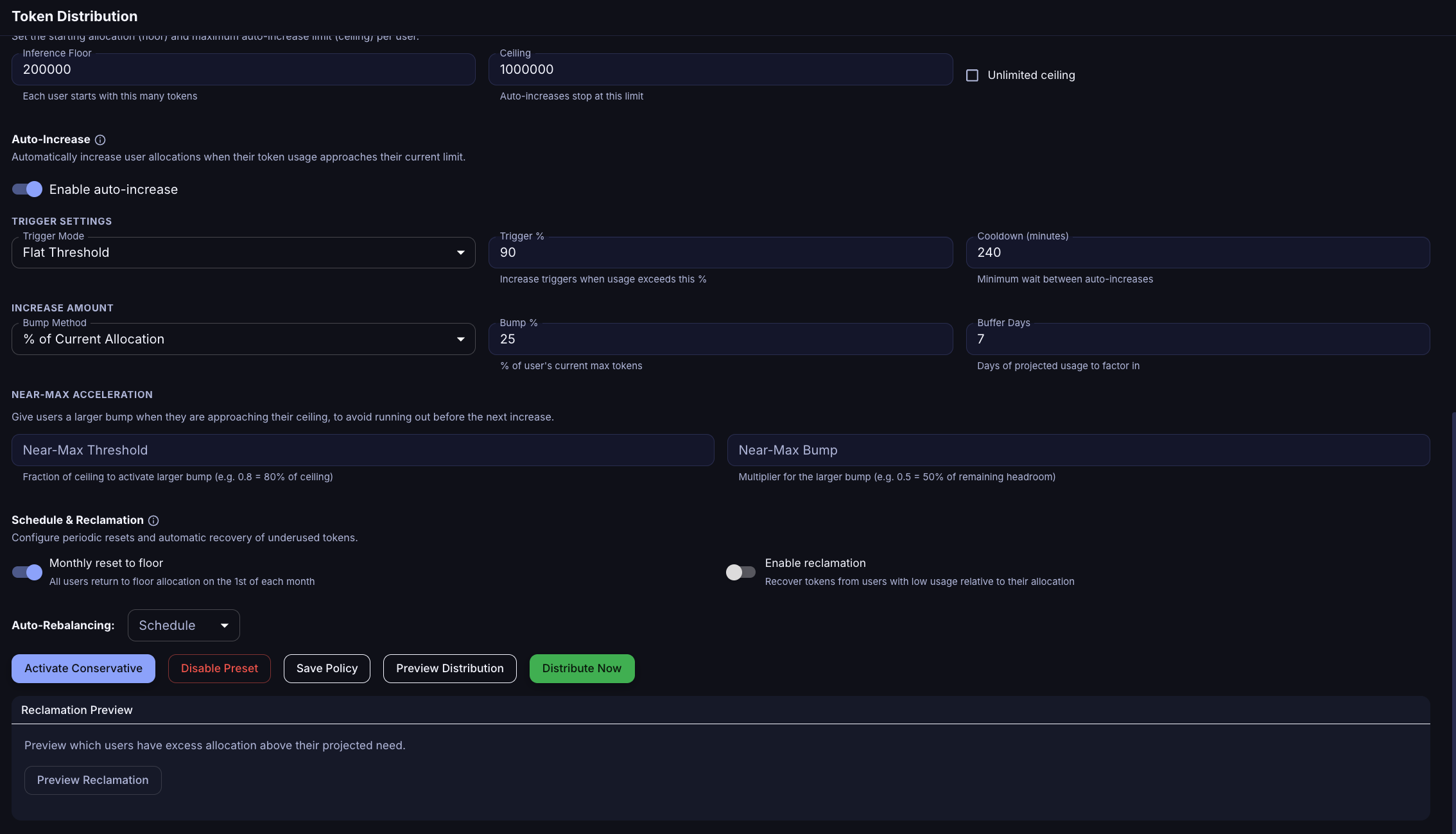
Schedule & Reclamation, Distribution Actions, and Reclamation Preview with the Conservative preset active
Per-User Overrides
The Per-User Overrides table allows administrators to set individual floor and ceiling values for specific users, overriding the organization-wide policy. This is useful for power users or restricted accounts that require different allocation limits.
Table Columns
- Email — the user's email address
- Current — the user's current token allocation
- Floor Override — a custom floor value for this user (leave as Default to use the global floor)
- Ceiling Override — a custom ceiling value for this user (leave as Default to use the global ceiling)
- Override — when user set to Override, this user's allocation is excluded from auto-increase and reclamation
- Status — indicates whether the override is active
- Actions — remove the override
Auto-Rebalancing Schedule
The Auto-Rebalancing Schedule controls how often the system automatically rebalances token allocations across your organization. Select the desired schedule frequency from the dropdown and click Save Policy to apply.
Legacy Distribution Strategy
In addition to the preset-based distribution system, the panel includes a Legacy Distribution Strategy section with two simple distribution modes:
- Equal Split — divides the available token pool evenly across all users. Configure the following parameters:
- Reserve Pool % — the percentage of total tokens to hold back as a reserve (not distributed to users)
- Min Tokens Per User — the minimum number of tokens each user must receive regardless of the split calculation
- Usage-Based — distributes tokens proportionally based on each user's historical usage patterns
Inference vs. Embedding Tokens
The Token Distribution panel applies to both inference and training (embedding) token pools. Use the Inference / Training toggle in the top-right corner of the panel to switch between managing inference token distribution and embedding token distribution policies independently.