Reset Your Password
Forgot your password? That's okay. It happens to everyone. This guide shows you how to make a new one in a few short steps.
Table of Contents
What you need
It takes about 5 minutes. There are 5 steps. Some people will see one more step at the end.
- The email address you use for Ask Sage.
- A way to open that email inbox. The reset link is sent there.
In each picture, the thing you need to click has a red box around it.
Step 1: Click “Forgot password?”
- Go to the Ask Sage sign-in page. Use the same web address you always use.
- Look under the Password box.
- Click the words Forgot password? (red box 1).
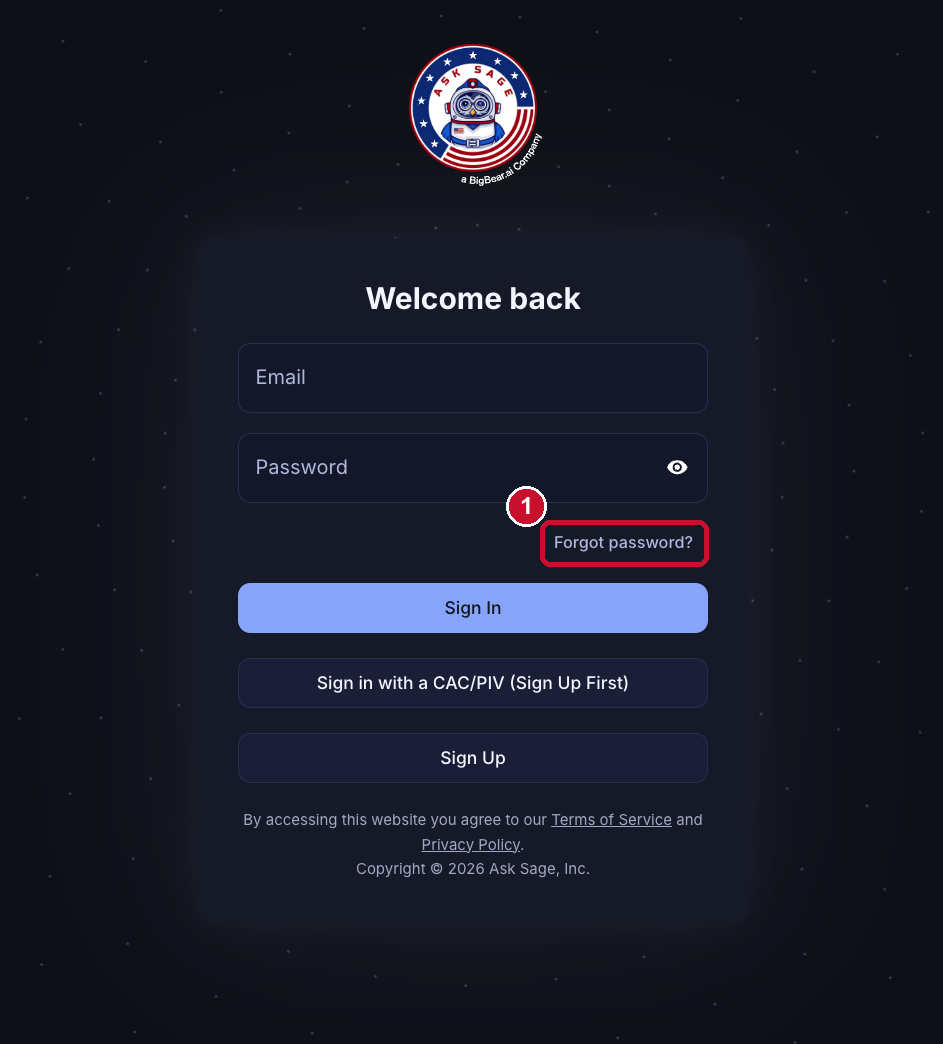
The sign-in page. Click Forgot password? under the Password box.
Step 2: Ask for a reset email
- Click in the Email box (red box 1).
- Type the email address you use for Ask Sage. Check your spelling.
- Click the blue Request password reset button (red box 2).
Ask Sage will now send you an email.
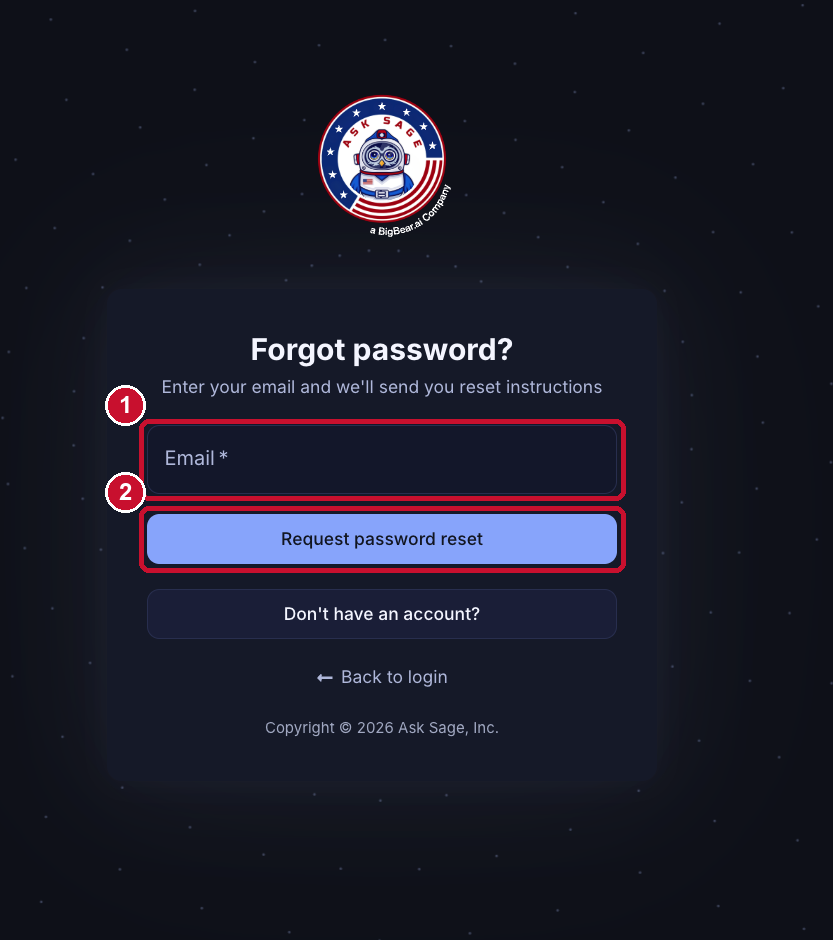
The Forgot password page. Type your email, then click Request password reset.
Step 3: Open the email and click “Reset password”
- Open your email inbox.
- Look for an email from Ask Sage called “Reset your password.”
- Click the red Reset password button (red box 1).
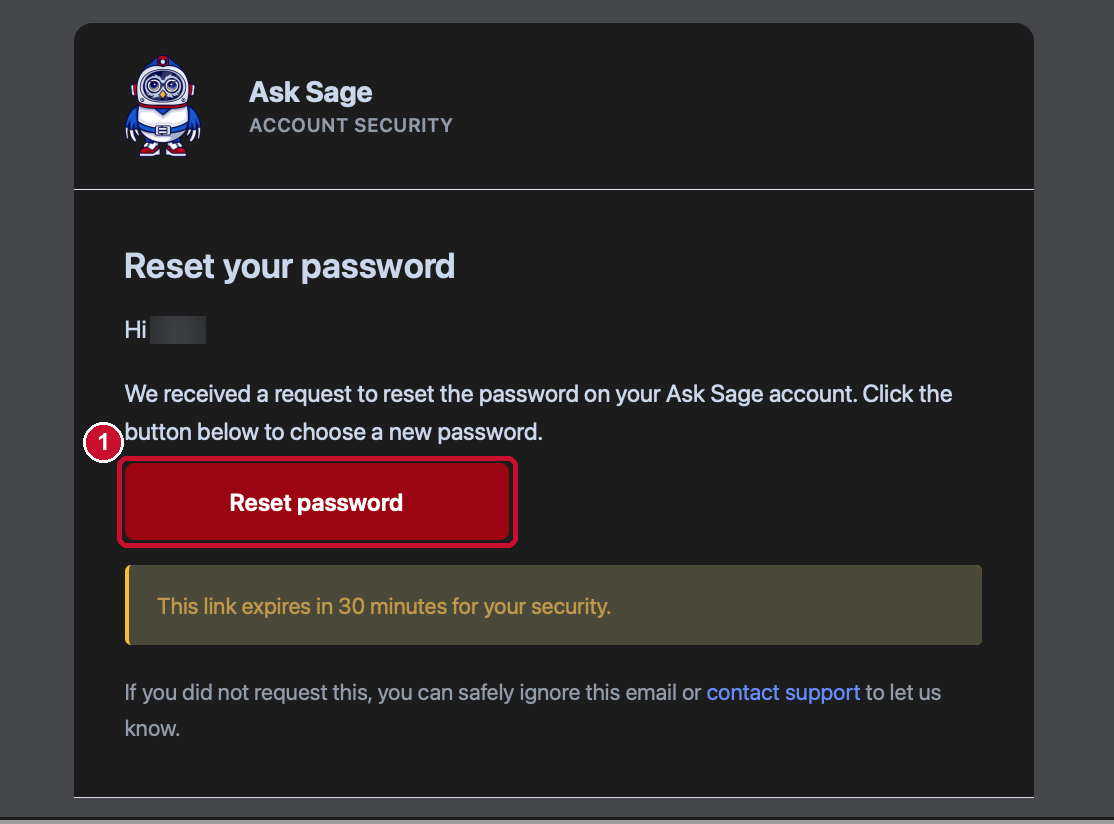
The reset email. Click the red Reset password button.
Step 4: Type your new password and click “Submit”
The link opens your Account page. Your name and other details are already filled in. You can leave those alone.
- Scroll down to the New password box (red box 1).
- Type your new password.
- Click the blue Submit button (red box 2).
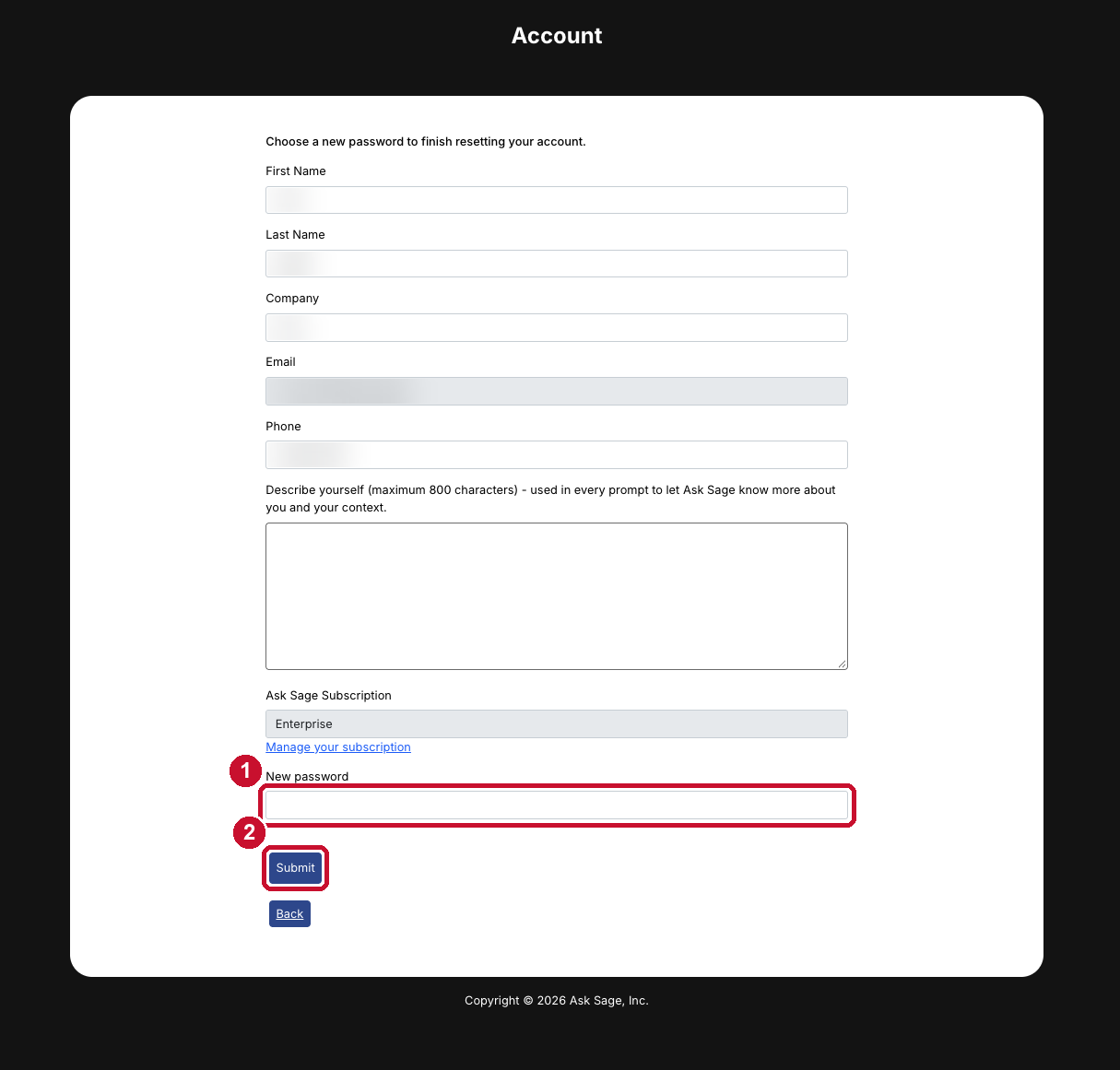
The Account page. Type your new password, then click Submit.
- Make it long. Longer is stronger.
- Mix in capital letters, small letters, numbers, and symbols.
- Do not reuse a password from another website.
- Do not reuse your old Ask Sage password. Pick a brand-new one.
- Do not use your name, your birthday, or the word "password."
Step 5: Sign in with your new password
Ask Sage will send you one more email. It is called “Your password was changed.” This email is just to let you know. You do not need to click anything in it.
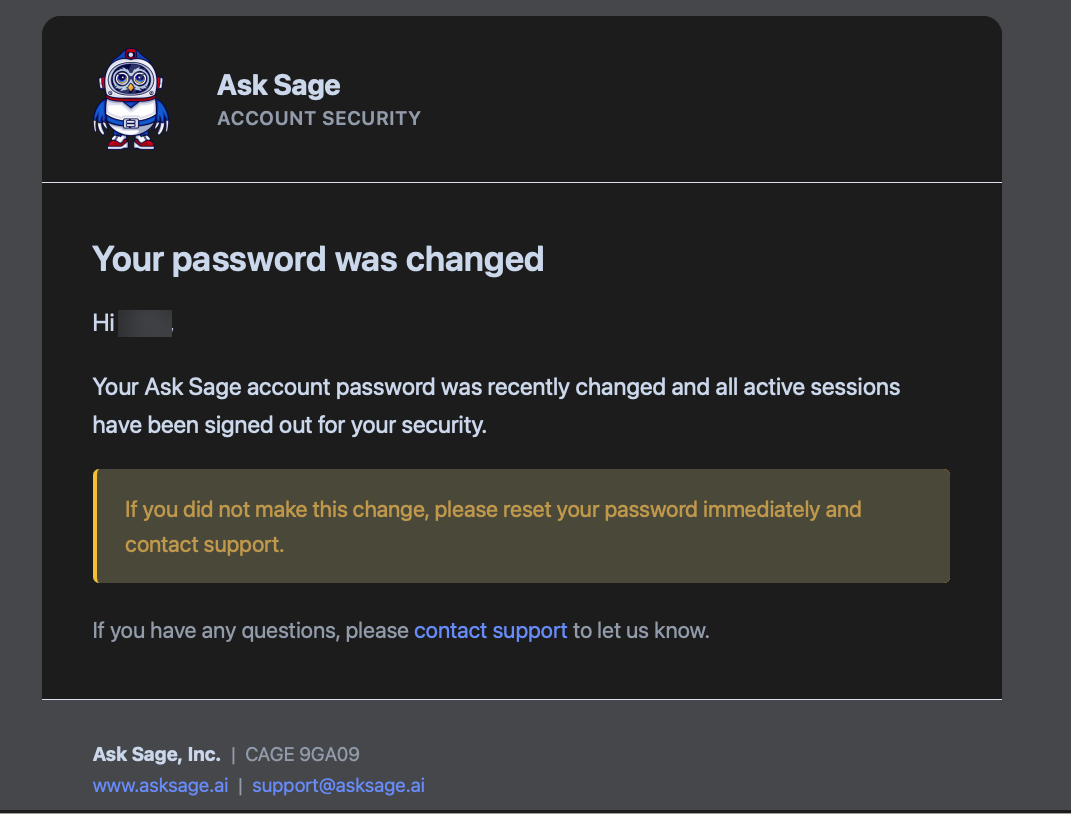
The confirmation email. Nothing to click here.
For your safety, Ask Sage signs you out on all of your devices. Go back to the sign-in page. Type your email and your new password. Click Sign In.
If Ask Sage opens your chat page, you’re done! If it asks you to set up two-factor authentication, go to Step 6.
Step 6: You may be asked to set up two-factor authentication
Some organizations require two-factor authentication (2FA). It is a second check, after your password, that proves it is really you. If Ask Sage asks you to set it up after you sign in, here is what to do.
Using an authenticator app (such as Microsoft Authenticator or Google Authenticator):
- Open the authenticator app on your phone.
- If Ask Sage is already in the app, delete that old entry first. The old one will not work anymore.
- In the app, tap Add (often a + sign) and choose Scan a QR code.
- Point your phone at the QR code on the Ask Sage screen.
- The app shows a 6-digit code. Type that code into Ask Sage to finish.
Using a security key (such as a YubiKey): If Ask Sage offers it, click Register, plug in or tap your key, and follow the prompts.
Need help?
| What is happening | What to do |
|---|---|
| The reset email never came. | Wait a few minutes. Check your Spam and Junk folders. Make sure you typed the email address you use for Ask Sage. Then try Step 2 again. |
| The link says it is invalid or expired. | The link only lasts 30 minutes. Go back to Step 1 and ask for a new one. |
| You see “Login Failed” and now you cannot sign in at all. | After a few wrong tries, your account is locked. It unlocks after a short wait, or your Ask Sage admin or Ask Sage Support can unlock it. Email support@asksage.ai if you are still locked out. |
| The Forgot password? link is not on your sign-in page. | Your organization may use single sign-on (SSO) or CAC/PIV cards. Ask your IT help desk for help signing in. |
| You are still stuck. | Email support@asksage.ai. Tell us the email address you use and the web address of your sign-in page. Never send us your password. |
Already signed in and just want a new password? You can change it any time from the Profile tab in Account Settings.